Listeo User Group on Facebook
Listeo Update 2.3.3 Report
 purethemes
10 min read
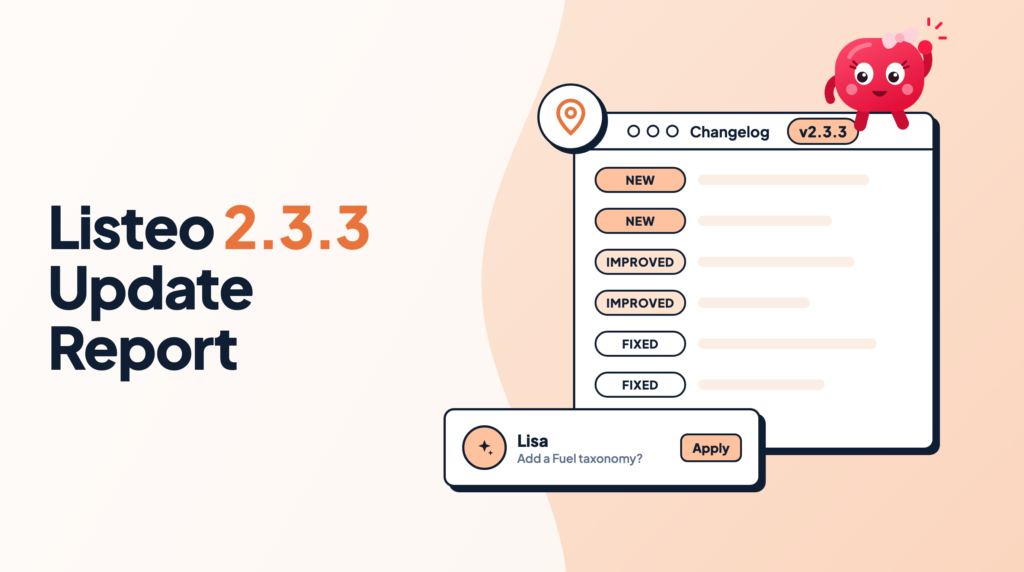
Listeo 2.3.3 brings Lisa, an AI assistant that help you handle Listeo Editor, support for the new Google Places API and a lighter wp-admin because CMB2 is not required plugin anymore.
Listeo Monetization Plus 1.6 adds free trials and a Terms of Service checkbox to Stripe checkout as well as support for Claim Listing payments. Field rules are also available for Booking Plus resources in Listeo Booking Plus 1.0.24. As always, there is a round of small fixes too.
- Lisa, the AI assistant: describe what you need, and Lisa proposes the listing types, fields, forms and taxonomies. Nothing changes until you click.
- Google Places API (New): for Google Cloud projects that can no longer enable the old Places API.
- Field rules for resources: Booking Plus resource fields follow the same visibility rules as listing fields.
- Lighter wp-admin: the listing editor and category pages no longer load the CMB2 library.
- Stripe trials and Terms of Service consent in Listeo Monetization Plus 1.6.
- Claim Listing payments now can use Listeo Monetization payments
Meet Lisa, your Listeo Editor assistant

Setting up a directory means not only lot of clicking but also figuring out the best structure for you data: listing types, fields, forms, taxonomies and search filters are require good amount of thinking because it’s very hard to adjust that when your directory grows. Lisa does that work with you. Tell her what your directory needs, for example “add a Fuel type taxonomy to the car listings and a filter for it”, and she shows each change as a card. You read the card and click to apply it, or skip it.
How to turn Lisa on
- Open the Assistant settingsGo to Listeo Editor > Overview > Assistant and turn on Show Lisa. There you also choose how she appears: Mascot or Chat button.
- Give your consentBefore the first chat, each administrator reads and accepts how Lisa uses your data.
- AskDescribe what you want in your own words, review the cards and apply the ones you like.
Google Places API (New)
Google Cloud projects created after March 2025 are no longer enable the old Places API, so address suggestions and Google reviews did not work with a new API key. Listeo Core now has a Google Places API version setting in Listeo Core > Map Settings. Choose Places API (New) if your key only has the new API, and address suggestions (Add Listing form, search forms, wp-admin listing editor), Google reviews and the “Test API key” button use it.
- Sites that keep Places API (Legacy), the default, do not change.
- With the new API, Google returns the 5 most relevant reviews instead of the 5 newest. The new API has no “newest first” order, so the reviews shown can change.
- Save the setting before you click “Test API key”, the test uses the saved version.
- The Geocoding API is still used when you drag the map pin, so keep it enabled for your key.
Listeo POI has the same option, Places API Version, in its settings. After you switch, click Clear All Cache in Cache Management, otherwise cached places show category icons instead of photos until the cache expires.
Field rules for Booking Plus resources
Listeo 2.3 introduced field rules for listing fields. With Listeo Booking Plus 1.0.24, resource fields (rooms, cars, equipment) use them too. Open Listeo Editor > Listing Fields, choose the Fields tab of your resource type and set the rules on a field:
- Where this field applies limits a resource field to the categories of the listing the resource belongs to. A “Sea view” field can show for apartment rentals only, for example. Outside those categories, the field is hidden in the resource form and on resource cards, and its saved value is kept.
- Show this field when shows a field only when another field of the same resource has a certain value. “Balcony size” can appear only after the owner ticks “Has balcony”. The field appears and disappears while the form is filled, a hidden field is never required, and its value is removed when the resource is saved.
Fields without rules work exactly as before. The resource edit screen in wp-admin shows all fields and does not apply the rules.
A lighter wp-admin
The wp-admin listing editor, the category and term pages and the ad and claim admin screens no longer use the CMB2 library that Listeo bundled for years. Listeo Core now has its own, lighter field library. The screens look the same and save the same data, but they load less code.
Listeo Monetization Plus 1.6
Free trials for Stripe subscriptions
Recurring packages have a new Free trial (days) field (0 to 730) in Listeo Core > Listeo Subscriptions > Listing Packages > Edit package. Stripe Checkout collects the card, charges nothing today and bills when the trial ends. Each user gets the trial once per package. Pricing tables show an “N-day free trial” badge, and trial end dates show in the dashboard, My Subscriptions and the admin list.
Terms of Service checkbox
Turn on Require Terms of Service acceptance in Listeo Subscriptions > Settings (Stripe section), and buyers must accept your terms before they pay. You can write your own checkbox text with links. Stripe needs a Terms of Service URL in your Stripe Dashboard (Settings > Business > Public details).
Paid claims through Stripe
When the claim package is sold through Monetization Plus, a paid listing claim now goes through Stripe Checkout and creates a subscription, like any other package. A 100% promotion code also completes the claim. If the claimer cancels the checkout, the claim stays approved and the same pay link works again.
Also in 2.3.3
- Faster Listing Fields screen. It opens and saves faster on sites with many fields, and large forms are no longer cut off on save by the server’s
max_input_varslimit. - Icon picker. Choose a field icon from a searchable list instead of typing its name.
- Header Builder. The second header row accepts any element: logo, menu, account, cart, button, search, HTML or shortcode.
- Listeo Editor > Appearance. Listings and Single listing options are grouped into collapsible sections, with short descriptions for some options.
- Elementor term pickers. Image Box, Taxonomy Tabs and Content Carousel search all your regions as you type, not only the first 100.
- Change Package. A listing keeps its current package until the new package is paid, so an abandoned checkout no longer leaves it without a package.
- Listeo PWA. The bottom navigation of the installed app shows immediately on every page after the first one in each app session, instead of waiting for a server check each time.
- PureCustomizer retired. All theme options live in Listeo Editor > Appearance. While PureCustomizer or Kirki is still active, a notice tells you that you can deactivate it. Your settings are kept.
Fixes
- OpenStreetMap address search froze the page when a pasted address had two spaces in a row or a space at the end.
- Split layouts: the category slider highlighted “All” on search results instead of the searched category.
- Statistics: listing titles showed HTML codes such as
«, and the picker texts could not be translated. - Dark mode: headings were white on some pages outside dark mode, and in the wp-admin listing editor.
- The login popup on cached pages no longer ends with “Session token has expired”.
- The default submit form no longer shows “Booking prices and settings” for listing types without booking.
- The footer could be sticky with Sticky Footer turned off on pages, posts and listings without their own footer style.
- Booking Plus: with the full-page login style, the booking popup and its date pickers could open behind other popups.
Released in 2.3.2: Commissions and Payouts
We did not write a post for 2.3.2, so here is its main change. The Commissions screens (Balances and Payouts History) were rebuilt in the style of the Bookings screen:
- A balances list with search, sorting and totals, and a Pay vendor screen that shows the vendor’s payment details, method, reference and an internal note.
- Payouts History with filters and CSV export, and a details page where you can void a manual payout.
- A new Payout notification email (Listeo Core > Emails), so the vendor knows when you paid them.
- Commission amounts are calculated in one place, so the recorded commission, the Stripe transfer and the PayPal payout use the same amount.
- Refunds reduce commissions in proportion to the refunded amount instead of deleting them.
How to update
- Download the latest packageGet the newest Listeo files from purethemes.net/license. Make a backup of your site first.
- Update the theme and all plugins togetherUpdate the Listeo theme, Listeo Core, Listeo Forms & Fields Editor and Listeo Elementor at the same time, plus Listeo Booking Plus (1.0.24), Listeo POI, Listeo PWA and Listeo Monetization Plus if you use them. Because of the move away from CMB2, the theme, Listeo Core and Booking Plus must be on the new versions together. Follow How to update the theme and plugins.
- Clear cachesClear your page cache, object cache and CDN. If you switched Listeo POI to the new Places API, also clear the POI cache.
Full list of changes: Listeo changelog.
FAQ
Does Lisa change my site on her own?
Who can use Lisa?
Do I have to switch to the new Google Places API?
Why do my Google reviews look different with the new API?
I use a plugin built on CMB2. Will it still work?
Can I keep PureCustomizer or Kirki active?