Listeo User Group on Facebook
Listeo Update 2.3 Report
 purethemes
18 min read
Listeo 2.3 is the biggest update to the Listeo Editor and to search so far. We built it around a real car classifieds site, so it is ready for directories where every listing has its own specs: cars, real estate, boats, equipment, jobs. Your listing fields now know when to show up, you can create your own taxonomies without code, and search finally feels like a marketplace. Visitors can compare listings side by side, the Setup Wizard can start your site from a Car Dealers or Doctors demo, and everything is much faster on large directories.
- Field rules: show a field only for some categories, or only when another field has a certain value.
- Compare listings: visitors pick several listings (4 by default, up to 6) and see them in one side by side table.
- Custom taxonomies: create Fuel, Body type or Brand in a few clicks, each with its own URL and archive pages.
- Make > Model: link taxonomies together, so picking a make shows only its models.
- Adaptive filters: search form adapts to what you already selected, hiding unnecessary filters and showing active counts next to each option.
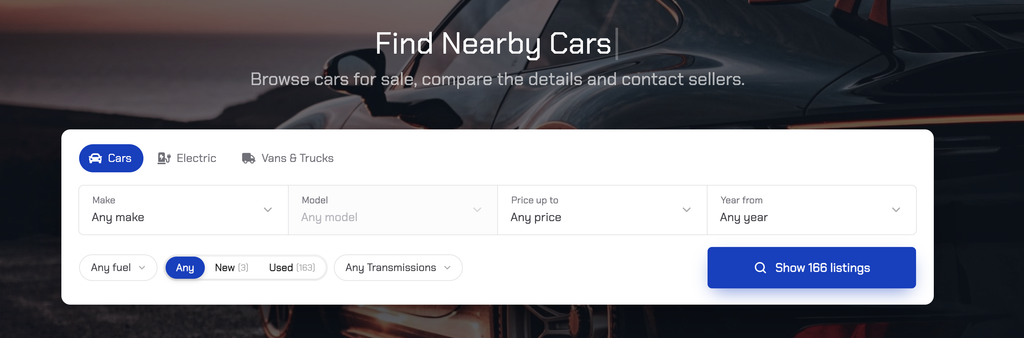
- New search elements and Search Card: button rows, “up to” and “from” selects, sliders for any numeric field, a live result count and a tabbed search widget for Elementor.
- Faster search: range filters, rating filters and price links are many times faster on big directories.
Fields that know when to show up
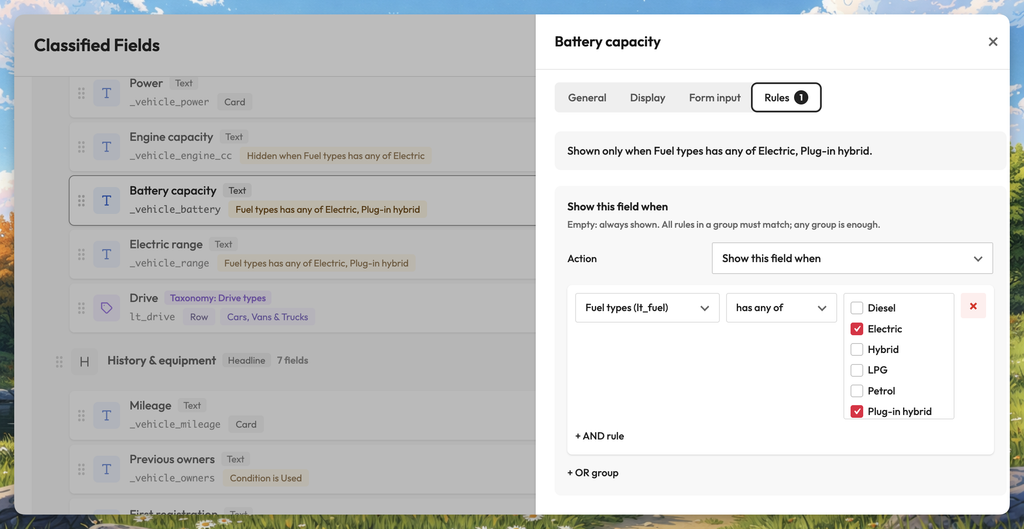
A car needs Doors. A motorcycle does not. A used car needs Mileage. A new one does not. Until now, every listing of a type showed the same fields, so owners saw questions that did not apply to them and visitors saw empty rows. In Listeo 2.3 each field in Listeo Editor > Listing Fields has a Rules tab, and you decide where it applies.
How it works
- Limit a field to categoriesIn “Where this field applies”, tick the categories that need the field, for example Doors only for Cars. Subcategories are included, and long category lists become a search box.
- Show it when another field matchesIn “Show this field when”, pick another field, an operator and a value, for example Mileage when Condition is Used. Combine rules with “+ AND rule”, or add alternatives with “+ OR group”.
- Save and testOpen the Add Listing form. Fields appear and disappear while the owner fills it in, also in multi-step forms. A hidden field is never required.
Where the rules apply
Your own taxonomies, linked like Make > Model
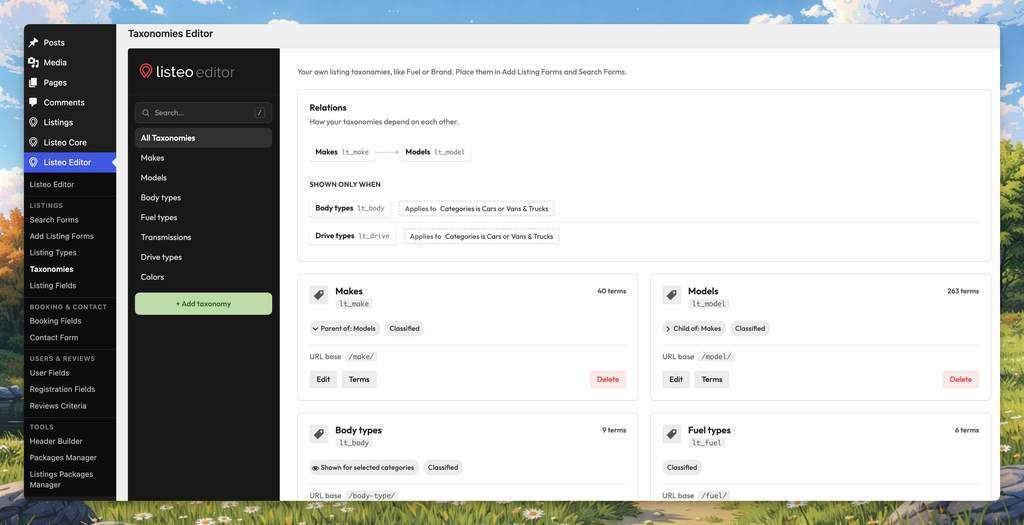
Many sites fake attributes like Fuel or Brand with select fields. That works, but a select field has no archive page, no clean URL and gets slow to search on a large site. In 2.3 you can create real taxonomies in Listeo Editor > Taxonomies, with no code.
- Create the taxonomyGive it a name, a plural name, a URL base and the listing types it belongs to. Each one gets its own term archives with search and map, and can be used in Add Listing Forms and Search Forms.
- Link it to a parentSet “Parent taxonomy” to connect Model to Make, or City to Country (up to 5 levels). Assign parents on the term screen, with the “Assign parent” bulk action, or with “Import CSV”: one line per term,
parent,child. - Add a Chained selectUse the new element type “Chained select (loads options by parent)” in the Add Listing Form and the search form. Visitors pick a make and see only its models. Options load on demand, so taxonomies with thousands of terms stay fast.
Custom taxonomies also support visibility rules (“Show this taxonomy when”, “Where this taxonomy applies”), and they travel with the new Export & Import of the Listeo Editor. If you delete a taxonomy, its terms are kept: add it again with the same internal name and they come back. Guide: Custom Taxonomies
Search that feels like a marketplace
Visitors on classifieds sites expect quick, visual filters and they hate searches that return nothing. Listeo 2.3 adds new search form elements in Listeo Editor > Search Forms and a way to show only the options that still have results.
Adaptive filters
Turn on Listeo Core > Browse/Search Options > Search Logic & Relations > “Adaptive filters”. While visitors search, options that would return no listings are greyed out or hidden, counts such as “Diesel (12)” can be shown, and a slider can take its range from the current results. You choose the behaviour for each element in its “Adaptive filters” section (“Options without results”, “Show counts”, “Range from current results”). Counts load after the page, so they stay correct with page caching. Read more: Adaptive Search Filters and Result Counts
Search Card: tabbed search for your home page
The new Elementor widget “Search Card” puts several searches in one card. Each tab has its own search form, results page, button text and fixed values, so a car site can offer Cars, Electric, Vans and Motorcycles tabs in one hero. Fields sit in a grid with columns per device, and the search button can fill the last row, sit at its end or take its own row. Pages can also hold several search forms now, thanks to the new form_id attribute of [listeo_search_form].
Listing pages that read like a spec sheet
A car listing should read like a brochure: Make, Model, Year and Fuel together, technical data in a neat table. Listeo 2.3 gives you the tools for that, all in Listeo Editor > Listing Fields.
In Elementor, the “Listing Custom Fields” widget has a new Sections panel, and “Listing Taxonomy Checkboxes” can hide taxonomies you already placed in Listing Fields.
Compare listings side by side
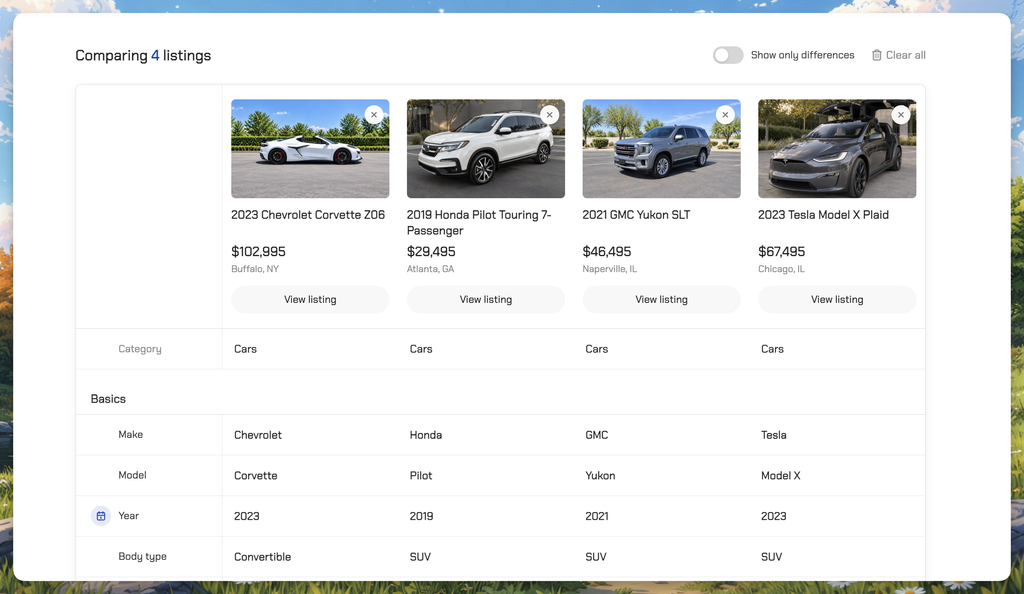
Choosing between three cars or four apartments means jumping between tabs. With Compare listings, visitors click the compare button next to the bookmark heart on a card or on the listing page, and the picked listings collect in a small bar at the bottom of the screen. One click opens a table with all of them side by side: photo, price, rating, address, category and every listing field, grouped by your Listing Fields headlines.
- Show only differences hides the rows where all listings have the same value.
- Listings of different types can be compared, and field rules are respected (a missing value shows “-“).
- The list stays in the browser, and for logged-in users it follows them to other devices.
- A comparison has its own link, so it can be shared. These links are not indexed by search engines.
- A new Elementor widget, “Listing Compare”, adds the button to your own single listing templates.
Compare is off by default. Turn it on in Listeo Core > Browse/Search Options > Compare Listings, choose how many listings can be compared (2 to 6, default 4) and pick the page in Listeo Core > Pages > Compare Page (a regular page with [listeo_compare]).
Faster on big directories
We tuned the slowest parts of search on a test site with 20,000 listings. The results are the same, only faster.
| What | Before | After |
|---|---|---|
| Search with four number ranges, AJAX results | about 800 ms | about 170 ms |
| Search with four number ranges, listings page | about 12 s | about 180 ms |
| “Minimum Rating” filter | about 15 s | about 0.1 s |
| Listings page with a price range in the link | 10 to 25 s | about 0.3 s |
| 12 listing cards | 28 queries and 24 database writes | 17 queries, no writes |
| Empty AJAX request | about 380 ms | about 225 ms |
The biggest gain comes from the new option “Faster range filters (beta)” in Listeo Core > Browse/Search Options > Search Logic & Relations. It is on by default, also on sites that never saved the setting. It answers searches with two or more number ranges with one grouped query. If you ever need to, untick it to go back to the old query. Listings with the same sort value now always come in the same order, so no listing repeats or disappears between pages.
Also new
Export and import the whole editor setup
The Listeo Editor main page has three tabs: Overview, Export & Import and Repair Tools. Export now includes your Listing Types. Import shows a preview first, lets you pick what to import, merges lists instead of overwriting them and keeps a backup, with an “Undo last import” button. Older export files are accepted.
Saved search alerts that match the search
Alert emails now run the same search as “View all results”, so custom taxonomies, ranges and the price count. The summary in My Account > Saved Searches shows term names, prices in your currency and ranges with units.
Smaller additions
- Order of packages to buy: sort the “Buy New Package” list by price, publish date or your own product order. Listeo Core > Packages Options > Payment & Purchase Settings.
- Sign up and login events: “Send sign up and login events to dataLayer” (Listeo Core > Registration) sends
sign_upandloginto Google Tag Manager from the login popup. - Bulk add features: Listings > Bulk Add Categories can now add Listing Features too.
- Mastodon and Bluesky: add a Contact field named Mastodon or Bluesky to use them as listing social links.
- Blog layouts: Customize > Blog > Blog Options has “Blog posts style” (List, Grid 2, Grid 3) and “Single post layout”. The per-post “Post Layout” setting now works.
- Pay on site: “Disable payments in bookings” now works through the whole booking, with the cash confirmation email and “Mark as Paid” on the ticket check.
- Event prices on cards: Listeo Booking Plus events priced with ticket types now show their lowest ticket price on cards.
What changed for existing sites
Most of 2.3 is new options that stay off or unused until you set them up. Your existing forms and fields keep working as before. Some fixes do change what visitors see, though. Please read this list before you update a live site, and check the points that apply to you.
Search results
- Different taxonomies are always combined with AND. A link with a category and a region now shows listings that match both, on every search path (links, saved searches, newsletters, AJAX). The setting is renamed “Default relation between selected terms of one taxonomy” and now only controls terms of one taxonomy. Each taxonomy got a “Use default” choice. Check: open your old category plus region links and compare the counts. Review Listeo Core > Browse/Search Options > Search Logic & Relations.
- From/To filters work everywhere. Range filters such as a mileage from/to are now applied in AJAX results and in the
[listings]shortcode, not only on page load. Check: AJAX results can get smaller, because they now respect the range. - The AJAX price filter matches the listings page. Listings whose Minimum/Maximum Price Range covers the searched range are now included. Check: AJAX result counts can grow. Sites with a single price per listing see no change.
- Prices with separators are read correctly. “74,000”, “5 000” and “1.234.567” are read as whole numbers in price search, the map and counts (“74.000” is still 74). Check: some listings can enter or leave price results. Developers can turn this off with
LISTEO_DISABLE_PRICE_NUMBER_PARSING. - AJAX browsing is on when the setting was never saved. “Ajax based listing browsing” defaults to Enabled, which brings live filtering, AJAX pagination and infinite scroll. Check: if you prefer page reloads, open Listeo Core > Browse/Search Options and save the setting as Disabled.
Sorting
- Price sort: listings without a price come last instead of being left out, an empty price no longer counts as 0, a price range sorts by its low or high end, and ties show the newest first. Check: the order of price-sorted pages.
- Highest rated: listings without a rating are included after the rated ones, and the hero slider “Top rated” can fill up with them. Check: on sites updated from old versions, run Recalculate Ratings once (Listeo Editor > Overview > Tools).
- Featured and Verified sort: listings without the value are now included and sort as not featured or not verified.
[listings orderby="verified"]and Elementor “Order by: Verified” show every listing, verified first. Check: to show only verified listings, use the “Show only verified listings” switch of the Listings widgets.
Saved searches and bookings
- Saved search alerts run the real search. They look back at most 7 days, AI searches get no alerts and “Open now” is ignored. Check: the number of alert emails after the update.
- “Disable payments in bookings”: requests waiting for approval no longer expire, customers get the cash confirmation email instead of a payment link, and “Instant booking requires payment first” is ignored while payments are off. Check: your booking email templates. Existing bookings keep their stored deadline.
- Guest bookings: with “Allow user to book without being logged in” off, guests are now really refused, also when the booking settings were never saved. Check: nothing, unless you wanted guest bookings (then turn the option on).
Listing pages and fields
- Field rules clear hidden values. Only when you add rules: a field hidden by “Show this field when” loses its value on save. Check: test rules on a staging or test listing first.
- Custom taxonomies show only where you place them. On the listing page they appear where placed in Listing Fields, or in the checkbox list of Listeo Core > Single Listing. The Elementor “Listing Taxonomy Checkboxes” widget skips placed taxonomies by default. Check: your single listing templates after placing taxonomies.
- “My Other Listings” toggle works now. It never worked before, so sections that owners switched off now disappear. Check: if you want them back, the changelog has an SQL recipe (back up first).
- Package restrictions on the default layout. The pricing menu, FAQ, availability calendar and coupons now follow package feature restrictions. Check: listings on packages that exclude these sections.
- Google ratings without a Place ID are ignored. They are removed when the listing is saved in wp-admin, not when it is viewed. Check: the ratings of imported Google listings.
Uploads, admin and security
- SVG uploads for trusted users only. Only users who can post unfiltered HTML can upload SVG files (administrators, and editors on single sites). Listing owners can no longer upload SVG. Check: owners who used SVG logos or icons. Developers can change this with the
listeo_allow_svg_uploadfilter. - Tools moved. Recalculate Ratings, Price Cache and Data Migration are no longer in the side menu. Find them in Listeo Editor > Overview > Tools. The filter
listeo_fafe_hide_tools_in_menubrings the menu entries back. - Fix Featured covers every status. It now repairs all listings except trash, in batches of 1000. Check: the number shown is higher than before. Press the button again until it reaches 0.
- Marketplace lock-downs. The Commissions and Payouts History screens need the
manage_optionscapability (filterlisteo_core_payouts_capability). Vendor commission fields and “Stripe Connect user ID” can be edited only by users who can edit other users. Coupons can be edited only by their creator or a shop manager. Check: shop manager access on marketplace sites. - Dokan: rewrite rules are refreshed once after the update. Check: your vendor dashboard URLs, including “Add new product”.
The smaller fixes
- Maps: the “All published listings” map now shows the same listings as the result list.
- Elementor Listings widget: a widget limited to an empty category no longer loses its limit after filtering.
- Price links: the first AJAX search keeps the price from the link, and a From/To element with an empty step no longer breaks the page on PHP 8.
- Listeo Editor saves: settings without an input are kept, lists are no longer saved as “Array”, and Add Listing Forms sections keep their steps, names (also in non-Latin scripts) and quotes.
- Skipped taxonomies: a taxonomy element set to “Skipped input” no longer removes the listing’s terms.
- Listing page: a headline near the end of the field list no longer disappears, and the “Listing Custom Fields” widget in “Custom Fields” mode shows the fields again.
- Packages: package counts stay correct when two listings are approved at once, and listings on a fallback package stay in search (use Fix Featured to repair existing ones).
- Bookings: custom booking fields reach the WooCommerce order for instant bookings, and pre-filled confirmation values are no longer translated.
- Dokan: a vendor’s coupon works on that vendor’s own products, and the “Add new product” page is no longer blank.
- Claims: the admin email for a new claim links to the claim again.
- Uploads: WebP and AVIF images are accepted in file fields, and a long pricing menu saves on IONOS hosting.
- Social links: TikTok links show again, and X clicks are no longer counted as TikTok.
- Mobile: the phone country list is no longer hidden behind the login popup.
- Theme: dropdowns inside openable search panels work, the search box of long dropdowns has the right size, the Setup Wizard imports the demo forms, listing types and menus correctly, and a bulk update in Appearance > Install Plugins no longer leaves the site stuck in maintenance mode when one plugin needs a newer PHP or WordPress version.
- Updates from old versions: the “listeo_get_reviews_criteria()” fatal error after updating is fixed.
How to update
- Download the latest packageGet the newest Listeo files from purethemes.net/license. Make a backup of your site first.
- Update the theme and all plugins togetherUpdate the Listeo theme, Listeo Core, Listeo Forms & Fields Editor and Listeo Elementor at the same time, plus Listeo Booking Plus and Listeo PWA if you use them. Many 2.3 features need all of them, and the new search elements and section layouts need the theme for their styles. Follow How to update the theme and plugins.
- Clear caches and checkClear your page cache, object cache and CDN. On sites updated from old versions, run Recalculate Ratings once (Listeo Editor > Overview > Tools). Then go through “What changed for existing sites” above.
Full list of changes: Listeo changelog.
FAQ
Do my existing forms and fields change after the update?
Why do I see more results with the AJAX price filter?
Where did Recalculate Ratings go?
Can listing owners still upload SVG files?
Do I need adaptive filters for the result count on the search button?
Should I turn off Faster range filters (beta)?