Author Archive

How to change some texts/words?

If you would like to change some texts from english to english (translating to another language is described here) you can do it using SayWhat? plugin that allows you to alter strings on your site without editing WordPress core:

Say what?

After installing SayWhat? plugin go to Tools → Text Changes and click “Add New“. In “Original string” field write original text, then in “Text domain” field add workscout_core or workscout and in “Replacement string” field add new text. Some strings may have other text domain like mas-wp-job-manager-company or wp-job-manager-alerts etc.

Some texts might come from other plugins. Please click here to find instructions on how to find text_domain.

In this example we changed text above search input field on homepage from “What job are you looking for” to “Find great places to work”.

Click “Add” and voila:


How to find text_domain?

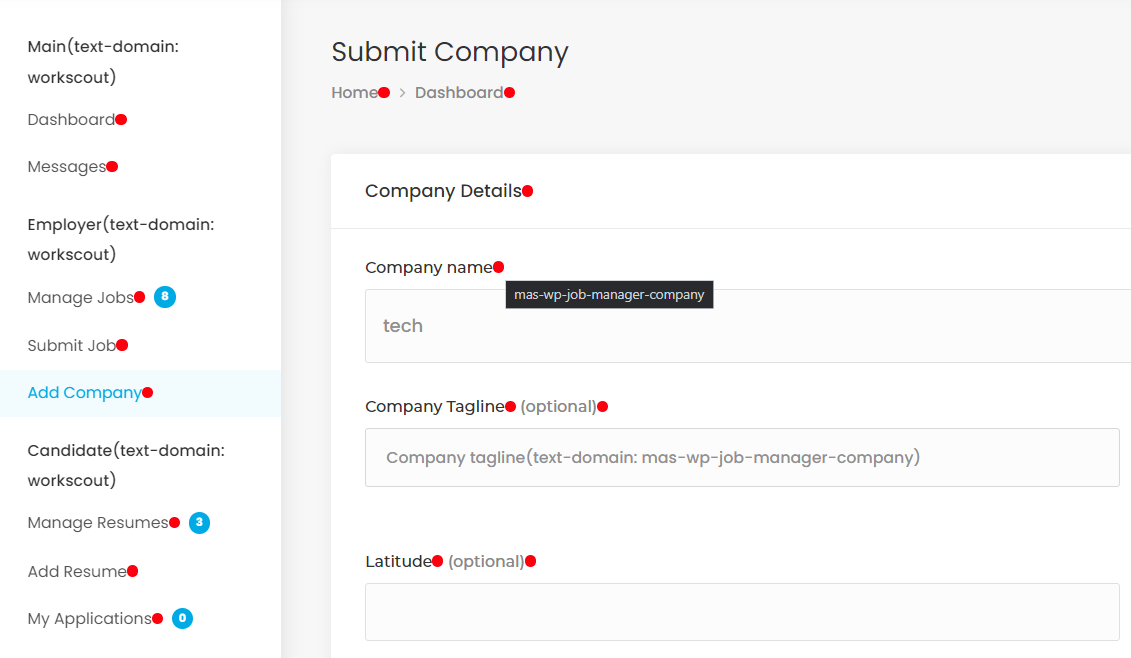
Install Text Domain Inspector: https://wordpress.org/plugins/text-domain-inspector/

Enable it at the admin toolbar and you will see red dots. Hover over a dot and you will see text domain relevt to the text you need.

Setting up “Apply For Job”

Using WorkScout and WP Job Manager, candidates have different option to apply for jobs.

Method 1 – Default

By default the popup shows only email of the Employer or the email provided in Job details, you can also set external URL for application which will open external website set in Job details by employer


Method 2 – WP Job Manager Contact Listing

By using this plugin you can use one of plugins: Gravity Forms, Ninja Forms, Contact Form 7 to display contact form in the popup – instructions how to set each one are here https://wordpress.org/plugins/wp-job-manager-contact-listing/faq/

When you have the forms, you can choose in Job Listings → Settings → Contact a Job Form – which one should be displayed in popup


Method 3 – Resume Manager add-on

Using Resume Manager add-on from WP Job Manager, Candidates can send the Resume they’ve submitted as an attachment to the Employers email.


Method 4 – Applications add-on

This add-on allows candidates to apply to jobs using a form & employers to view and manage the applications from their job dashboard. There’s also a form builder which helps you build custom

“apply forms”

Setting up WP Job Manager

WP Admin → Job Listings → Settings is the page where you can configure the plugin. You’ll see a tabbed interface showing available setting groups:

Plugins such as Job Alerts may add their own settings tabs here as pictured.

You need 1 unrestircted API key for WP Job Manager geocoding to run theme properly.
Please refer to Step 6 in this tutorial


General Settings

The General tab contains the following settings:

  • Date Format – Choose how you want the published date for jobs to be displayed on the front-end.
  • Google Maps API Key – please refer to Step 6 in this tutorial
  • Delete Data on Uninstall
  • Bypass Trash for Job Listings
  • Enable Usage Tracking

Job Listings Settings

The job listings tab contains the following settings:

  • Listings per page – Controls how many job listings should be shown per page when using the [jobs] shortcode.
  • Pagination Type – Determines whether to show page numbered links or a Load More listings button.
  • Filled positions – If checked, filled positions will no longer be visible when using the [jobs] shortcode
  • Hide expired listings – If checked, expired job listings are not searchable.
  • Hide Expired Listings Content – If checked, the content within expired listings will be hidden.
  • Categories – If checked, job categories will be enabled. These are used to group jobs by category and are also visible on the frontend job submission form if enabled.
  • Multi-select Categories – If enabled, the category select box will default to a multiselect on the [jobs] shortcode.
  • Category Filter Type – Determines the logic used to display jobs when selecting multiple categories.
  • Types – Choose whether you want to enable types.
  • Multi-select Listing Types – If enabled, each job can have more than one type.
  • Salary – If enabled, this lets users add a salary when submitting a job.
  • Location Display – If enabled, this displays the full address of the job listing location when it is detected by Google Maps Geocoding API. If a full address is not available, it will then display whatever text the user submitted for the location.

Job Submission Settings

The job submission tab shows options regarding the job submission process in WP Job Manager:

  • Account required – If left unchecked, non-logged in users will be able to submit job listings without creating an account.
  • Account creation – If checked, non-logged in users will be able to create an account by entering their email address on the job submission form. This is optional depending on the settings below.
  • Account Username – If enabled, a username will be generated from the first part of the user email address. Otherwise, a username field will be shown.
  • Account Password – When enabled, an email will be sent to the new user with their username and a link to set their password. If disabled, a password field will be shown and the new user’s email address won’t be verified.
  • Account Role – If you enable registration on your job submission form, choose a role for the newly registered users. This defaults to Employer.
  • Moderate New Listings – If enabled, new submissions will be inactive, pending admin approval. Only once approved by an admin (published) will they be visible on the frontend.
  • Allow Pending Edits – If enabled, submissions awaiting admin approval can be edited by the user.
  • Listing duration – How many days listings are live before expiring. Can be left blank to never expire. Published jobs will automatically be set to expire based on this setting. Please note that WC Paid Listings can override this setting.
  • Listing Limits – How many listings are users allowed to post. Can be left blank to allow unlimited listings per account.
  • Application Method – Choose the contact method for listings.
  • Terms and Conditions Checkbox – this allows you to require employers to check a Terms and Conditions box before submitting the job listing. Note that WPJM does not create this page or it’s contents for you. Once created, the page can be set in Job Listings->Settings->Pages.

ReCaptcha Settings

WP Job Manager (and the Applications and Resume Manager add-ons) have ReCaptcha support built in. To enable it, you’ll need to set up a ReCAPTCHA key at Google’s ReCAPTCHA admin dashboard.

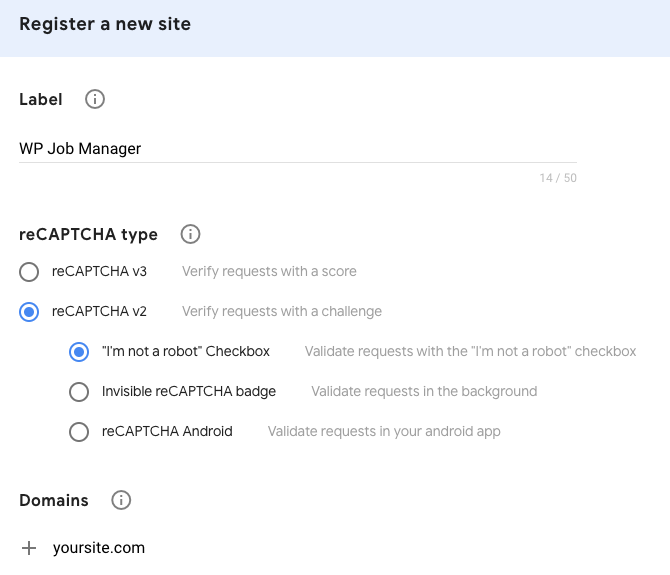
Note that WP Job Manager currently supports reCAPTCHA v2 only, so make sure you select that when registering your site.

You will then be provided with a site key and a secret key, which you can enter in the ReCAPTCHA settings page on your site.

  • Field Label – The label used for the reCAPTCHA field on forms.
  • Site Key – You can get this from the Google ReCAPTCHA admin dashboard.
  • Secret Key – You can get this from the Google ReCAPTCHA admin dashboard.
  • Job Submission Form – Enable this to display the ReCaptcha field on your job submission form.

Pages

The pages tab allows you to select the pages where you’ve inserted the main WP Job Manager shortcodes.

  • Submit Job Form Page: Select the page where you have placed the [submit_job_form] shortcode.
  • Job Dashboard Page: Select the page where you have placed the [job_dashboard] shortcode.
  • Job Listings Page: Select the page where you have placed the [jobs] shortcode.

How to translate theme manually?

We’ve got ready to use translation files however if you’d like to do it precisely on your own here’s guide

WorkScout theme is translation ready. We that assume your WordPress is already in your language. If not, go to Dashboard → Settings → General and change the Site language.


Before you start!

To achieve 100% translation you have to translate WorkScout Theme and following plugins: WorkScout Core, WorkScout Elementor, WorkScout Freelancer and WP Job Manager add-ons

Loco Translate is for translating website from english to another language. If you’d like to have multi-language switcher consider using TranslatePress or Weglot plugin.


Let’s Start

Install plugin  Loco Translate.

Loco Translate

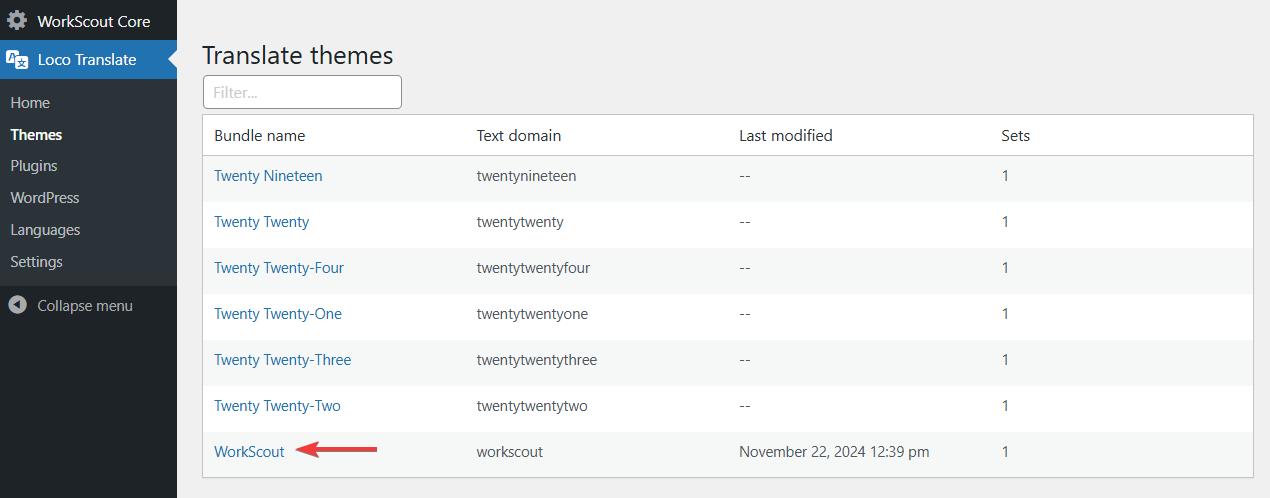
After successful installation go to Loco Translate → Themes you should see this screen:

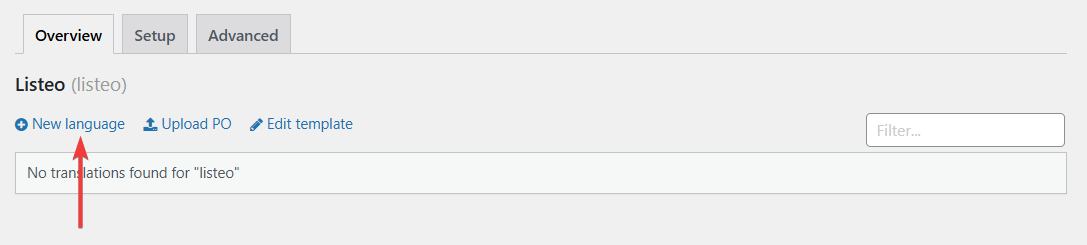
Click Listeo (not WorkScout ChildTheme) and in next step click New Language

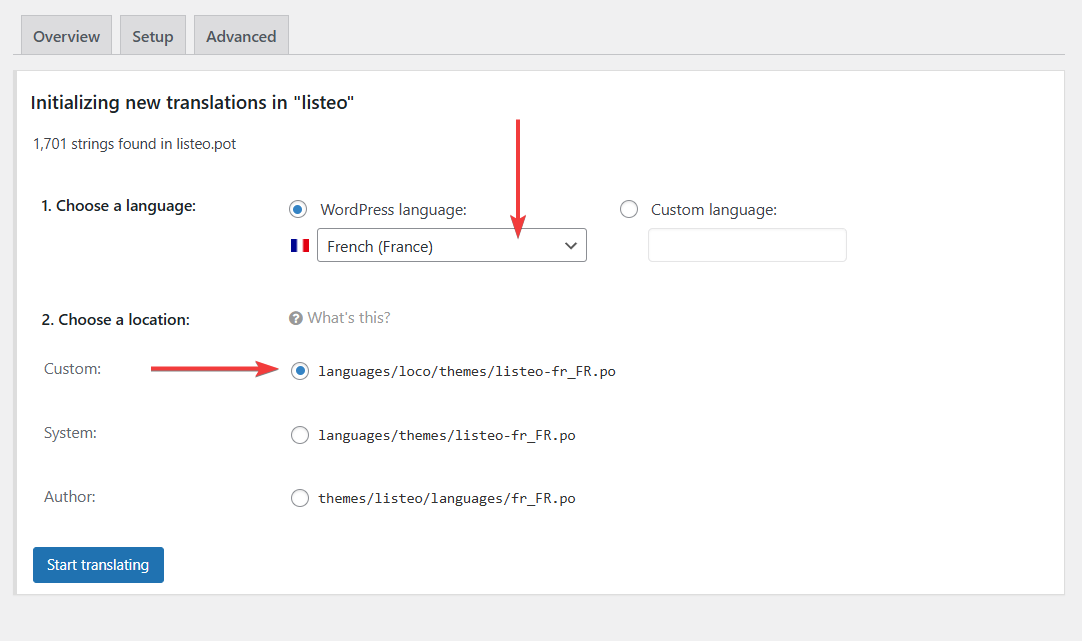
Choose your language and select a location, makes sure it’s either System or Custom location, avoid Author location, this way you won’t lose translations if you update theme/plugins (more about it)

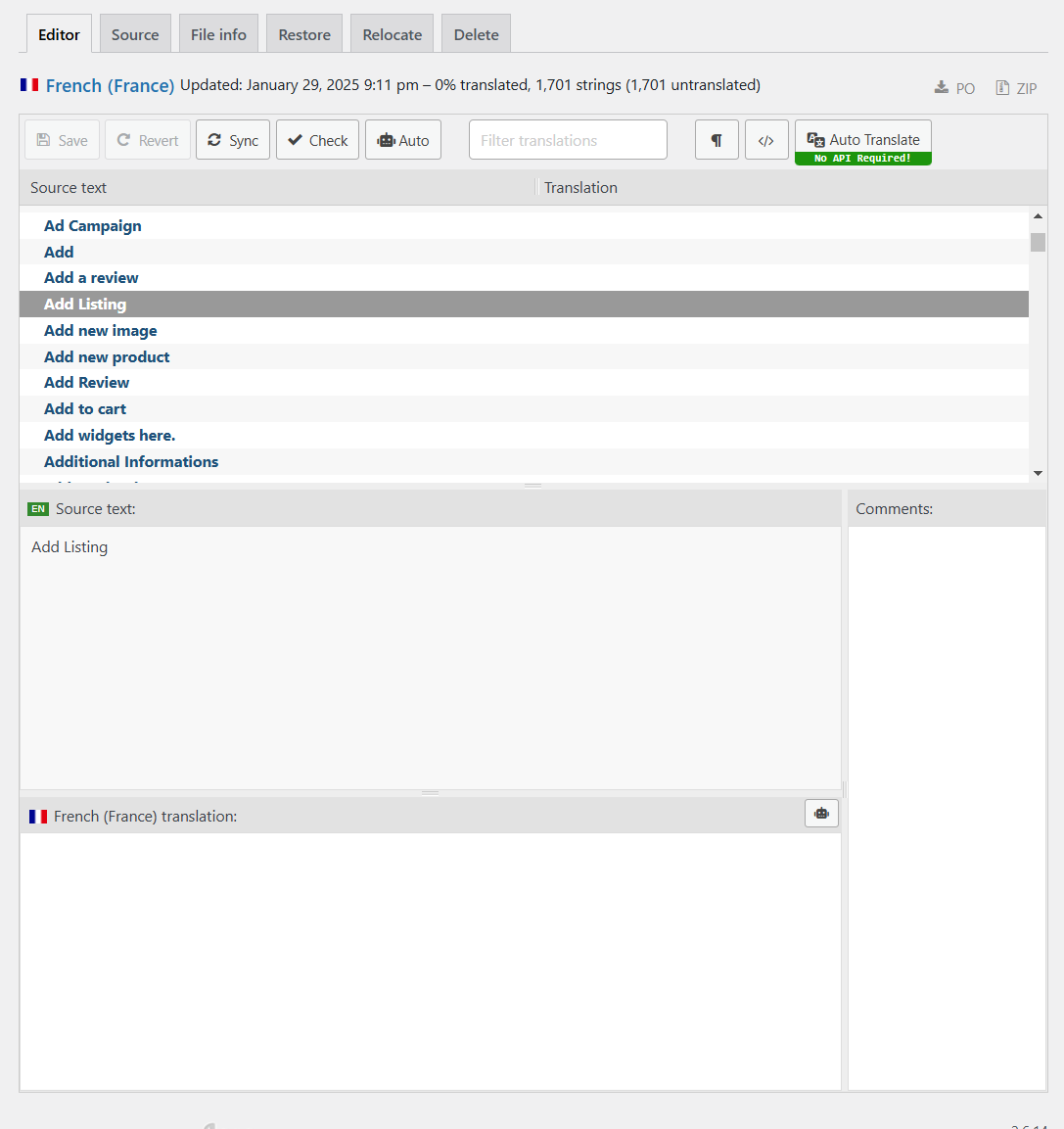
Click Start Translating. You should see that screen where you can translate each string that is used in theme

When you’re done, click Save, and it’s also recommended to click both “Po” and “Mo” buttons to save them on your PC as a backup.


Do I need to translate every word manually?

You can either translate each string manually (best accuracy) or use the Loco Auto Translate plugin. Some translations may need correction, but they also offer pro version which provides access to Google, DeepL, ChatGPT, and Gemini for more accurate translations.

Automatic Translate Addon For Loco Translate


Translate Plugins

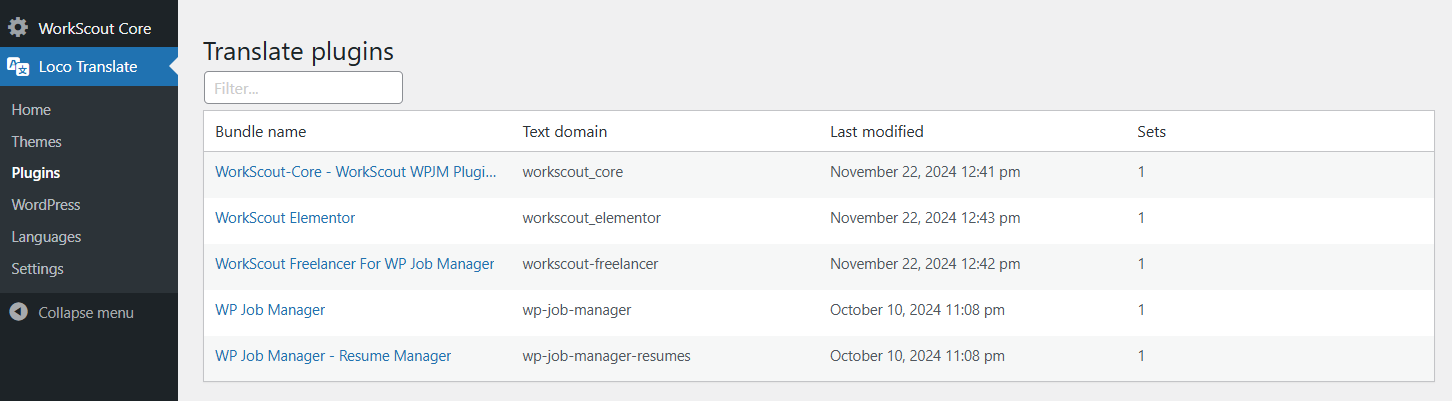
To achieve 100% translation you also need to translate WorkScout Core, WorkScout Elementor, WorkScout Freelancer and WP Job Manager add-ons plugins. The process is the same as translating theme. Go to Loco Translate → Plugins and start there.


Dashboard menu

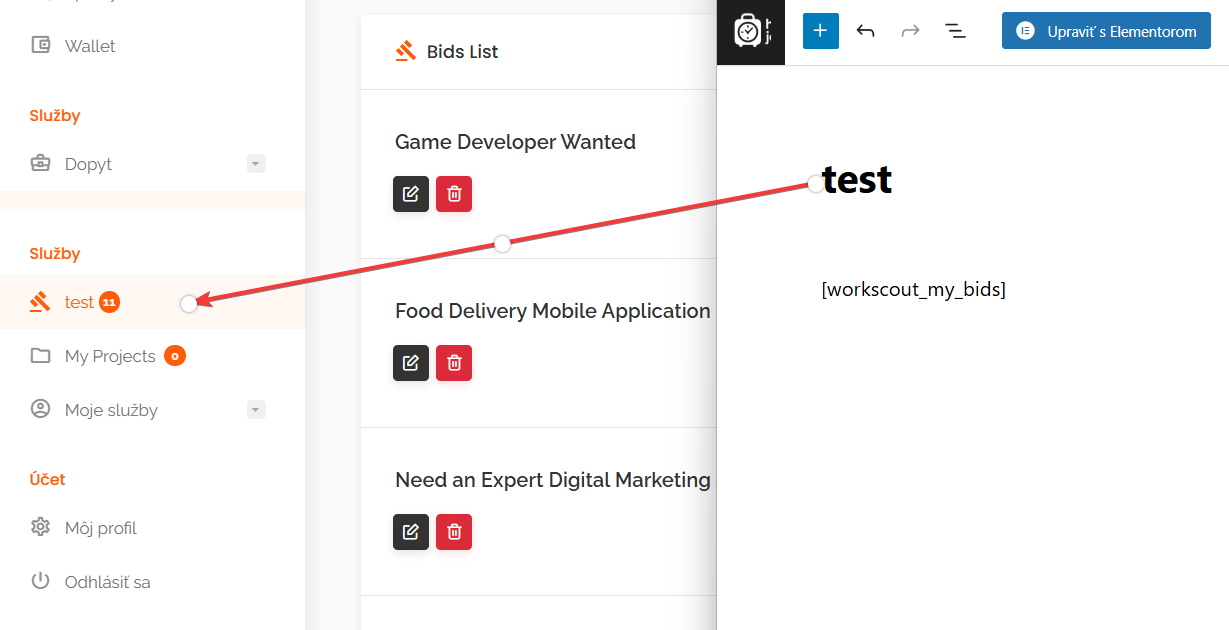
Some links in dashboard menu are page titles which you can edit by editing page title.

Demo Content Import

WorkScout has an excellent setup wizard that will automatically import demo data

You should see Setup Wizard page immediately after activating WorkScout, if you don’t or you’ve skipped it, you  will find it in Appearance → Setup Wizard.

It’s straightforward; simply confirm each step, and the wizard will handle plugin installation, content import, and basic settings. There are a few manual tasks afterward.


Setting Logo

The logo can be set in Appearance → Customize → Site Identity.

However, the home page that uses Page Template named Page with Jobs Search” with the Transparent Header enabled needs it’s own logo image, as in most cases the dark logos won’t look good there. To add that logo, go to Appearance → Customize → Home Page Options → Logo for transparent header

Theme Installation

There are two ways to install theme

Method 1: Upload through WordPress

  1. Download the “Installable WordPress file only” you’ll find it here
  2. Navigate to  Appearance – Themes – Add New Upload.
  3. Follow the instructions on the screen, select the downloaded theme folder (“workscout.zip”).
  4. Hit Install Now and the theme will be uploaded and installed.

Once the theme is uploaded, you need to activate it. Go to  Appearance  Themes and activate WorkScout.

Method 2: Upload through FTP

  1. Extract the “workscout.zip”
  2. Open up your FTP manager and connect to your hosting
  3. Browse to wp-content/themes
  4. Upload the workscout theme folder.
  5. Log Into WordPress and go to Appearance – Themes
  6. Find the WorkScout and click activate

Next Step

Demo Content Import