Author Archive

Editing Company Submission Fields

There are three main methods to customise  company submission fields in WP Job Manager.

1. Basic adjustment by Enabling / Disabling fields WorkScout Core → Form Fields Visibility → Company Fields
2. Thrid party plugin such as https://plugins.smyl.es/wp-job-manager-field-editor/

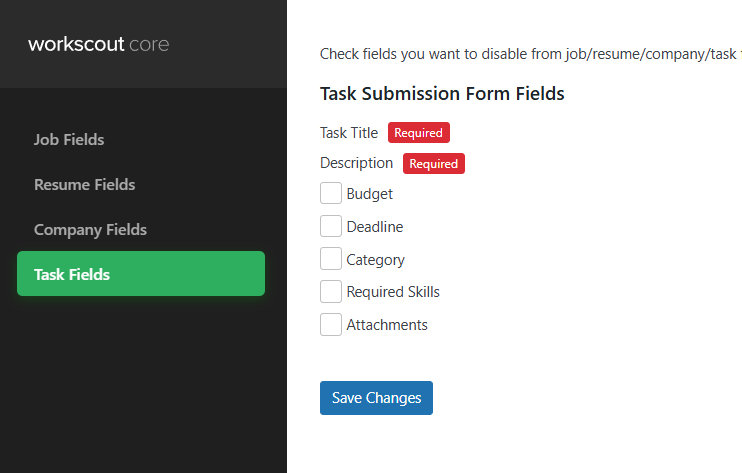
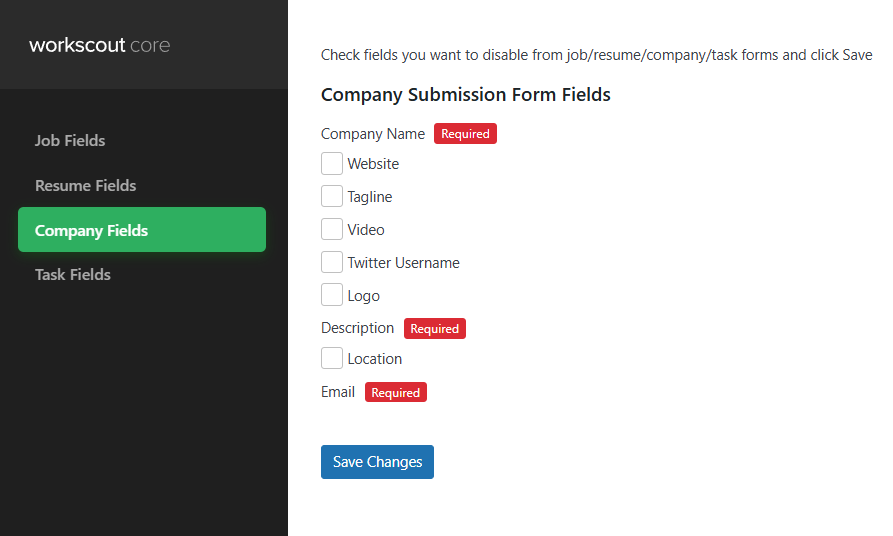
Basic changes can be done in WorkScout Core → Form Fields Visibility → Company Fields where you can enable or disable fields you want in company submit form.

For text changes from english to english use plugin such as the Say What Plugin. If you’d like to translate fields to other language than english please refer to article: Translating theme and plugins →
How to export element from one home version to another?

If you would like to export for example search form banner (or any other section) from Home 3 to Home 1 here’s how to do it.

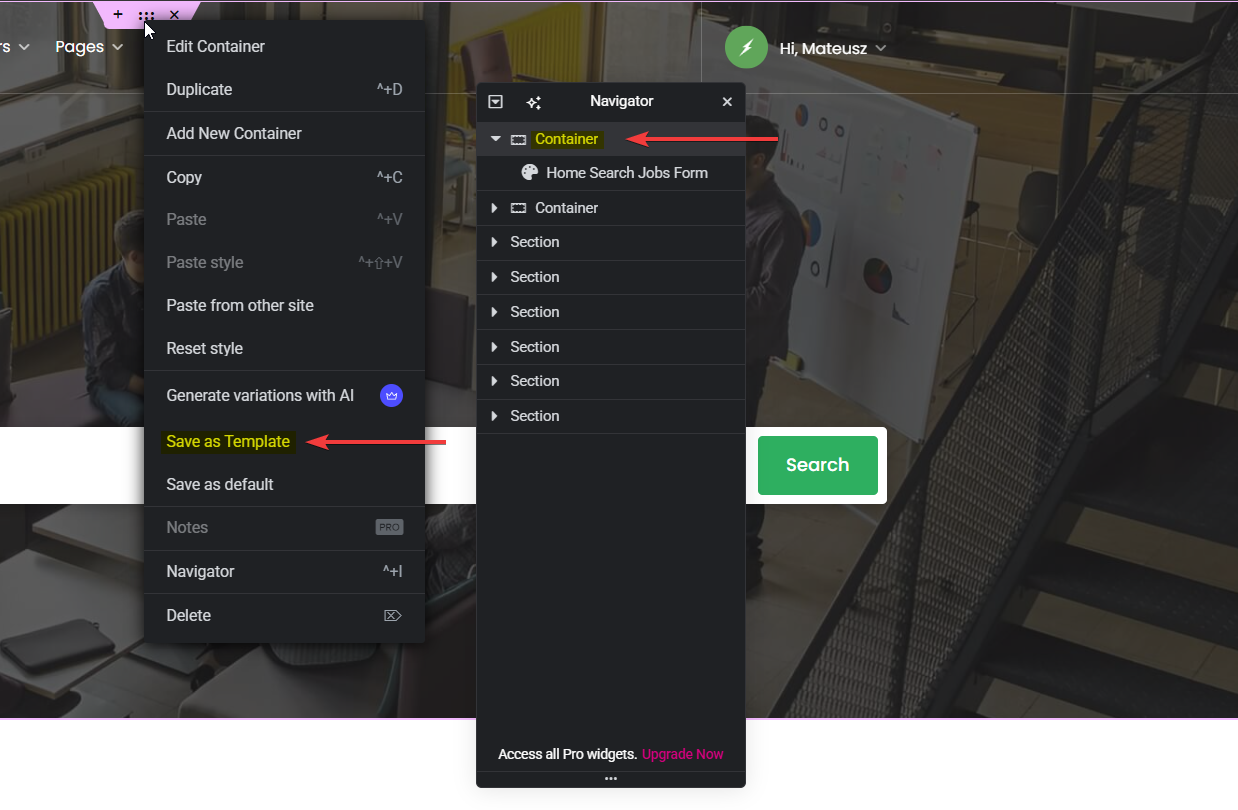
Open homepage version you want to export. Right click on section/container you wish to export and click “Save as template

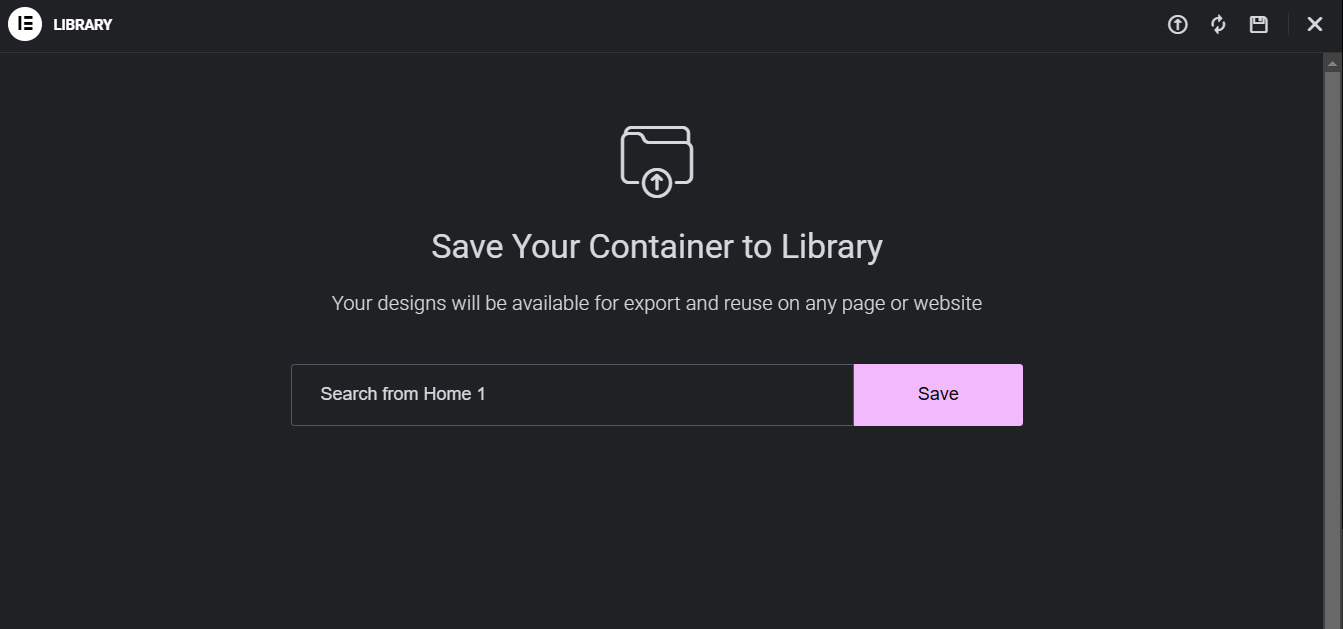
Name it and click Save

Then open homepage where you want to import that section. Scroll to the bottom and click “Add Template” (middle button)

Click “My Templates“, find template you saved and click “Isert

Setting up WooCommerce Payment Gateways

To charge users for paid packages you can use default WooCommerce payment gateways for or install additional from WooCommerce Processors & Gateways →

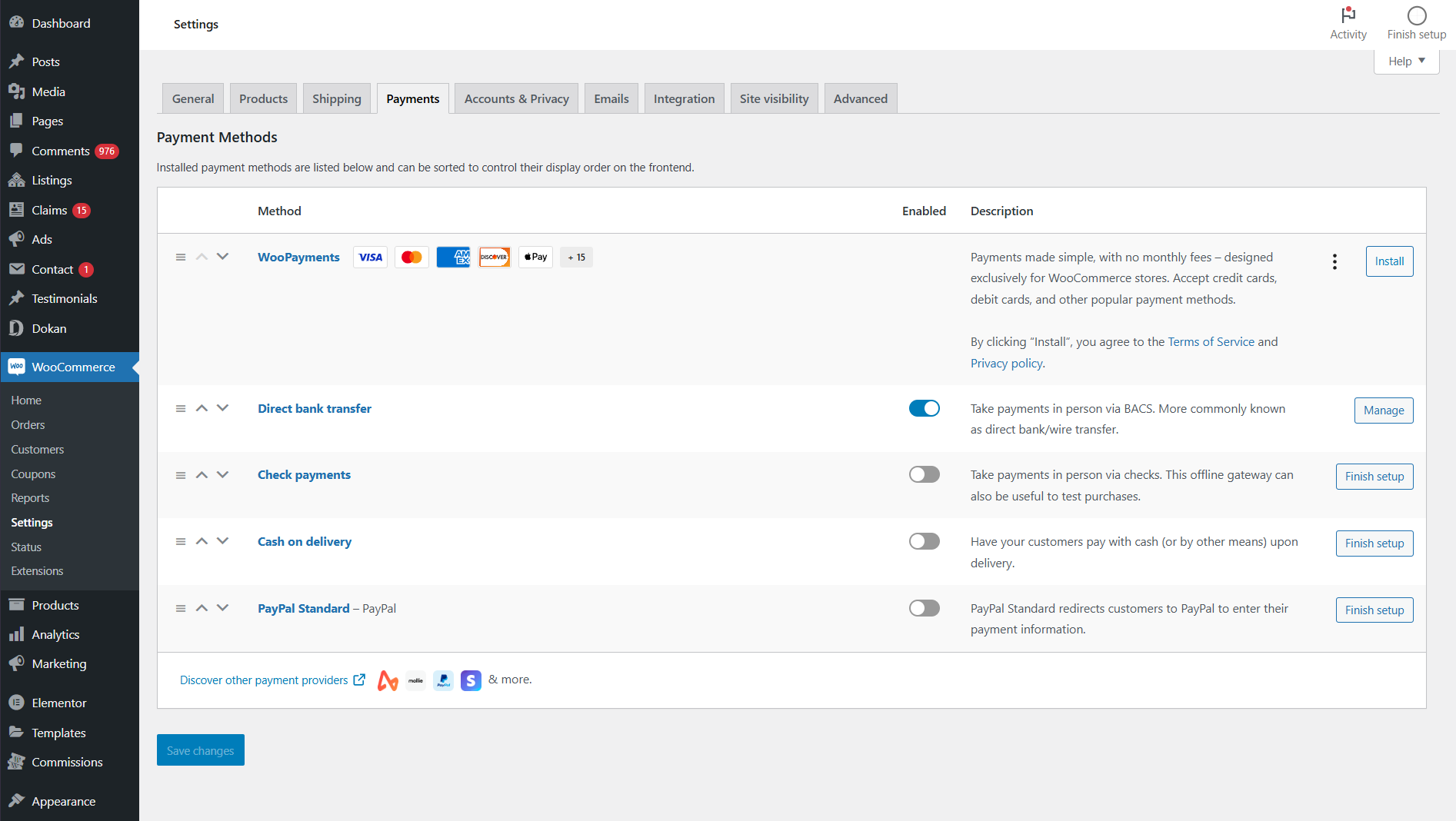
  1. Go to WooCommerce Settings: In your WordPress admin dashboard, navigate to WooCommerceSettings.
  2. Select the Payments Tab: Click on the Payments tab to view the available payment gateways.
  3. Enable Payment Gateways: You will see a list of available payment gateways. Toggle the switch to enable the ones you want to use (e.g., PayPal, Stripe).
  4. Configure Payment Gateways: Click on the Manage or Finish Setup button next to each payment gateway to configure its settings, such as API keys and other necessary information.
  5. Save Changes: After configuring the payment gateways, make sure to save your changes.


Split Payments

Automatic split payments among the freelancer, the hiring user, and the site admin (if you set a commission) can only be achieved with Stripe.

Stripe Split Payments Support


How to automatically geolocate visitor?

If you’d like to automatically geolocate visitors you need to enable WorkScout Core → Map Settings → Automatically locate users on page load

You can use this feature along with radius search to display jobs nearby user location in search results.

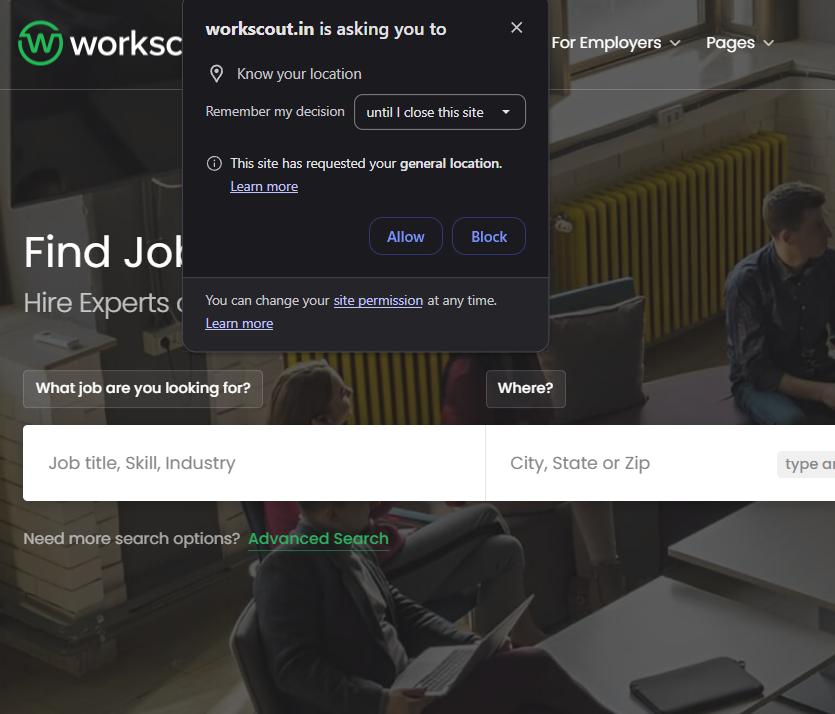
Keep in mind that due to privacy user will see a pop-up (check screenshot below) with browser permission request asking the user if they want to share their location with your website.

Skip checkout for free packages/products

To skip checkout for free packages/products use PHP snippet below.

How to add PHP snippets?

// Skip checkout for free products and automatically complete the order
add_action('template_redirect', 'skip_checkout_for_free_products');

function skip_checkout_for_free_products() {
    // Only proceed if we're on the cart or checkout page, and not the order-received page
    if ((is_cart() || is_checkout()) && !is_wc_endpoint_url('order-received')) {
        // Get the cart total
        $cart_total = WC()->cart->get_total('edit');

        // Check if the cart contains only free products (total is 0)
        if ($cart_total == 0) {
            // Create an order with free products
            $order = wc_create_order();

            // Add the products in the cart to the order
            foreach (WC()->cart->get_cart() as $cart_item_key => $cart_item) {
                $order->add_product($cart_item['data'], $cart_item['quantity']);
            }

            // Calculate the order totals
            $order->calculate_totals();

            // Mark the order as completed
            $order->set_status('completed');
            $order->save();

            // Empty the cart
            WC()->cart->empty_cart();

            // Redirect to the order received page (thank you page)
            wp_redirect($order->get_checkout_order_received_url());
            exit;
        }
    }
}

// Automatically mark orders containing only free products as "completed"
add_action('woocommerce_checkout_order_processed', 'auto_complete_order_for_free_products', 10, 1);

function auto_complete_order_for_free_products($order_id) {
    // Get the order object
    $order = wc_get_order($order_id);

    // Flag to check if all items are free
    $all_items_free = true;

    // Loop through each item in the order
    foreach ($order->get_items() as $item) {
        if ($item->get_total() > 0) {
            // If any item has a price greater than 0, set the flag to false
            $all_items_free = false;
            break;
        }
    }

    // If all products are free, mark the order as completed
    if ($all_items_free) {
        $order->update_status('completed');
    }
}

Theme Custom Development

  1. For the most reliable service with the best quality, albeit at a higher cost, we suggest checking out codeable.io
  2. If you’re looking for a more budget-friendly option without compromising on quality, consider wpkraken.io. They offer competitive rates while maintaining a high standard of work.

PureThemes offers site setups services. Service includes installing theme, adjusting typography, configuring homepage, uploading stock photos if needed – and other things described on according to package on pricing page you visited. It doesn’t include copywriting and adding functionalities that theme does not have by default.

Region filter does not work for resumes

If you are using plugin Regions for WP Job Manager you’ll notice the Region filter doesn’t work on Resumes page. For some reason the functionality exists but is not enabled for resumes (please note this is 3rd party plugin, not our code)
To fix it you need to go to Plugins → Plugin Editor, find on list in “Select plugin to edit” the “Regions for WP Job Manager“, it will automatically open first file to edit which is wp-job-manager-locations.php, scroll down to line 92:

You’ll see lines we have to uncomment, all you need to do is to remove the // from the beginning of each line.

After that save the changes and it will work.


Fixing regions filter on Resumes page

If you are using plugin Regions for WP Job Manager you’ll notice the Region filter doesn’t work on Resumes page. For some reason the functionality exists but is not enabled for resumes (please note this is 3rd party plugin, not our code)
To fix it you need to go to Plugins → Plugin Editor, find on list in “Select plugin to edit” the “Regions for WP Job Manager“, it will automatically open first file to edit which is wp-job-manager-locations.php, scroll down to line 92:

You’ll see lines we have to uncomment, all you need to do is to remove the // from the beginning of each line.

After that save the changes and it will work.


How to solve problems with AJAX login?

If you’re trying to use Ajax login on Listeo and you get stuck on message ‘Sending user info, please wait…‘, first check if you have any cache/optimizations plugins active on your site. If you do, try to disable them to see if that help. If it does, you might need to change some settings in those plugins as they might have to aggressive optimization for this feature to work.

The issue is often connected with custom mod_security rules. Some hosting providers block login requests from non standard paths, so try to contact your hosting provider and ask them about it.

And last but not least, you may experience this issue on nginx server, in that case, add the following lines to /etc/nginx/nginx.conf

fastcgi_temp_file_write_size 10m;
fastcgi_busy_buffers_size 512k;
fastcgi_buffer_size 512k;
fastcgi_buffers 16 512k;
client_max_body_size 50m;
proxy_buffer_size 16k;
proxy_busy_buffers_size 16k;

if that won’t help, check if you have Nginx Content caching enabled, you might need to disable that to fix that problem