Author Archive

How to disable time-picker for services?

Generally each booking for service listing type requires time to be set for a booking, this is either set by selecting available time-slot or picking time from time-picker.

If for some reason you don’t want users to be able to see/select the time picker option, here’s a small snippet that will get rid of it.

You can add code into your functions.php file in child-theme or use WP Code plugin:

How to add PHP snippets?


add_filter('listeo_core_service_timepicker_value', 'default_time');
function default_time($time)
{
	//return current time	
	return date('H:i');

}

Then go to Appearance -> Customize -> Additional CSS add this

.col-lg-12.listeo-service-timepicker {
display: none;
}

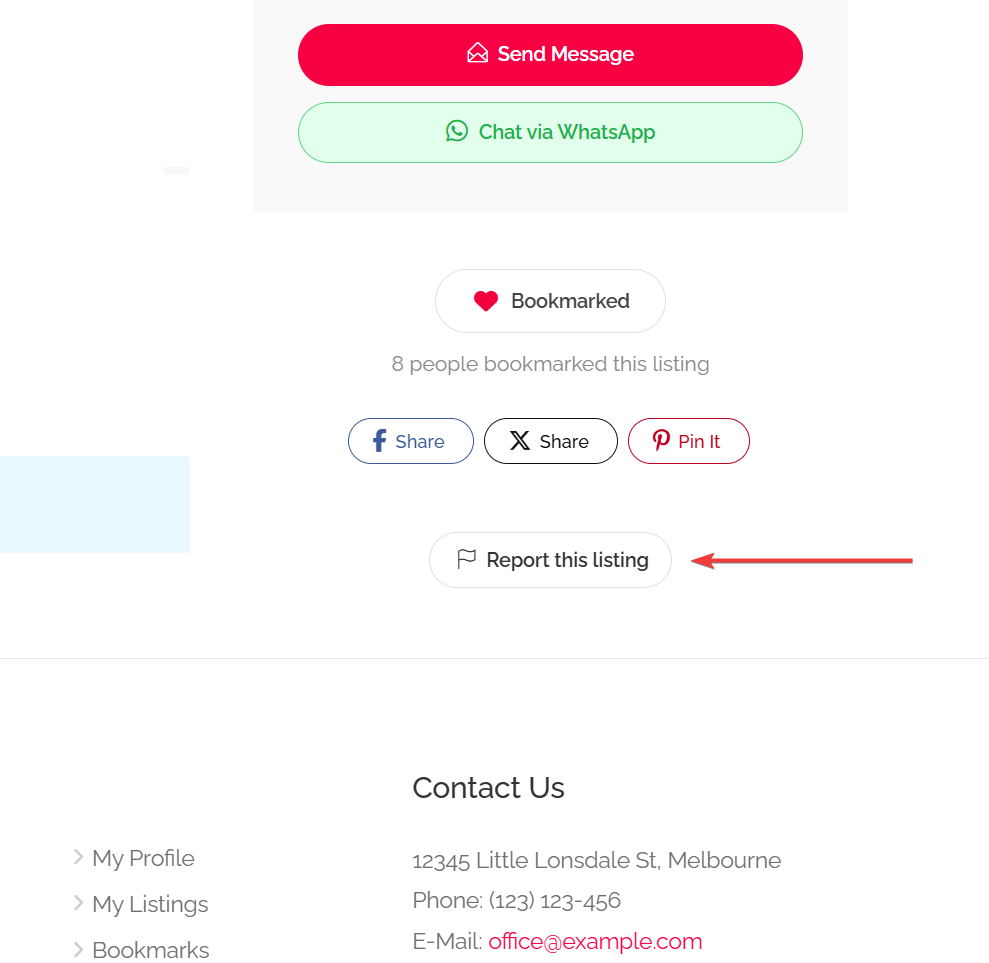
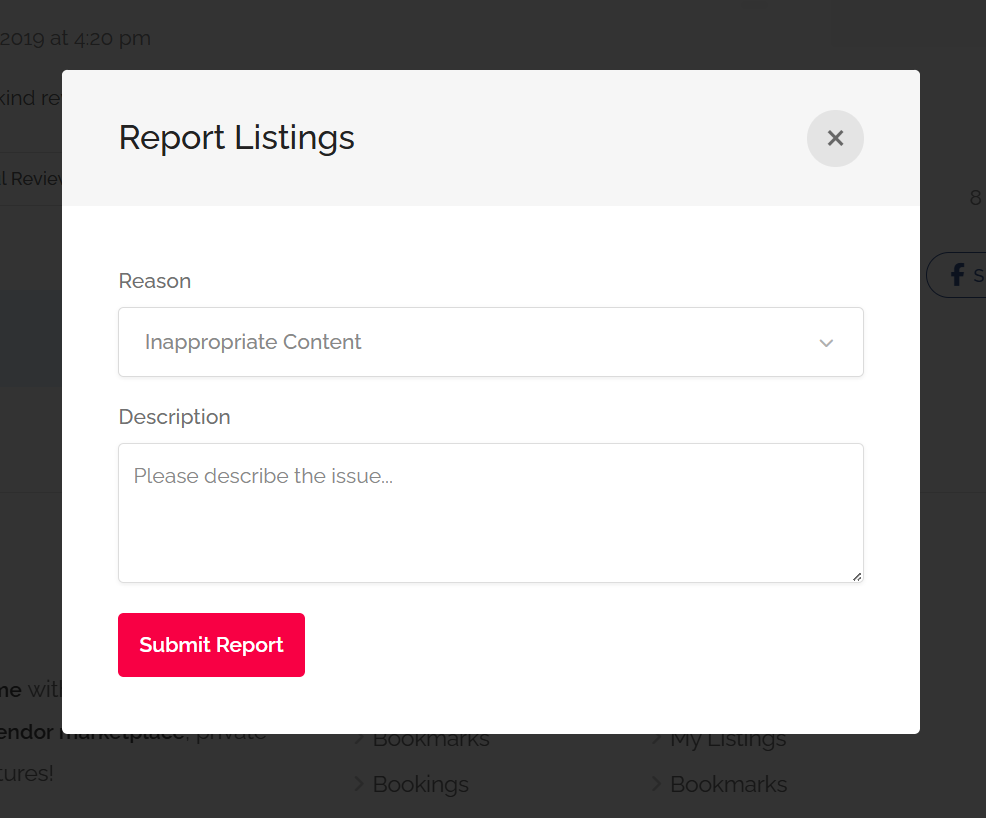
Flag / Report Listing

Listeo features a ‘Flag / Report Listing‘ option that allows users to report listings that violate the website’s terms. You can enable this feature in Listeo Core → Single Listing → Enable Flag/Report Listing. Once activated, a ‘Flag Listing’ button will appear in the sidebar of each listing.”

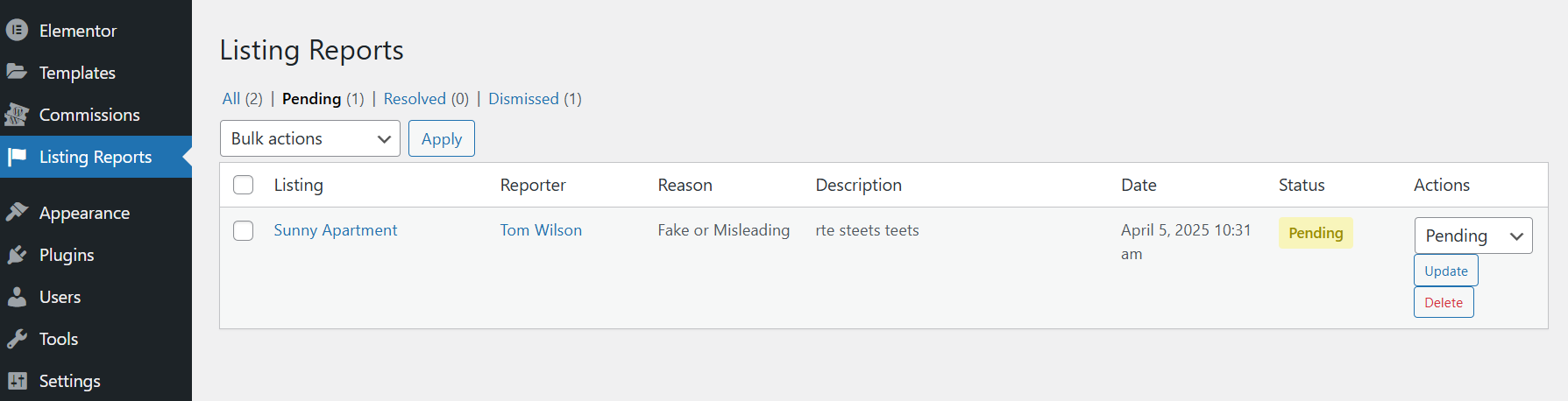
Admin can review each report in WordPress dashboard

No listings on map, location search doesn’t work

A listing will be shown on the map only if it includes geographical coordinates (specifically latitude and longitude).


How to make sure listings are geocoded (have lat/long)?

When adding listing in front-end you have to select address from dropdown, then lat/long fields will be autoamtically populated

Same principle applies in WordPress editor. Type address, hit “enter” and select address from the list. Lat/long will be automatically populated.


What indicates that listing is not geocoded?

Well, first of all you won’t see map widget on single listing page. Secondly when you edit it using WordPress editor lat/long fields will be blank


Map with listing is displayed in wrong place in circle instead direct marker

In this case most likely you enabled “Hide real address” in Listeo Core → Single Listing → Hide real address on listings and lists

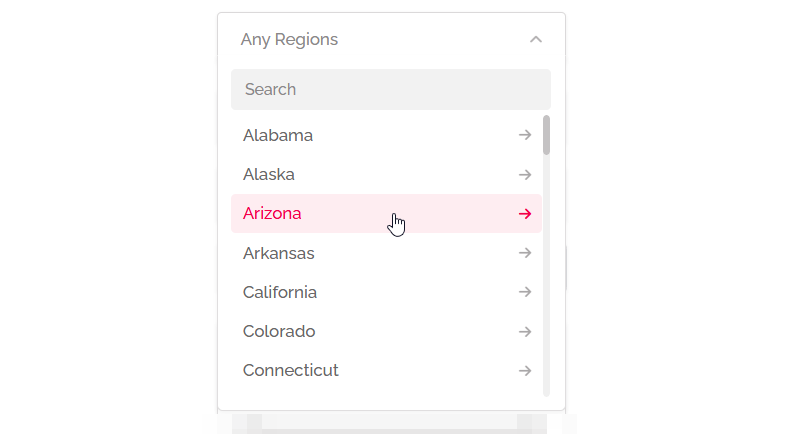
How does search by location works?

Spam Protection

Listeo comes with strong anti-spam protection, helping you block bots from registering fake accounts, posting spam reviews, or abusing your forms.

CleanTalk

No CAPTCHA, no questions, no animal counting, no puzzles, no math and no spam bots. Universal AntiSpam plugin. The authors of CleanTalk integrated their plugin with Listeo.

Spam protection, Honeypot, Anti-Spam by CleanTalk


Captcha

reCAPTCHA, hCaptcha, and Cloudflare Turnstile are security tools designed to differentiate between humans and bots, typically used on websites to prevent spam and automated abuse. They employ different methods of verification:

  1. reCAPTCHA v2 – Uses a checkbox (“I’m not a robot”) or image-based challenges (selecting traffic lights, crosswalks, etc.).
  2. reCAPTCHA v3 – Works invisibly in the background, assigning a risk score based on user behavior without requiring direct user interaction.
  3. hCaptcha Uses image-based challenges similar to reCAPTCHA v2.
  4. Cloudflare Turnstile A modern, privacy-focused CAPTCHA alternative
Privacy Security User Experience
hCaptcha ✔ Strong (GDPR & CCPA compliant, no tracking) ✔ High ✔ Faster, fewer challenges
reCAPTCHA ✘ Google collects user data ✔ High ✘ Can be annoying (image-based puzzles)
Cloudflare Turnstile ✔ No tracking, privacy-first ✔ High ✔ Invisible, frictionless for users

Captcha works for register page, claim listing page, booking, reviews.

  • How to configure Google reCAPTCHA?

  • How to configure hCaptcha?

  • How to configure Cloudflare Turnstile?


Email One Time Code

One Time Code email verification during registration which can be enabled in Listeo Core → Registration → Enable Email OTP Verification


SMS One Time Code

SMS Notification & OTP verification

How to add children and animals in booking

Go to the Listeo Editor and edit the Submit Rental Form (or other).

Click ‘Add New Field‘ and add  ‘Children Allowed‘ and ‘Animals Allowed‘ fields. Then, add the ‘Children Price‘ and ‘Animal Price‘ fields.

Save changes. You will see new settings for bookings in add listing form.


How to find my license key?

License purchased directly from us (Purethemes)

License key was sent to your email after purchase. Check your spam folder if you haven’t received it.

Need help with lost license key? [email protected]


License purchased directly at Envato Marketplace (ThemeForest)

  1. Log into your Envato Market account→
  2. Click ‘Downloads’ from the drop-down menu.
  3. Find Listeo, click “Download” button and select “License certificate“.
  4. Open file, copy license key

Difference between ThemeForest and direct Purethemes license

As of July 1st, 2026, Envato now takes ~60% of every ThemeForest sale – which sadly doesn’t leave enough to cover proper support and ongoing development.

What you’re missing in the envato license vs.our direct license:

  • Human tech support
  • Full access to extensions
  • Full access to demo designs
  • Lower prices & more license options (Envato license is 1 site for $99 with no support and our direct license: 1 site for $89, 3 sites for $149 and 10 sites for $449 – all are one-time payment with lifetime updates)

How to export element from one home version to another?

If you would like to export for example search form banner (or any other section) from Home 3 to Home 1 here’s how to do it.

Open homepage version you want to export. Right click on section/container you wish to export and click “Save as template

Name it and click Save

Then open homepage where you want to import that section. Scroll to the bottom and click “Add Template” (middle button)

Click “My Templates“, find template you saved and click “Insert

Setting up WooCommerce Payment Gateways

Every transaction in Listeo operates as a discreet WooCommerce order granting access to hundreds payment gateways from every country and maximum security.

You can use default WooCommerce payment gateways or install additional from WooCommerce Processors & Gateways →

  1. Go to WooCommerce Settings: In your WordPress admin dashboard, navigate to WooCommerceSettings.
  2. Select the Payments Tab: Click on the Payments tab to view the available payment gateways.
  3. Enable Payment Gateways: You will see a list of available payment gateways. Toggle the switch to enable the ones you want to use (e.g., PayPal, Stripe).
  4. Configure Payment Gateways: Click on the Manage or Finish Setup button next to each payment gateway to configure its settings, such as API keys and other necessary information.
  5. Save Changes: After configuring the payment gateways, make sure to save your changes.


Split Payments

Automatic split payments for bookings between the owner and the site admin (you, if you set commission) can only be achieved with Stripe. Without split payments, you can use any payment gateway that works with WooCommerce.

Stripe Split Payments Support

How to automatically geolocate visitor?

If you’d like to automatically geolocate visitors you need to enable Listeo Core → Map Settings → Automatically locate users on page load

You can use this feature along with radius search to display listings nearby user location in search results.

Keep in mind that due to privacy user will see a pop-up (check screenshot below) with browser permission request asking the user if they want to share their location with your website.