
 WorkScout User Group on Facebook
Intended Usage
This plugin can be used in two ways:
- If you offer job listing submissions on the frontend, you can use this plugin to have applications come in and be visible on the employers job dashboard.
- If you list your own jobs, you can have applications come in and be visible in the admin dashboard.
Settings
The plugin can be configured from Job Applications → Settings.
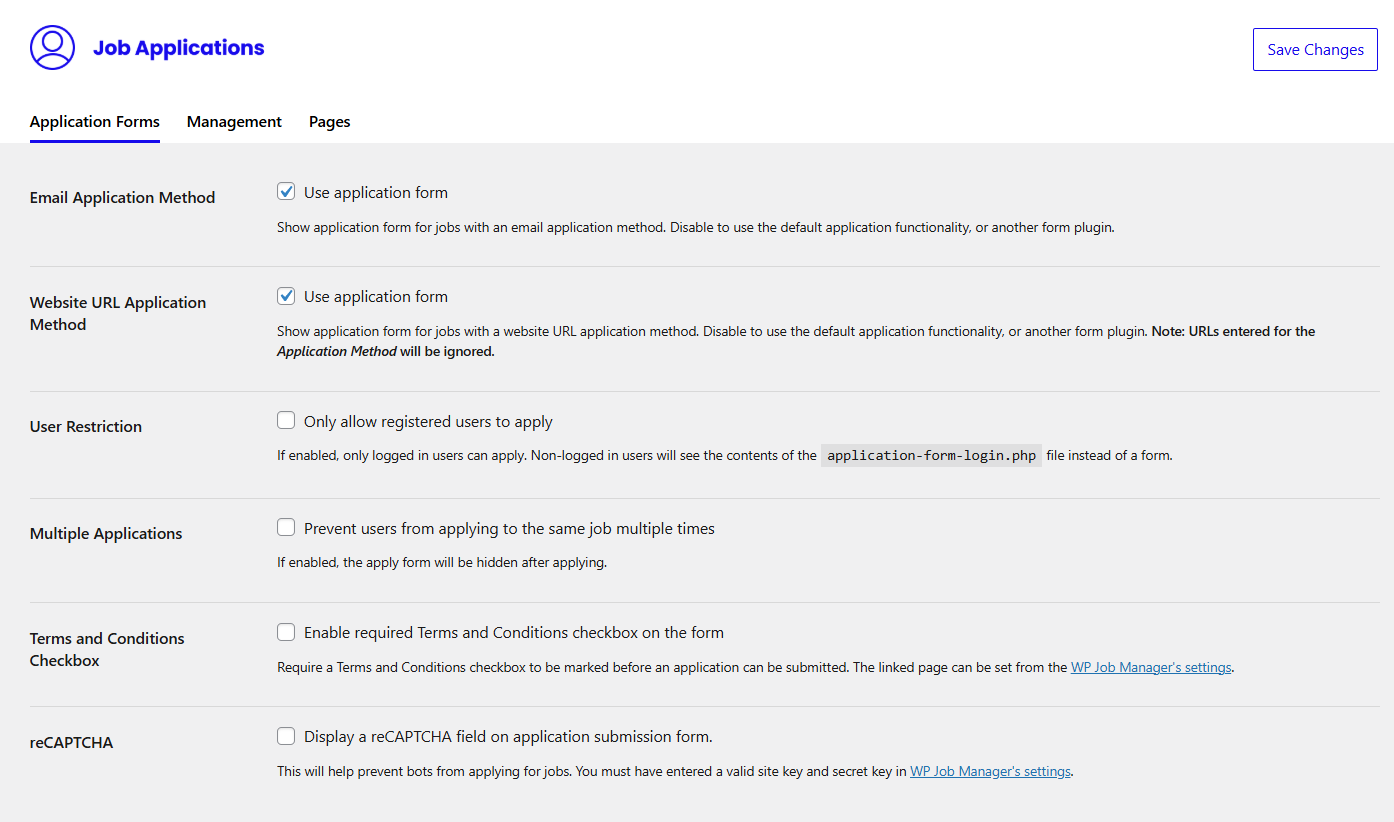
The following settings are found on the Application Forms tab:
- Email Application method – Use application form – When enabled, this setting will display the job application form for jobs setup with an email address for applications.
- Website URL Application method – Use application form – When enabled, this setting will display the job application form for jobs setup with a URL for applications.
- User Restriction – Only allow registered users to apply – The form will not show to guests until they login.
- Multiple Applications – Prevent users from applying to the same job multiple times – If enabled, once a logged in user has applied they will no longer be able to see the application form for the same job.
- ReCAPTCHA – This will help prevent bots from applying for jobs. You must have entered a valid site key and secret key in WP Job Manager’s settings.
The following settings are found on the Management tab:
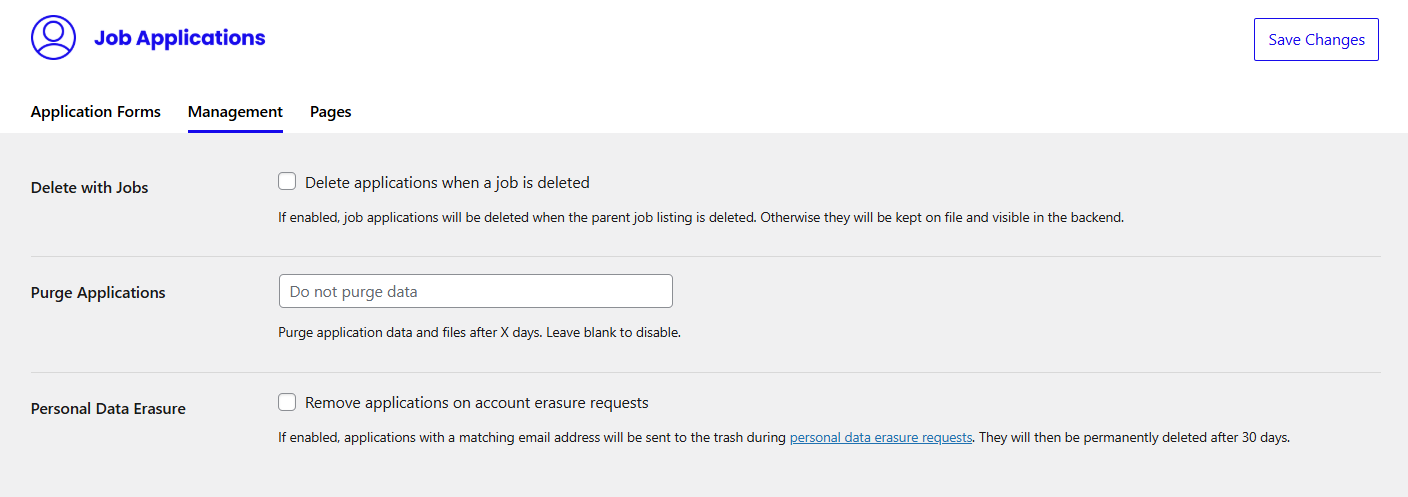
- Delete with Jobs – Delete applications when a job is deleted – If enabled, job applications will be deleted when the parent job listing is deleted. Otherwise, they will be kept on file and visible in the backend.
- Purge Applications – Enter a number to purge all applications after that many days.
- Personal Data Erasure – If enabled, applications with a matching email address will be sent to the trash during personal data erasure requests (Tools > Erase Personal Data). They will then be permanently deleted after 30 days.
The Job Application Form
If enabled, the job application form will be displayed instead of the usual email/website links. The default form looks like this:
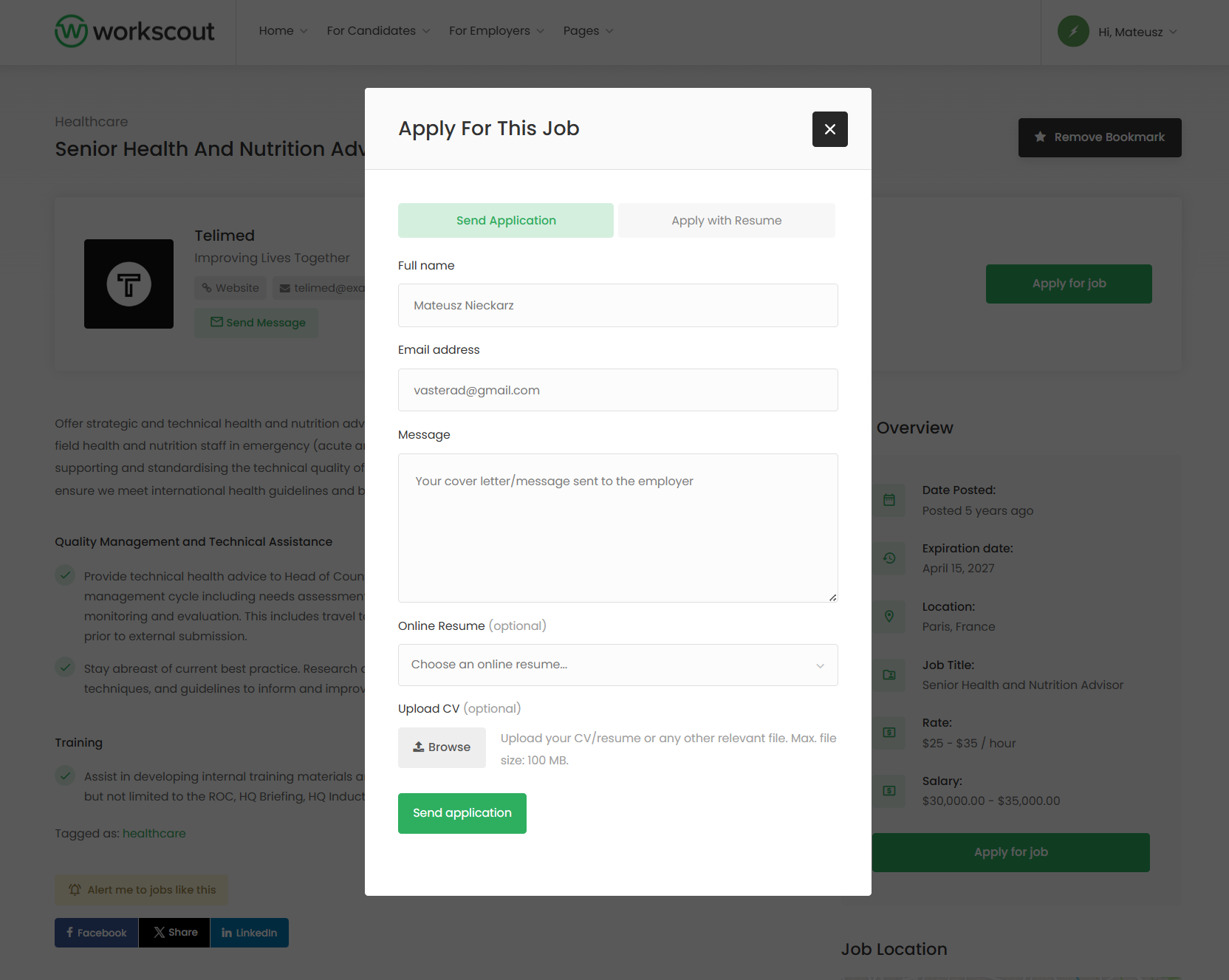
When the application form is submitted, an application will be saved to your database. If the job application method is ’email’, the employer will also receive an email notification.
Once an Application’s status has been set to “Hired”, the message “This position has been filled” will appear on the job listing.
Customising the Job Application Form
Version 2.0 of the plugin comes with a form editor where you can customise the form. Simply go to Job Applications → Application Form to see the form editor.
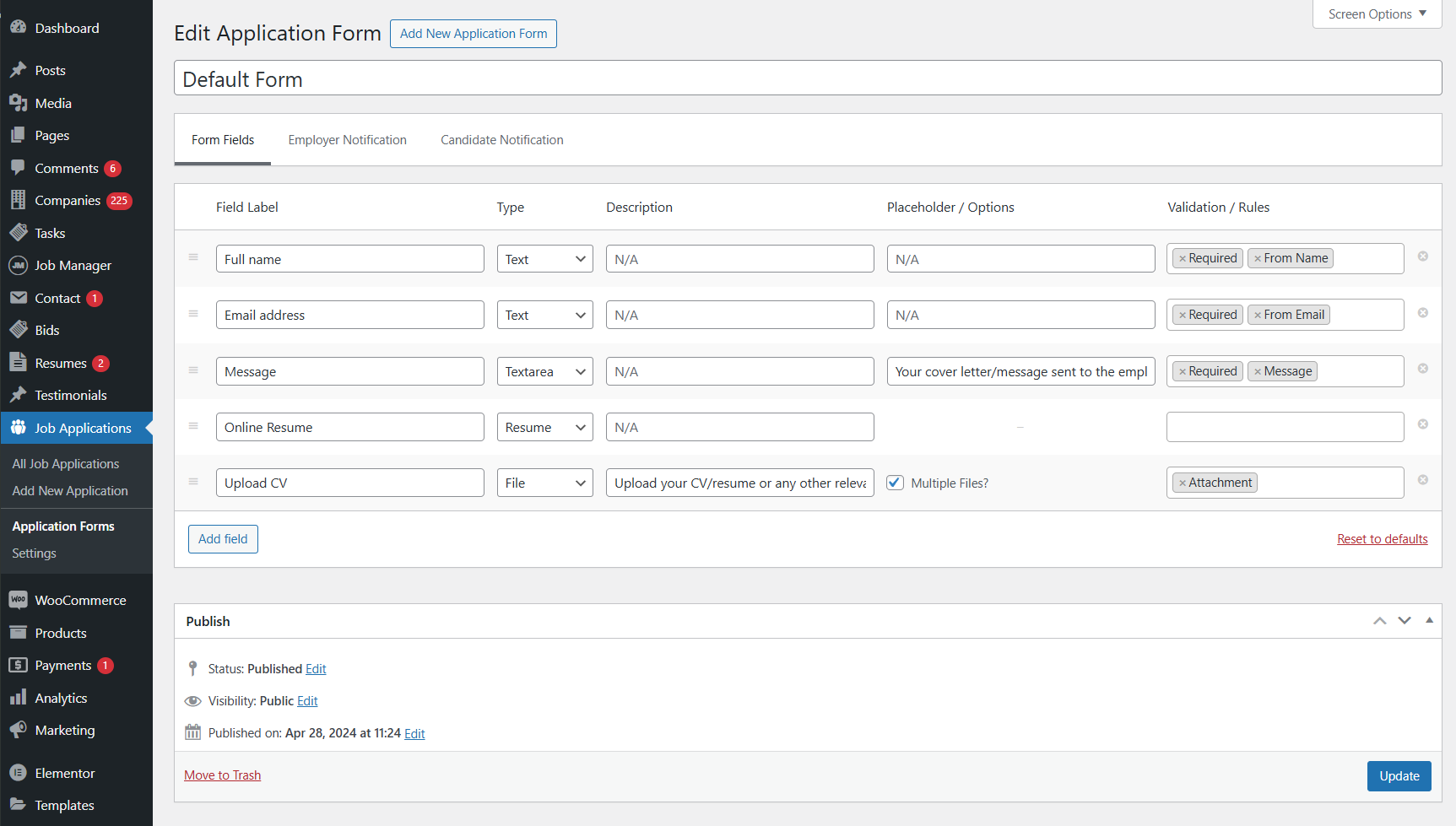
From here you can add, remove, edit, and re-order form fields. Available field types are:
- Text
- Textarea
- File
- Select
- Multiselect
- Checkbox
- Resume
- Output content
- Date
Validation Rules
You can add the following validation rules to your application form fields:
- Validation
- Required – Makes the field required, so the form cannot be submitted if the field is empty.
- Email – Force the field to only accept a valid email address.
- Numeric – Force the field to only accept a numeric input.
- Data Handling
- From Name – Use this field as the ‘From name’ in the application email (can only be used once).
- From Email – Use this field as the ‘From email’ in the application email (can only be used once).
- Message – Use this field as the main content of the application email (can only be used once).
- Attachment – (For file uploads) Include these file(s) as an attachment on the application email.
The plugin does not have support for conditional fields. If you need that, you can use an alternative form provider that does offer this feature.
Customising the Employer & Candidate Notifications
From the form editor page, you will also notice 2 tabs at the top to customise the notifications. By default, only an employer notification is sent, but if you add content to the candidate notification, candidates will be notified too.
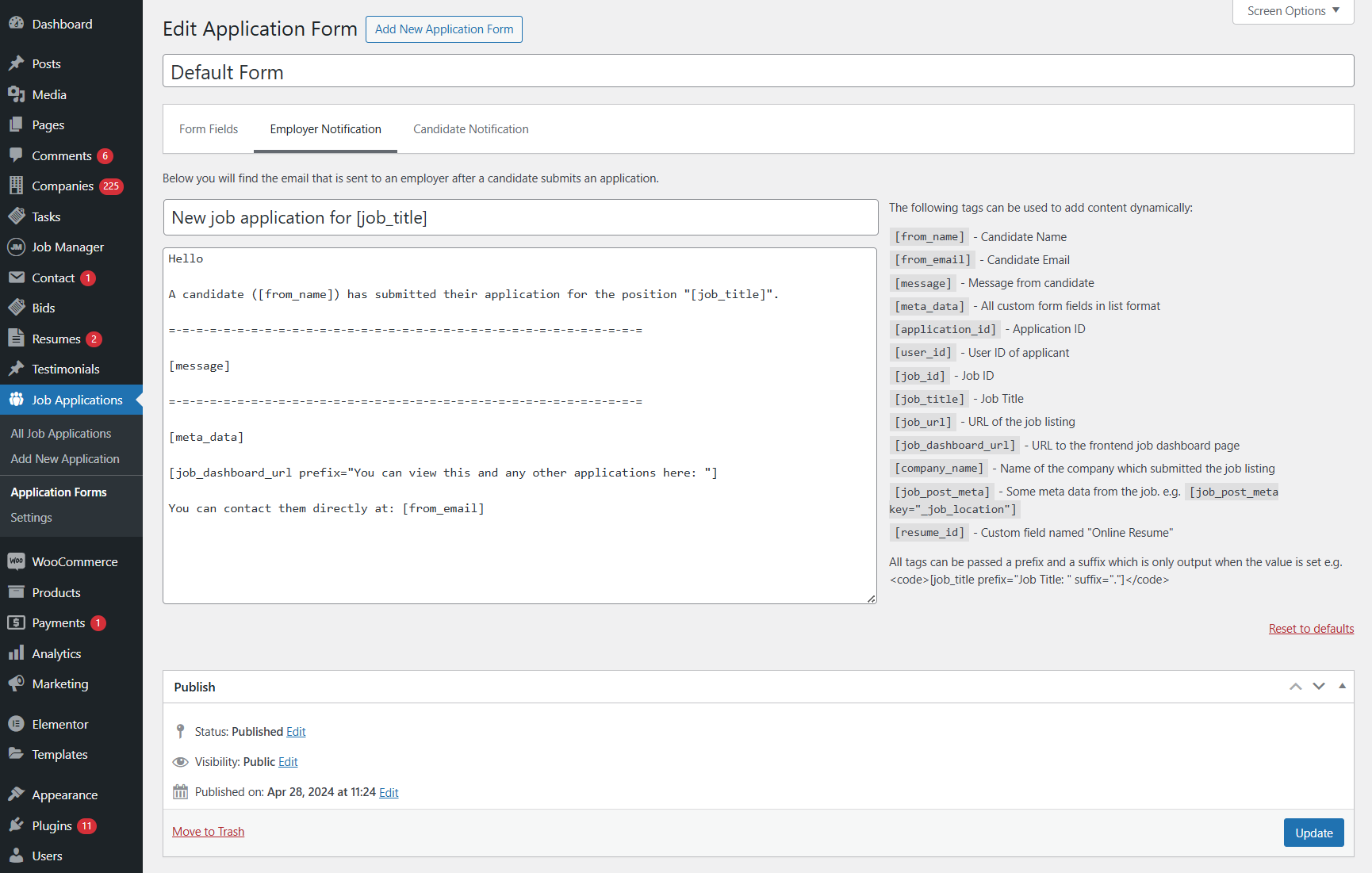
The top field will be the subject line of the email, whist the bottom textarea field will be the email contents. The right side of the page shows which dynamic tags you can insert into your message + subject. These will be substituted for real data at the time of sending.
Viewing applications via the job_dashboard shortcode
When the applications extension is installed, a new column will be shown when viewing the job dashboard on the frontend:
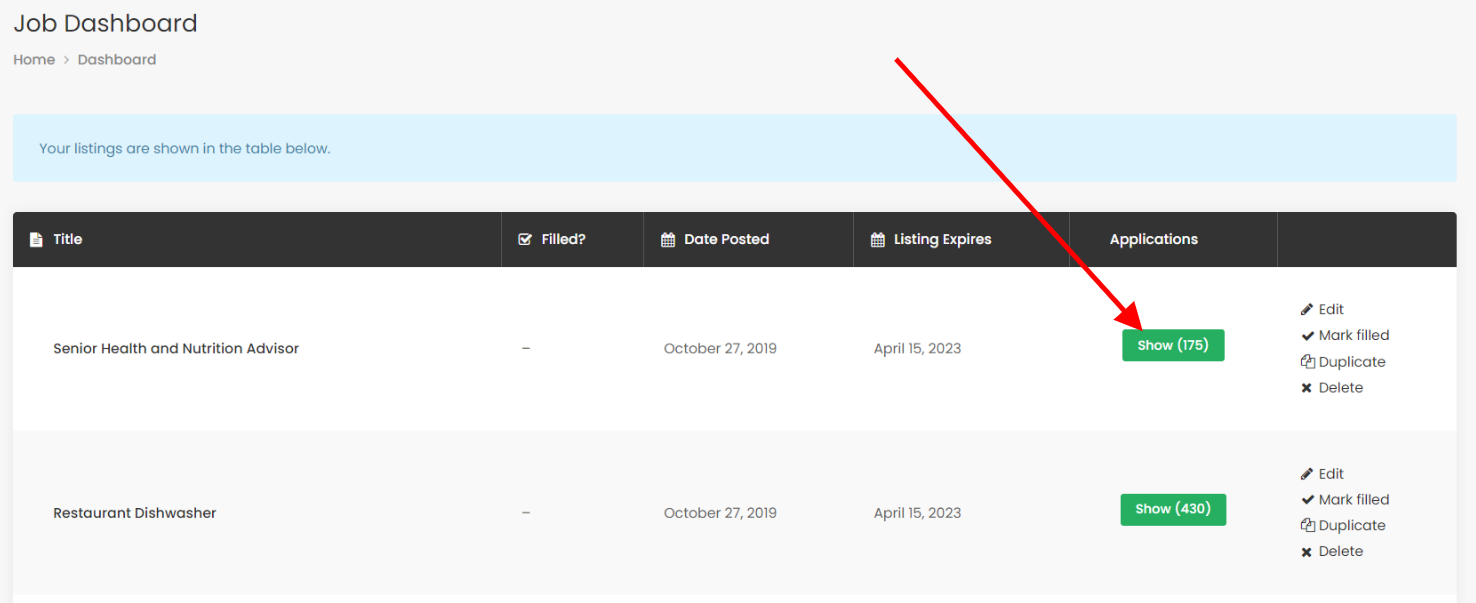
This will show the number of applications per job listing. Clicking the number (when there are applications) will reveal the application list:
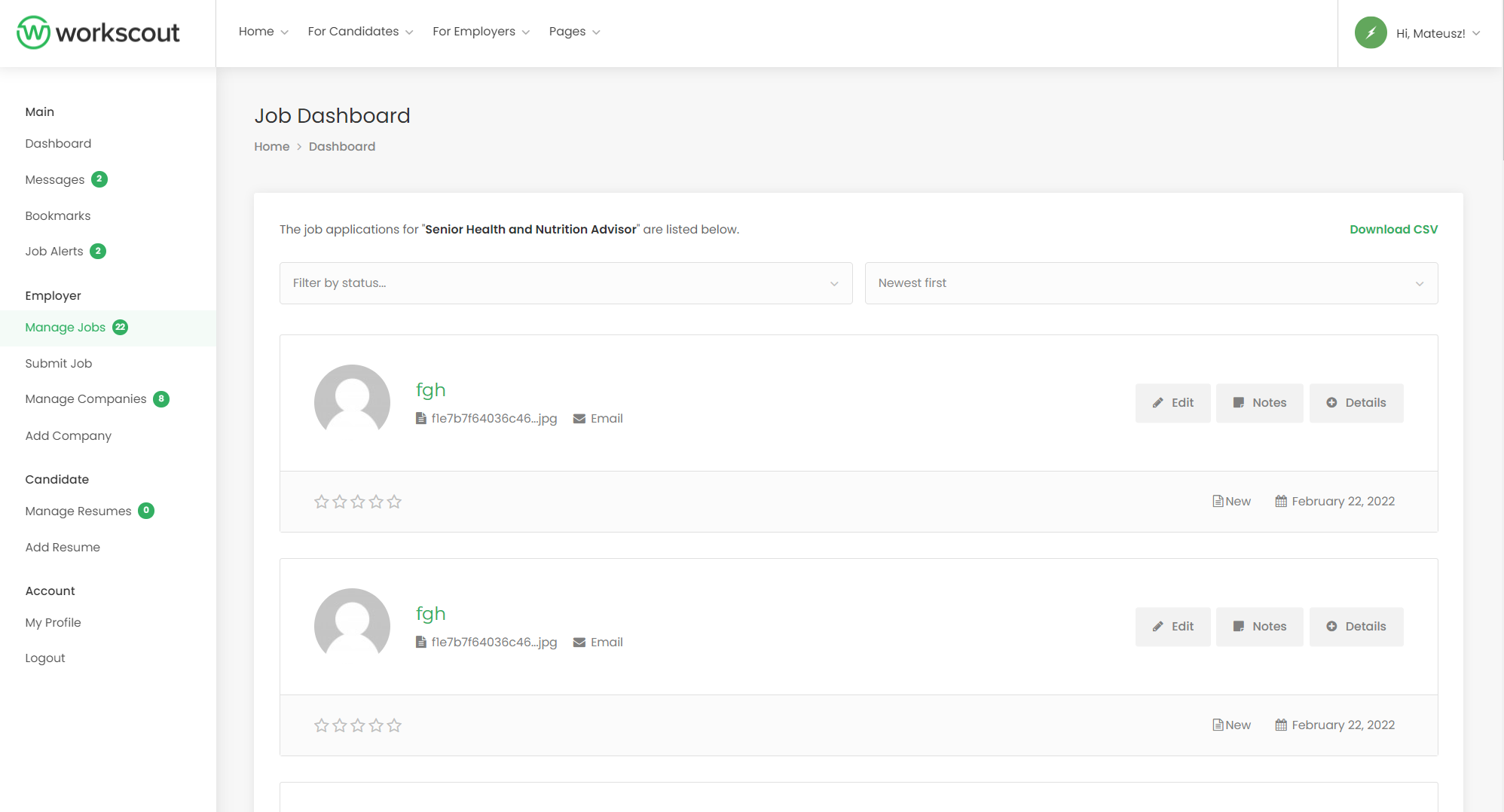
Above the applications you can choose to filter by status. Statuses include:
- New
- Interviewed
- Offer extended
- Hired
- Archived
You can also choose to sort the applications by date, name or rating.
Downloading Application Data
When viewing all applications for a job listing in the Job Dashboard, you can click on “Download CSV” at the top of the page, to download a CSV file containing all the application data for that job listing.

If you need to download data for all applications on the site, you can export an XML file of all Job Applications via Tools > Export.
Viewing applications via the admin dashboard
In the WordPress admin dashboard you’ll see a new section called Job Applications. Going here, as an admin user, you’ll see all applications:

These can be filtered by job and filtered/sorted like the frontend view. If you click to view an application you’ll be able to edit:
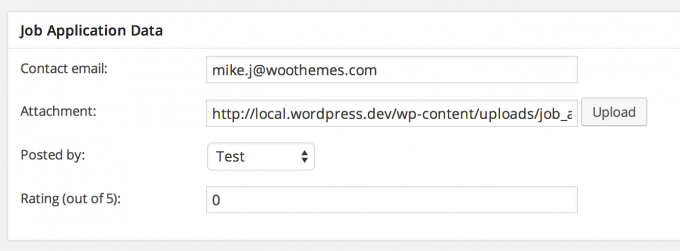
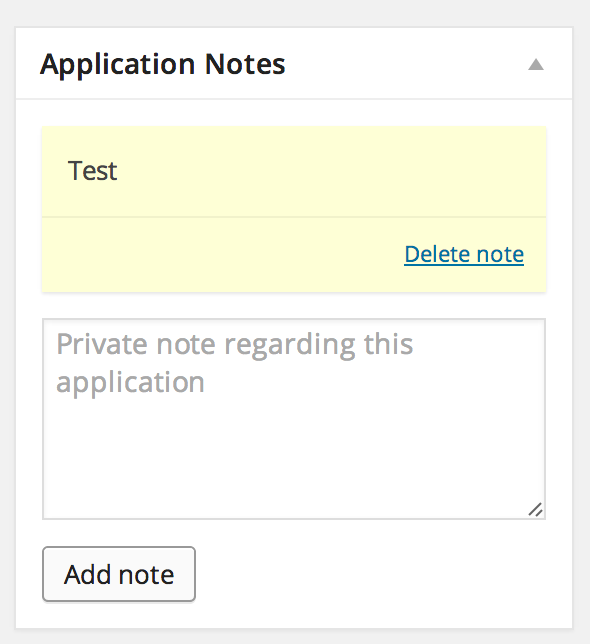
And you’ll be able to add notes:
Past Applications
You can also allow candidates to view their past applications by adding the [past_applications] shortcode to a page. If you use the Resume Manager add-on, you’ll most likely want to add the shortcode to the Candidate Dashboard page that is created during that plugin’s setup, but it can be added to any page.

