
Enabling / Disabling Fields
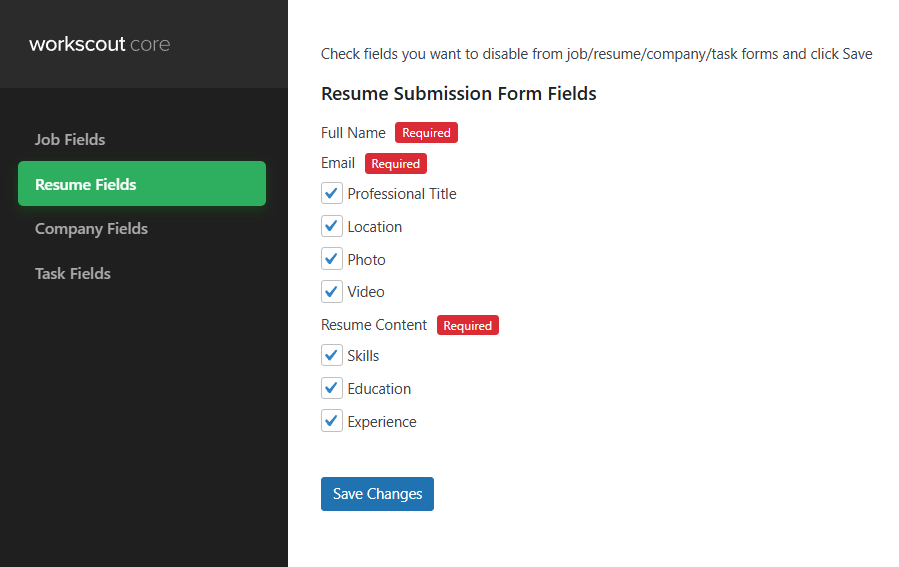
Basic changes can be done in WorkScout Core → Form Fields Visibility → Resume Fields where you can enable or disable fields you want in resume submit form.
For text changes from english to english use plugin such as the Say What Plugin. If you’d like to translate fields to other language than english please refer to article: Translating theme and plugins →
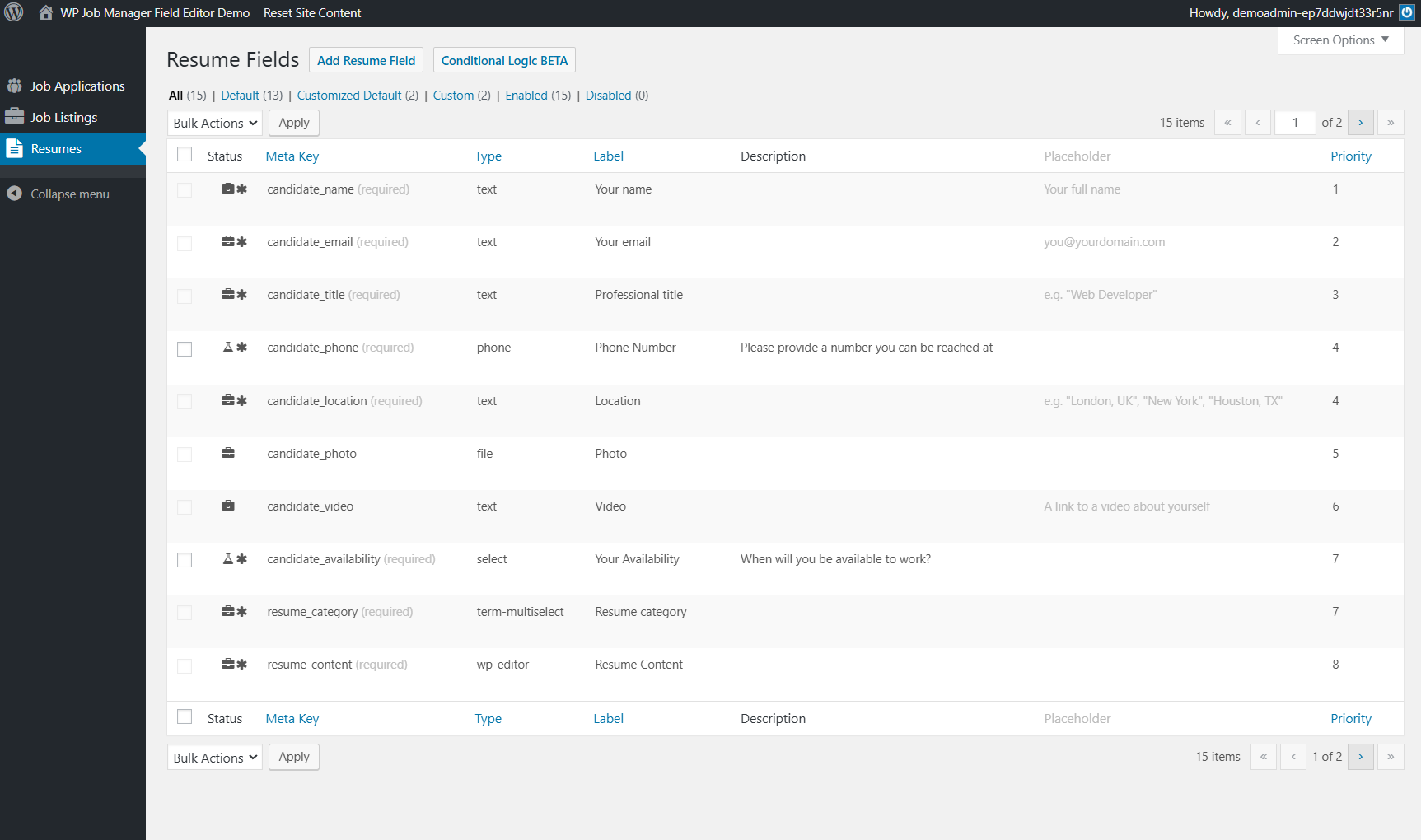
Drag & Drop Editor
Use a 3rd party plugin such as https://plugins.smyl.es/wp-job-manager-field-editor/ which has a UI for field editing.
Editing fields via PHP snippets on the frontend
Editing resume submission fields is possible via the submit_resume_form_fields filter. Adding some code will allow you to edit various fields, or add new ones.
See the below example which demonstrates how to change a field’s label:
// Add your own function to filter the fields
add_filter( 'submit_resume_form_fields', 'custom_submit_resume_form_fields' );

// This is your function which takes the fields, modifies them, and returns them
function custom_submit_resume_form_fields( $fields ) {

// Here we target one of the job fields (candidate name) and change it's label
$fields['resume_fields']['candidate_name']['label'] = "The Candidate Name";

// And return the modified fields
return $fields;
}
Adding a field
Similarly, you can add a field just as easily. Here’s an example showing how to add a new text input to the form:
// Add field to admin
add_filter( 'resume_manager_resume_fields', 'wpjms_admin_resume_form_fields' );
function wpjms_admin_resume_form_fields( $fields ) {

$fields['_candidate_color'] = array(
'label' => __( 'Favourite Color', 'job_manager' ),
'type' => 'text',
'placeholder' => __( 'Blue', 'job_manager' ),
'description' => '',
'priority' => 1
);

return $fields;

}

// Add field to frontend
add_filter( 'submit_resume_form_fields', 'wpjms_frontend_resume_form_fields' );
function wpjms_frontend_resume_form_fields( $fields ) {

$fields['resume_fields']['candidate_color'] = array(
'label' => __( 'Favourite Color', 'job_manager' ),
'type' => 'text',
'required' => true,
'placeholder' => '',
'priority' => 1
);

return $fields;

}

// Add a line to the notifcation email with custom field
add_filter( 'apply_with_resume_email_message', 'wpjms_color_field_email_message', 10, 2 );
function wpjms_color_field_email_message( $message, $resume_id ) {
$message[] = "n" . "Favourite Color: " . get_post_meta( $resume_id, '_candidate_color', true );
return $message;
}
Note: You can change the ‘priority’ of the field to position it where you want it. The higher the number, the lower down the form it will appear.
You could use a different field type like select or checkbox, just make sure to follow the same method to add those field types that WP Job Manager uses.
Note: To add it to the preview field you’d want to look at adding it to the template files, like content-single-resume.php, with some code like:
<? php echo get_post_meta( $post->ID, '_candidate_color', true ); ?>
Making the ‘Resume File’ field required
A common request is to require a resume file to be added. Simply use the following code to make it so:
// Add your own function to filter the fields
add_filter( 'submit_resume_form_fields', 'resume_file_required' );

// This is your function which takes the fields, modifies them, and returns them
function resume_file_required( $fields ) {

// Here we target one of the job fields (candidate name) and change it's label
$fields['resume_fields']['resume_file']['required'] = true;

// And return the modified fields
return $fields;
}
Adding a field to a repeated section
To add a field to one of the resume’s repeated sections (Education, Experience), the process is almost the same as adding a single field. Here’s an example of adding a “Favorite Teacher” field to each Education section.
Adding the field to admin
Note that we use the 'resume_manager_resume_education_fields' filter instead of 'resume_manager_resume_fields'.
It’s also important to include a 'name' entry as shown:
// Add field to admin
add_filter( 'resume_manager_resume_education_fields', 'wpjms_admin_resume_form_fields' );
function wpjms_admin_resume_form_fields( $fields ) {

$fields['favorite_teacher'] = array(
'label' => __( 'Favourite Teacher', 'job_manager' ),
'name' => 'resume_education_teacher[]',
'type' => 'text',
'placeholder' => '',
'description' => '',
'priority' => 1
);

return $fields;

}
Adding the field to the frontend form
This code is almost the same as adding a single field to the form, you just need to include ['candidate_education']['fields'] to specify where this field should go.
// Add field to frontend
add_filter( 'submit_resume_form_fields', 'wpjms_frontend_resume_form_fields' );
function wpjms_frontend_resume_form_fields( $fields ) {

	$fields['resume_fields']['candidate_education']['fields']['favorite_teacher'] = array(
	    'label' => __( 'Favourite Teacher', 'job_manager' ),
	    'type' => 'text',
	    'required' => true,
	    'placeholder' => '',
	    'priority' => 1
	);

	return $fields;

}

