System Notifications
- Welcome Email (sent to new users upon registration)
- One Time Code (for verification during registration)
Listing Notifications
- New Listing Submitted – User (confirmation that listing has been submitted)
- New Listing Submitted – Admin (admin notification about new listing submission)
- Listing Published (confirmation that listing has been approved and published)
- Listing Expired (notification that listing has expired)
- Listing Expiring Soon (reminder that listing will expire in 5 days)
- New Review on Listing (notification to owner about new review)
Booking Notifications – To Guests
- Booking Waiting for Approval (confirmation that booking request is pending owner approval)
- Instant Booking Confirmed (confirmation of instant booking)
- Free Booking Confirmed (confirmation of free booking)
- Cash Payment Booking Confirmed (confirmation of booking with cash payment option)
- Booking Canceled – Guest (notification that booking has been canceled)
- Payment Required (reminder to complete payment for booking)
- Payment Confirmed – Guest (confirmation that payment was successful)
- Payment Expiring Soon (reminder that payment deadline is approaching)
- Upcoming Booking Reminder (reminder about upcoming booking appointment)
- Review Reminder (request to leave review after completed booking)
Booking Notifications – To Owners
- New Reservation – Owner (notification about new booking request)
- New Instant Reservation – Owner (notification about new instant booking)
- Booking Canceled – Owner (notification that guest canceled booking)
- Payment Received – Owner (notification that guest completed payment)
You can customize content of those emails in Dashboard → Listeo Core → Emails
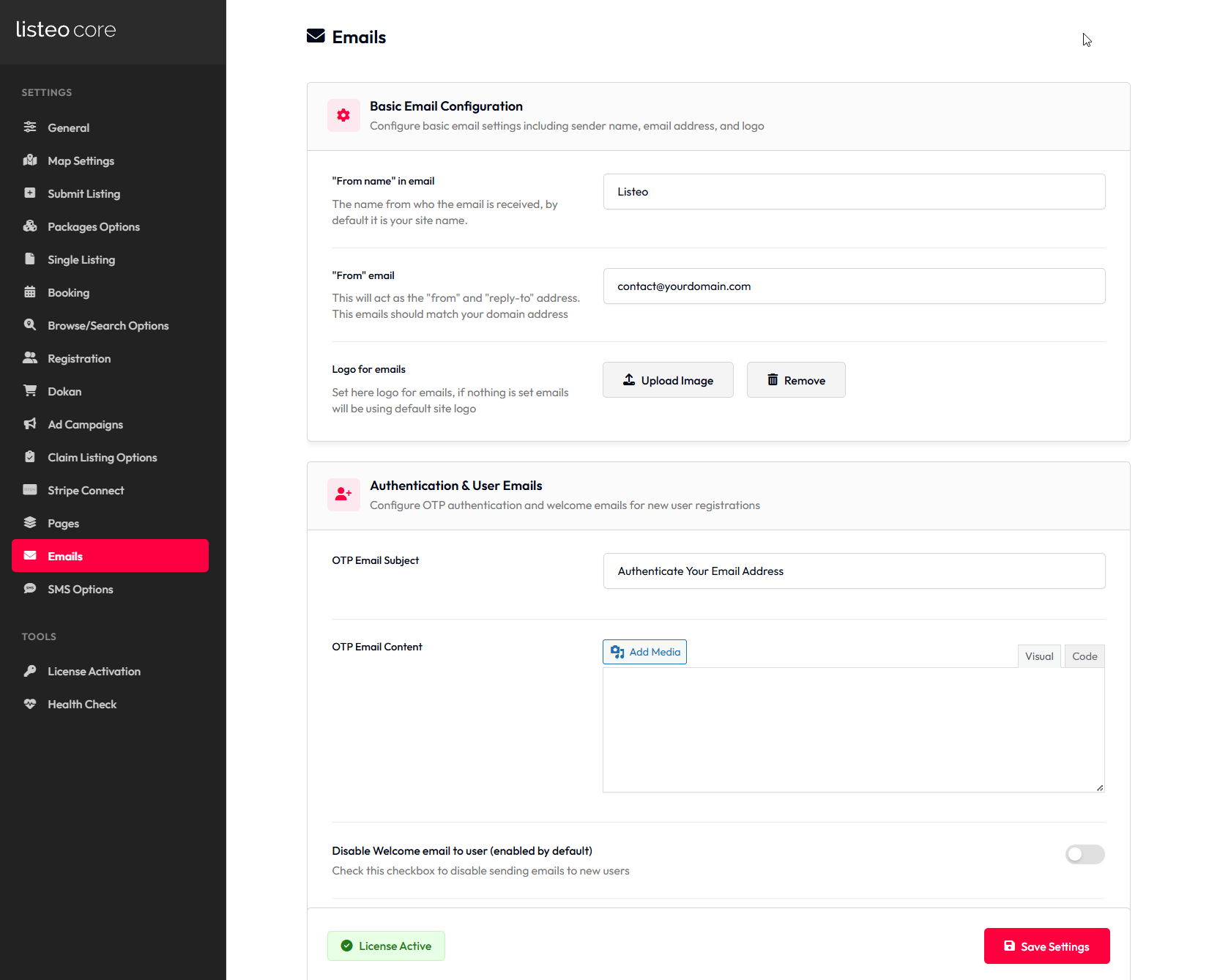
You can also use following variables in message content:
- {user_name} – guest or owner username
- {payment_url} – link to the checkout page
- {expiration} – time when payment link will expire
- {listing_name} – listing name
- {dates} – booked dates
- {details} – amount of ordered tickets or guests
Using Custom Fields in Email Templates
In addition to the standard email tags listed above, you can display any custom field value from the listing in your email notifications. Use the following format:
{custom_field_FIELDNAME}
Replace FIELDNAME with the name (key) of your custom field. For example, if your listing has a custom field called phone_number, use {custom_field_phone_number} in your email template to display its value.
This works in any email notification that is associated with a listing (booking confirmations, listing approved, listing expiring, etc.).
Examples:
- {custom_field_phone_number} — displays the listing’s phone number custom field
- {custom_field_website} — displays the listing’s website custom field
- {custom_field_special_instructions} — displays the listing’s special instructions field
The field name must match exactly the key you used when creating the field in the Listeo Form Editor (without the underscore prefix that WordPress adds internally).
Email template preview: