Listeo User Group on Facebook
Open Listeo Editor → Appearance in your WordPress dashboard to change colors, fonts, listing layouts and other visual settings. You can also open Appearance from the Listeo menu in the WordPress toolbar.
The editor shows settings on the left and a live preview on the right. The instructions below describe the current Appearance editor. If your installation still shows the older Customizer interface, update Listeo and its bundled plugins first.
Using the Appearance editor
- Choose a section, or use Search settings to find an option.
- Change a setting and check the preview. The editor switches to a relevant page when one is available. Use the Previewing menu at the top to choose another page.
- Open More options within a section for additional settings. Some controls appear only for compatible layouts or after you enable their parent option.
- Click Publish to apply your changes to the website. Previewing a change does not publish it. The Undo button reverses the last unsaved change.

Listing Results
Listeo Editor → Appearance → Listing Results
This section controls the listing archive and search results. Choose the overall Page layout first, then the Listing cards used inside it.
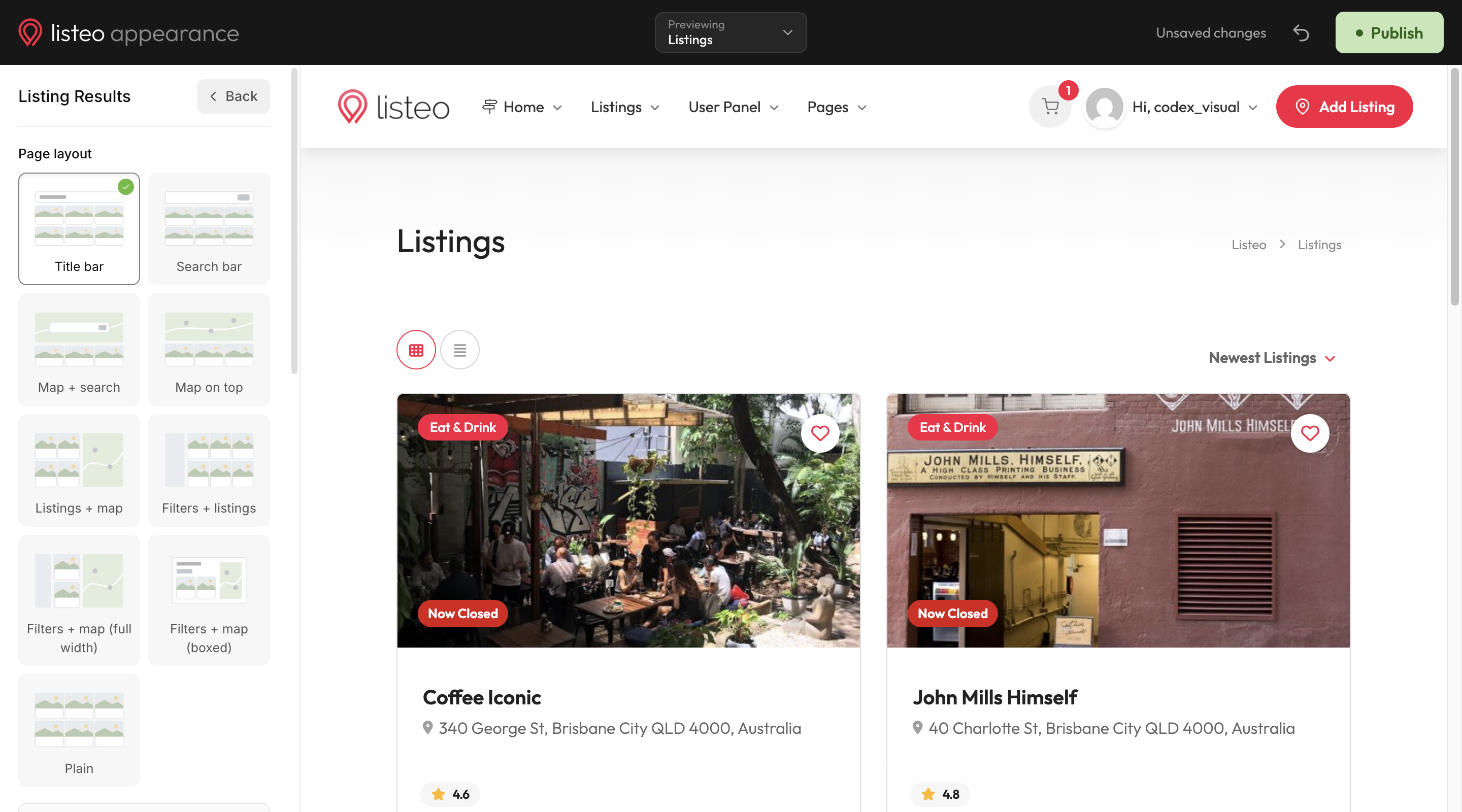
The available Filters controls depend on the layout. Standard layouts offer Left, Right or None. Filters + listings and Filters + map offer Sidebar or Popup. Filters + map layouts also let you choose whether filters are open at the start.
Cards, maps and result controls
- Listing cards: List, Grid, Compact, Classic list, Minimal, With logo or Rows. Compatible styles offer a photo slider and controls for the category, bookmark, location, open status, price, description, features and custom fields. The available elements depend on the card style.
- Rating: Stars or Number for compatible card styles.
- Map pins: Icon, Dot or Price on layouts with a map.
- Pagination: Pages or Load more. You can also enable Compare listings.
Under More options, set the number of listings per page, default order, page title and subtitle, category bar, filter popup form, buttons above the results and available sorting choices. You can also limit the categories and features shown on each card, choose a placeholder photo and price filter icon, and adjust mobile filters and map behavior.
Map settings include grouping nearby pins, fitting the map to the results and a manual zoom level when automatic fitting is off. The category bar is available for Filters + listings and Filters + map layouts, with choices for categories, listing types and pills with icons.
See Listing Layouts for more about listing result layouts.
Listing Page
Listeo Editor → Appearance → Listing Page
Use Listing Page for the page visitors see after opening an individual listing. Choose a Page style, then select one of its supported gallery layouts.
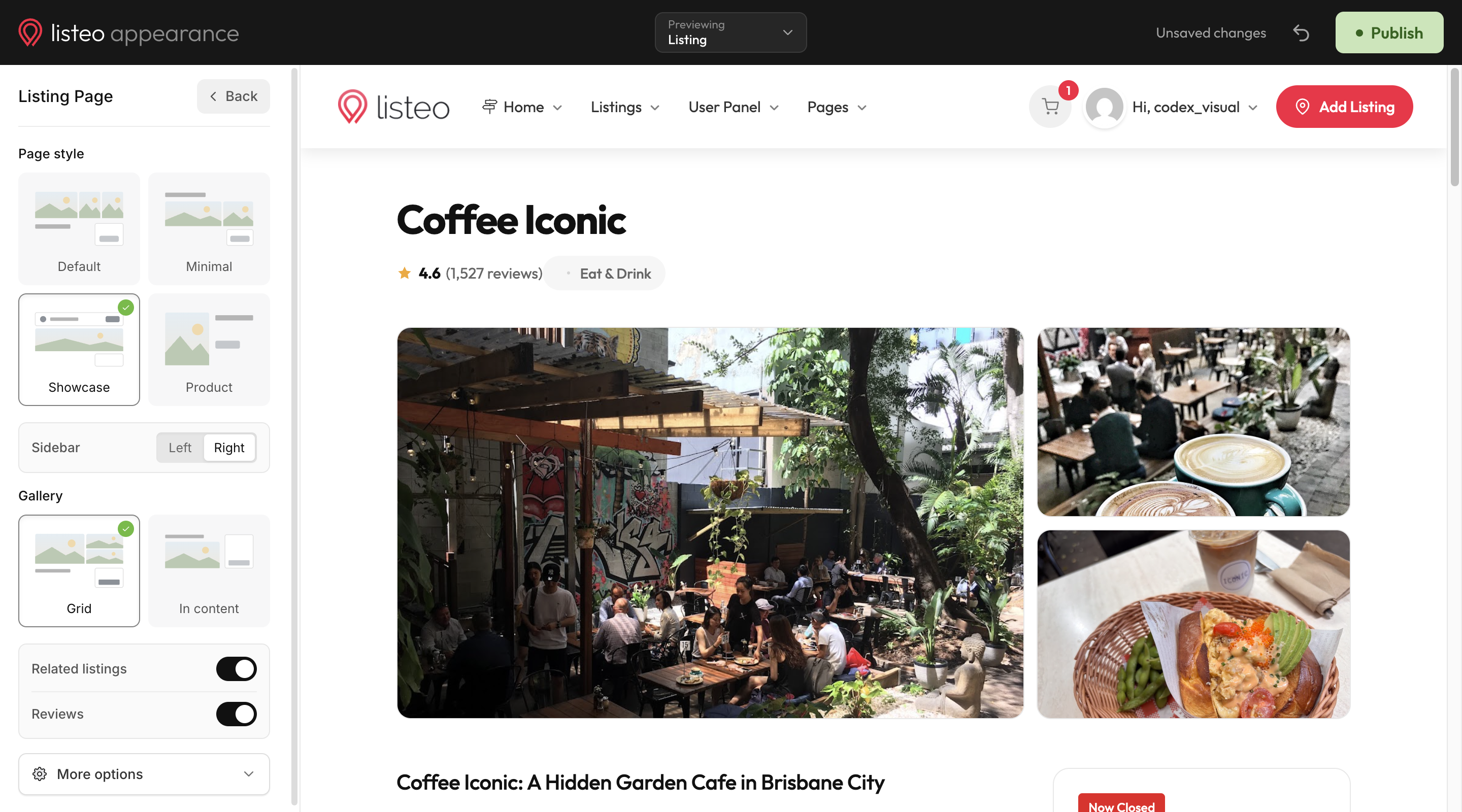
The Top gallery needs at least four photos. Listings with fewer photos use the In content gallery instead. With Full width selected, More options includes Photo height and Inset photo.
These are the global page style settings. A page style assigned under Listeo Editor → Listing Types takes priority for listings of that type.
You can choose a left or right sidebar, enable related listings and reviews, and set the sidebar position on phones. More options also includes related card styles, nearby listings and their card style, and the listing map zoom.
Header
Listeo Editor → Appearance → Header
Opens the separate Header Builder for the logo, navigation and header design.
Menus
Listeo Editor → Appearance → Menus
Opens the WordPress menu editor.
Widgets
Listeo Editor → Appearance → Widgets
Opens the WordPress widget editor for sidebar and footer content.
Custom CSS
Listeo Editor → Appearance → Custom CSS
Add CSS rules and check their effect in the preview before publishing.
Appearance controls the theme’s visual settings. To change search fields or listing submission fields, use the corresponding editors in Listeo Editor.
Options reference
The tables below describe the settings available in each Appearance section.
Site
Listeo Editor → Appearance → Site
| Setting Name | Option/Details |
|---|---|
| Site name, Tagline and Site icon | Change the site title, description and favicon. |
| Homepage | Choose Page for a static homepage, or Posts for recent blog posts. With Page selected, choose Homepage page and Blog page. |
| More options | Show or hide Breadcrumbs, enable Advanced design options, and create Extra sidebars. |
Colors
Listeo Editor → Appearance → Colors
| Setting Name | Option/Details |
|---|---|
| Main color | Choose the main accent color. |
| Site | Choose Light or Dark mode. |
| User dashboard | Choose Light or Dark for the user dashboard. This option appears when the site uses Light mode. |
| Background | More options includes the background color and an optional background image. |
| Image fit | Choose Default, Fill screen, Fit to screen, Repeat or Custom. Custom adds image position, size, repeat and scrolling controls. |
Fonts
Listeo Editor → Appearance → Fonts
| Setting Name | Option/Details |
|---|---|
| Text and Headings | Choose text and heading fonts. The font picker includes suggested font pairs. |
| Text size | Adjust the body text size. |
| Page titles and Menu | More options includes separate fonts for page titles and navigation. |
| Don’t load Google Fonts | Available under More options for sites that supply their own fonts. |
Listing Results layouts
Listeo Editor → Appearance → Listing Results → Page layout
| Layout | What it displays |
|---|---|
| Title bar | A title area above the results. |
| Search bar | A search form above the results. |
| Map + search | A map with a search form above the results. |
| Map on top | A map above the listing cards. |
| Listings + map | Results and a map side by side. |
| Filters + listings | Results with sidebar or popup filters, with Full width and Boxed page width options. |
| Filters + map (full width) | A full width layout with results, filters and a side map. |
| Filters + map (boxed) | A contained layout with results and a side map. Select this tile separately from the full width version. |
| Plain | Results without a title bar, top search form or map. |
Listing Page styles and galleries
Listeo Editor → Appearance → Listing Page → Page style
| Page style | Gallery choices |
|---|---|
| Default | Grid, Top, In content or Full width. |
| Minimal | Grid or Full width. |
| Showcase | Grid or In content. Its gallery choice is independent of the Default and Minimal styles. |
| Product | Uses its own gallery in the page content. |
Footer
Listeo Editor → Appearance → Footer
| Setting Name | Option/Details |
|---|---|
| Footer style | Choose Light or Dark. |
| Own footer colors | Enable custom Background and Text colors. |
| Columns | Choose a footer widget layout with one to four columns. Add the widget content through Widgets. |
| Copyright | Edit the copyright text. |
| Social icons | Add a social service and its URL. |
Blog
Listeo Editor → Appearance → Blog
| Setting Name | Option/Details |
|---|---|
| Posts | Choose List, 2 columns or 3 columns. |
| Sidebar | Choose Left, Right or None. |
| Page title | Show or hide the title area. More options includes Title, Subtitle and a Gradient or Solid title background. |
| About author box and Related posts | Show or hide each section. The author box needs a completed user biography. |
| Post details | More options lets you choose Author, Date, Tags, Categories and Comments for the blog list and individual post pages. |
| Post page sidebar | More options includes Same as blog, None, Left or Right. |
| Share buttons | More options includes Facebook, Twitter and Pinterest. |
Shop
Listeo Editor → Appearance → Shop
| Setting Name | Option/Details |
|---|---|
| Sidebar | Choose Left, Right or None. |
| Results count and sorting | Show or hide these controls. |
| Banner photo | More options includes the shop banner photo, Banner overlay strength and Overlay color. |
| WooCommerce settings and Dokan settings | Open additional settings for those plugins. |
Owner Page
Listeo Editor → Appearance → Owner Page
| Setting Name | Option/Details |
|---|---|
| Overall rating, About me and Reviews | Show or hide each section. |
| Statistics | Show or hide the statistics section. Choose which items appear from Listings, Reviews, Rating, Bookings, Guests and Views. |
| Store | Show or hide the store section. Its content depends on the owner’s available products. |
| Owner listings and Owner blog posts | Show or hide the owner’s listings and blog posts. |
| Listings per page | Available under More options. |
Sign in
Listeo Editor → Appearance → Sign in
| Setting Name | Option/Details |
|---|---|
| Form type | Choose Popup or Page. |
| Design | Choose Standard or Full page. |
| Background | Full page design supports Gradient or Image. Set a Gradient color or choose a Side image. |
| Text on image | Add the text shown in the Full page design. |
| Image opacity and Color behind image | Available under More options when the background uses an image. |