Overview
The Ad Manager allows users to pay for prominent placement of their listings on your homepage, top of search results, or sidebar. They can set their desired budget and target specific categories.

Below is a step-by-step guide to setting up and managing ad campaigns.
Configuration
- Ad Campaign Settings
Navigate to Listeo Core → Ad Campaigns to configure your ad prices and settings. - Campaign Product
In the “Campaign Product” option, you must select a WooCommerce product to handle payments for ad campaigns.
If no product appears in the list, go to WordPress Dashboard → Products, create a new product, name it, and set the Product Type to “Listeo Ad Campaign.” Publish the product.
Return to Listeo Core → Ad Campaigns, select the newly created product, and set your ad prices.
Note: For Pay Per View campaigns, the price is set per 1,000 views. - Ad Campaigns Management Page
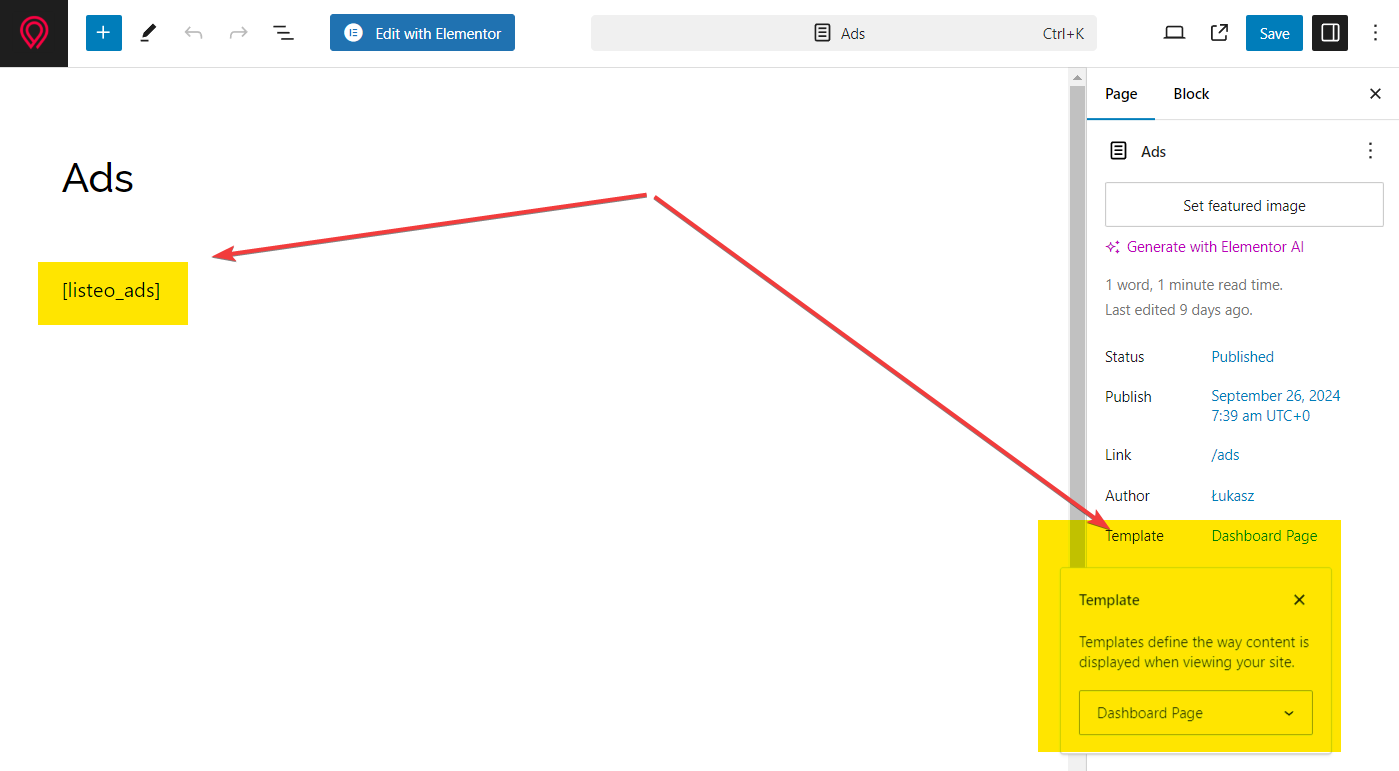
In Listeo Core → Pages, set the Ad Campaigns Manage Page. This page must contain the[listeo_ads]shortcode and should use the Dashboard Page template.


Submit Ad Campaign
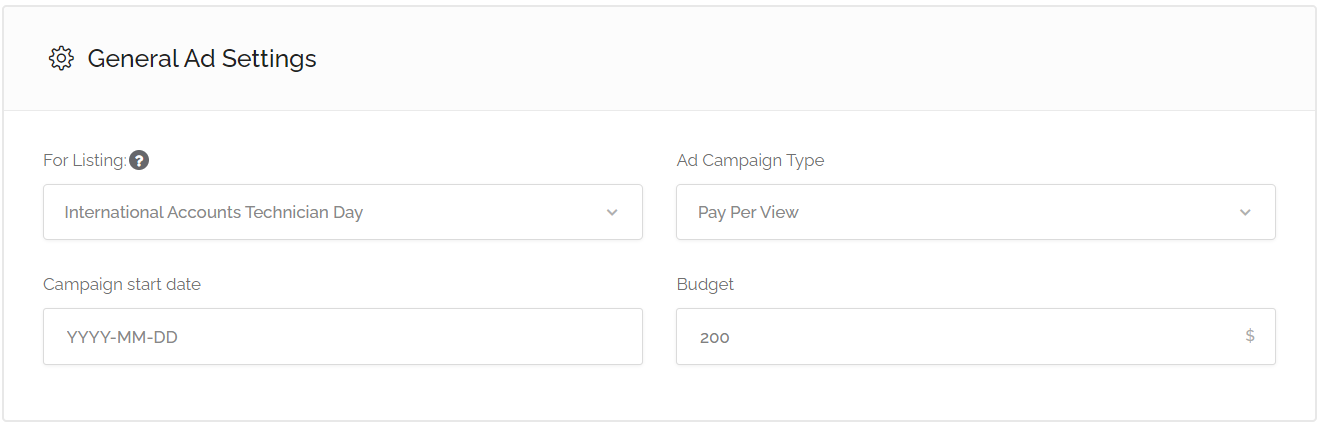
In the front-end user dashboard, users can create new ads by clicking the “Create New Campaign” button on the Ad Campaign page. The form is divided into three sections:
- Campaign Details
Select the listing you want to promote.
Set your budget and choose a campaign type: Pay Per View or Pay Per Click.
Optionally, set a Start Date for the campaign. If not set, the campaign will start as soon as the ad order is paid for and marked as Completed.

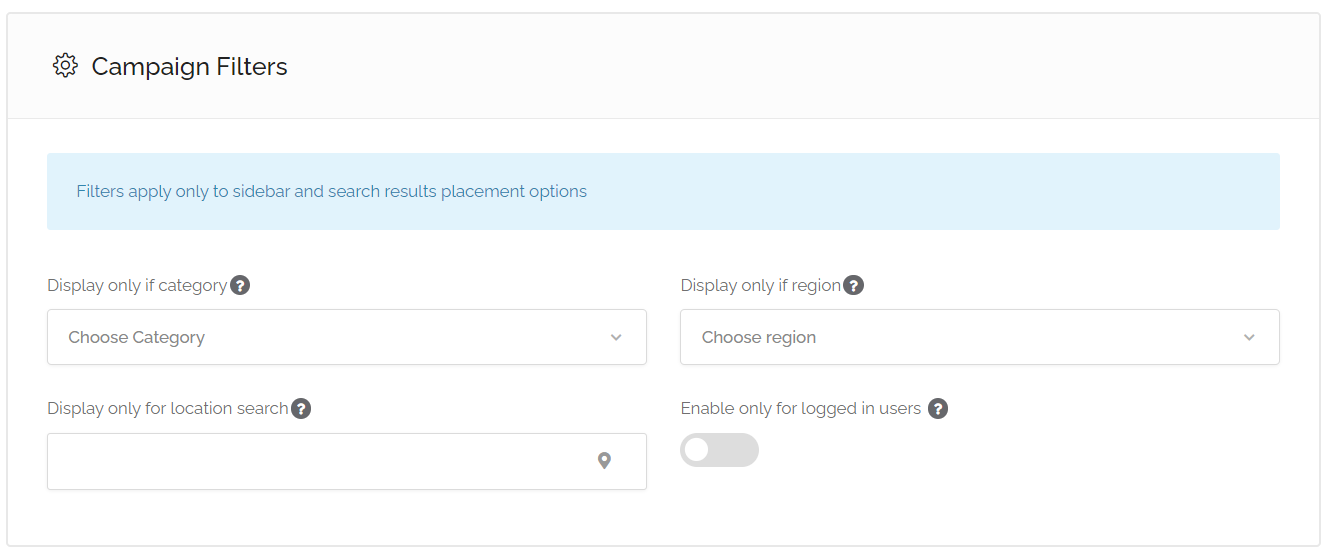
- Campaign Filters
Select if the ad should only appear for a specific category or region.Optionally, limit the ad display by radius (you must have the Radius Search configured in Listeo Core → Map Options).Ads can also be limited to logged-in users only.

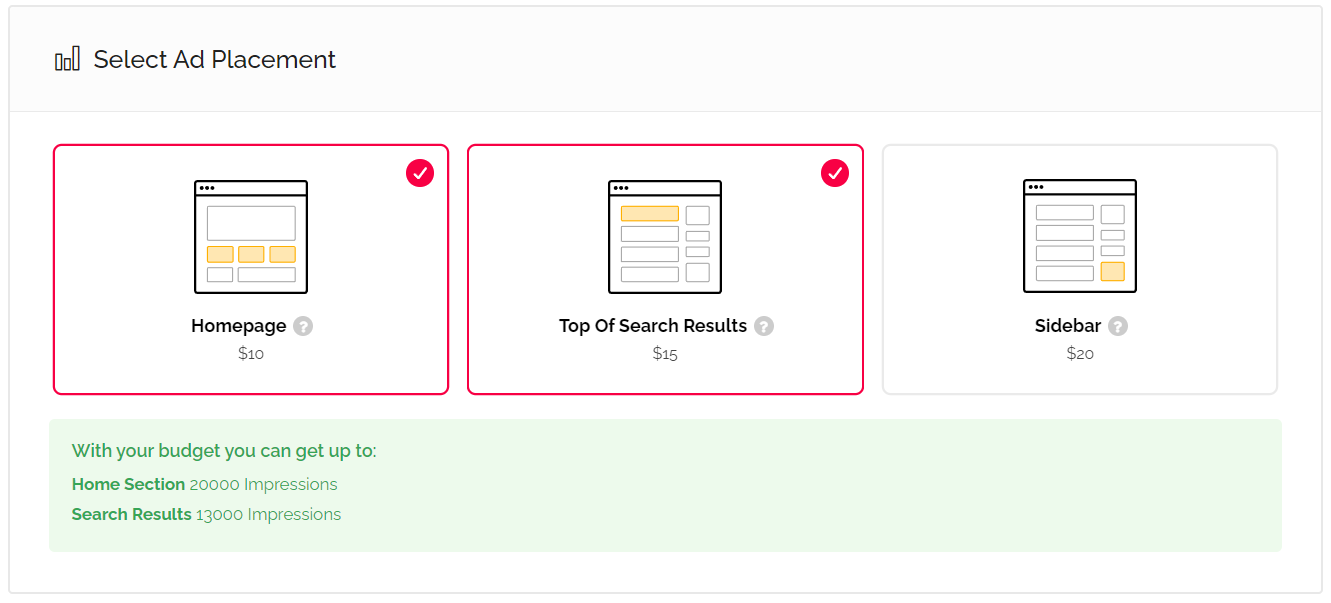
- Ad Placement
Choose where the ad will appear:- Home Section (in any home section)
- Search Results Section (on top of search results)
- Sidebar (you need to add Listeo Ads widget in Appearance > Widgets to the sidebar where you want to display ads)

Checkout and Activation
After submitting the form, the user is redirected to the checkout page to complete the payment. Once the order status is set to Completed, the ad will become active.
Ad Display
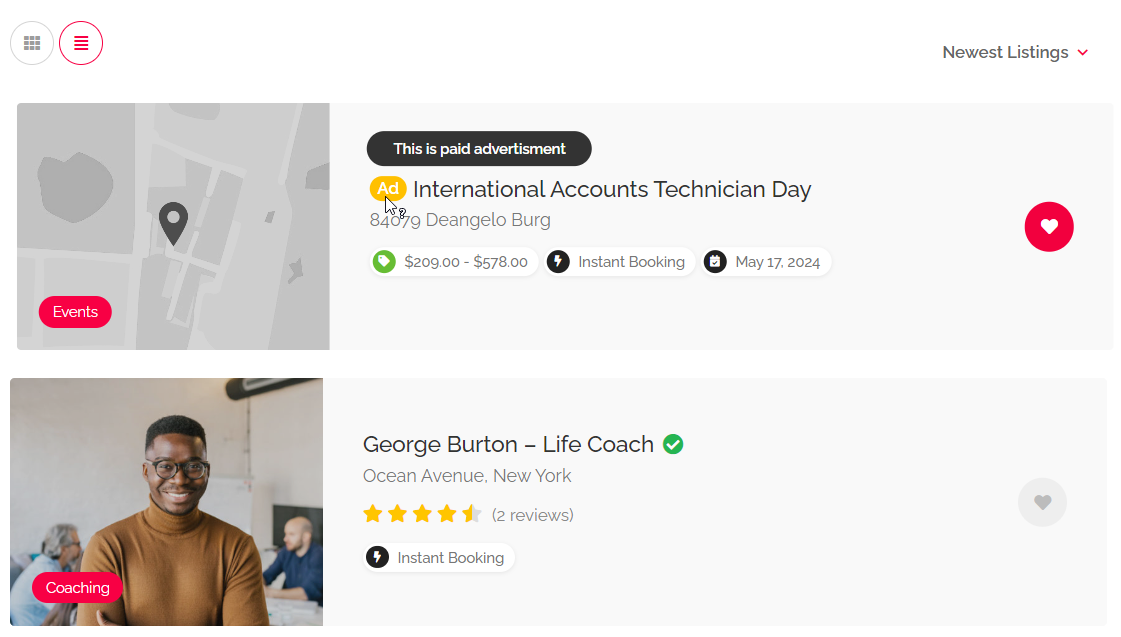
The promoted listing will appear in the positions configured in the ad, such as at the top of search results or in the chosen placement areas. Promoted listings will be marked with “Ad” tag.
Listeo Core → Ad Campaigns
| Setting Name | Option/Details |
|---|---|
| Campaign Setup & Configuration | |
| Campaign Product | Select WooCommerce product for ad campaigns select Options: All ad campaign products |
| Ad Campaigns type | Choose available campaign pricing models checkbox_multi Options: Per click, Per views Default: Both selected |
| Placement & Visibility Options | |
| Ad Campaigns placement | Select where ads can be displayed checkbox_multi Options: Home Page section, Search results, Sidebar widget Default: Home, Search, Sidebar, Location, Tag |
| Per-Click Pricing Configuration | |
| Ad Campaigns price for Home Page | Price per click for home page ads number |
| Ad Campaigns price for Search | Price per click for search results ads number |
| Ad Campaigns price for Sidebar | Price per click for sidebar ads number |
| Per-View Pricing Configuration | |
| Ad Campaigns price for Home per 1k views | Price per 1000 views for home page ads number |
| Ad Campaigns price for Search per 1k views | Price per 1000 views for search results ads number |
| Ad Campaigns price for Sidebar per 1k views | Price per 1000 views for sidebar ads number |