 OpenAI or
  Gemini or Mistral AI. Users can search using everyday phrases instead of just keywords.
Try it yourself on our demo: https://listeo.pro/
Key Benefits:
✅ Natural Language: Users can search like they talk: cozy restaurant with outdoor seating.
✅ AI understands context and finds businesses that meet user needs.
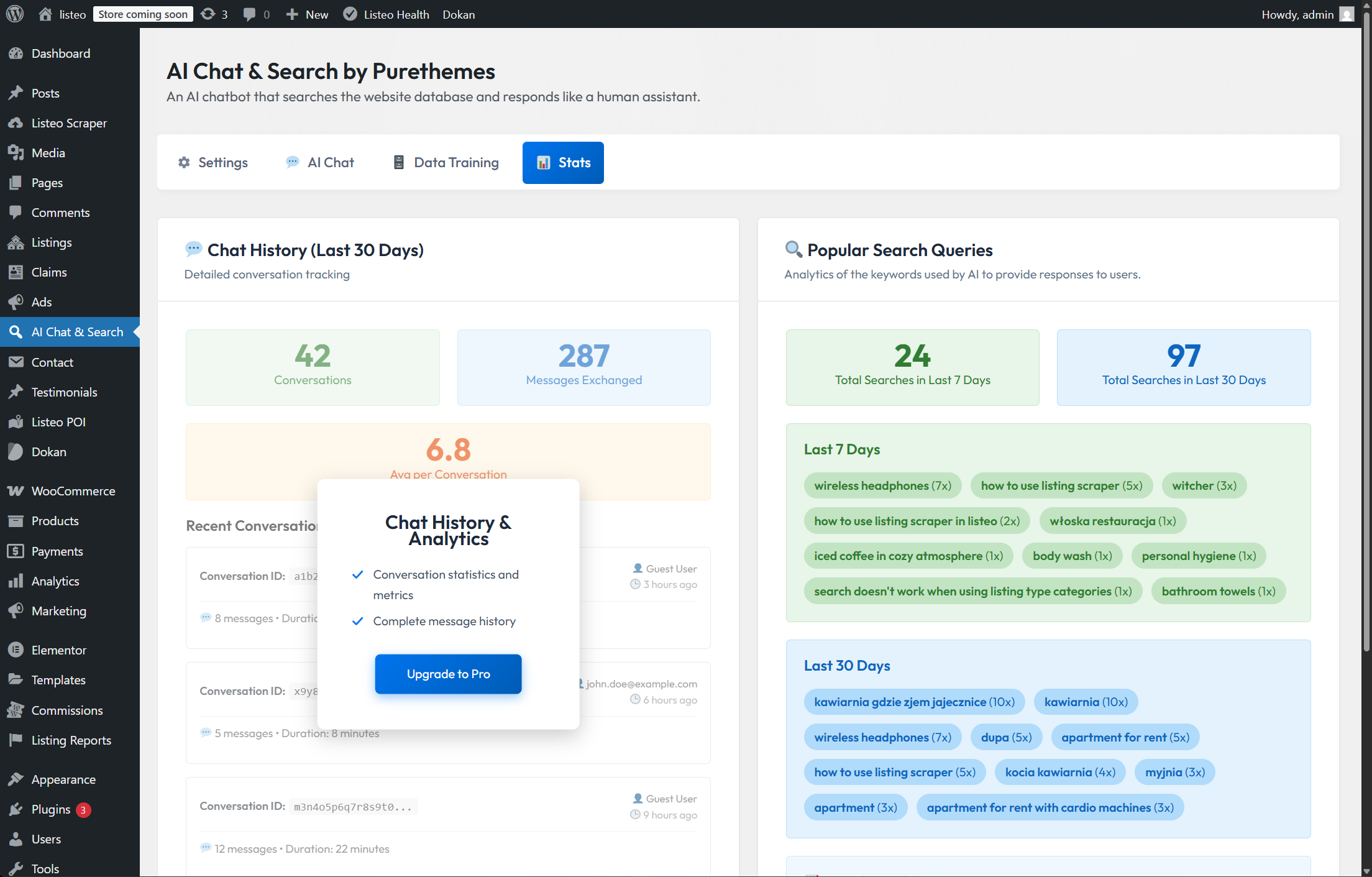
✅ Analytics Insights: Track popular searches to understand your users better.
✅ Natural Language: Users can search like they talk: cozy restaurant with outdoor seating.
✅ AI understands context and finds businesses that meet user needs.
✅ Analytics Insights: Track popular searches to understand your users better.
| What Users Search For | Standard WordPress Search | Listeo AI Search |
|---|---|---|
|
romantic dinner spot
|
❌ No — “romantic” rarely appears in restaurant listings | ✅ Finds fine dining, intimate cafes, date-night restaurants |
|
dog grooming services
Pet care needs
|
⚠️ Maybe — only if exact words “dog grooming” appear | ✅ Finds pet salons, mobile groomers, veterinary services |
|
kids birthday party venue
|
❌ No — exact phrase not in venue descriptions | ✅ Shows party halls, entertainment centers, kid-friendly venues |
The plugin creates a vector database by turning each listing into an embedding — a unique numerical representation capturing its meaning. User queries get converted the same way, then matched mathematically to find the closest results.
⚙️ Installation
Plugin is automatically installed with Listeo. However, if you can’t see it or have an older theme version, you can download it manually:
- Go to https://purethemes.net/license/ and download the PurioChat plugin.
You’ll need your purchase key:
How to find my license key? - Install and activate ai-chat-search.zip in WP Dashboard → Plugins → Add New
Configuration
- Navigate to PurioChat in your WordPress sidebar, then go to the AI Search tab. Add your OpenAI, Gemini, or Mistral AI API key and configure the plugin to your needs.How to create OpenAI API key? →
How to create Gemini API key? →
How to create Mistral API key? →

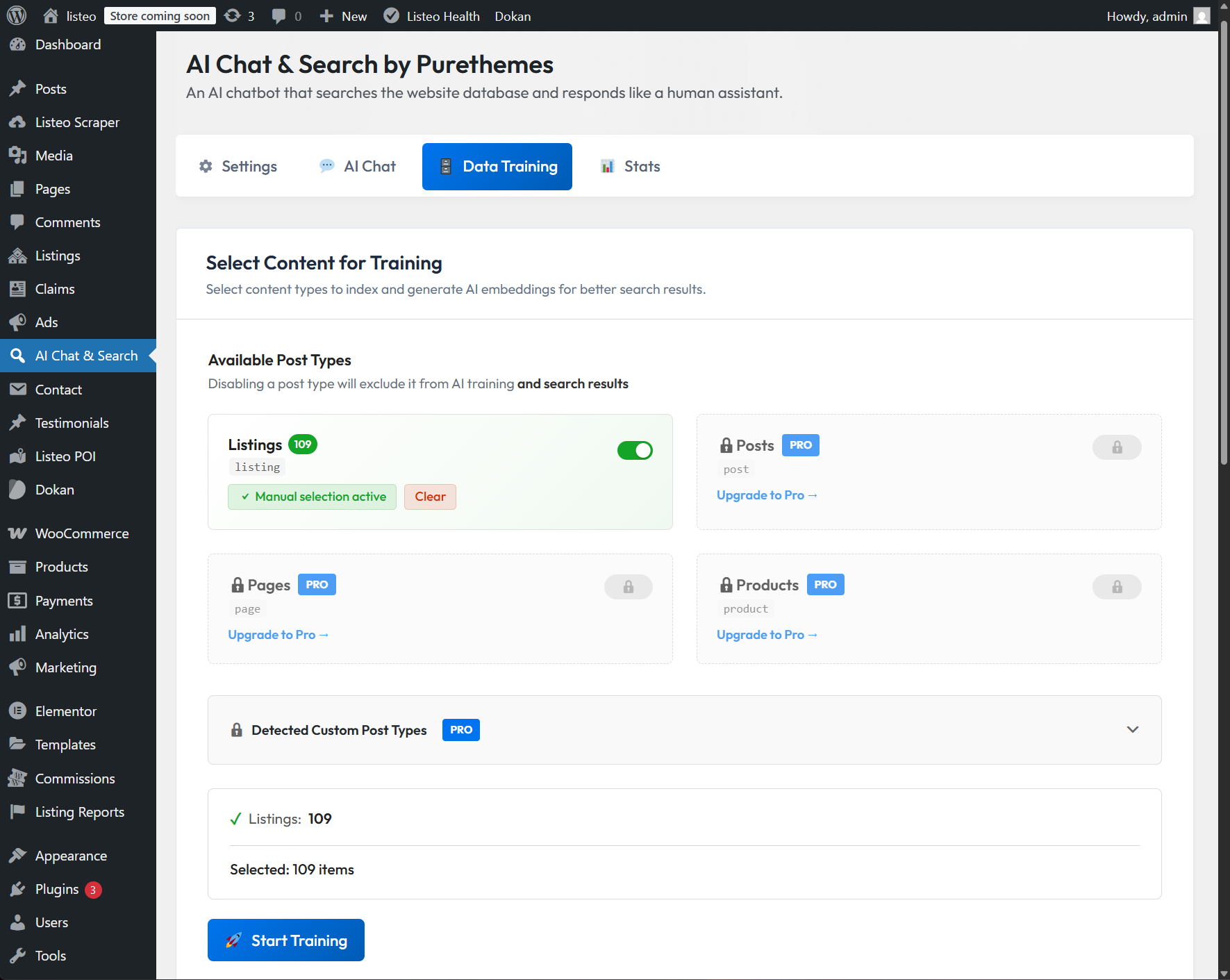
- Then go to the Data Training tab and click 🚀 Start Training.

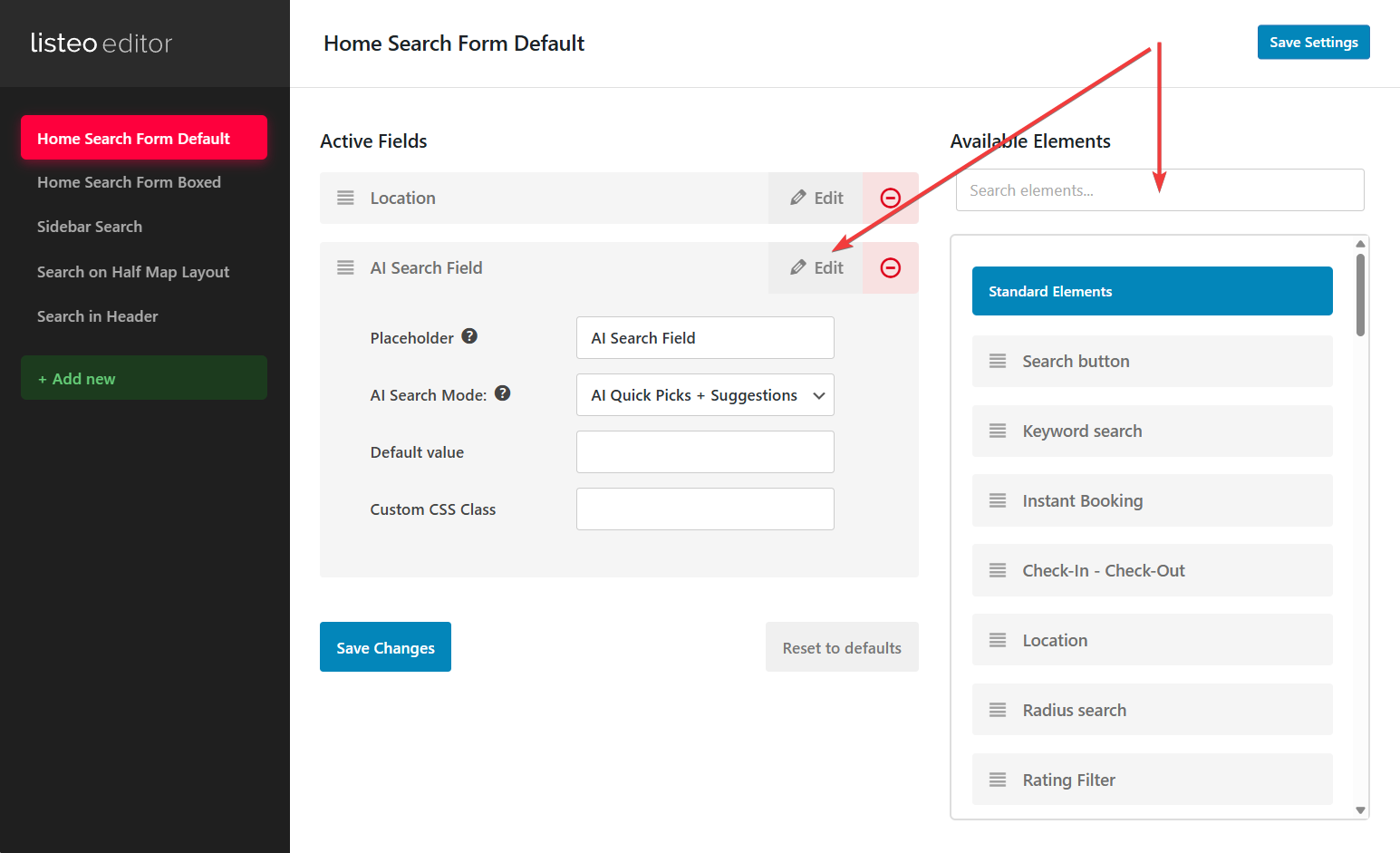
- Once the database is ready, go to Listeo Editor → Search Forms and add the AI Field to your search forms.

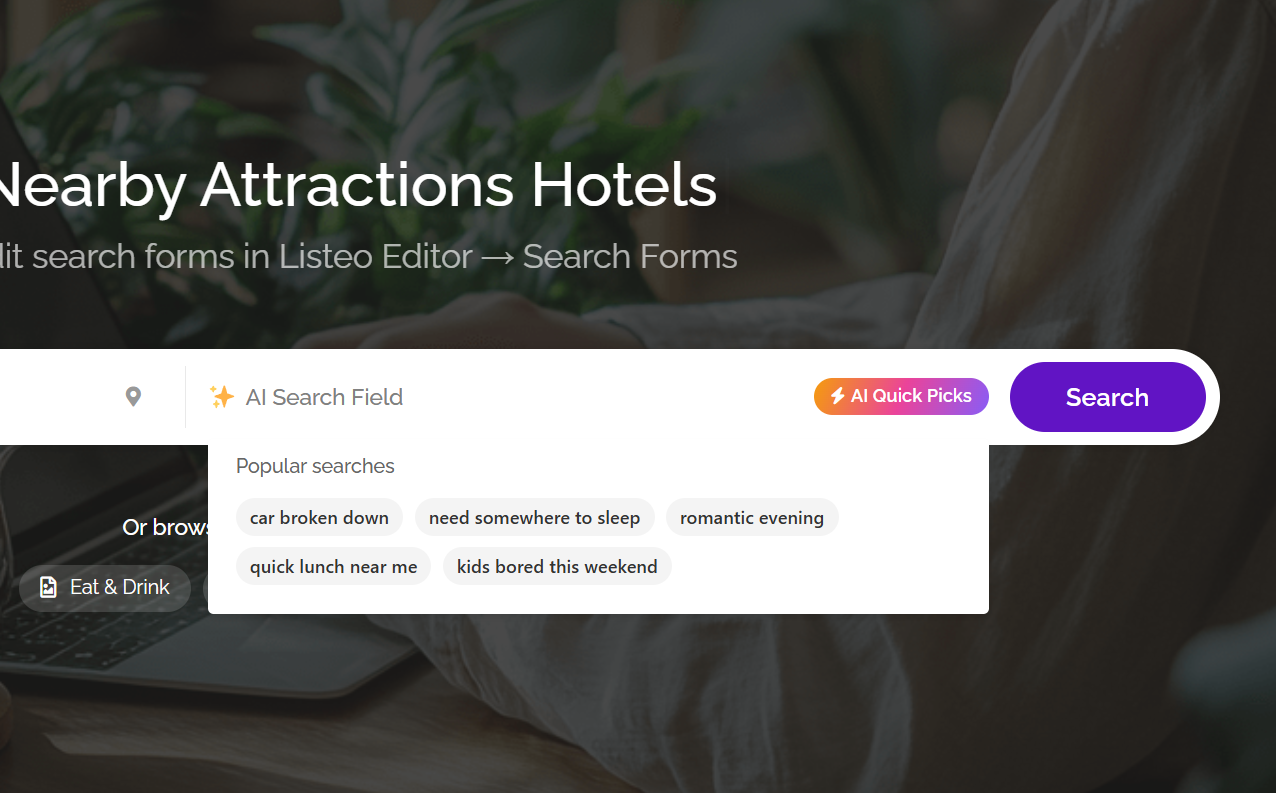
- And that’s it. AI Quick Picks allows visitors to quickly get the best 3 matching listings. This is optional.

- The Statistics tab provides comprehensive analytics and insights. Chat history is available in the Pro version if you use the AI chatbot.

- It is recommended to set Best Match as the default sorting method. With this setting, listings with the highest match score will appear first.
Listeo Core → Browse/Search Options → By default sort listings by



FAQ
-
I see not enough or no search results at all
-
Why are search results decent but not perfect?
-
What does 'Minimum Match Percentage' control?
-
Should I enable 'Query Expansion'?
-
What data is processed by OpenAI/Gemini/Mistral in AI Search?