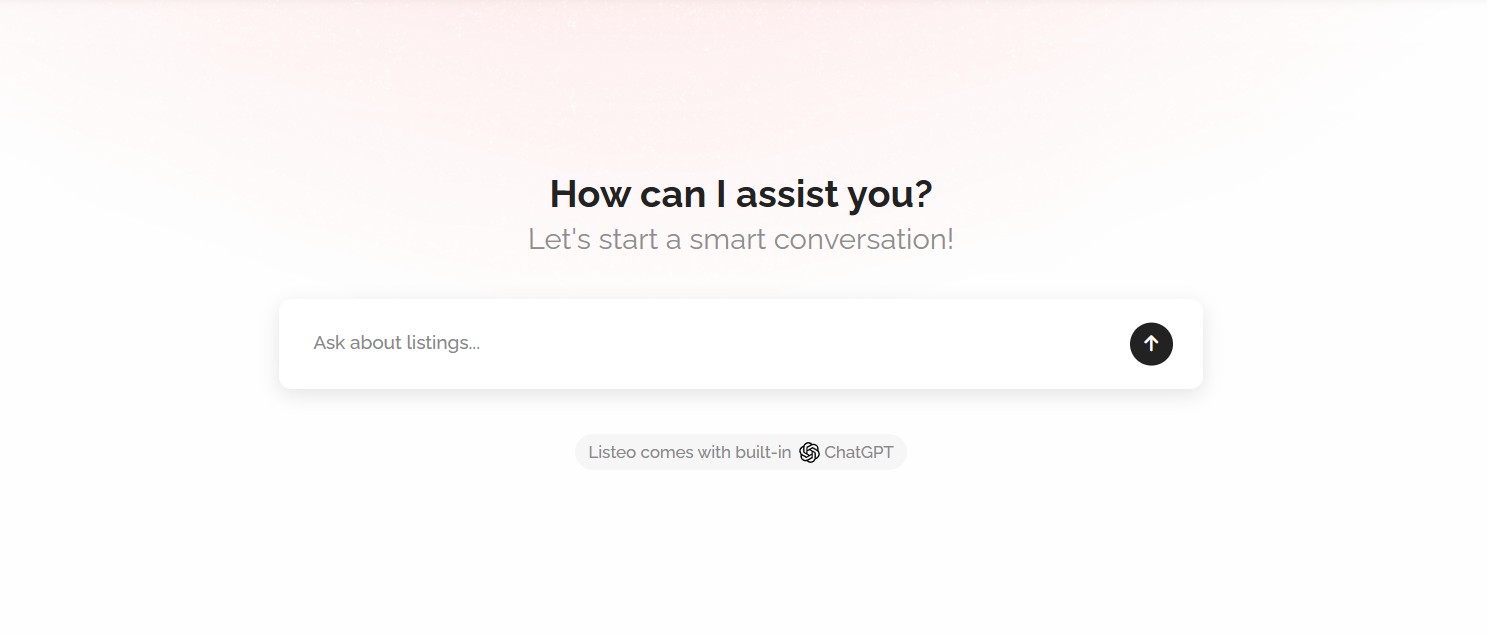
 OpenAI or
  Gemini chatbot assistant to your directory site, letting visitors find listings using natural conversation.
The AI combines semantic understanding with real-time database search making your directory easier to use and increasing visitor engagement. AI searches through listings and filters them by ✅location, ✅price, ✅rating and ✅booking availability. Supported AI Providers: ChatGPT, Gemini and Mistral AI
⚙️Installation
Plugin is automatically installed with Listeo. However if you can’t see it or have older theme version you can download it manually:
- Go to https://purethemes.net/license/ and download AI Chat & Search plugin
You’ll need purchase key: How to find my license key?
- Install and activate ai-chat-search.zip in WP Dashboard → Plugin → Add New
Configuration
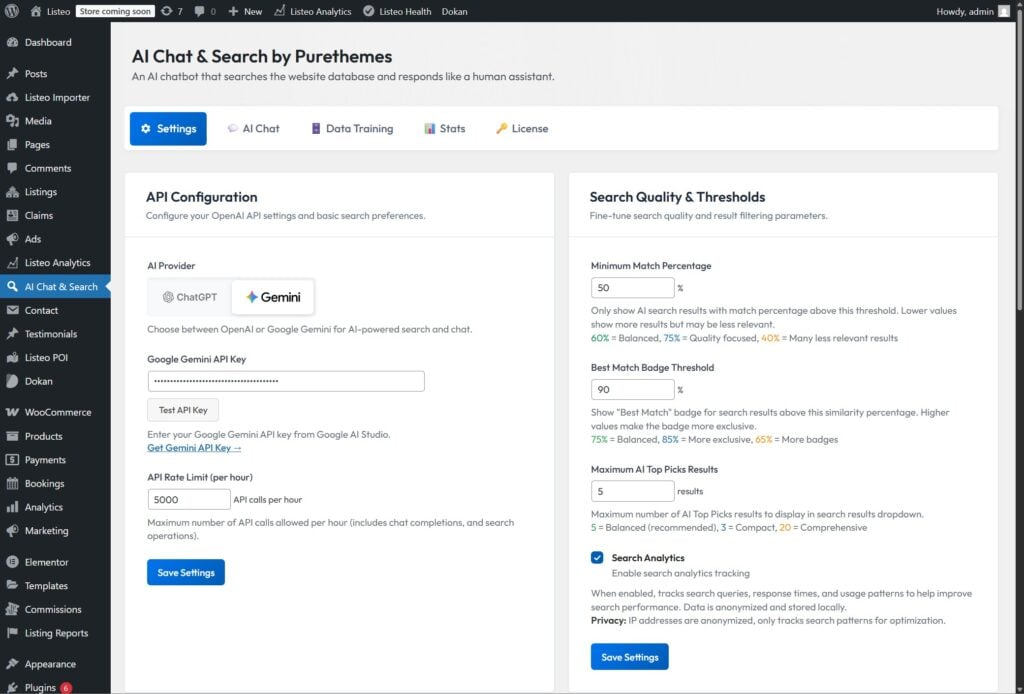
- Navigate to AI Chat & Search in your WordPress sidebar.
Add your Open AI api or Gemini key and configure plugin to your needs.
How to create Open AI API key? →
How to create Gemini API key? →
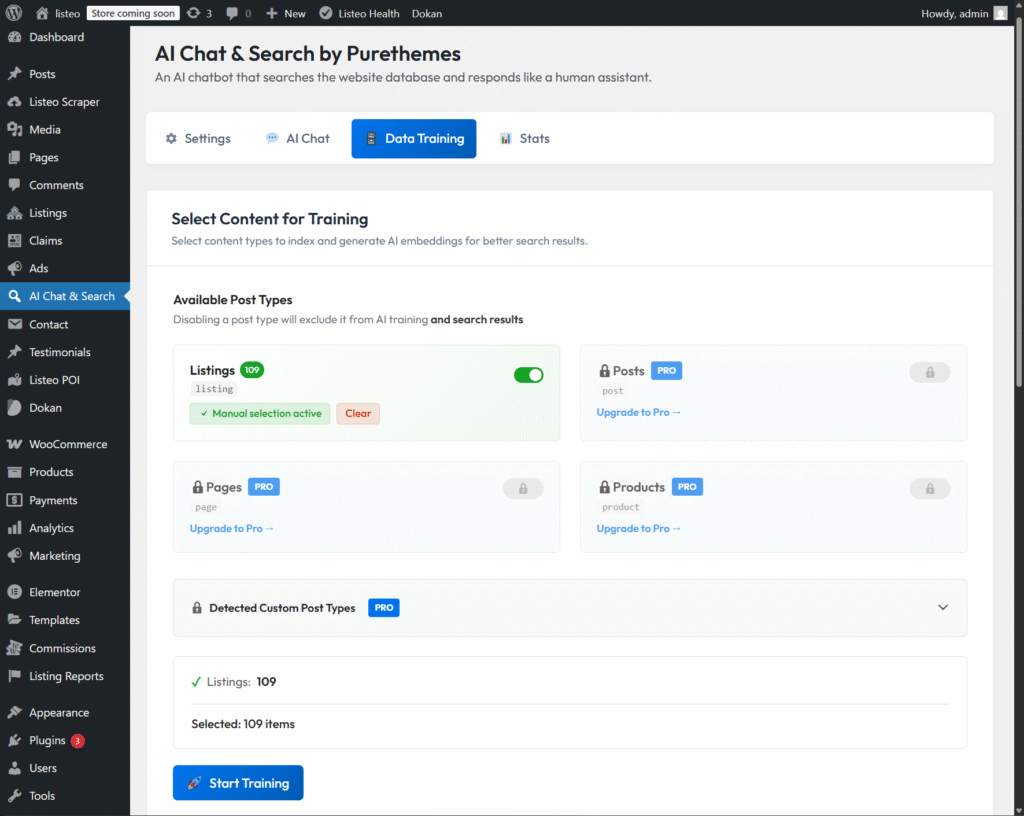
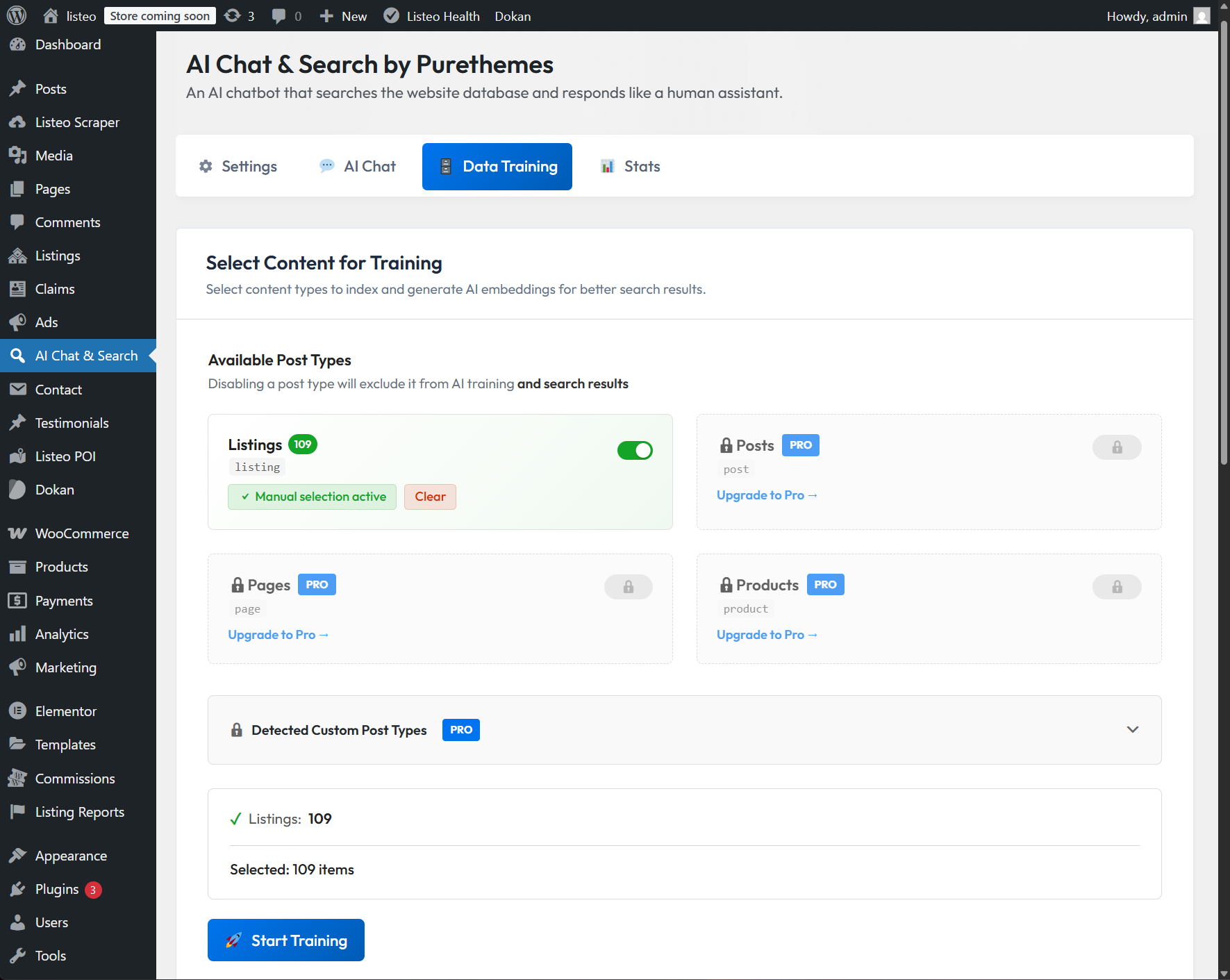
- Then go to Data Training tab and click “🚀 Start Training“.
If you don’t want the chatbot to search your site content, skip data training and uncheck “Listings.” It will then respond only using your Custom System Prompt (see FAQ).

Features
| Feature | Free | Pro |
|---|---|---|
| Search through listings | ✅ | ✅ |
| Search analytics | ✅ | ✅ |
| Gemini and ChatGPT | ✅ | ✅ |
| Website-specific answers (based on system prompt) |
✅ | ✅ |
| Chat history | ❌ | ✅ Access to chat stats & conversation history |
| Posts & pages search | ❌ | ✅ AI can search through content from posts and pages |
| PDF Files as Training Source | ❌ | ✅ Yes, you can upload PDF files and train chatbot on them |
| WooCommerce products | ❌ | ✅ Search products ✅ Filter by price, stock, sale, rating / Check order status |
| Custom post types | ❌ | ✅ Search through custom post types |
Pricing: https://purethemes.net/ai-chat-search-pro/
FAQ
-
🤖 Improving chatbot replies with a Custom System Prompt
You can add there specific instructions about your website’s focus, target audience, or special features to help the AI provide more relevant and personalized answers to your visitors.
Example:
IMPORTANT:
– This is a city-wide business directory for Austin, Texas, featuring restaurants, hotels, services, and entertainment venues. We help locals and tourists discover the best spots in town.
– If users ask how to add their business, explain that they need to click “Add Listing” in the top menu, create a free account, and fill out the listing form with their business details, photos, and contact information.
– Paid packages offer featured placement and priority in search results.CONTACT INFO:
– If someone asks you about how to contact us provide him mail@sample.com and phone +1 123 345 789
– Our business opening hours are 9am-15pm Monday to FridayAnother example – if your website is multilingual but listing location/names are in english language you can tell him to always translate user query before searching
CRITICAL:
If the user query is in another language, translate it to English before searching.
For example: French: ‘trouve un restaurant à New York’ → translate to ‘find a restaurant in New York’To improve the AI chatbot’s replies to generic questions like “recommend something in New York” you need to give him an idea what your website is about
IMPORTANT:
This is a directory for discovering places in New York City. We help users find the best spots in the city. When asked generic questions like “what you recommend” or “what to do in NY” search for restaurants, attractions or shops or services listings from our directory.”In general, prompting is an art – the quality of an AIs answer depends on the prompt or instructions. Sometimes too many examples can confuse the model, but too few can also lead to poor results.
If a user asks for “good Italian restaurant” or “good headphones,” the AI may auto-apply a rating filter (e.g. 4.5+). If items have no ratings, it may return no results. That’s why you need to tweak prompt on your own and e.g. add: “Don’t apply a rating filter unless the user asks for it.”
-
🔍 How to fix chatbot giving irrelevant responses despite having indexed content?
This is usually a custom instructions (system prompt) issue. The AI needs clear guidance on when to search your site content and which tool use (for listings, products or general site content).
Add decision logic to clarify your content types. Universal decision logic is already added in built-in system prompt but you might want to extend it with samples from your website content.
DECISION LOGIC:
- Question about listings such as [examples] → use search_listings()
- Generic products such as [examples] → use search_products()
- Generic questions about website content such → use search_universal_content()
Use GPT-5.4 instead of GPT-X-mini for better quality if you have long custom instructions. Small prompt changes can significantly impact behavior.
-
🔍 How AI searches through site content?
-
💰 How much does it cost in OpenAI API fees?
-
🎯 Why search results are decent but not perfect?
-
📄 Can I add PDF files to training data?
-
✅ Is this right fit for my website?
Elementor Widget and Shortcode
Chatbot can be used also via shortcode [ai-chat] or Elementor Widget AI Chat (elementor widget has 2 visual settings including the one below). You can download pre-made elementor section from our demo here (upload to elementor templates).