Save your search criteria and get daily email alerts when new matching listings are published. Email Alerts are sent once daily via cron when new listings match user search criteria
Allow users to set up custom alerts or notifications for new listings based on their personal preferences!

How to Enable?
1. Enable Feature
Listeo Core → Browse/Search Options → Saved Search Alerts section
– Enable Saved Search Alerts Feature – Turn on/off
– Maximum saved searches per user – Default: 10
2. Create Dashboard Page
Create a page with shortcode [listeo_saved_searches] and assign it in Listeo Core → Settings → Pages:
3. Email Template
Listeo Core → Settings → Emails (Saved Search Alerts section):
– Email subject – Default: “New listings matching your saved searches!”
– Email content – Customize the message body
How to Save a Search
1. Perform a search using any filters (keywords, location, category, price, etc.)
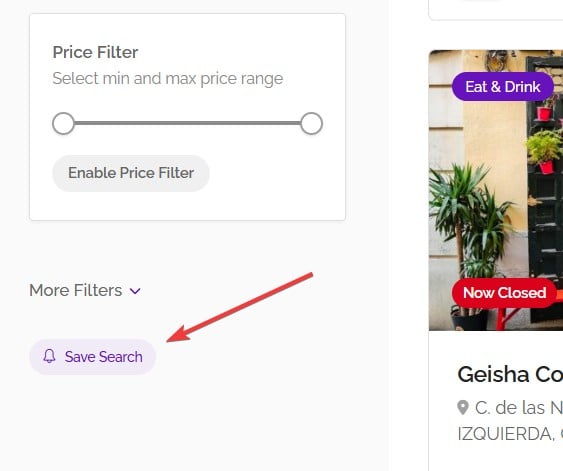
2. Click the Save Search button (bell icon) near the search form
3. Enter a name for your search and click Save
Note: You must be logged in to use this feature.
Managing Saved Searches
Go to Dashboard → Saved Searches to:
– Run Search– Click the search name or search icon to view results
– Toggle Alerts – Click the bell icon to enable/disable email notifications
– Delete – Remove searches you no longer need
– Maximum 10 saved searches per account