
Want to know what your visitors actually type into search? PurioChat’s Popular Search Queries card shows you, so you can spot trends and find gaps in your content. It is part of the Free version and on by default.
Where to find it
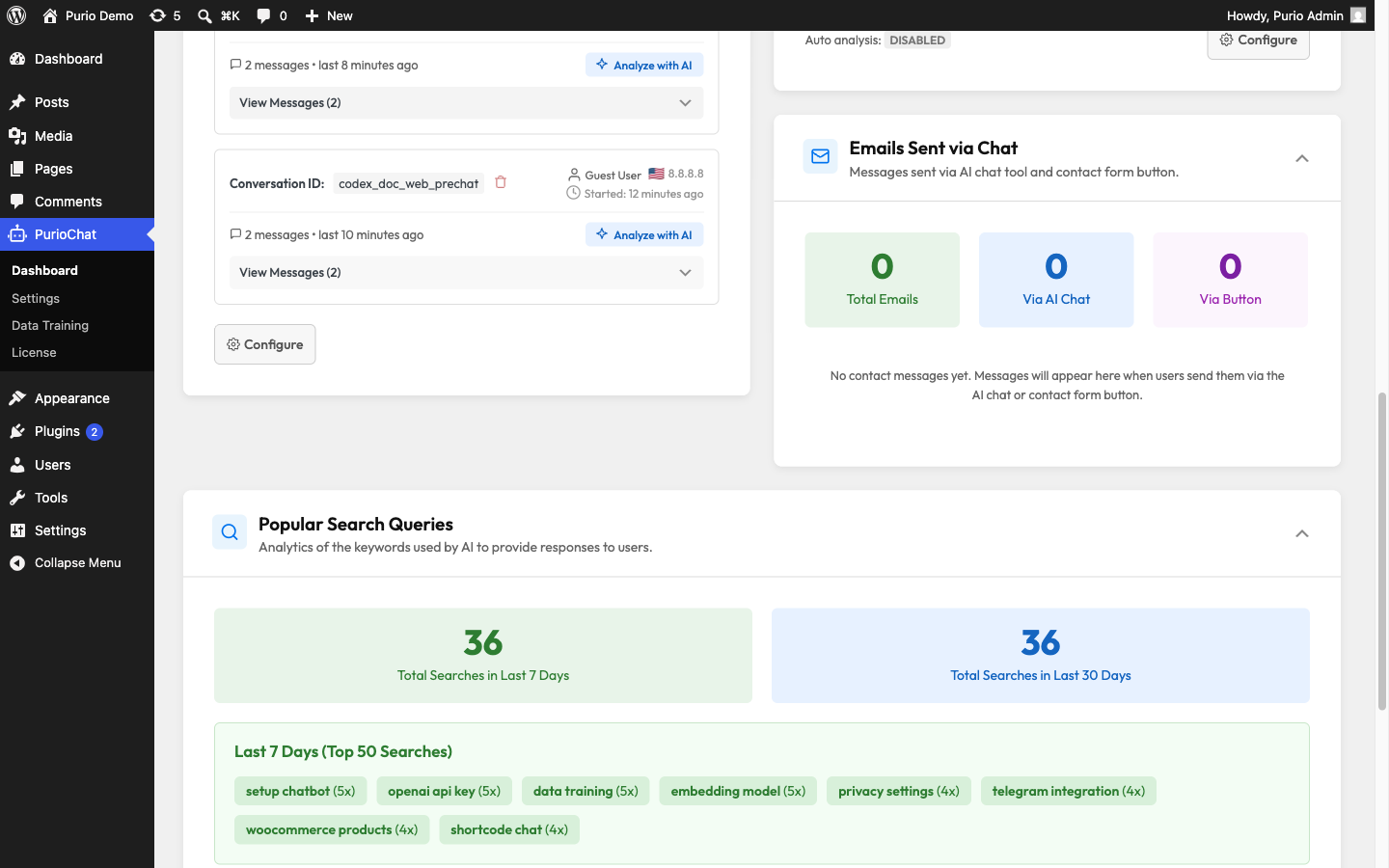
Open PurioChat → Dashboard and scroll to the Popular Search Queries card. Everything lives here: the totals, the tag clouds, the on/off toggle, and the export and clear buttons.
Turning tracking on or off
The card has an Enable Search Analytics Tracking checkbox. It is on by default, so PurioChat collects data as soon as the plugin is active. Toggling it takes effect immediately, with no separate save. Turn it off if you would rather not record search activity.
What gets tracked
Each search logs a small record. Every entry stores:
- Query text — what the visitor searched for.
- Results count — how many results that search returned.
- Search type — whether it was an
ai(semantic) search or atraditionalone. - Response time — how long the search took, in milliseconds.
- Source — where the search came from (your search bar or one of the search API endpoints).
- Timestamp and an anonymized IP address (see the privacy note below).
To avoid noise, an identical query repeated within about 20 seconds is skipped rather than counted twice.
What the card shows you
- Total searches over the last 7 days and the last 30 days, shown as stat boxes.
- Top 50 popular queries for both the 7-day and 30-day windows, displayed as tag clouds with counts so the most-searched terms stand out.
- A by-source breakdown, so you can tell how much search traffic comes from your search bar versus the AI search endpoints.
Exporting and clearing your data
Two buttons manage the collected data:
- Export All Queries to CSV — downloads a spreadsheet with one row per query: Search Query, Search Count, Avg Results, Avg Response Time (ms), First Searched, and Last Searched. Handy for deeper analysis or for sharing with your team.
- Clear Analytics Data — wipes all stored search records. This cannot be undone, so use it when you want a clean slate.
Privacy and storage
- IP addresses are anonymized before storage (the last part of an IPv4 address is zeroed; IPv6 addresses are truncated), so individual visitors are not personally identifiable.
- The data lives in a single setting rather than a database table, and is capped at the most recent 10,000 entries. Once that limit is reached, the oldest records drop off automatically. There is no time-based purge, just the 10,000-entry cap.

