The Chat History card on your PurioChat Dashboard is where stored conversations live. From here you turn tracking on, choose how long to keep conversations, read full transcripts, and export everything to CSV. Here’s what each control does and where the free and Pro lines fall.
Where to find it
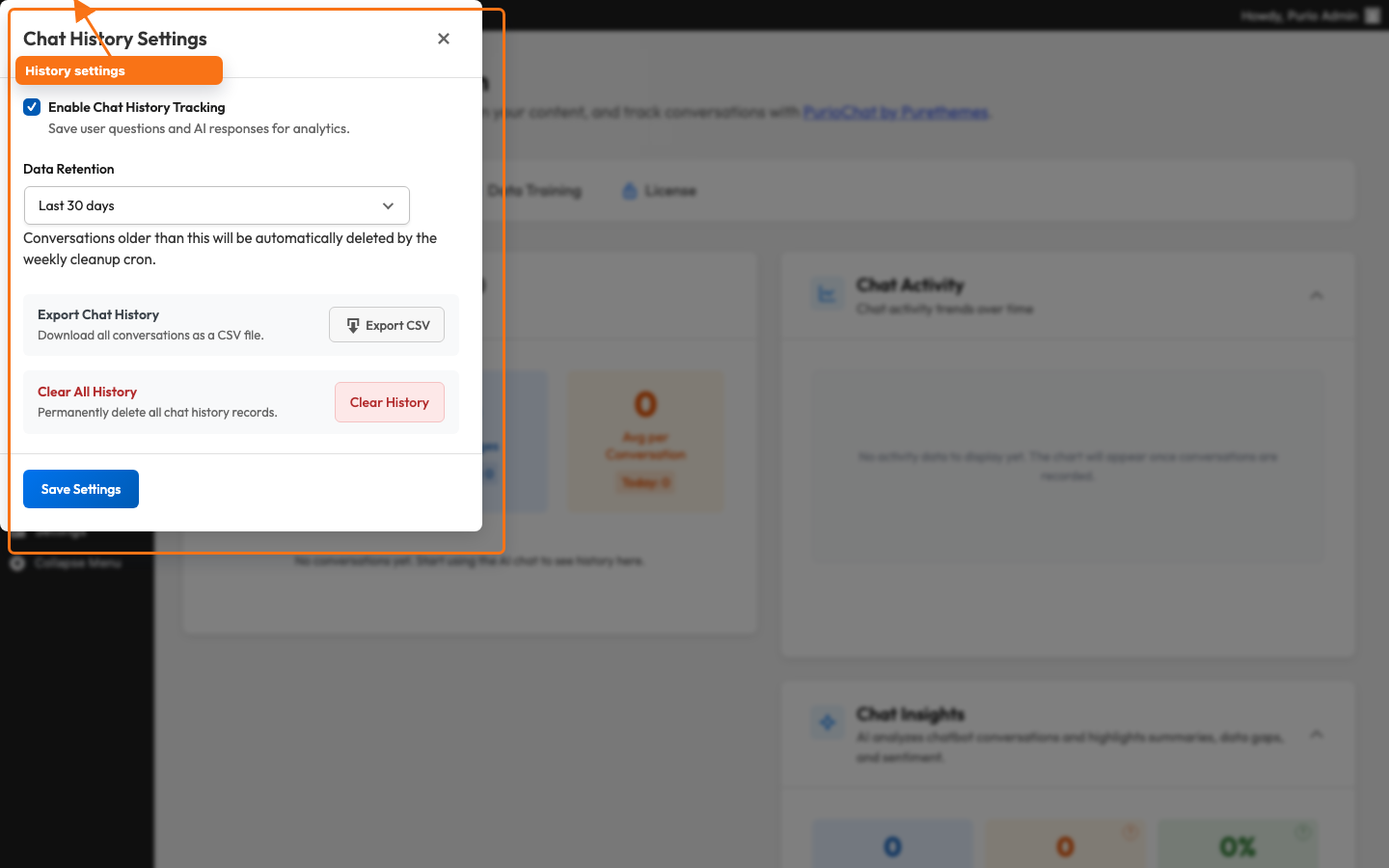
Chat History sits on the main Dashboard, not in Settings. Open PurioChat → Dashboard → Chat History. The card’s Configure button opens a small modal with the tracking toggle, the retention dropdown, and the export and clear buttons.
Turning on tracking
By default, PurioChat does not store conversations. To start saving them, open the Configure modal and switch on Enable Chat History Tracking (default off). Each visitor question and AI answer is then written to a dedicated history table for you to review later.
It’s off by default for privacy: storing conversations means storing what your visitors typed, so tracking is an opt-in choice you make deliberately.
Data Retention
Stored conversations aren’t kept forever. The Data Retention dropdown sets how long a conversation stays before it’s deleted automatically:
| Retention option | What it means |
|---|---|
| Last 30 days (default) | Conversations older than 30 days are removed |
| Last 90 days | Roughly three months of history is kept |
| Last 180 days | Roughly six months of history is kept |
| Last 360 days | Close to a full year of history is kept |
A cleanup job runs weekly and removes anything past your chosen window. Pick a longer window for trend-spotting, or a shorter one to minimize stored personal data.
Export to CSV and Clear History
The Configure modal has two action buttons, both available once tracking is on:
- Export Chat History (CSV) downloads a spreadsheet-friendly file with one row per message exchange. Columns include the conversation ID, session ID, user ID and username, IP address, page URL, the visitor message, the AI reply, the model used, and the timestamp.
- Clear All History permanently deletes every stored conversation (and any related cart-tracking data). This can’t be undone, so use it carefully.
Reading conversations (Pro)
Saving and viewing conversations is a Pro feature. On the free plugin, even with tracking on, no rows are written and the card shows a blurred preview with an upgrade prompt instead of real logs. With PurioChat Pro active, the card fills with the full conversation list and the per-conversation tools below.
What each conversation shows (Pro)
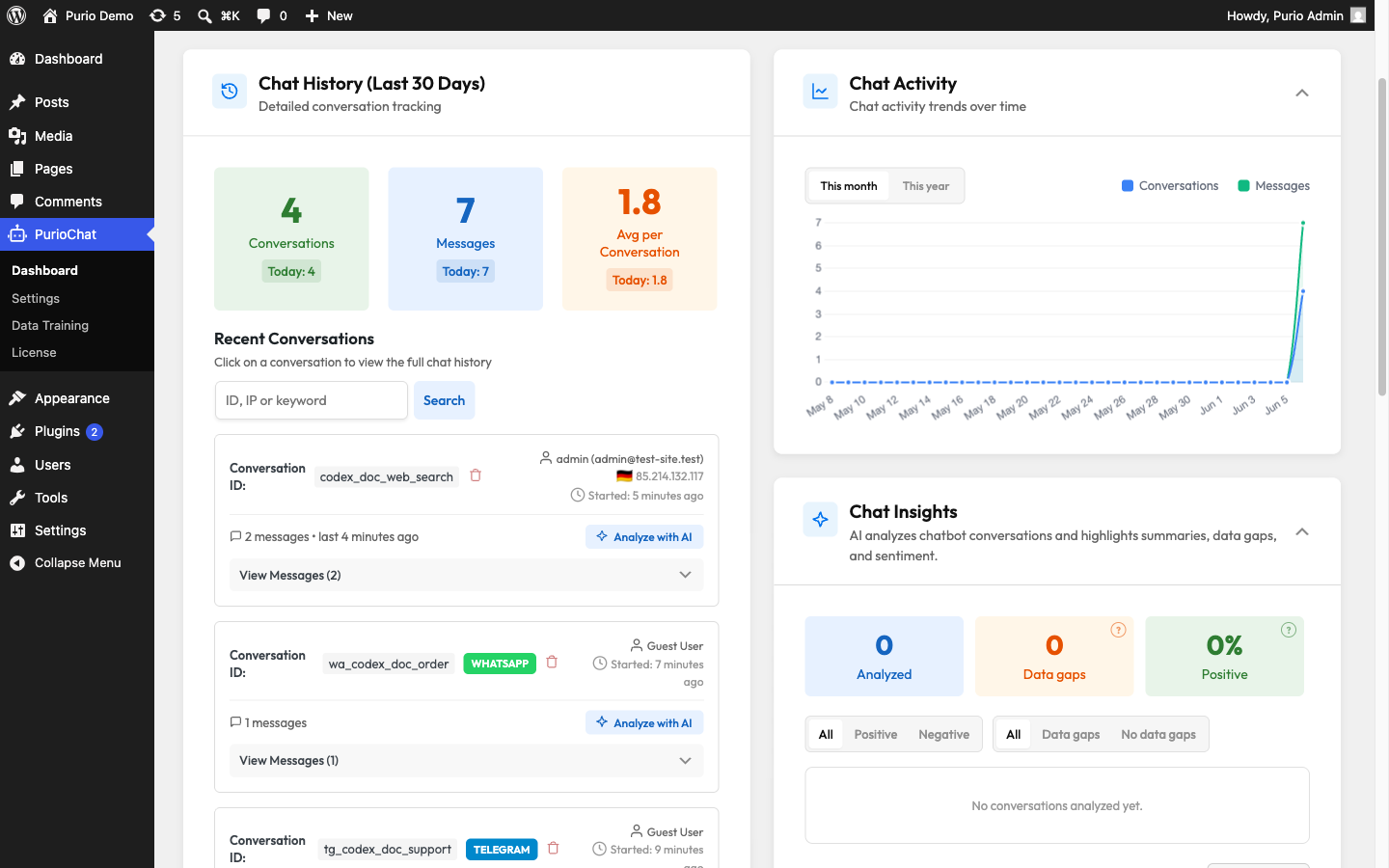
- Who and where: the visitor’s display name and email (or “Guest User”), the conversation ID, when it started, the message count, and when the last message arrived.
- Channel badges: a
Web,WhatsApp, orTelegrambadge showing which channel the conversation came through. - IP geolocation tooltip: each conversation shows the visitor’s IP with a country flag; hovering reveals country, city, region, and continent. This lookup calls the external service
freeipapi.comand caches the result for 30 days — worth knowing for privacy and GDPR records. - WooCommerce cart indicator: if products were added to the cart during the chat, a green cart icon appears with a tooltip listing them (tied to the Pro WooCommerce cart feature).
- Per-message detail: a page link (resolved to the page title) and the AI model name on each reply.
Finding and managing conversations (Pro)
- Search box: filter conversations by conversation ID, IP address, or a keyword from any message.
- Pagination: conversations load in pages so the list stays manageable.
- Delete a single conversation: each card has its own delete button, so you can remove one without clearing everything.
The Activity Chart (Pro)
Pro adds an activity chart near the conversation list that plots three series over time: Conversations, Messages, and Emails Sent (the Emails line only appears once at least one email has gone out). A toggle switches between Last 30 Days (day by day) and This year (month by month), so you can spot busy periods and longer-term trends. On free builds this area shows an upgrade prompt instead.