
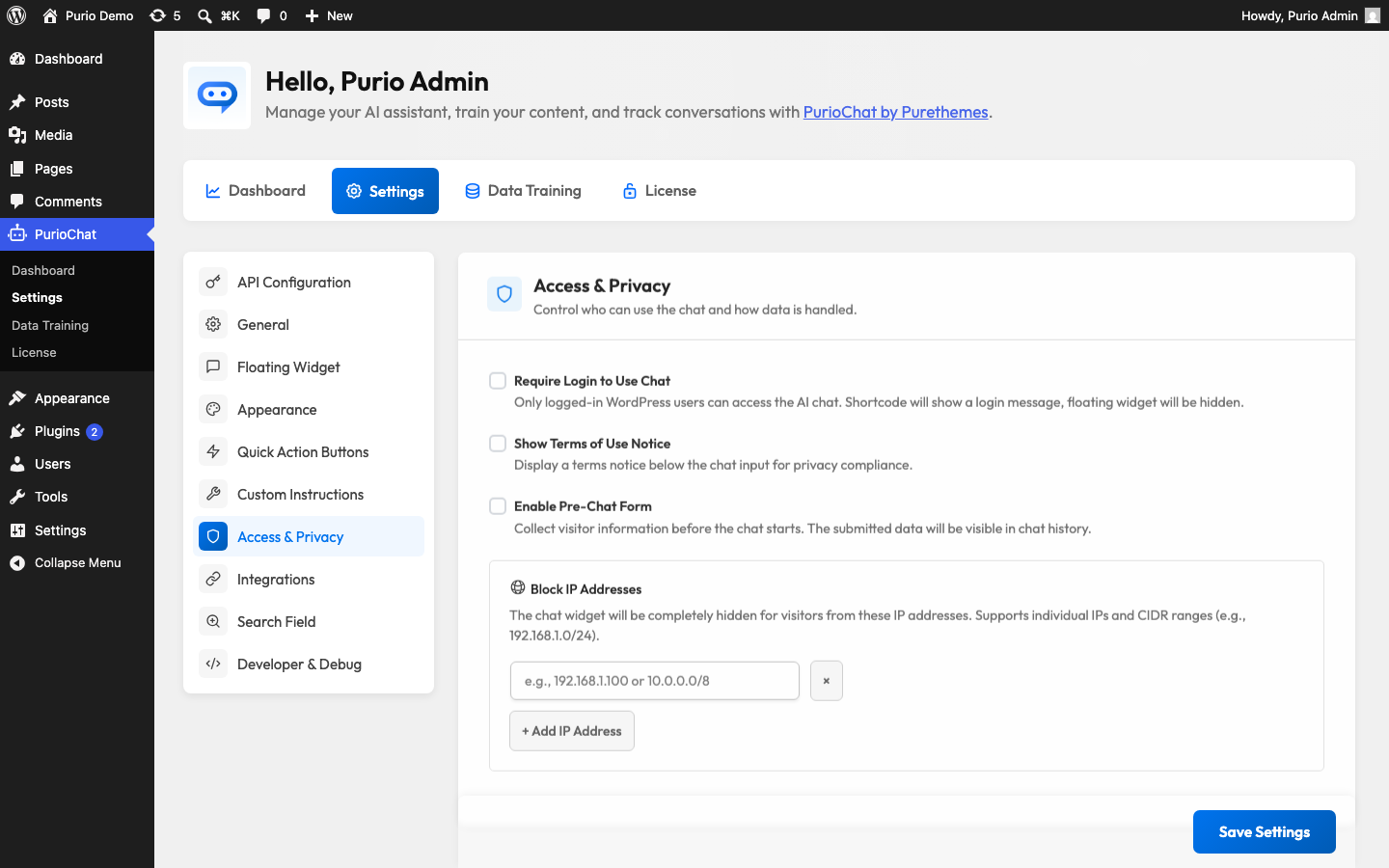
The Access & Privacy sub-section controls who can use your chatbot and what visitors are told about your policies. The settings live under PurioChat → Settings → Access & Privacy. Some ship with every install; a couple need PurioChat Pro.
Require Login
Turn on Require Login to Use Chat when only signed-in WordPress users should reach the AI. Good for member sites, internal tools, or anything you want behind your login.
When it’s enabled, logged-out guests see a “please log in” message instead of the chat, and the floating widget is hidden from them. Logged-in users get the normal experience. The setting is off by default, so out of the box the chatbot is open to everyone.
Terms of Use Notice
To remind people they’re talking to an AI, or to link your terms and privacy policy, switch on Show Terms of Use Notice. It’s off by default.
Once enabled, a small notice appears near the chat input. Write the wording in the Terms Notice Text field, which accepts HTML so you can add links:
By using this chat, you agree to our <a href="/terms">Terms</a> and <a href="/privacy">Privacy Policy</a>.Keep it short. A single sentence with a link or two is usually enough.
Pre-Chat Form (Pro)
The Pre-Chat Form asks visitors for required details before the first message. It is configured in this Access & Privacy section, but it has its own article now: Pre-Chat Form.
Use it when you want names, contact details, booking references, or other short context before the assistant starts answering. Submitted details can appear in Chat History as a User Details panel when conversation logging is enabled.
Block IP Addresses (Pro)
To shut out a visitor who’s spamming or abusing the bot, use Block IP Addresses. This Pro feature hides the chat widget from any address on your list — they never see it.
Use the + Add IP Address rows to add as many entries as you need. PurioChat accepts individual addresses and ranges:
- A single IP address, IPv4 or IPv6 (for example
192.168.1.100). - A CIDR range to block many addresses at once (for example
10.0.0.0/8). Masks may be/0–/32for IPv4 and/0–/128for IPv6.
Invalid entries are dropped on save, so a typo won’t break the list. Because blocking hides the widget rather than disabling it, blocked visitors get no sign the chat existed.
Where chat history fits in
Saving and reviewing conversations is not set up here. Conversation logging lives in PurioChat → Dashboard → Chat History → Configure and is off by default. To keep transcripts (including the Pre-Chat Form’s User Details panel), turn it on there. The Chat History article covers it.

