
The floating widget puts a chat bubble in the corner of every page. Sometimes you want the chat inside a page instead, right in the content. PurioChat’s shortcodes drop the chat (and a search box) anywhere you can type.
Floating widget vs. inline shortcode
Both show the same AI chat, but they behave differently. You can use them together:
- Floating widget — a chat button in a bottom corner of every page that opens a popup when clicked. Turn it on under PurioChat → Settings → Floating Widget; it’s enabled by default on new installs. Good for site-wide support.
- Inline shortcode — the chat embedded in the body of a specific page or post, sized to fit your layout. Good for a dedicated “Ask our assistant” page, a help section, or a sidebar widget. Add it by pasting a shortcode into the content.
The inline chat reuses the name, colors, welcome message, and behavior from Settings, so it matches your brand.
Embedding the chat with [ai_chat]
Add the [ai_chat] shortcode where you want the chat to appear:
[ai_chat]That’s all you need for a working chat. PurioChat loads the chat assets only on pages where the shortcode is present, so the rest of your site stays fast. (The legacy tag [listeo_ai_search] still works for the search box, and [listeo_ai_chat] is the old alias for the chat — but use [ai_chat] for new pages.)
![A WordPress page editor showing the [ai_chat] shortcode in a paragraph block and the rendered inline chat below it on the published page](https://docs.purethemes.net/puriochat/wp-content/uploads/sites/6/2026/06/embedding-chat-with-shortcodes-33-a-wordpress-page-editor-showing-the-ai-chat-shortcode-in-a-paragraph-block-and-the-rendered-.png)
Available parameters
Fine-tune the embedded chat with these attributes:
| Parameter | Default | What it does |
|---|---|---|
height |
600px |
Sets the height of the chat box. Accepts any CSS length, e.g. height="500px". |
style |
1 |
Choose the visual layout: style="1" (standard) or style="2" (an alternative layout where the menu moves to the left and collapses when empty). |
pictures |
empty | Overrides the global “Hide Images” setting for this one chat. Use pictures="enabled" to show result thumbnails or pictures="disabled" to hide them. Leave it empty to follow your global setting. |
show_popular_searches |
no |
Set to yes to show a list of popular search tags below the chat. (If there are no popular searches yet, nothing is shown.) |
popular_searches_limit |
5 |
How many popular-search tags to display. |
popular_searches_title |
“Popular Searches:” | A custom heading for the popular-searches block. |
Examples
A taller chat using the alternative layout:
[ai_chat height="750px" style="2"]A chat that always shows result images and lists eight popular searches under a custom heading:
[ai_chat pictures="enabled" show_popular_searches="yes" popular_searches_limit="8" popular_searches_title="Try asking about:"]Embedding the search box
To offer an AI-powered search field instead of a full chat, use one of two shortcodes depending on your theme. (There is no [ai_search] shortcode.)
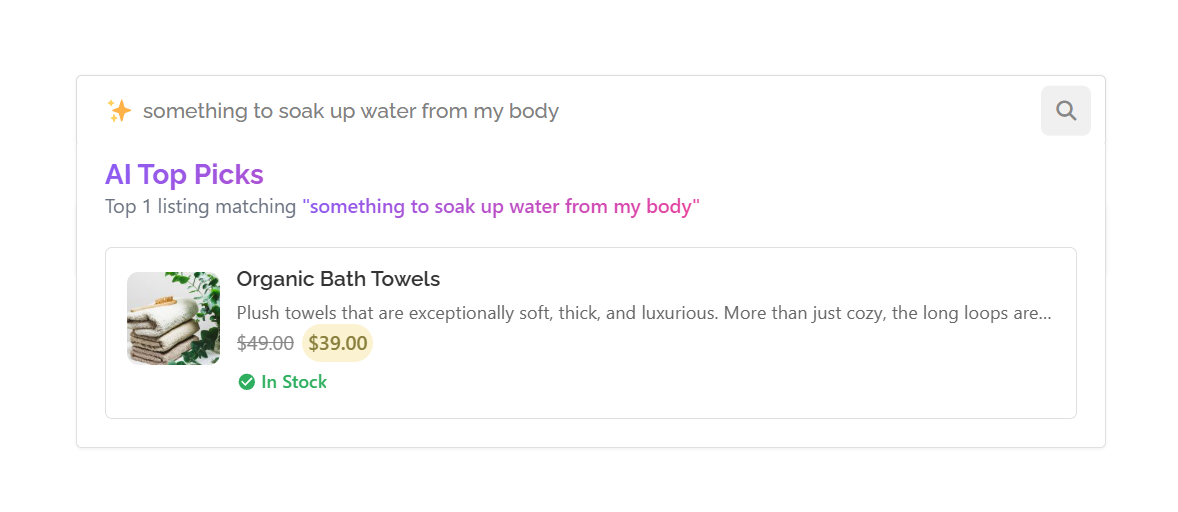
[ai_search_field] — for any site
The universal AI search box, ideal for non-Listeo sites. It searches your trained content in place and shows ranked results below the field:
[ai_search_field]You can set the placeholder text, limit which content types are searched (they must be trained first), and cap the number of results:
[ai_search_field placeholder="Search our help center..." post_types="post,page" limit="8"]If no valid, trained content type is specified, the field shows a configuration notice instead of results — so train your content first.

