
PurioChat scores every piece of trained content against a visitor’s query, then decides what is “close enough” to show. These two settings control how strict that decision is, so you can balance plenty of results against only the most relevant ones.
Where to find these settings
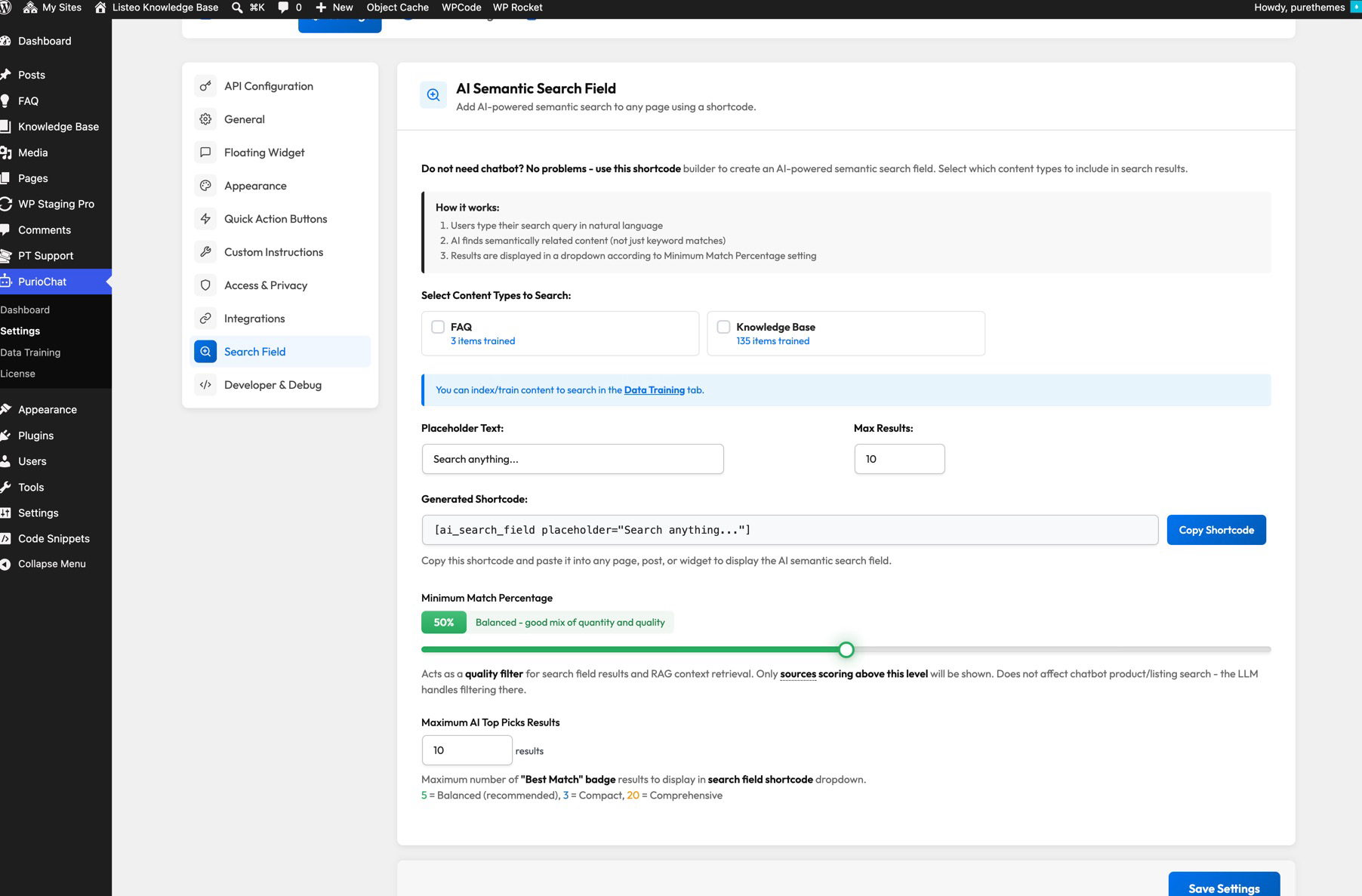
On Listeo sites, these controls live on the PurioChat → Settings tab, in the Search Field card.
What these thresholds affect (and what they don’t)
These thresholds act as a quality filter for:
- Results shown in the AI search field (the standalone search box).
- The RAG context — the trained content PurioChat pulls in to ground the chatbot’s answers.
They do not filter the chatbot’s product or listing search. When a visitor asks the chatbot to find products or listings, the AI model handles relevance itself, so these sliders have no effect there.
Minimum Match Percentage
This is the main quality dial. Each piece of content gets a similarity score, and anything below your threshold is dropped before it reaches the visitor. A lower value lets more content through (wider, looser results); a higher value keeps only the closest matches (fewer, sharper results).
- Setting: Minimum Match Percentage
- Default: 50%
- Range: 0–100%
Here’s how each band behaves in practice:
| Behavior | |
|---|---|
| 0–20% | Loose — many results, lower relevance |
| 20–40% | Broad — more results, some less relevant |
| 40–60% | Balanced — a good mix of quantity and quality |
| 60–80% | Quality focused — fewer but more relevant results |
| 80–100% | Very strict — you may get little to no results |
Best Match Badge Threshold
When a result is an especially strong match, PurioChat can flag it with a “Best Match” badge to highlight your top recommendations. This setting controls how high a result must score to earn that badge.
- Setting: Best Match Badge Threshold
- Default: 75%
- Range: 50–95%
The badge is a visual highlight on top of your normal results — it removes nothing. Raising it makes the badge rarer and more meaningful; lowering it spreads it across more results. Keep this value comfortably above your Minimum Match Percentage so the badge still signals something special.
Placing a standalone search box
To add an AI-powered search box outside the chatbot, drop the universal search shortcode onto any page or post:
[ai_search_field]

