
Custom Instructions control how the chatbot behaves: its reply language, tone, knowledge, where to find sensitive answers, and whether it can forward leads to your inbox. Find them at PurioChat → Settings → Custom Instructions (sometimes labeled “AI Tools”).
Force Response Language
By default the chatbot replies in the visitor’s language, falling back to their browser language when it can’t tell. The Force Response Language field overrides that. Available in the free version.
- Leave it empty — the AI auto-detects and matches the visitor’s language. Best for multilingual sites.
- Enter one language (e.g.
French) — the AI always answers in that language, whatever the visitor types. - Restrict to a short list with the bracket syntax
[English][browser_lang]— the AI must pick exactly one of the languages you list. Tokens likebrowser_langresolve to the visitor’s browser language, so this means “reply in English, or in the visitor’s language — nothing else.”
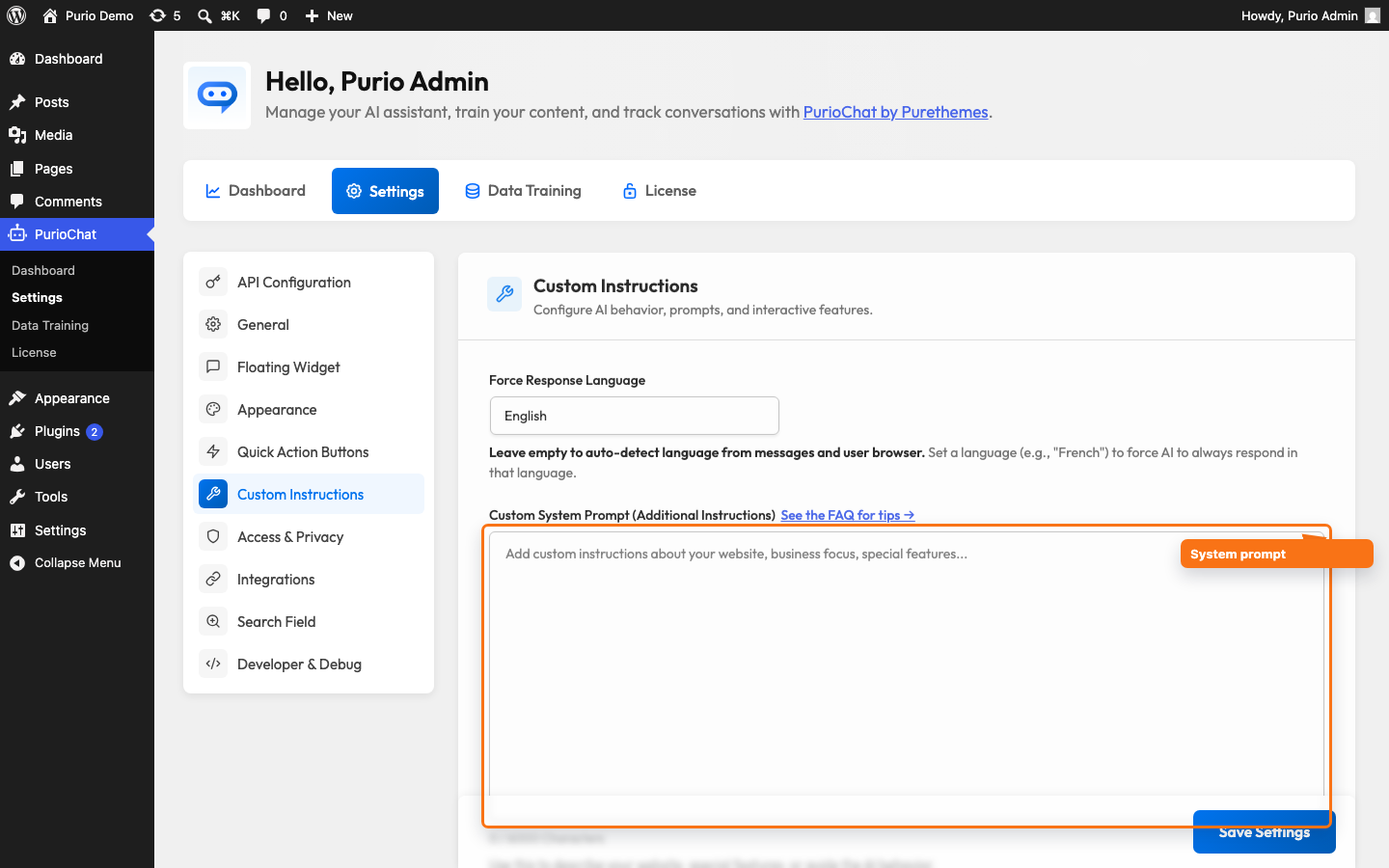
Custom System Prompt
The Custom System Prompt is a hidden set of instructions that shapes everything the AI says — its persona, tone, focus, and any business-specific facts to keep in mind. Visitors never see it, but it guides every reply. A live character counter shows how much room is left.
Length depends on your plan:
- Free: up to 500 characters.
- Pro: up to 6000 characters — room for detailed brand voice, policies, and dos and don’ts.
An example to get you started:
You are a helpful travel assistant for a vacation rental website.
Always be friendly and suggest alternatives if you can't find an exact match.
Focus on location, amenities, and guest reviews when recommending listings.
Hints for AI (Pro)
For topics where accuracy is critical — legal terms, shipping rules, return policies — Hints for AI routes a topic to a specific page or document so the AI always answers from the right source. Pro feature.
Click Add Hints for AI, type a topic, and pick the page or document. PurioChat appends the rule to your system prompt automatically, for example:
When a user asks about shipping, delivery or returns,
search in post ID 99 (“Shipping Policy”).
When a visitor asks about a matching topic, the AI pulls that referenced content and still runs a normal search, combining both for the most reliable answer.
Allow AI to Send Emails to You (Pro)
Turn the chatbot into a lead-capture tool. When Allow AI to Send Emails to You is on, the AI can collect a visitor’s details during a conversation and email them to you. Off by default; Pro feature.
The flow is deliberately careful. Before sending, the AI collects the visitor’s name, email, and message, then waits for an explicit “yes.” It never sends for general questions like “what’s your email?” — those get a normal answer. Every sent message is logged, and submissions are rate-limited to 3 per IP address per hour.
Use Contact Tool Instructions for AI (up to 1000 characters) to tell the AI when it should — and shouldn’t — offer to take a message. It ships with editable defaults.
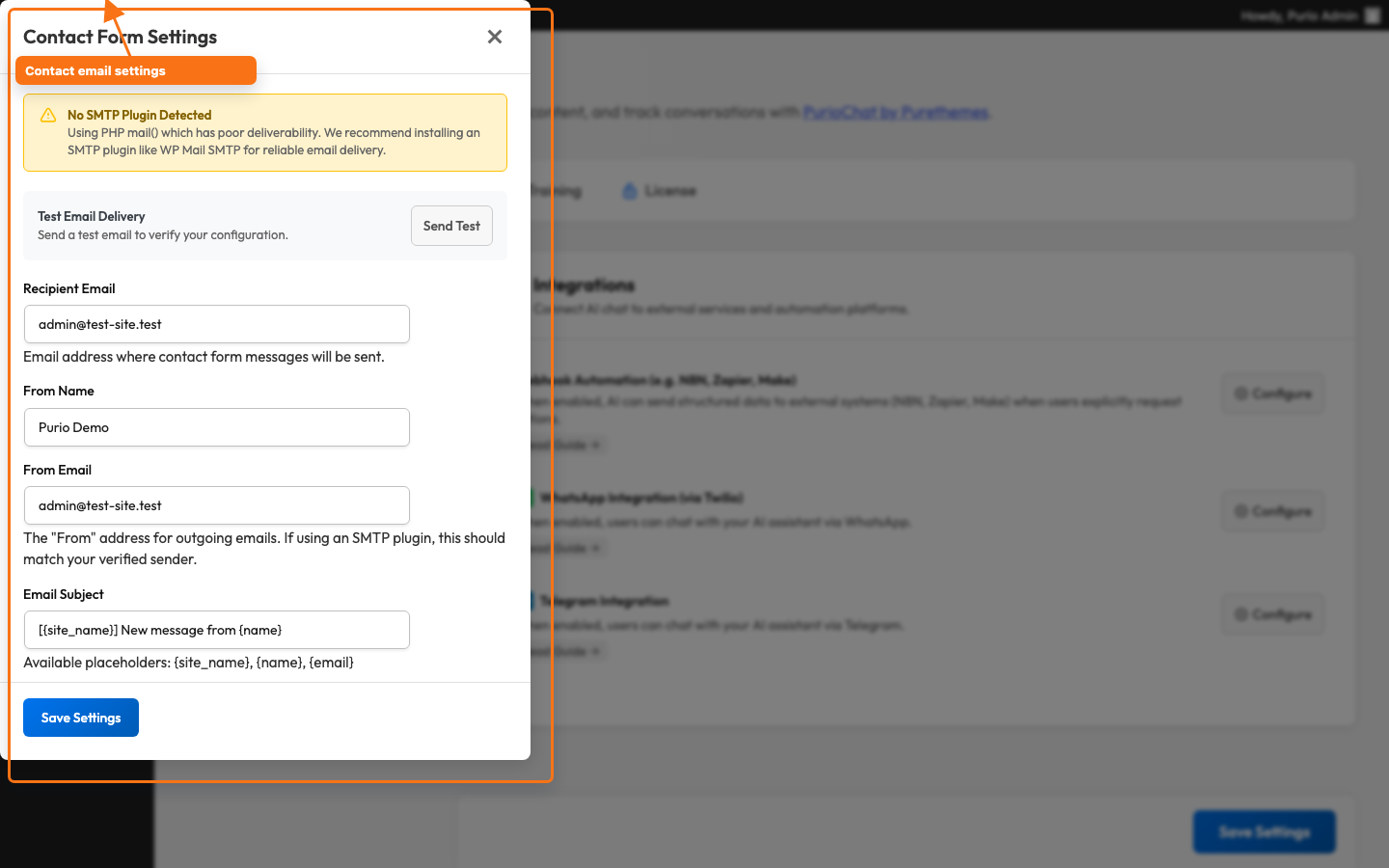
Contact Form email settings (Configure)
The Configure button next to the toggle opens the Contact Form Settings modal. These delivery settings are free and editable, and they also power the “Contact Form” quick-action button if you use one:
| What it does | Default | |
|---|---|---|
| Recipient Email | Where contact messages are delivered. | Your WordPress admin email |
| From Name | The display name on the outgoing email. | Your site name |
| From Email | The “from” address. Auto-detected from your SMTP plugin (WP Mail SMTP, FluentSMTP, Post SMTP, Easy WP SMTP) when present; you’ll see a warning if it doesn’t match your verified sender. | Detected / admin email |
| Email Subject | Subject template. Supports the placeholders {site_name}, {name} and {email}. |
[{site_name}] New message from {name} |
| Success Message | Confirmation text the visitor sees after a successful send. | “Your message has been sent successfully!” |
Use the Send Test button to send a test email to your recipient address and confirm delivery before going live.
Additional Settings
Expand Additional Settings for two controls affecting cost, speed, and answer quality.
Conversation Context Length
Conversation Context Length controls how much of the running conversation the AI “remembers” with each reply. More memory means smoother follow-ups, but every message sends more text — so it costs more and runs a little slower.
- Short — roughly the last 3 user messages. Lowest cost; good for one-off questions.
- Normal — roughly the last 9 user messages. The default and a good balance.
- Long — roughly the last 24 user messages. Best for extended, multi-step conversations.
RAG Sources Limit
When the AI answers, it pulls matching pieces of your trained content (posts, pages, documents) and reads them before replying. Number of Content Sources to Send to the AI sets how many of those pieces it sees.
- Default: 5 — a balanced choice.
- Range: 2–10.
Fewer sources (around 3) make answers faster and cheaper; more (up to 10) give the AI more context but slow things down and cost more per reply. For most sites, 3–5 is the sweet spot. This setting applies to content-based (RAG) answers, not WooCommerce product searches.

