
PurioChat MCP lets you manage WordPress from ChatGPT or Claude. The assistant can use only the tools you enable, and every action still follows the connected user’s WordPress permissions.
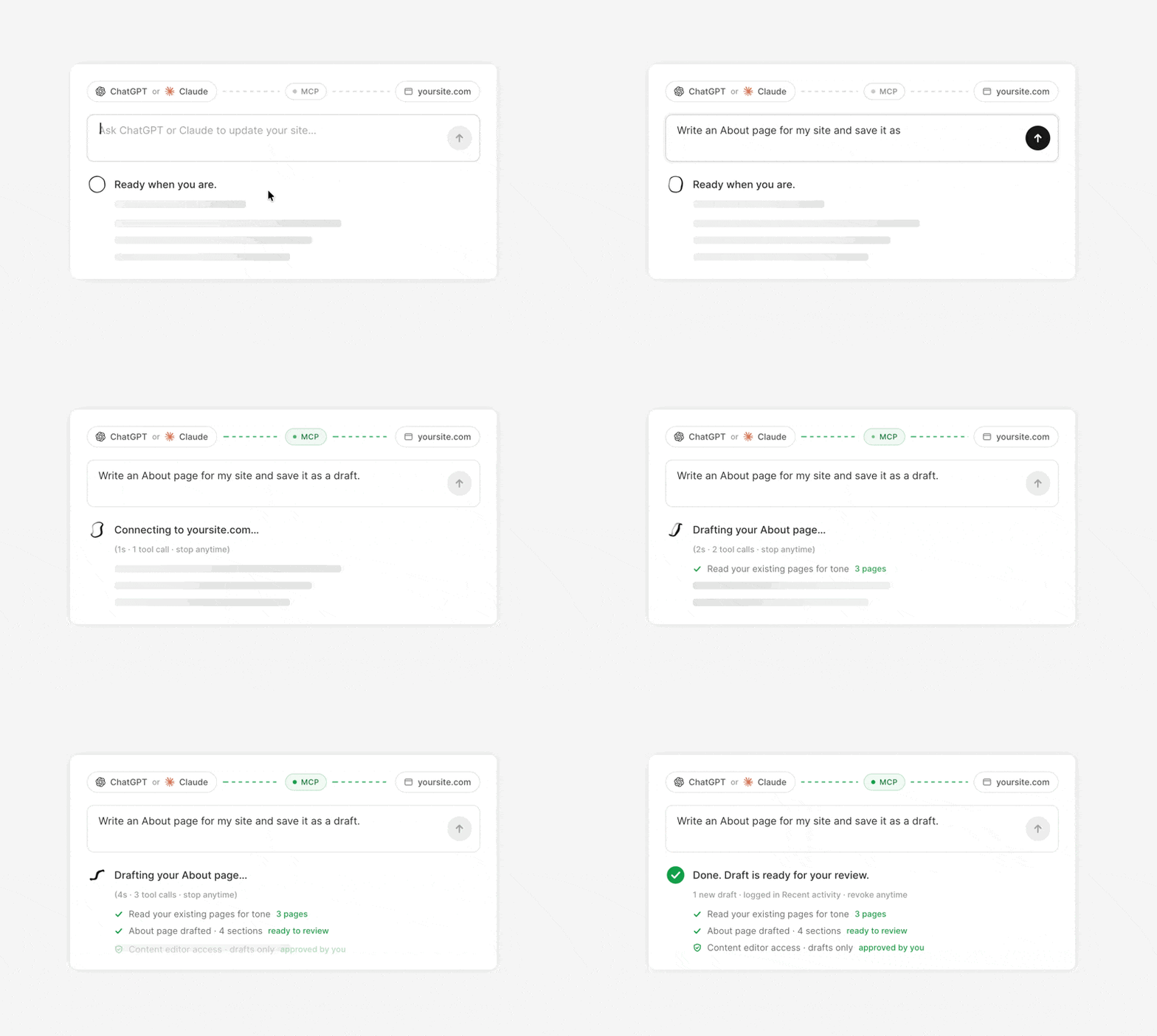
Before you connect
– PurioChat Pro must be active.
– Your site needs a public HTTPS address and pretty permalinks.
– The AI service must support custom remote MCP connections.
– A WordPress administrator must approve the connection.
Local, VPN-only, and firewalled sites cannot be reached by cloud-based AI services. Connector availability can also depend on the service plan or workspace.
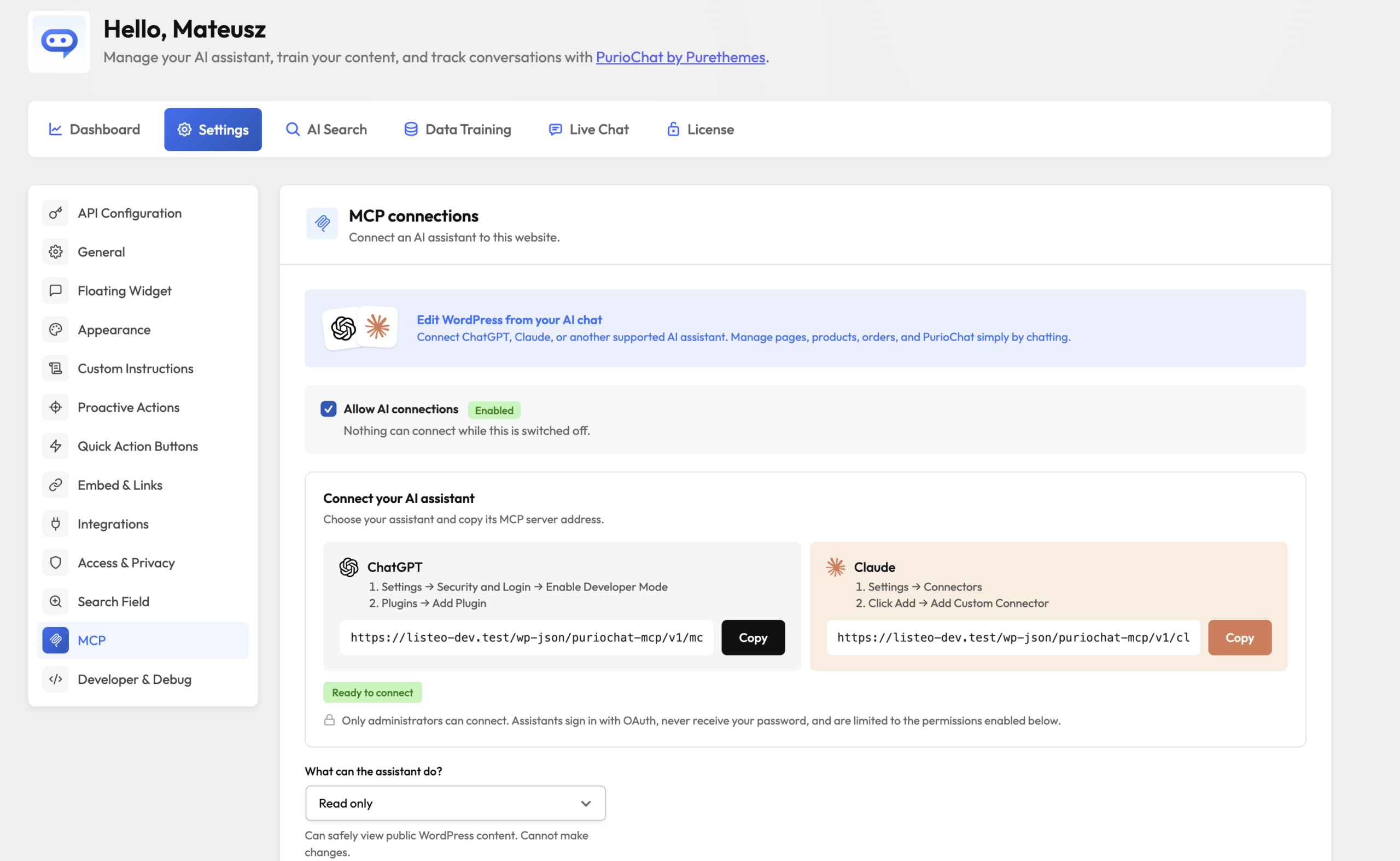
Connect your assistant
1. Go to PurioChat → Chat Settings → MCP.
2. Enable Allow AI connections.
3. Choose an access profile and save.
4. Confirm the status says Ready to cnnect.
5. Copy the address shown for your assistant.
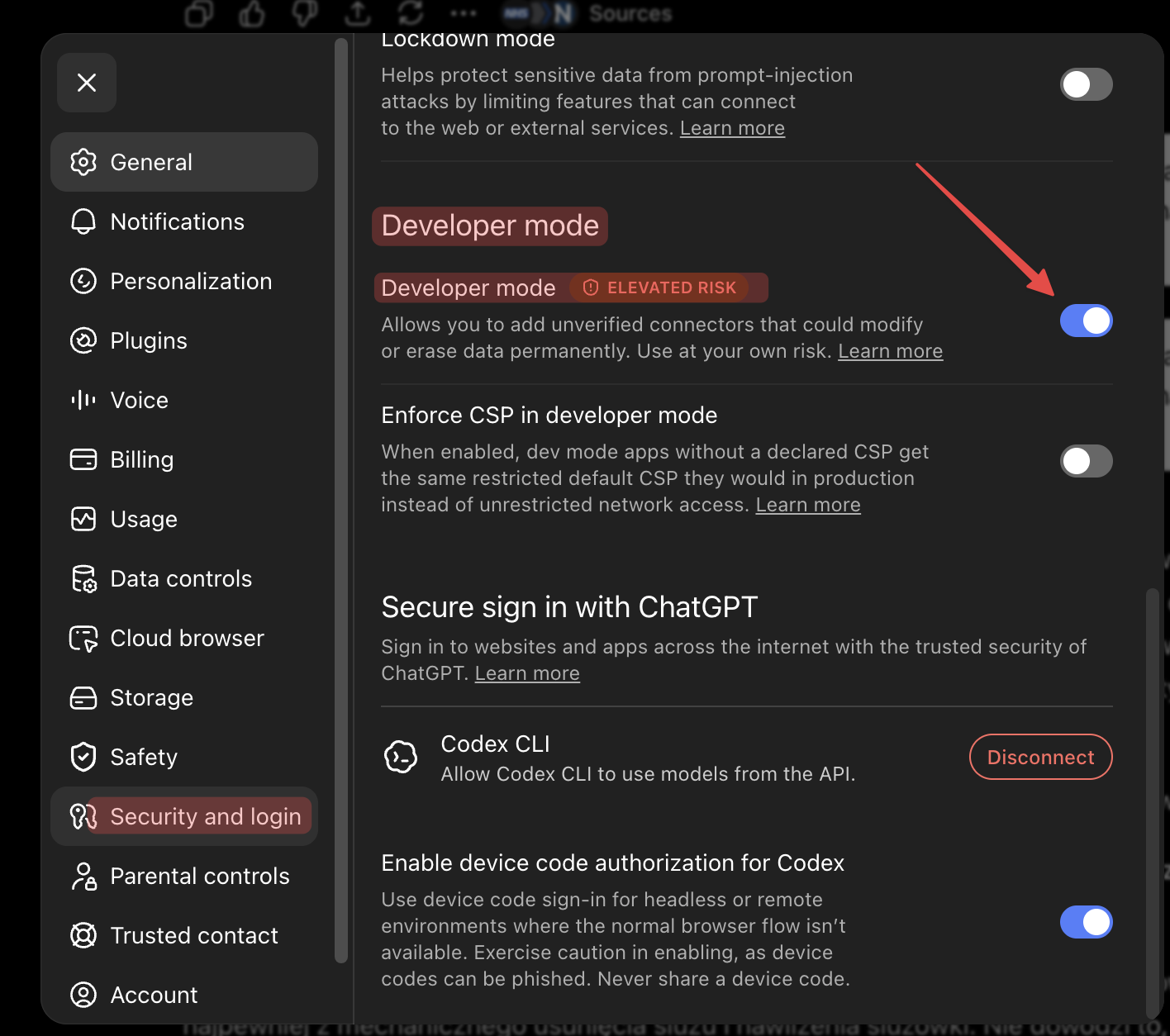
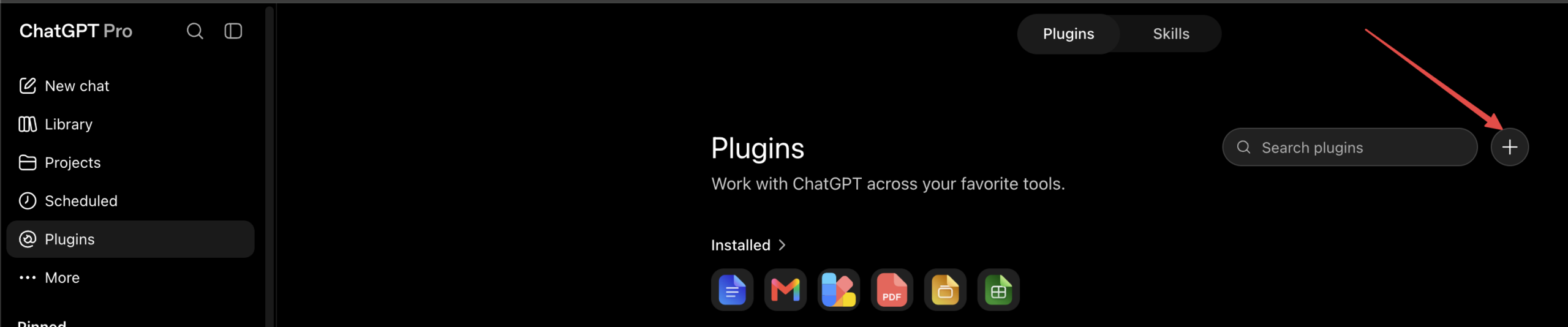
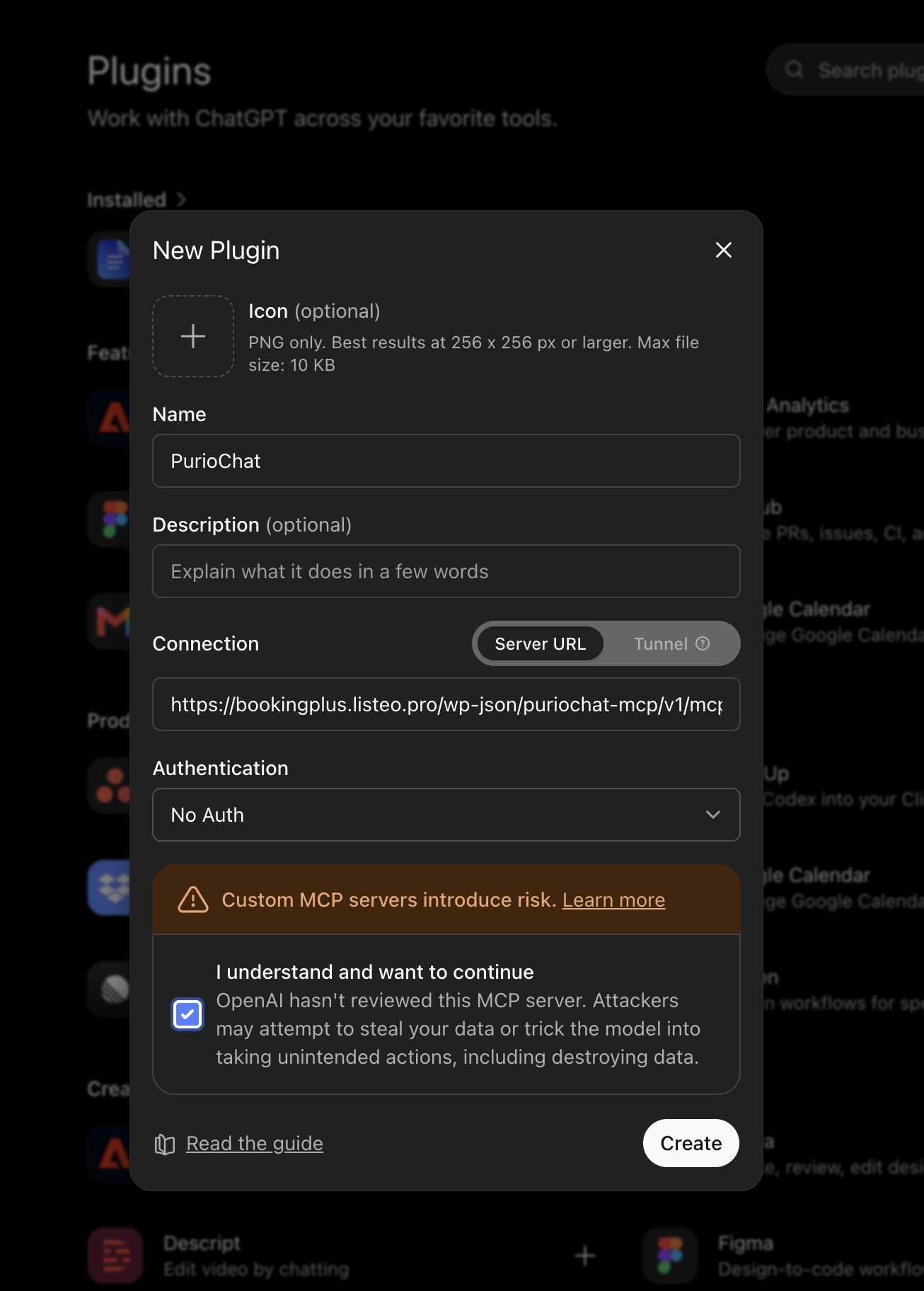
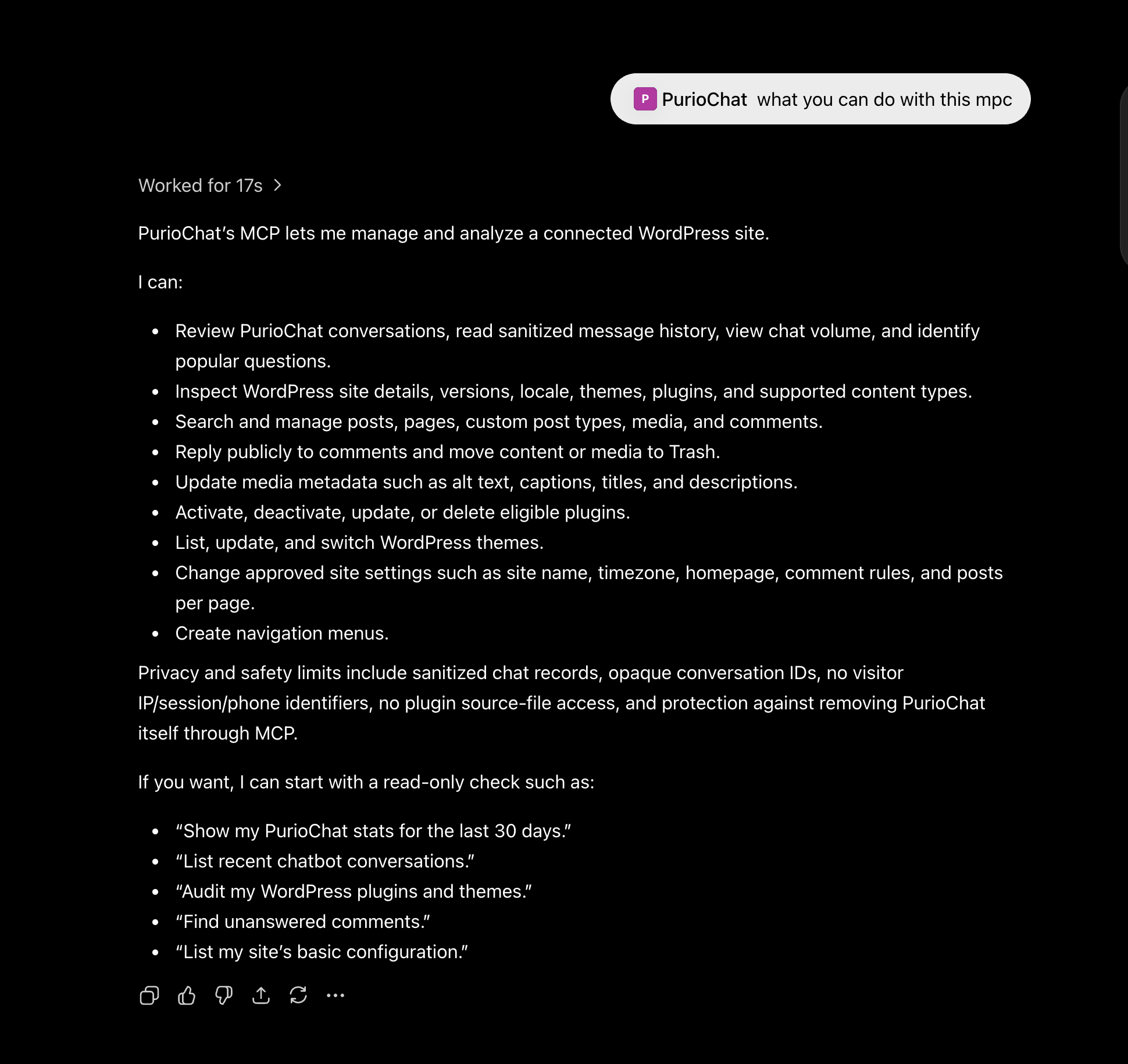
ChatGPT
1. Go to Settings → Security and Login and enable Developer Mode.
2. Go to Plugins → Add Plugin and paste the ChatGPT address.
Claude
1. Go to Settings → Connectors.
2. Click Add → Add Custom Connector and paste the Claude address.
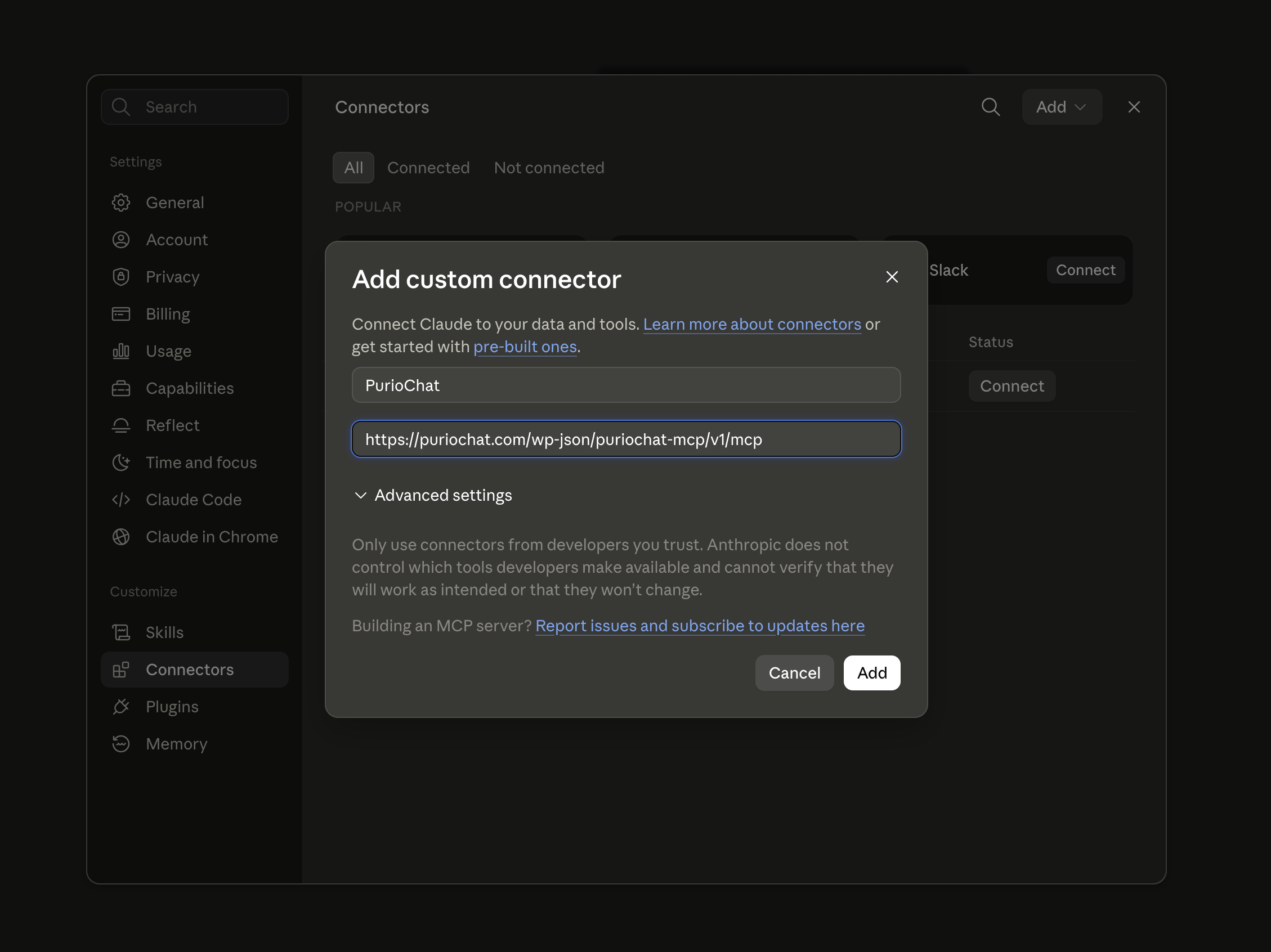
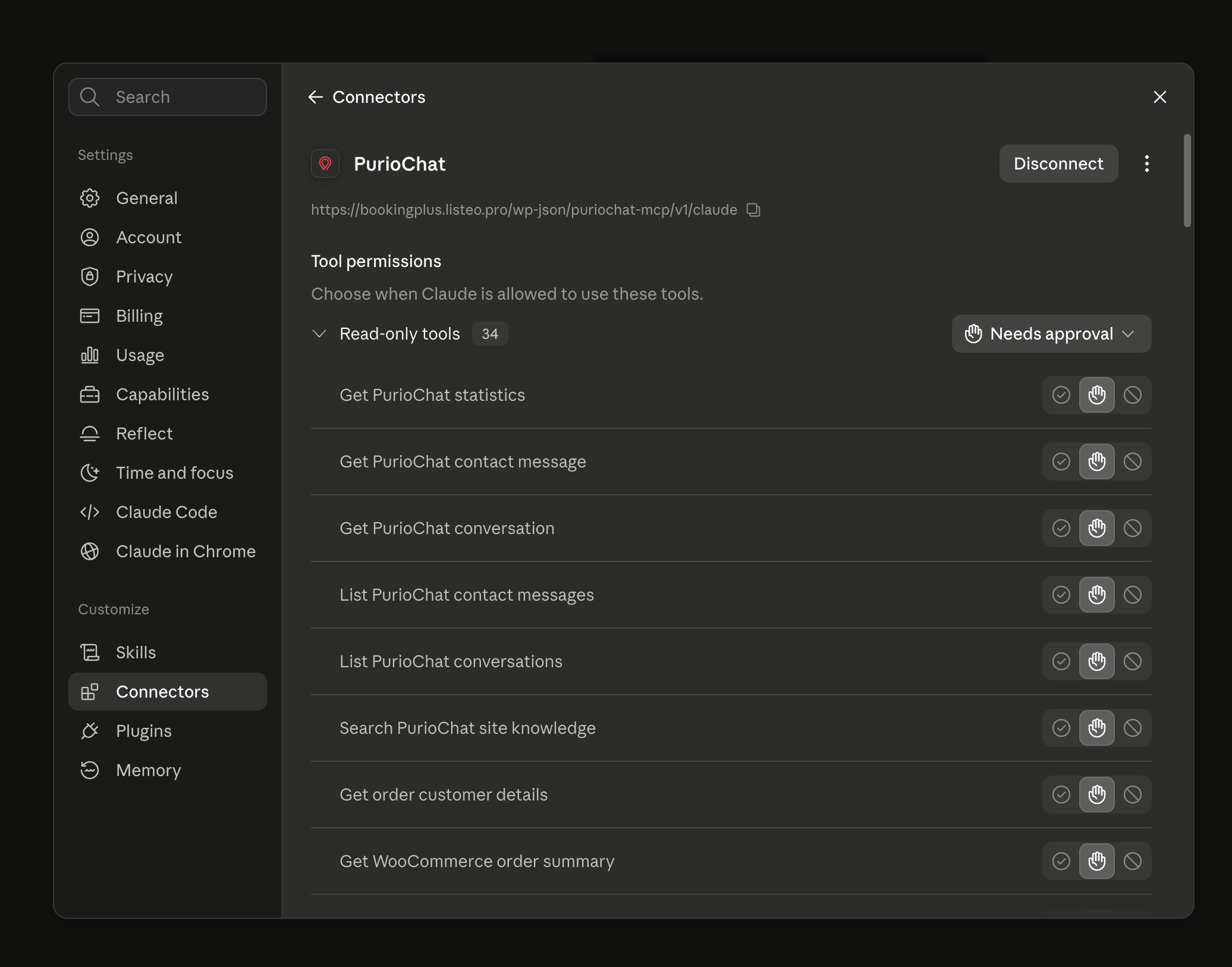
ChatGPT and Claude use different MCP addresses. Copy the URL from the matching provider card. Then sign in to WordPress and approve access.
Choose an access profile
– Read only: View public WordPress content.
– Content editor: Create and edit drafts, media, and comments. Cannot publish.
– Store manager: Manage products, sanitized orders, coupons, and approved store settings.
– Full access (YOLO mode): Enable every permission, including sensitive and destructive actions. Draft protection is disabled.
– Custom permissions: Select permissions individually.
Start with the smallest profile that can complete the task.
Permissions and security
– WordPress: Content, media, comments, publishing, users, settings, plugins, and themes.
– WooCommerce: Products, orders, coupons, customer data, and approved store settings.
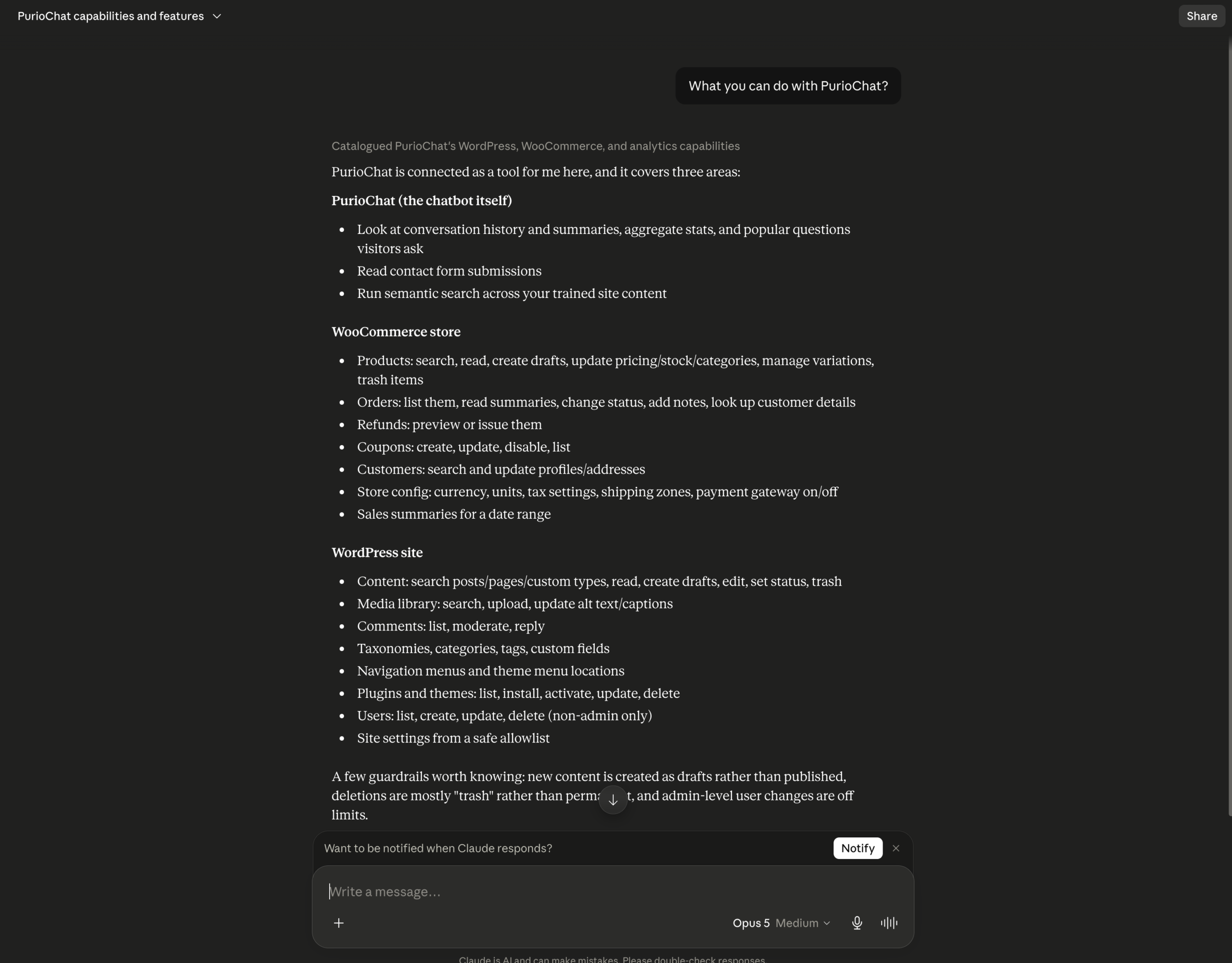
– PurioChat: Conversations, statistics, contact messages, and trained site knowledge.
Access all custom fields includes ACF and theme fields. Keys beginning with an underscore stay blocked.
API keys, passwords, licenses, payment credentials, SQL, PHP, and filesystem access are never exposed. Calls are rate-limited per connected app and WordPress user. MCP does not answer live visitor chats.
Keep customer data, permanent deletion, custom fields, and system management disabled unless required.
Recent activity
Open Recent activity to view connection controls and the audit log.
– Activity loads only when the panel is opened, 20 events at a time.
– Metadata is kept for up to 90 days.
– Message bodies, argument values, and tool results are never logged.
– Revoke all connections disconnects every authorized AI app.
If the connection fails
1. Click Re-run beside the connection status and follow the displayed fix.
2. Check HTTPS and pretty permalinks.
3. Allow /.well-known/* and /wp-json/puriochat-mcp/* through your server, security plugin, and CDN.
4. If you use Cloudflare, make sure Claude-User is not blocked under Manage AI bot access.
5. Save the MCP settings and reconnect the assistant.
Example requests
– “Create a draft About page using this outline.”
– “Update this product’s price and stock.”
– “Show comments waiting for review.”
– “Summarize recent PurioChat conversations.”
The assistant can use only tools allowed by both PurioChat and the connected WordPress account.