
Reading every conversation to find what your chatbot gets wrong does not scale. Chat Insights audits your stored chats for you, so you can spot the holes in your knowledge base at a glance.
What Chat Insights does
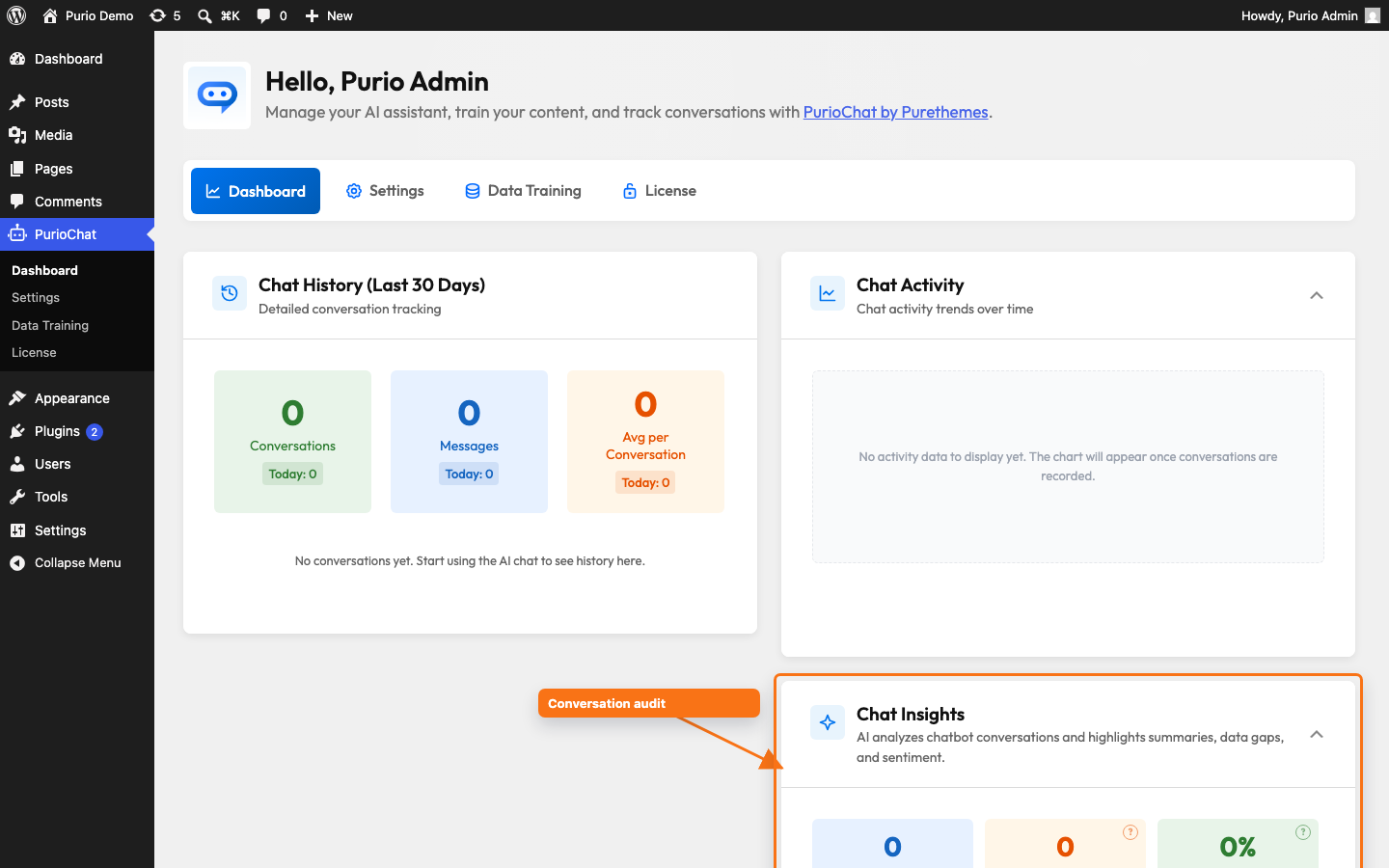
Chat Insights audits your chatbot conversations at PurioChat → Dashboard → Chat Insights. For each chat, the AI produces a compact report so you skip the full transcript:
- Title — a short label for what the chat was about.
- Summary — a one- or two-sentence recap.
- Sentiment — positive or negative. This measures the visitor’s tone only, not whether the bot answered well.
- Suggested action — one next step:
add_kb(add content to your knowledge base),improve_prompt(tighten your system instructions),add_quick_button(offer a shortcut button),none(nothing to do), orskip(trivial chat, hidden as noise). - Data gaps — questions a visitor asked that the bot could not answer because the information was missing from your content (up to 10 per conversation).
Data gaps are the real payoff: they tell you exactly what to add to your training content. The AI is conservative here — it flags only genuine unanswered questions rather than padding the list.
Before you start: turn on Chat History
Chat Insights only analyzes saved conversations, so it requires Chat History tracking. If tracking is off, the card shows an empty state asking you to turn on history first.
Enable tracking from PurioChat → Dashboard → Chat History → Configure. History tracking is off by default, so this is usually the first thing to switch on.
Output is always in your admin language
Whatever language the visitor and bot spoke, every title, summary, and data gap is written in your WordPress admin language. So you can review conversations from around the world in one language, without translating anything yourself.
Reading the card
The card shows three headline numbers: conversations Analyzed, total Data gaps found, and your Positive % (the share of analyzed chats with positive sentiment). Below that, filter toggles narrow the list by sentiment (All / Positive / Negative) and by gaps (All / Data gaps / No data gaps), with a “Load more” button to page through results.
Analyzing a single conversation
Each row in your Chat History list has an inline Analyze with AI button. Click it to audit that chat on demand — handy when something just came in and you want a quick read. After analysis the button becomes View analysis, which opens the report (with Refresh and Delete actions, plus a link to the full transcript).
Automatic analysis (the Configure modal)
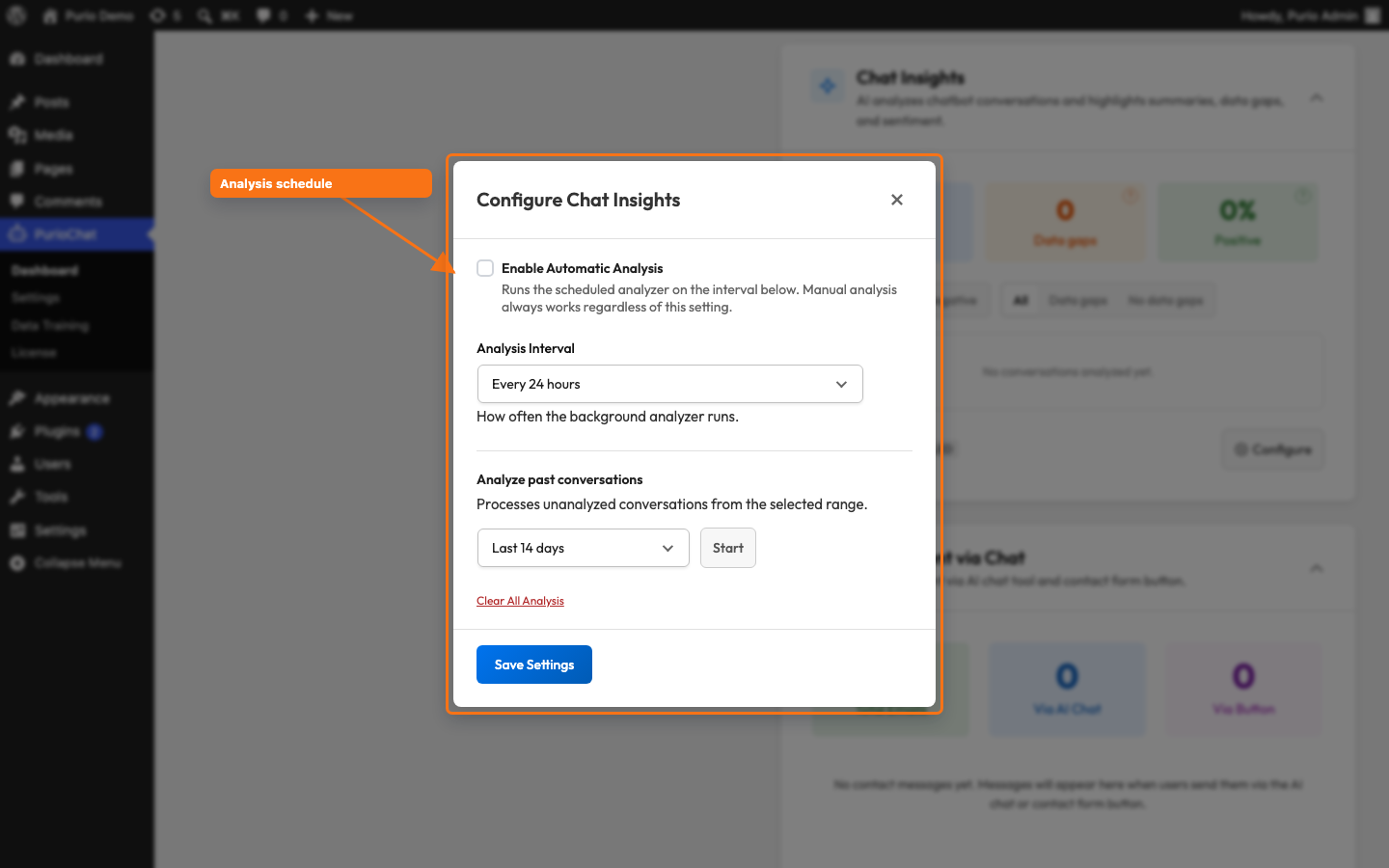
Instead of clicking each row, you can let a background job audit new conversations. Open Configure on the Chat Insights card to set this up.
| Option | What it does |
|---|---|
| Enable Automatic Analysis | Turns on the scheduled analyzer. Off by default. |
| Analysis Interval | How often the job runs: every 12, 24 (default), or 48 hours. |
| Live cron status | Shows when the next run is due and how long ago the last run finished, so you can confirm the analyzer is alive. |
| Analyze past conversations | A one-click backlog catch-up with a range picker: Last 24 hours, 3 days, 7 days, 14 days (default), or 30 days. Start it and watch the progress bar. |
Translate conversation
Separate from the audit, Pro adds a per-conversation Translate conversation button in Chat History. It translates the full transcript — both visitor and bot messages — into your WordPress admin language, keeping IDs, numbers, URLs, and names intact. Useful for reviewing chats in a language you do not read. (To control cost, only the most recent portion of very long transcripts is translated, and a note tells you if earlier messages were omitted.) Translations are cached, so the button becomes View translation after the first run.
Enable it once and it appears on every conversation row; the translation control appears on every conversation row.

