
With multimodal features on, visitors can speak their questions and attach photos for the AI to look at. Both run through the AI provider you already configured, so there is nothing extra to sign up for.
You will find both options under PurioChat → Settings → General, in the Multimodal Features block.
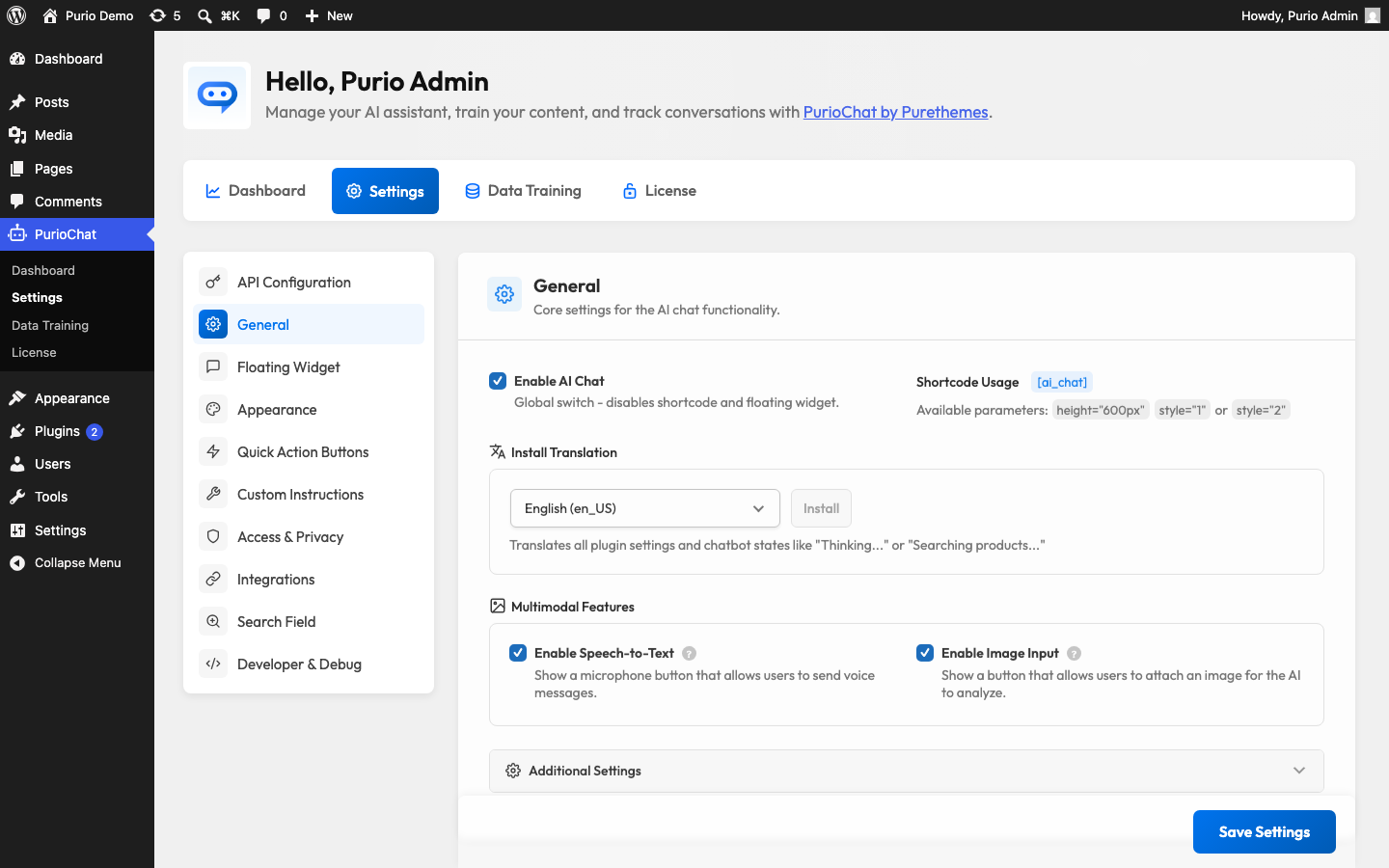
Speech-to-Text (voice input)
Turn on Enable Speech-to-Text (off by default) to add a microphone button to the chat input. Visitors tap it, speak, and PurioChat sends the recording to your AI provider for transcription. The text drops into the chat box, where they can edit it or hit send.
This helps mobile users, anyone who finds typing awkward, and accessibility. The mic button has three states so people know what is happening: an idle icon, a recording state (red dot, timer, stop button), and a transcribing spinner while the text comes back.
How transcription is handled per provider
Voice transcription uses the same API key as your chat, routed to your selected provider:
| Provider | Transcription engine |
|---|---|
| OpenAI | Whisper (whisper-1) |
| Mistral AI | Voxtral (voxtral-mini-latest) |
| OpenRouter | Routed via Google Gemini |
| Google Gemini (direct) | Not supported — use OpenAI, Mistral, or OpenRouter for voice |
HTTPS is required
Browsers only allow microphone access on secure pages, so your site must be served over HTTPS for the mic button to work. On an http:// site the browser blocks microphone capture. Most hosts include free SSL, so this is usually already in place.
Privacy and limits
- Audio is not stored on your server. The recording goes straight to the AI provider for transcription; PurioChat does not save it.
- Maximum recording size is 3 MB, plenty for a normal spoken question.
- Supported audio formats: WebM, MP4, MPEG, OGG, WAV, and M4A — the visitor’s browser picks one automatically.
- Voice requests count against the same per-IP chat rate limits as typed messages.
Image Input (vision)
Turn on Enable Image Input (off by default) to add an attach button to the chat input. Visitors can then upload a photo and ask the AI about it — for example, “Which of your products looks like this?”. The image is sent alongside the question, and the AI responds based on what it sees.
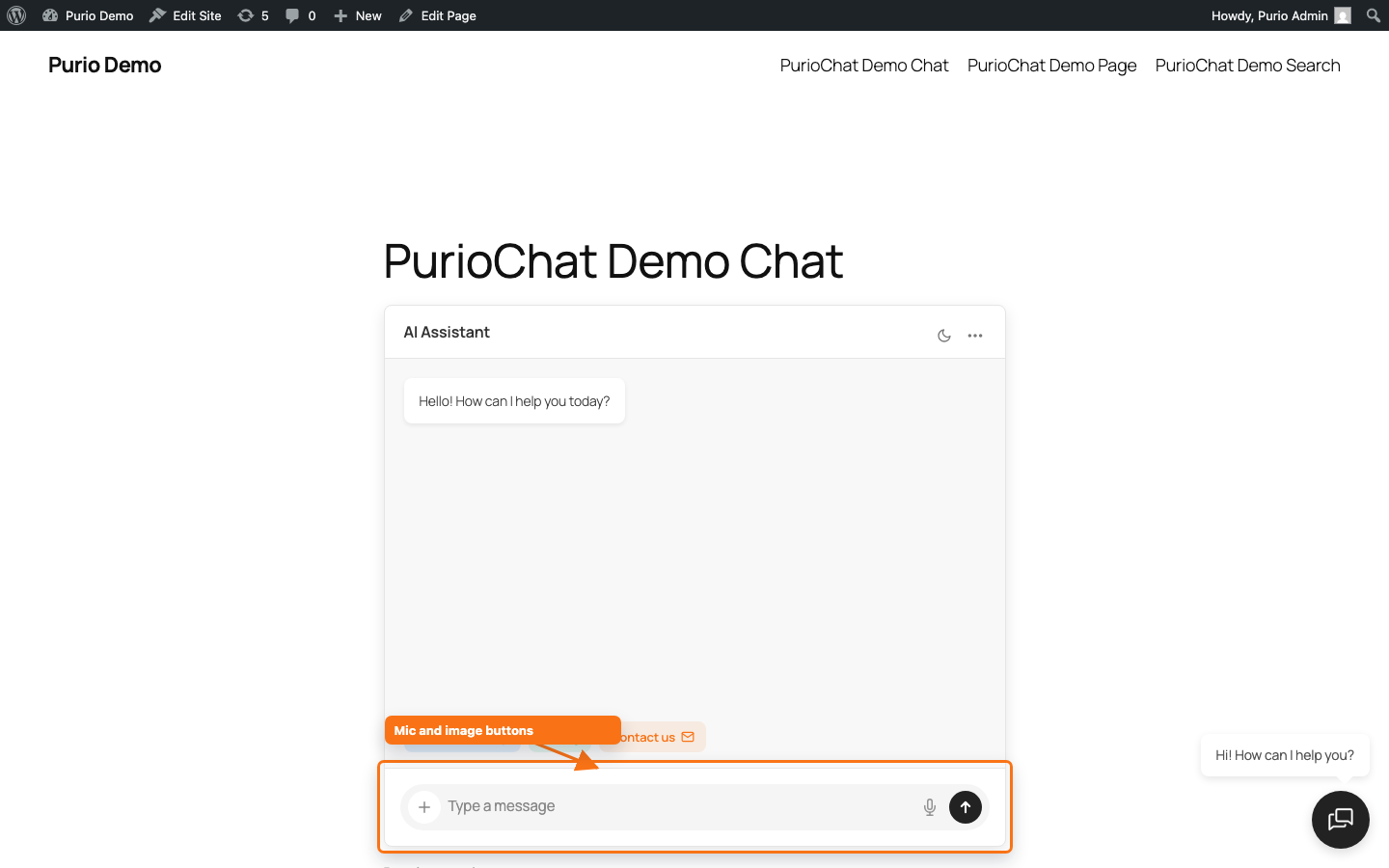
Works with every provider
Image understanding works with all four AI providers (OpenAI, Google Gemini, Mistral AI, and OpenRouter) — it is not limited to a specific model. Once Image Input is on and a provider is configured, visitors can attach photos. One caveat: a very small or text-only model on OpenRouter may not read images, and PurioChat flags this with a warning in the model picker. Stick with a mainstream chat model to avoid it.
Privacy and limits
- Images are not stored on your server. Like voice recordings, attached photos go to the AI provider for analysis; PurioChat does not keep them.
- Accepted image types: JPEG, PNG, GIF, and WebP, up to 5 MB per image.

