
The General sub-tab is your first stop after adding an API key. Here you switch the chatbot on, choose which AI model powers it, and set a few core display options. Several Pro extras live here too. Find it at PurioChat → Settings → General.
Enable AI Chat (master switch)
The Enable AI Chat toggle is the global on/off switch for the whole chatbot. When it is off, both the [ai_chat] shortcode and the floating widget stop appearing site-wide, regardless of their own settings. It is on by default, so the chatbot is ready as soon as a provider is configured.
The [ai_chat] shortcode
To embed a full chat window inside a page or post, add the shortcode:
[ai_chat]A legacy alias [listeo_ai_chat] also works if you used it on an older version. The shortcode accepts several optional parameters:
| Parameter | Default | What it does |
|---|---|---|
height |
600px |
Sets the height of the chat container (any CSS length). |
style |
1 |
1 is the standard layout; 2 is an alternative visual layout. |
pictures |
(empty) | Per-instance override of Hide Images: enabled shows thumbnails, disabled hides them, empty uses your global setting. |
show_popular_searches |
no |
Set to yes to show a list of popular search tags below the chat. |
popular_searches_limit |
5 |
Maximum number of popular-search tags to display. |
popular_searches_title |
(empty) | Custom heading for the popular-searches block. |
For example, [ai_chat height="700px" style="2"] embeds a taller chat in the alternative layout.
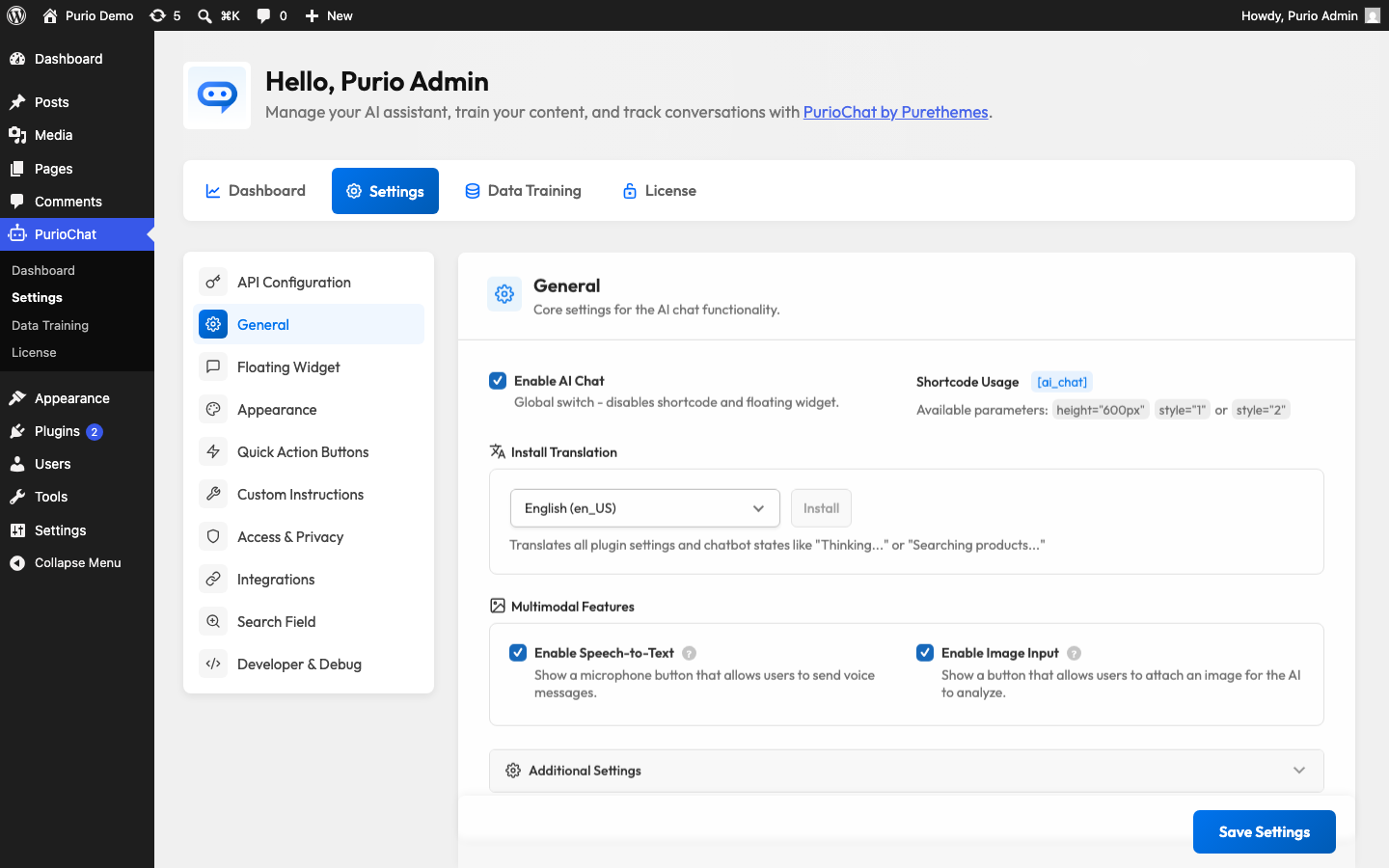
Install Translation
The chatbot’s built-in interface text (greetings, “Thinking…”, “Searching…” and similar states) is in English by default. Install Translation downloads an official language pack so those strings appear in your language. Pick your locale from the dropdown and click Install. There are 66 WordPress locales available, plus a “Switch to English” button to remove the pack.
Model Selection
The Model dropdown chooses which AI model handles chat messages. Models trade off speed, intelligence and cost, so this is where you tune the chatbot’s “personality” and price per reply. The options depend on the provider you picked under API Configuration.
The default model is gpt-5.4-mini — fast, capable, and a good fit for most sites. When you switch providers, PurioChat auto-selects a sensible default for that provider (for example gemini-3-flash-preview for Google Gemini or mistral-large-latest for Mistral). You can pick a different model from the list anytime.
Maximum Products/Listings Cards
When the AI recommends products or listings, it shows them as cards in the conversation. Maximum Products/Listings Cards Displayed caps how many cards appear in a single reply, so a broad question does not flood the chat.
- Default: 10
- Range: 1–25
This block appears only when your site has listings or WooCommerce products to recommend.
Hide Images
The Hide Images in Chat Results checkbox strips thumbnails from result cards for a cleaner, text-only look. It is effectively on by default, so cards start without images. Uncheck it to show thumbnails everywhere, or override it for a single embed with the shortcode’s pictures parameter.
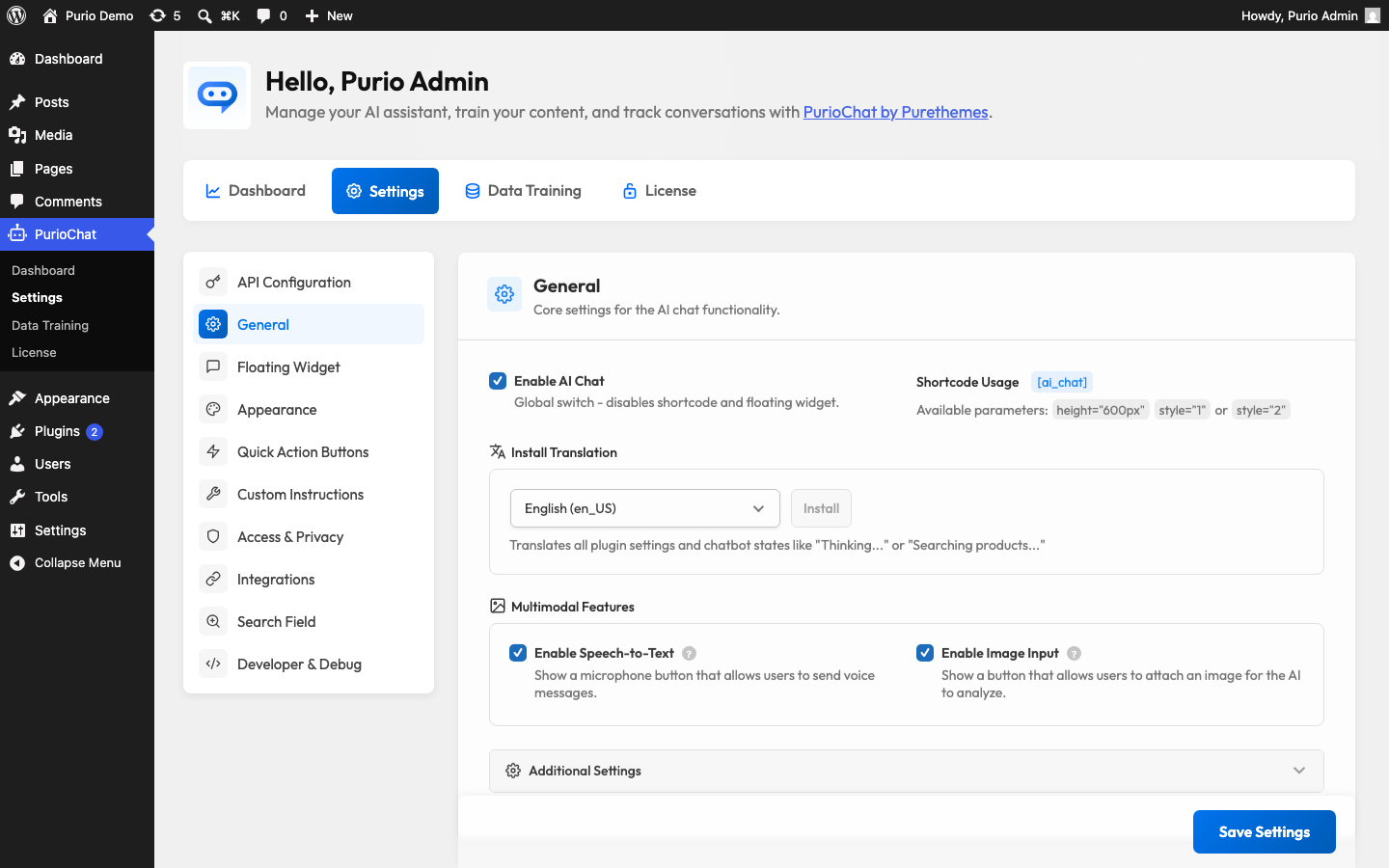
Pro extras on this tab
A few more controls live under General but require PurioChat Pro. Each has its own article — here is a quick map.
WooCommerce Cart in Chatbot (Pro)
Enable WooCommerce Cart in Chatbot lets shoppers add products to their WooCommerce cart from the conversation, with a cart icon and popup inside the chat. Appears only when WooCommerce is active. See WooCommerce Cart in the Chatbot.
Enable Order Checking (Pro)
Enable Order Checking is a separate toggle that lets the chatbot look up order status. It asks for an order number and billing email, and never exposes private customer data to the AI. WooCommerce-only. See Order Status Checking.
Speech-to-Text and Image Input (Pro)
Enable Speech-to-Text adds a microphone button so visitors can speak their questions, and Enable Image Input adds a button to attach a photo for the AI to analyze. In both cases the audio or image is sent to the AI for processing and is not stored on your server. See Speech-to-Text and Image Input.
Quick Action Buttons
The enable toggle for Quick Action Buttons lives on its own sub-tab but sits alongside these General controls. The on/off switch is free; designing the buttons (text, links, colors and visibility) is a Pro feature. See Quick Action Buttons.

