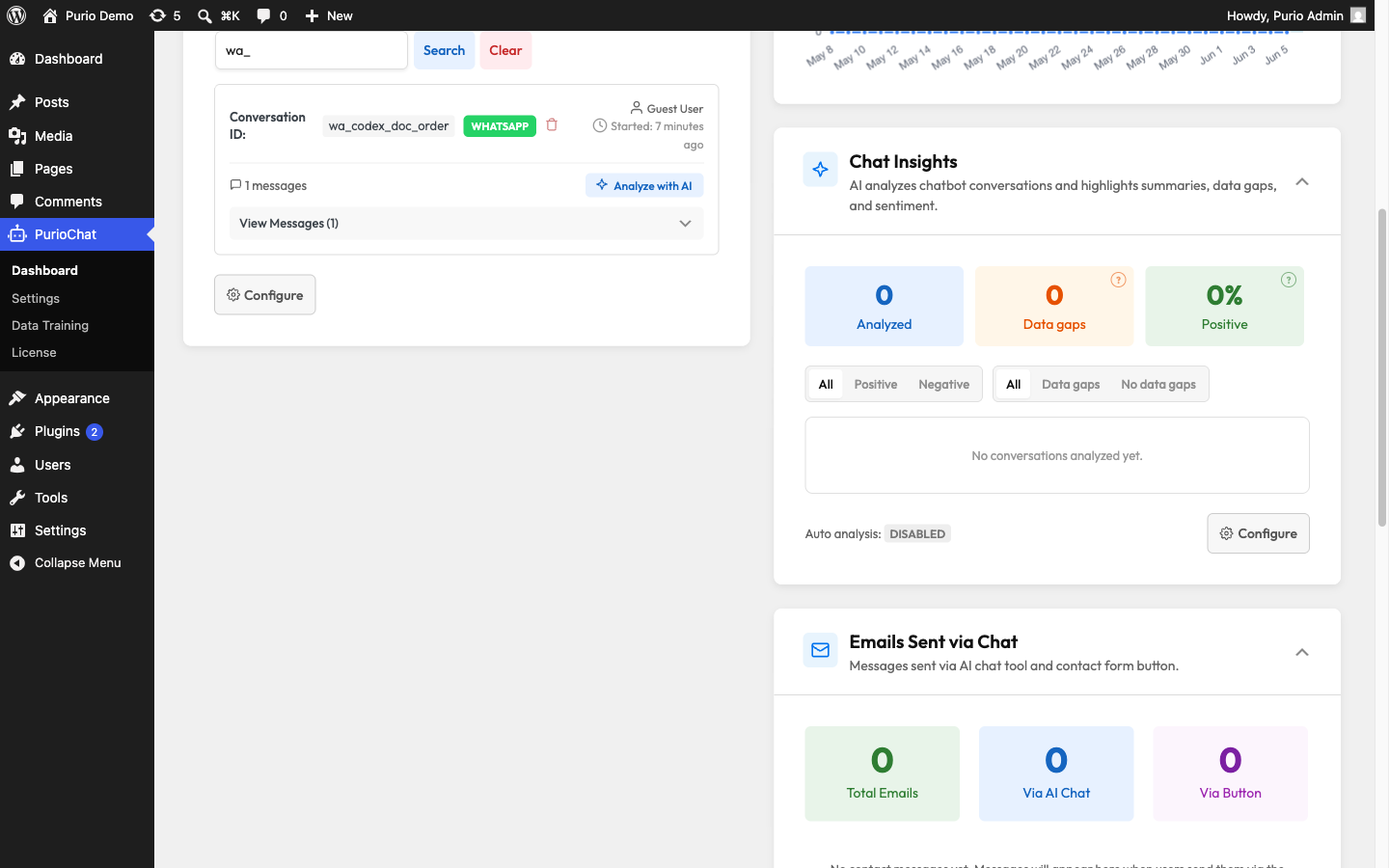
PurioChat lets visitors chat with your AI assistant from WhatsApp. Messages travel through your Twilio account, get answered by the same AI that powers your website chat, and land in your Chat History.
What this integration does
When someone messages your Twilio WhatsApp number, Twilio forwards it to PurioChat. The AI reads the message, uses the same tools it has on your site (semantic search, listing and product lookups, order status, the contact form, and any webhook actions you’ve set up), and replies through Twilio. To your visitor it’s a normal WhatsApp chat; for you it’s the same assistant you already configured, now on a channel people use every day.
The settings live under PurioChat → Settings → Integrations. Tick WhatsApp Integration (via Twilio), then click Configure to open the WhatsApp Configuration modal.
What you will need from Twilio
You need a Twilio account with WhatsApp enabled. For testing, use Twilio’s free WhatsApp Sandbox; for live use, connect an approved production WhatsApp sender. Copy three things from the Twilio Console into PurioChat.
| What to enter | |
|---|---|
| Account SID | Your Twilio Account SID. It starts with AC and is shown on your Twilio Console dashboard. |
| Auth Token | Your Twilio Auth Token. PurioChat uses it to send replies and to verify that incoming messages really came from Twilio, so keep it secret. |
| WhatsApp Number | The Twilio number you send from, in the form whatsapp:+14155238886. If you leave off the whatsapp: prefix, PurioChat adds it for you. |
The Webhook URL
The modal shows a read-only Webhook URL with a copy button. This is where Twilio delivers incoming messages. Don’t type anything here; copy it and paste it into Twilio. It looks like this:
https://yoursite.com/wp-json/listeo/v1/whatsapp-webhook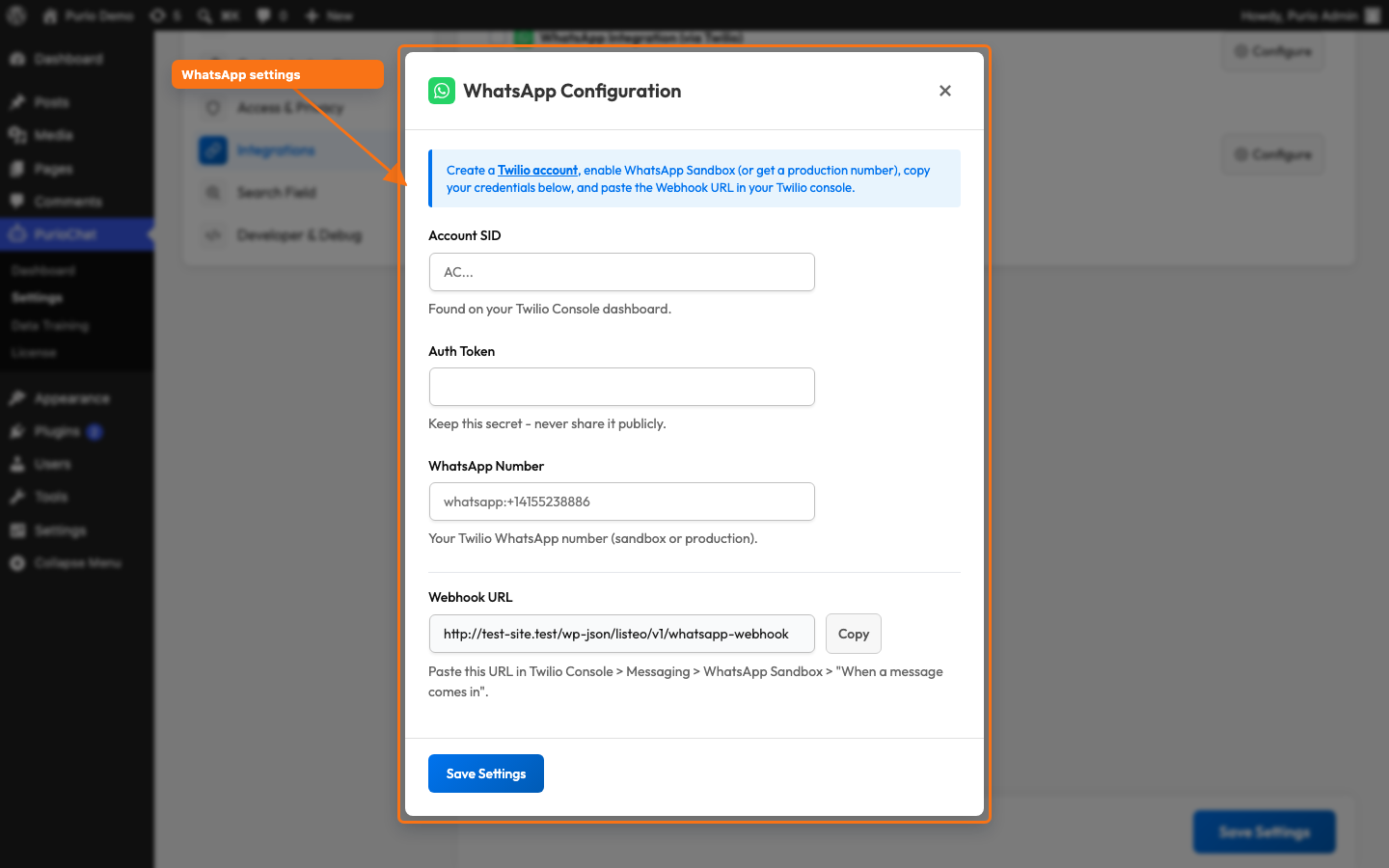
Setup steps
- Create a Twilio account and enable the WhatsApp Sandbox, or connect a production WhatsApp sender.
- In the Twilio Console, copy your Account SID and Auth Token.
- In PurioChat, open PurioChat → Settings → Integrations, enable WhatsApp, and click Configure.
- Paste the Account SID and Auth Token, and enter your WhatsApp sender number.
- Copy the read-only Webhook URL and paste it into Twilio under Messaging → WhatsApp Sandbox → “When a message comes in” (for production senders, use the equivalent inbound-message setting).
- Save your settings.
Need Twilio screenshots? See the full WhatsApp and Telegram integration walkthrough for Twilio Sandbox setup and webhook examples.
Test Connection
Once all three credentials are filled in, a Test Connection button appears. Click it to confirm PurioChat can reach Twilio. On success, it reports the connected Twilio account’s friendly name. If the credentials are wrong, you’ll see “Invalid credentials. Check Account SID and Auth Token.” This only checks your Twilio login. To confirm the full round trip, send a real message to your WhatsApp number after pasting the webhook URL.
How conversations behave
- Text only. The assistant reads incoming text. Images and other media aren’t processed, so ask visitors to describe what they need in words.
- Plain-text replies. WhatsApp doesn’t render HTML or markdown, so the AI answers in plain text. Bold and links are converted to a WhatsApp-friendly style automatically.
- 4096-character limit. WhatsApp caps message length, so very long replies are trimmed and end with
[Message truncated]. - Short memory. Each reply considers the last 5 messages for context, so follow-up questions still make sense.
- Full tool access. The assistant can run searches, pull up listing or product details, check order status, send contact-form messages, and trigger webhook actions, just like on your site (up to 5 tool steps per message). WooCommerce tools require WooCommerce to be active.
- Typing indicator. Visitors see a typing indicator while the AI works on their answer.
Privacy and chat history
PurioChat never stores a visitor’s actual phone number. It keeps a one-way SHA-256 hash, which is enough to keep a conversation threaded but can’t be reversed into a real number. This helps with GDPR compliance.
WhatsApp conversations appear in PurioChat → Dashboard → Chat History with a WhatsApp badge, so you can tell at a glance which messages came from the website versus WhatsApp. Conversation logs are a Pro feature and show up only when chat history tracking is turned on.