
Some answers live in a file, not on a published page — a staff handbook, a product manual, a price list, a legal policy. Document training lets you upload those files so PurioChat can learn from them, even when they never appear on your site.
Where to find it
Open PurioChat → Data Training, switch to the Database tab, and open the Document Manager. From there you can upload files, train them, and manage everything you’ve added.
Supported file types
PurioChat reads each file and pulls out the plain text so the AI can search and quote from it.
| Format | Extension | How the text is read |
|---|---|---|
.pdf |
Text is extracted from the pages. Image-only, scanned, or encrypted PDFs can’t be read — you’ll see an error if no selectable text is found. | |
| Plain text | .txt |
Read directly, as-is. |
| Markdown | .md |
Read directly, as-is. |
| XML | .xml |
Parsed and flattened into readable tag: value lines. |
| CSV | .csv |
Each row is turned into readable Header: value lines. |
Each file can be up to 50 MB, and you can select multiple files at once.
How training works: two steps
Training happens in two steps. This keeps large uploads from timing out and lets you review what you’ve added before spending API credits.
- Upload. PurioChat extracts the text from each file, splits it into smaller pieces, and saves them. No embeddings are generated yet, so this step doesn’t call your AI provider.
- Train Now. Click Train Now to generate the embeddings that make your documents searchable. PurioChat works in batches (about 10 pieces per batch) so even big files process reliably.
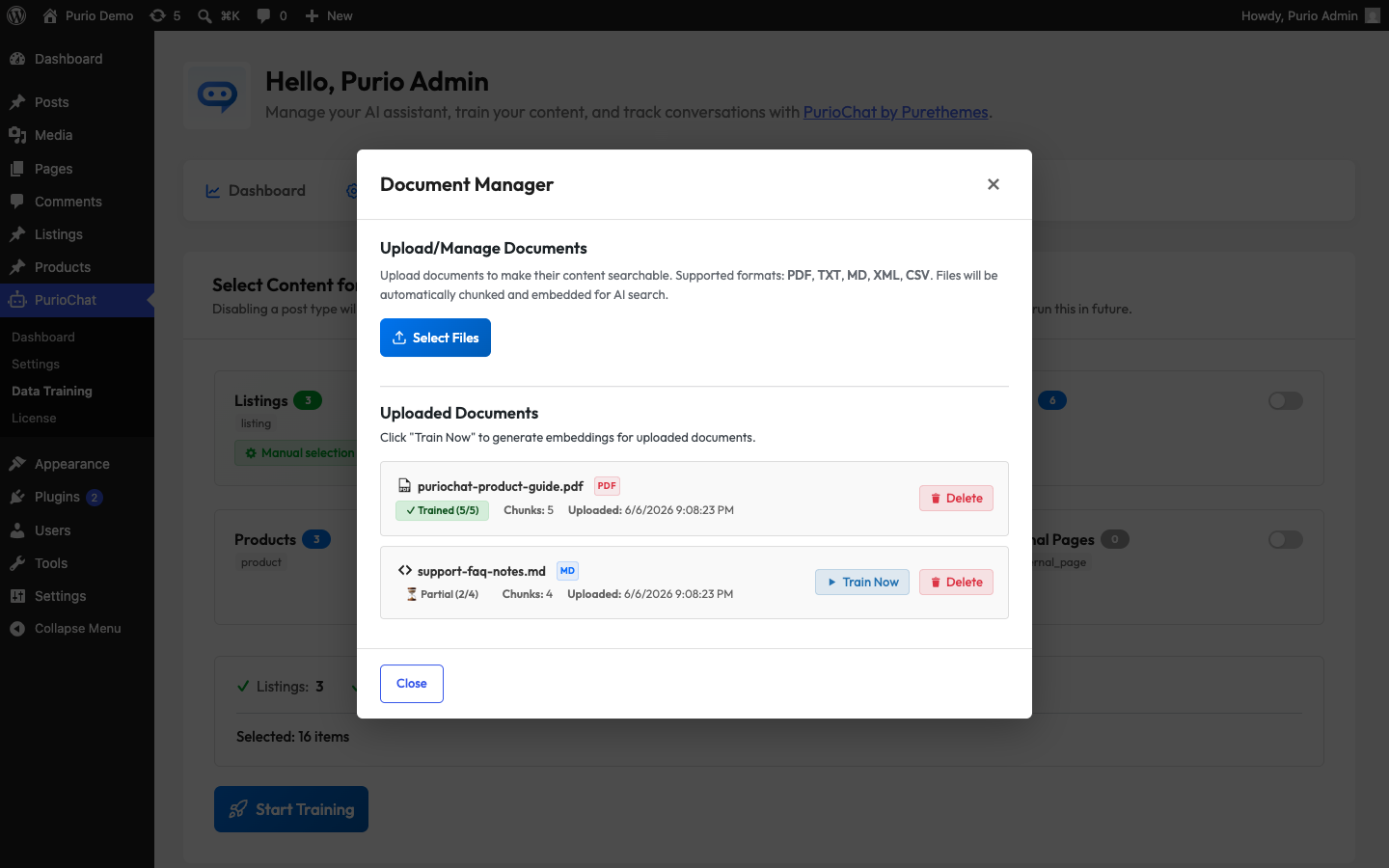
How documents are split and stored
Long files are broken into smaller, overlapping pieces (called “chunks”) so the AI can pinpoint the most relevant passage instead of reading a whole document at once. The split is based on character length: files up to roughly 7,000 characters stay as a single piece, and longer files are divided into pieces of about 3,500 characters each, with a little overlap so context isn’t lost between them.
Each piece is saved as a hidden, non-public custom post type. Your documents live inside WordPress for the AI to use, but they never show up on your front end, in search results, or in your sitemap.
Document statuses
Every file in the Document Manager shows a status:
- Trained — all pieces have embeddings and are fully searchable.
- Partial — some pieces are trained and some aren’t. Click Train Now again to finish the rest.
- Pending — the file is uploaded but no embeddings exist yet. Click Train Now to start.
Each row also shows how many pieces are indexed out of the total, so you can track progress at a glance.
Deleting a document
Use the Delete button next to any file. This removes all of that document’s pieces and their embeddings, so the AI immediately stops using it. To replace a file with an updated version, delete the old one first, then upload and train the new copy.
Good things to upload
Document training works best for reference material visitors ask about but that isn’t on a public page:
- Company policies, procedures, and staff handbooks
- Product manuals and user guides
- FAQ documents and internal help articles
- Terms and conditions, privacy notices, and other legal documents

