
Mistral is a European AI provider with servers and data hosted in the European Union, which makes it a GDPR-friendly choice for sites that need to keep data inside the EU. This guide shows you how to create a Mistral API key and connect it to PurioChat.
Mistral works on the free version of PurioChat, so you can pick it as your provider with or without a Pro license.
Why choose Mistral
It comes down to data residency: requests are processed on Mistral’s European servers, so your content and visitor messages stay within the EU. If your privacy policy or local rules require EU data handling, Mistral covers it. PurioChat connects through Mistral’s API endpoint at https://api.mistral.ai/v1 using the same OpenAI-compatible format it uses for every provider.
Step 1: Create your Mistral account
Open https://console.mistral.ai/api-keys in your browser. If you don’t have an account, you’ll be asked to sign up first, using an email address or a Google account. Once signed in, you’ll land on the API keys page of the Mistral console (also called “La Plateforme”).
Step 2: Create a new API key
Click the Create new key button. Mistral generates a long secret key and shows it on screen. If prompted, give it a name you’ll recognise later (for example, “PurioChat”).
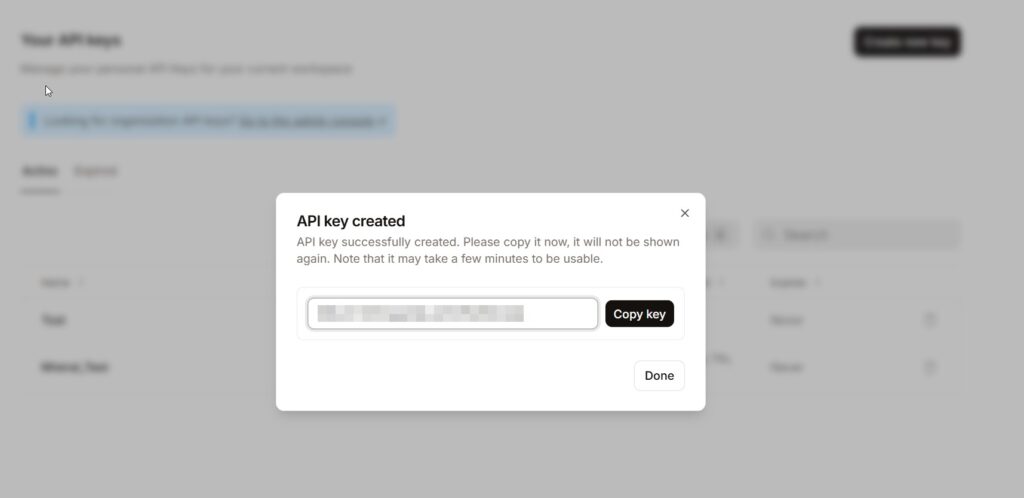
Step 3: Paste the key into PurioChat
In your WordPress admin, go to PurioChat → Settings → API Configuration. In the provider selector, choose Mistral AI. A field labelled Mistral AI API Key appears, with a note confirming the data is hosted in the European Union.
Paste your copied key into that field. The key is stored as a secret — once saved, PurioChat masks it and never shows it again, displaying a row of asterisks and a Remove API Key button instead.
Step 4: Test the key
Click Test API Key. PurioChat sends a quick request to Mistral to confirm the key is valid. A success message means you’re connected; an error usually means the key was pasted incompletely or your Mistral account still needs billing set up.
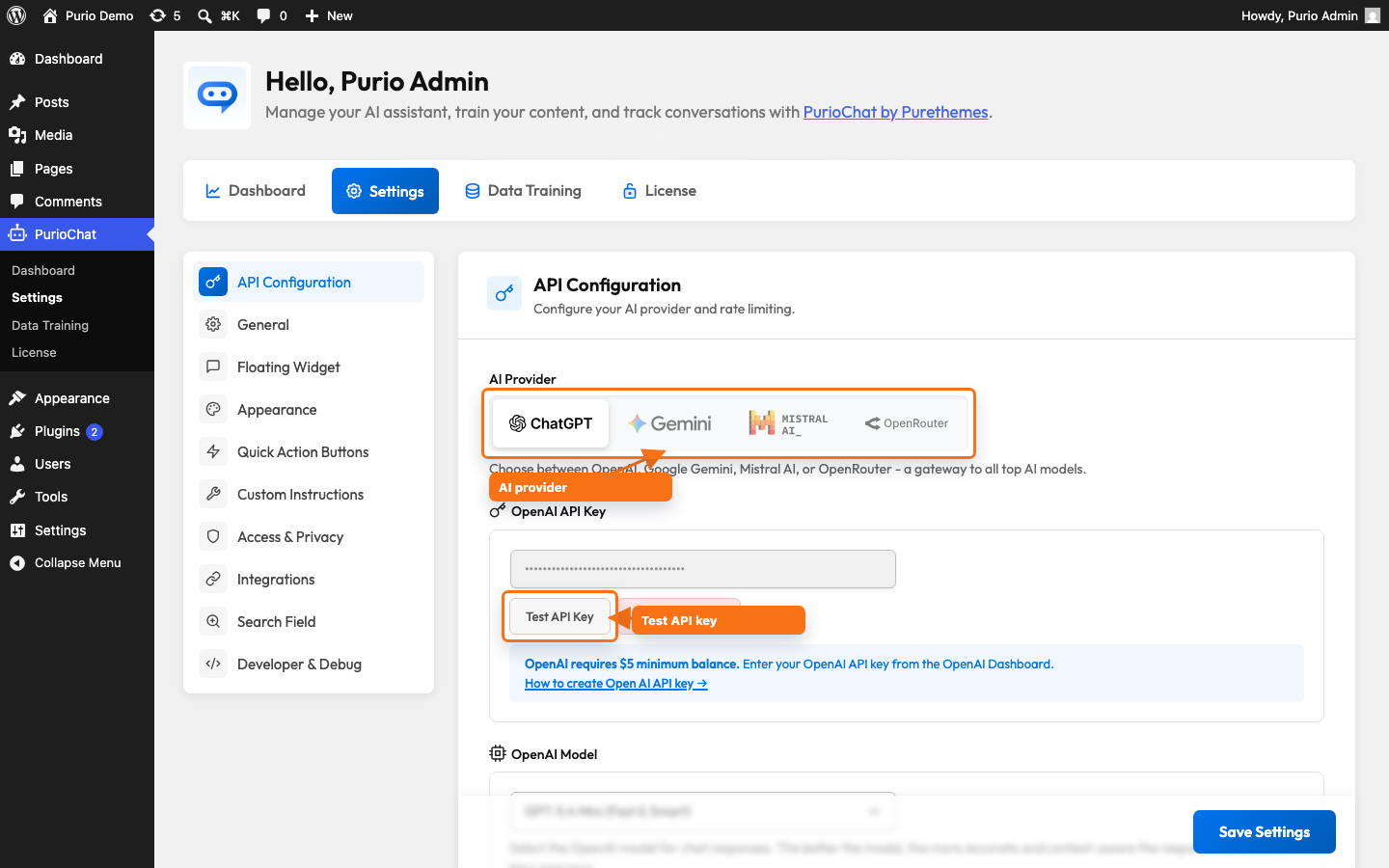
Once the test passes, save your settings. When you switch to Mistral, PurioChat selects mistral-large-latest as the chat model and mistral-embed as the embedding model. You can change the chat model later from the same screen if you prefer a faster or cheaper option.
Good to know about Mistral in PurioChat
- Conversation memory: To stay within Mistral’s limits, PurioChat always uses the “short” conversation context with Mistral, regardless of the Conversation Context Length setting. The chatbot works normally — it just keeps a tighter window of recent messages.
- Embeddings: Mistral uses the
mistral-embedmodel (1024 dimensions) to turn your content into searchable vectors. It’s the only embedding option for this provider, and it’s selected for you automatically.

