
New to the PurioChat admin? This cheat-sheet tours every tab and maps common tasks to their exact settings path, so you can stop hunting through menus.
The admin tabs
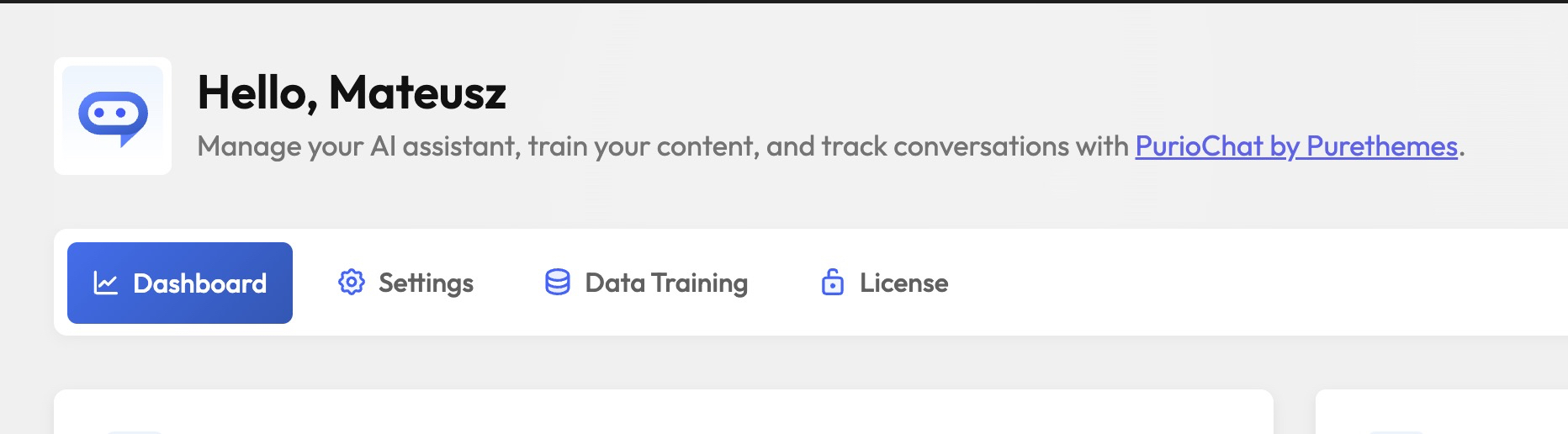
PurioChat lives under a single top-level menu called PurioChat in your WordPress sidebar. Inside it:
| Tab | What it’s for |
|---|---|
| Dashboard | The landing tab. Shows stats and analytics: conversation logs, the activity chart, contact messages, and the “Popular Search Queries” report. Chat history and Chat Insights live here too. (Most conversation logging and insights are Pro; search analytics is Free.) |
| Settings | The big one. Everything about how the chatbot looks and behaves: API keys, the floating widget, appearance, custom instructions, access rules, integrations, and developer options. Organized into sub-sections in a left-hand sidebar. |
| Data Training | Teach the AI about your site. Pick which content to include, then run training to generate the embeddings that power search and chat answers. |
| License (Pro) | Enter and activate your PurioChat Pro license key. This tab appears once the Pro add-on is installed. |
Common settings – where to find them
The tasks you’ll do most often, with the exact path to each. Arrows mean “click into this tab, then this sub-section.”
| I want to… | Go to |
|---|---|
| Turn the chatbot on or off | PurioChat → Settings → General → Enable AI Chat |
| Add my AI provider’s API key | PurioChat → Settings → API Configuration |
| Show the floating chat bubble | PurioChat → Settings → Floating Widget → Enable Floating Chat Widget |
| Edit the system prompt (custom instructions) | PurioChat → Settings → Custom Instructions → Custom System Prompt |
| Train the AI on my content | PurioChat → Data Training → Start Training |
| Rename or restyle the chatbot | PurioChat → Settings → Appearance |
| Require login or add a terms notice | PurioChat → Settings → Access & Privacy |
| Activate Pro | PurioChat → License |
Two shortcodes worth knowing
Want the chat or search box inside a page instead of the floating bubble? Drop in a shortcode.
[ai_chat]– embeds the chat interface.[ai_search_field]– embeds the AI semantic search box.

