
Connect a Telegram bot to PurioChat so people can ask questions, search your content, and get answers right inside Telegram. Replies use the same AI and tools as your website chatbot.
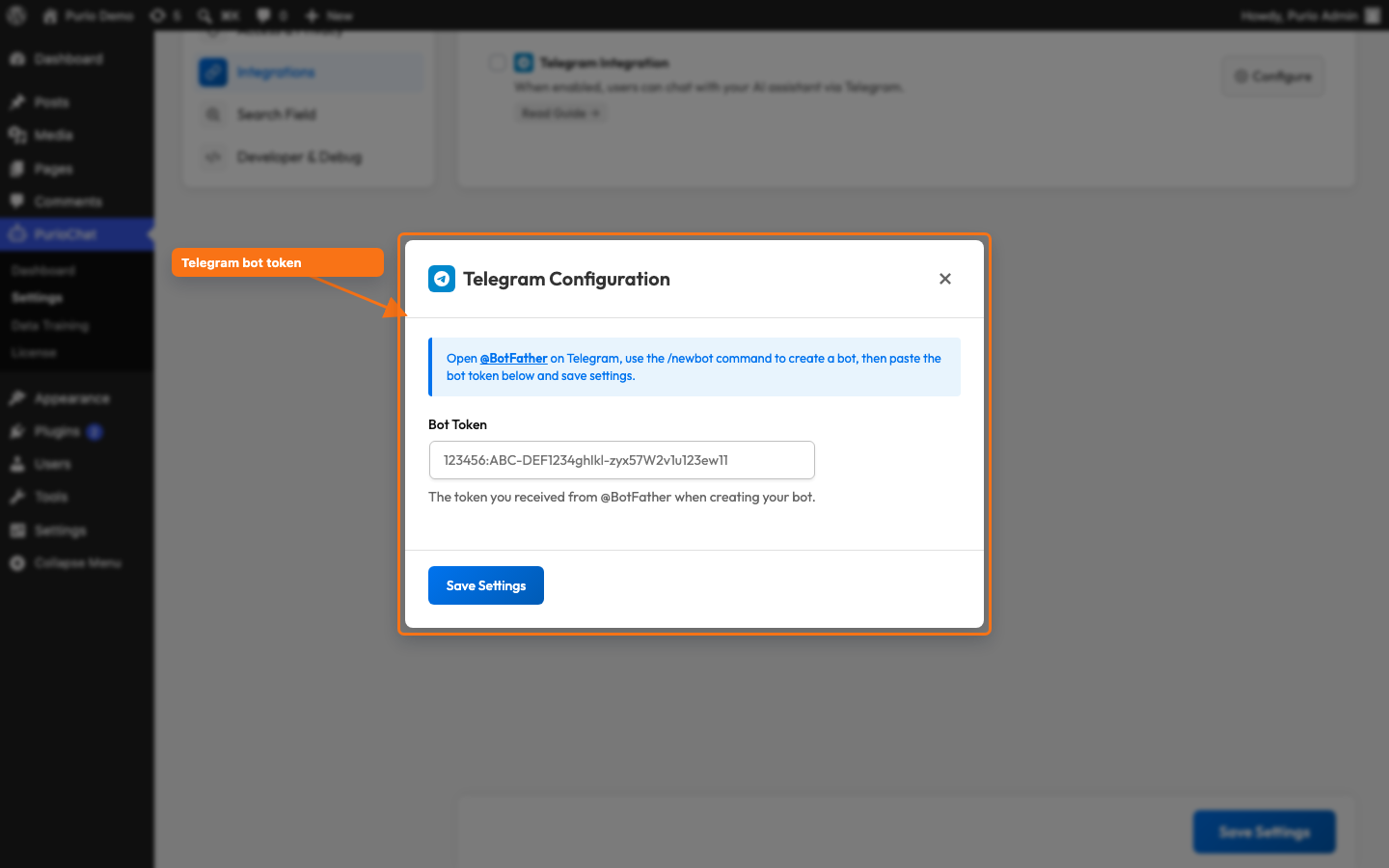
You’ll find this under PurioChat → Settings → Integrations. Enable Telegram Integration, then click Configure to open the Telegram Configuration modal.
What you’ll need
One thing: a bot token from Telegram’s @BotFather. The secret token and webhook are handled for you.
Setting it up
- In Telegram, open a chat with @BotFather and send
/newbot. Follow the prompts to name your bot and choose a username. @BotFather replies with a Bot Token (it looks like123456:ABC-DEF...). - In WordPress, go to PurioChat → Settings → Integrations, enable Telegram Integration, and click Configure.
- Paste the Bot Token into the Bot Token field and save.
That’s it. With a valid token, PurioChat registers the webhook with Telegram and messages start flowing in. You’ll see “Settings saved and webhook registered successfully!” If registration fails, the message tells you why so you can fix the token and save again.
Secret Token and Webhook URL (automatic)
Both are created for you, so there’s nothing to copy and paste:
- Secret Token — a 32-character token PurioChat generates the first time you save a bot token. It verifies that incoming requests really come from Telegram, so nobody can spoof messages to your site. You never type it in.
- Webhook URL — the address Telegram sends messages to,
https://yoursite.com/wp-json/listeo/v1/telegram-webhook. PurioChat registers it when you save. No manual setup in Telegram.
How the Telegram bot behaves
What to expect:
- Text only. The bot reads plain text. Photos, voice notes, stickers, and other attachments are ignored.
- Plain-text replies. Answers come back as plain text, with no Markdown or HTML.
- 4096-character limit. Telegram caps message length, so long replies are truncated and marked with
[Message truncated]. - Short memory. The AI keeps the last 5 messages as context, so it can follow up on what was just said.
- Tool access. The bot uses the same tools as your website chatbot (more below), with up to 5 tool steps per message.
- Typing indicator. Telegram shows one while the AI works on a reply.
Need setup screenshots? See the full WhatsApp and Telegram integration walkthrough for real Telegram setup and testing examples.
Privacy: chat IDs are hashed
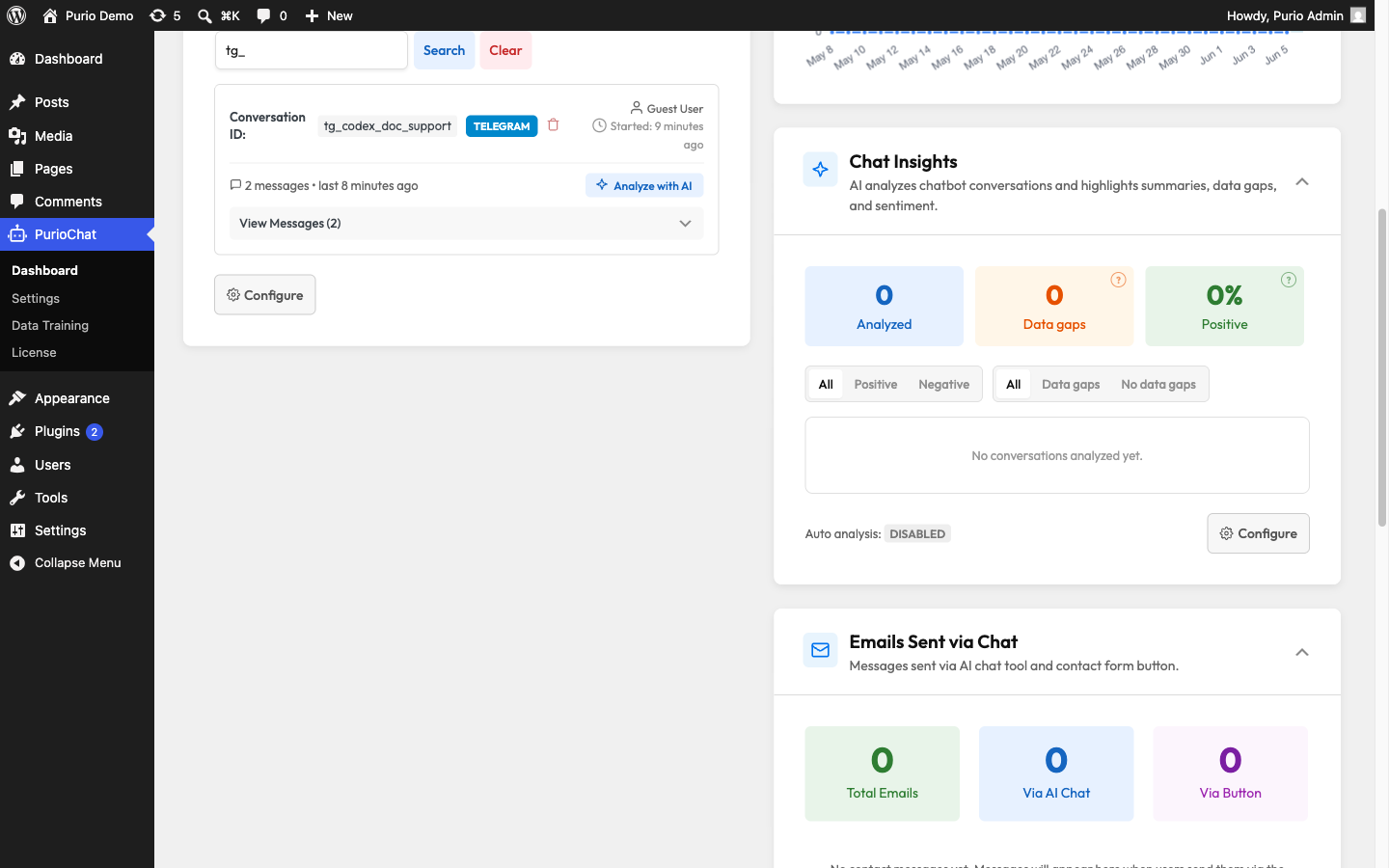
PurioChat never stores a visitor’s Telegram chat ID in plain form. Each ID is stored only as a SHA-256 hash, and the conversation is identified by a tg_ prefix plus part of that hash. This keeps your chat logs GDPR-friendly while still letting the AI tell conversations apart.
It shows up in Chat History
Telegram conversations are saved to your Chat History like website chats, tagged with a “Telegram” badge so you can see at a glance where each one came from. (Chat History viewing is a Pro feature, and tracking must be enabled.)
Rate limiting (shared across channels)
Telegram and WhatsApp share the same rate-limiting system as your website chat, so one busy user can’t run up your AI bill. Only the counting differs: the website limits per IP address, but messaging webhooks all arrive from a handful of Telegram servers, so limits apply per hashed user instead. Each Telegram user gets their own allowance.
The three tiers use your existing chat rate-limit settings:
| Tier | Default | Window |
|---|---|---|
| Per minute | 10 messages | 60 seconds |
| Per 15 minutes | 30 messages | 15 minutes |
| Per day | 100 messages | 24 hours |
When a user hits a limit, the bot replies with a short notice (for example, “Rate limit exceeded: 10 messages per minute. Please wait a moment.”) and stops until the window resets.
What the bot can do
Telegram conversations have the full set of chatbot tools. Depending on your site and training, the bot can search your listings or content, look up listing or product details, check WooCommerce order status, send you a contact message, and trigger any Webhook Automation actions you’ve set up. WooCommerce tools require WooCommerce to be active.

