
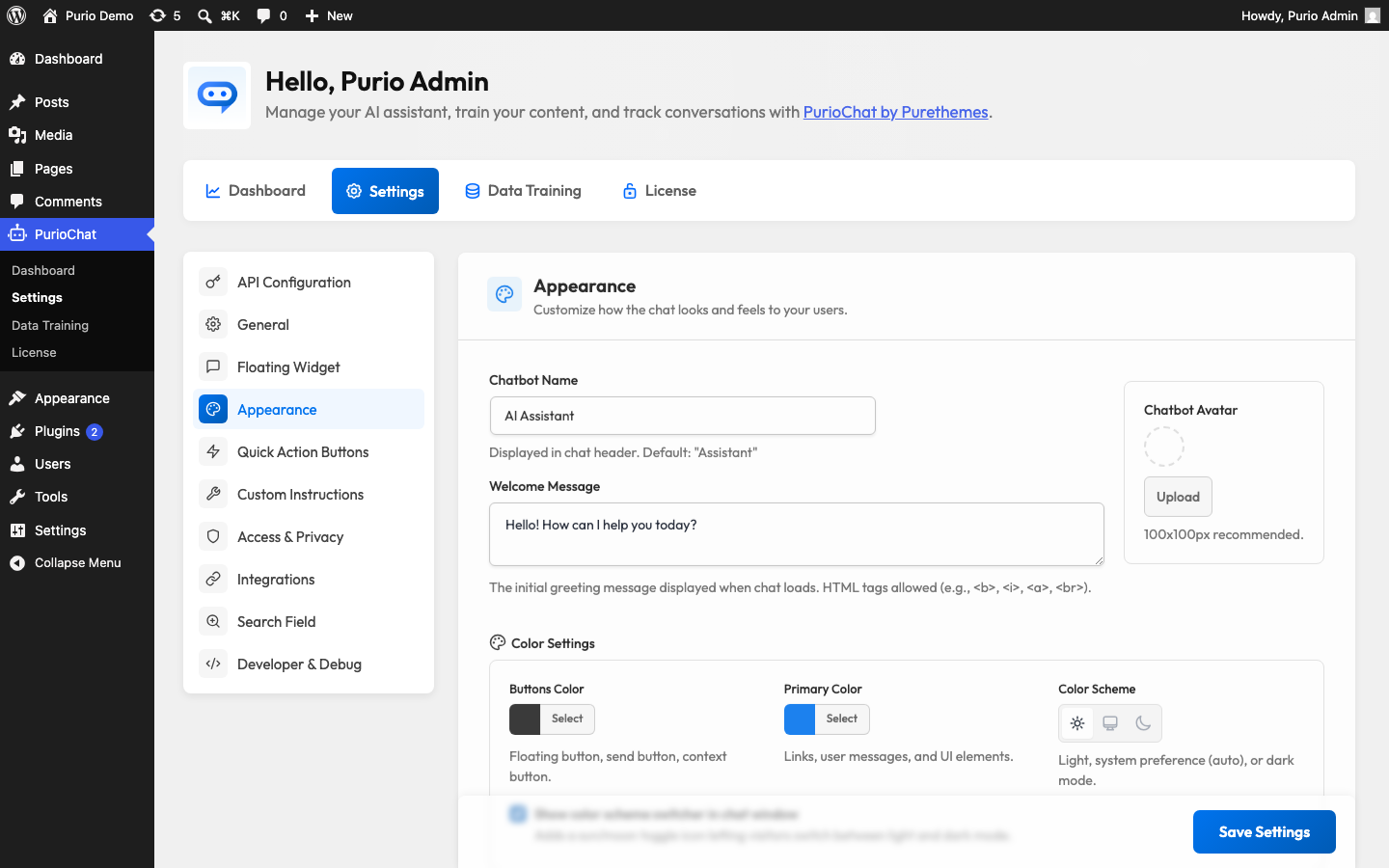
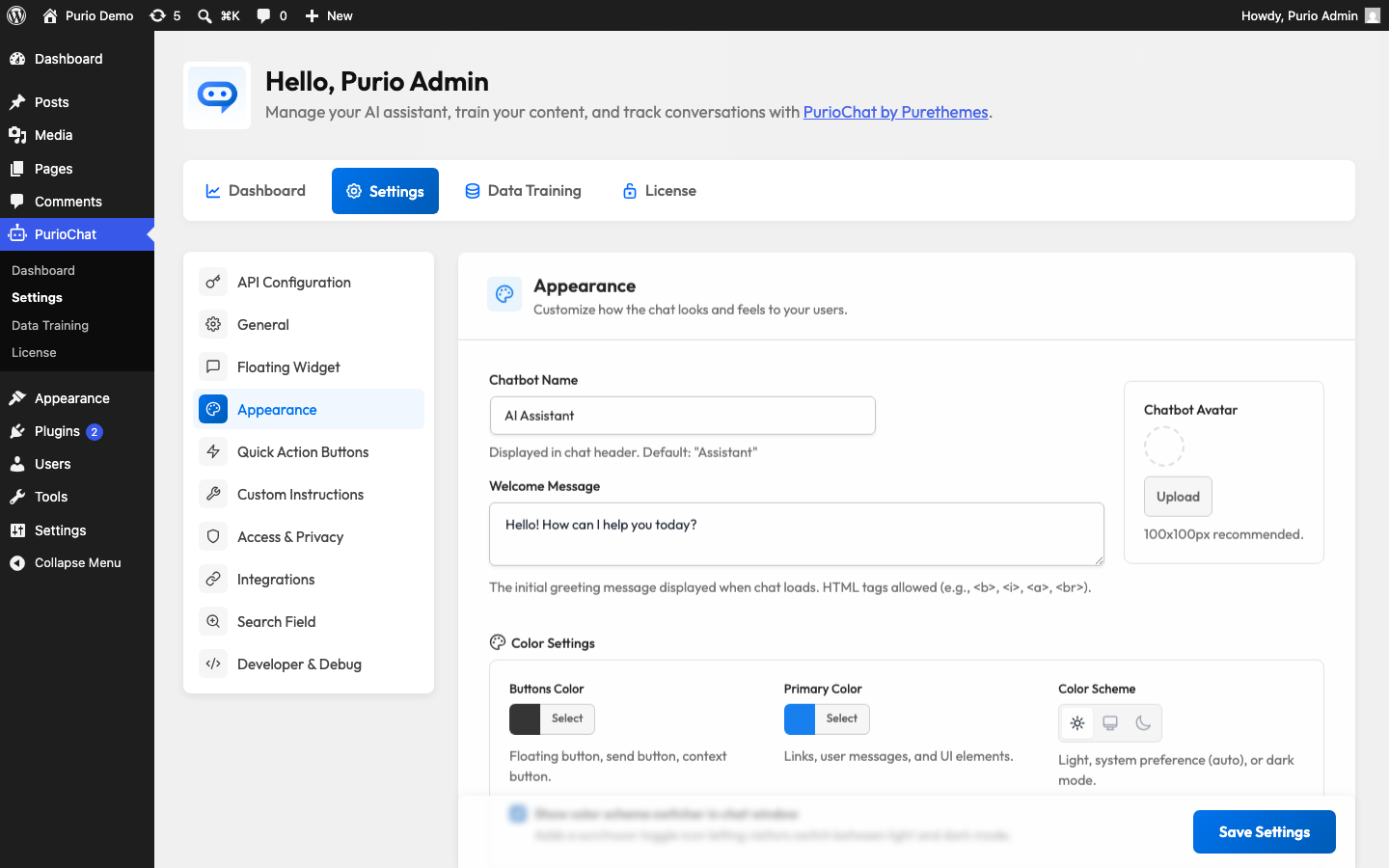
The Appearance settings brand the chat window with your own avatar, name, greeting, and colors, and set how it looks in light or dark mode. Find them under PurioChat → Settings → Appearance.
Every option below is free except Whitelabel, which is part of PurioChat Pro.
Avatar and name
The Chatbot Avatar is the image next to your assistant’s name in the chat header. Upload one from the media library. Use a square image around 100×100 pixels. Leave it empty and no image (and no status dot) appears.
The Chatbot Name is the display name in the chat header. The default is “AI Assistant”, but rename it to fit your brand, such as “Booking Helper” or “Travel Assistant”.
Welcome message
The Welcome Message is the first thing visitors see when the chat loads. A good greeting sets expectations and invites people to type. The default is “Hello! How can I help you today?”
You can add light formatting with HTML. Tags like <b>, <i>, <a>, and <br> are supported.
Colors
Two color pickers control the chat’s look:
- Buttons Color (default
#222222) — the background color of the floating chat button, the send button, and the load-listing button. - Primary Color (default
#0073ee) — the accent color for links, the visitor’s own message bubbles, and other highlights.
Set both to match your site’s palette.
Color scheme
The Color Scheme setting is a three-way toggle for light or dark mode:
- Light — always light (the default).
- System — follows each visitor’s device preference and updates live if they switch their OS theme. The stored value is
auto. - Dark — always dark.
Let visitors switch themes
Turn on Show color scheme switcher in chat window (off by default) and a small sun/moon toggle appears in the chat header. Visitors flip between light and dark themselves, and their choice is remembered in their browser. Use it to offer dark mode without forcing it on everyone.
Loading animation style
The Loading Animation Style sets how the “thinking” indicator looks while the AI works on a reply. Two choices:
| Option | What it looks like |
|---|---|
Icon + Text (spinner, the default) |
An icon with shimmering status text such as “Thinking…” or “Searching…”. |
Dots Only (dots) |
A minimalist set of animated dots, with no text. |
How responses appear
The AI’s answers stream in word by word, the way a person types, rather than appearing all at once. This is on automatically, with nothing to configure.
Hiding images in results
When the chatbot returns listing or product cards, thumbnails are hidden by default for a cleaner, text-focused look. The Hide Images in Chat Results setting controls this, and it is enabled (images hidden) by default. Uncheck it to show thumbnails in the chat.
Whitelabel (Pro)
By default the chat window shows a small “Powered by PurioChat” badge. With Pro active, the Enable Whitelabel setting removes that badge so the chat looks fully your own. On the free plugin this option is locked and shows an upgrade link instead.

