
Training turns your site’s content into something PurioChat can search and answer questions about. Here’s how to run it, read the progress, and know when to do it again.
Where training lives
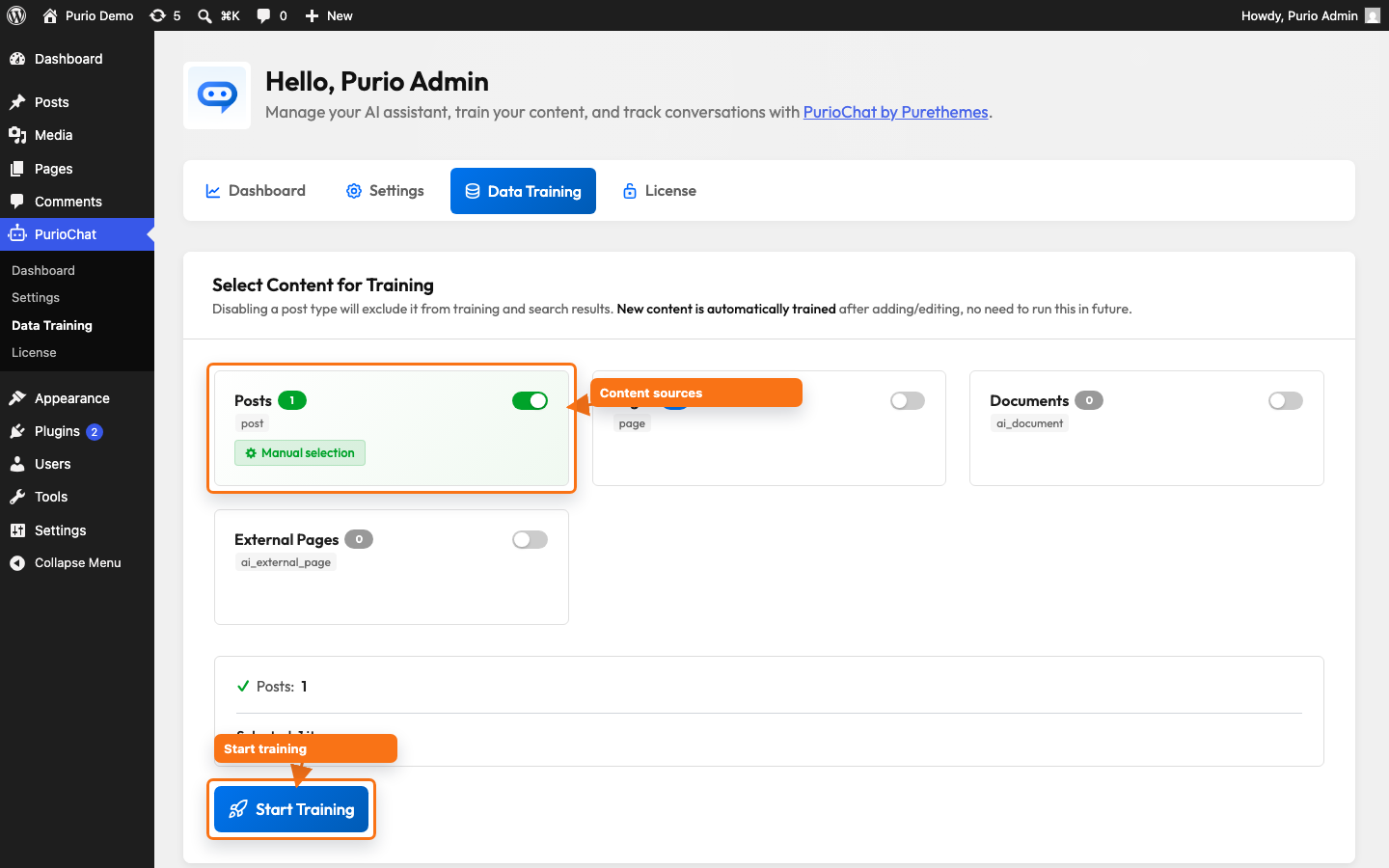
It all happens on one screen: PurioChat → Data Training. No separate import step, and no limit on how many items you can train.
The training process
- Open the Data Training tab. Go to PurioChat → Data Training.
- Choose your content types. Each source (for example Posts, and Listings on Listeo sites) appears as a card with an enable toggle and an item-count badge. Turn on the ones you want PurioChat to learn from. Pages, WooCommerce Products, custom post types, Documents, and External Pages are Pro and appear locked on the free plan.
- Click Start Training. A confirmation warns you that training generates embeddings for the selected types and consumes API credits. Confirm with Yes, Start Training. There’s no cap on the number of items trained.
- Watch the progress. A live progress panel and a Progress Log show what’s happening in real time. Training runs in batches, so larger sites take longer.
Training keeps running even if you close the browser tab. To stop early, click Stop at any point. If you haven’t entered an API key yet, you’ll be prompted to add one first.
When to retrain
Embeddings are a snapshot of your content from the moment it was trained. Retrain when that snapshot falls out of date:
- You’ve added or significantly changed content. New posts and major edits aren’t reflected until they’re trained.
- You switched AI providers. Moving between OpenAI, Gemini, Mistral, and OpenRouter changes how content is vectorized, so old embeddings no longer match. Switching providers clears existing embeddings, so retrain afterward.
- You changed the embedding model. Picking a different model under PurioChat → Data Training → Database Management invalidates existing embeddings. Save the change, then retrain.
- After a major plugin update, if your results suddenly look off.
- Search results seem wrong or outdated. If answers reference old content or miss something you know is on the site, a fresh run usually fixes it.
Automatic regeneration on publish and update
You won’t have to retrain by hand every time you touch a post. By default, PurioChat regenerates embeddings automatically when you publish or update content of an enabled type. A few guards keep this efficient:
- It only retrains when content actually changed. PurioChat compares a content fingerprint on each save, so re-saving an unchanged post won’t waste an API call.
- A short throttle prevents rapid-fire retraining. After a post is regenerated, further saves of that same post are skipped for about five minutes.
- You can turn it off. The Disable auto-training for new/edited content toggle lives under PurioChat → Data Training → Database Management. It’s off by default, so auto-training is on. Switch it on to control training entirely by hand, for example while bulk-importing posts.
Thanks to these guards, new content usually appears in search and chat within a few minutes of publishing, with no manual step. Run a full Start Training pass for the big moments: first-time setup, switching providers or embedding models, or catching up after auto-training has been off.

