
PurioChat’s search understands what visitors mean, not just the exact words they type. This guide covers how AI semantic search works, how to add a standalone search box to any page, and the settings that shape your results.
What “semantic” search means
Traditional WordPress search is keyword-based: it looks for pages that literally contain the words a visitor typed. Search for “cozy place to stay near the beach” and a listing titled “Seaside Apartment with Ocean View” may return nothing, because the words don’t line up.
Semantic search is different. PurioChat turns your trained content into mathematical representations of meaning (called embeddings) and compares them to the meaning of the query. “Cozy place to stay near the beach” matches the seaside apartment because the ideas overlap, even when no single word does. Visitors can ask in natural language and still find the right result.
[ai_search_field]
Adding a standalone search box
Drop an AI-powered search box anywhere with a shortcode. [ai_search_field] is the universal one and works on any theme:
[ai_search_field]When a visitor types a query, the box shows an “AI Quick Picks” dropdown of the best-matching results. Queries must be 2 to 500 characters.
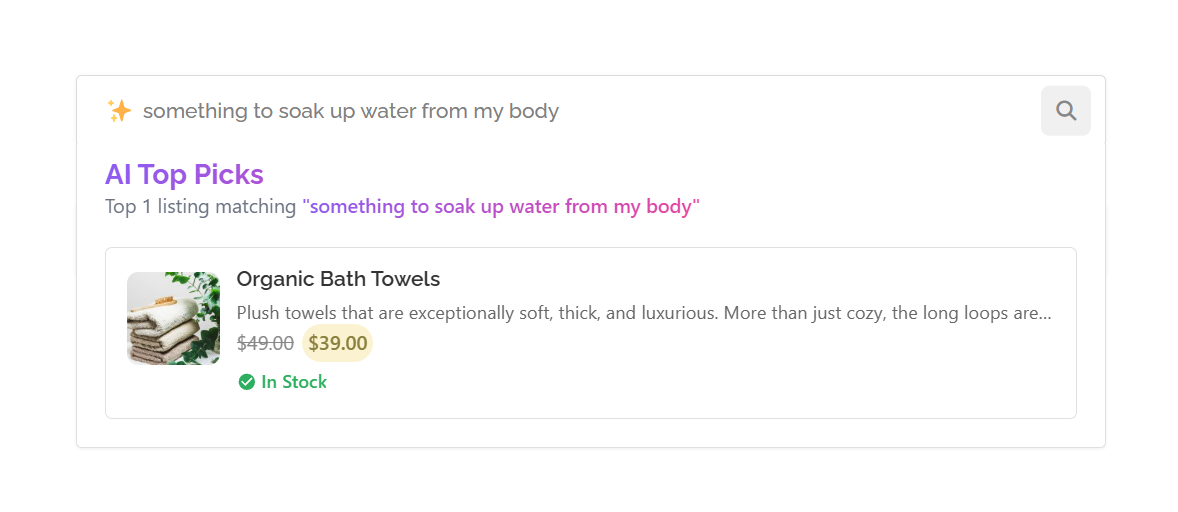
The Best Match badge
Each result is scored for how closely it matches the visitor’s intent. Results at or above the Best Match Badge Threshold get a “Best Match” badge that highlights your strongest recommendations. The default is 75% (adjustable from 50% to 95%), so only strong matches earn it.
AI Query Expansion
Sometimes a visitor’s wording is narrower than your content. AI Query Expansion (off by default) helps: before searching, an AI model adds a few related keywords to the query in the same language, so the search casts a wider net and surfaces results it might otherwise miss.
The trade-off is speed and cost: expansion adds about one second per search and uses an API call. Turn it on for a varied catalog where you want broader recall; leave it off for the fastest, cheapest searches.
Where the search settings live
The location depends on the Listeo theme:
- Listeo sites: a dedicated PurioChat → AI Search tab holds all the search controls.
- Non-Listeo sites: the same controls live in the Search Field sub-section under PurioChat → Settings.
These settings are all Free:
- Minimum Match Percentage — the quality bar a result must clear to appear (default 50%, slider in steps of 5).
- AI Query Expansion — the recall-widening toggle described above.
- Best Match Badge Threshold — the score needed to earn the badge (default 75%).
- Maximum AI Top Picks Results — how many results the search-field dropdown shows (default 10, range 3–50). Separate from the chatbot’s product/listing card limit.
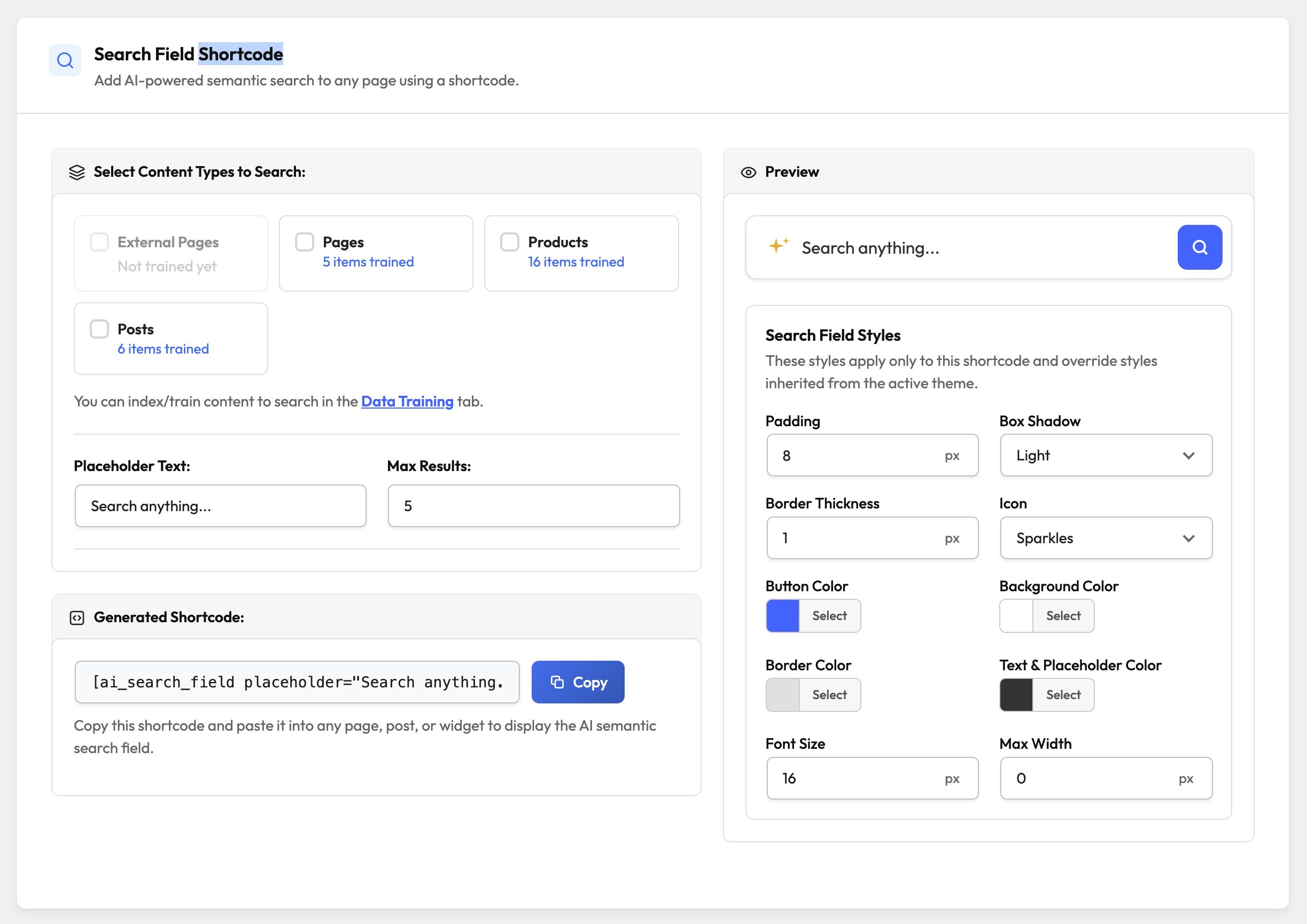
How thresholds shape your results
The Minimum Match Percentage is your biggest lever over result quality. Lower it for more results with looser relevance; raise it for fewer, sharper matches. Set it too high and a search may return little or nothing. The default of 50% is a balanced starting point, and the slider moves in steps of 5.
For the full picture of match scores, including recommended ranges for different goals, see Search Quality & Match Thresholds.
Listeo listings and comparison
PurioChat’s listing search and listing-detail features require the Listeo theme to be active — the Listeo Core plugin alone with a different theme is not enough, and the listing endpoints won’t load. On Listeo sites, the chatbot can also compare up to 3 listings or products side by side, so a visitor can ask “compare these two apartments” and get a clear breakdown.

