With WooCommerce active, your chatbot becomes a shopping assistant: it finds products, explains options, checks order status, and adds items to the cart without leaving the conversation.
Turning it on
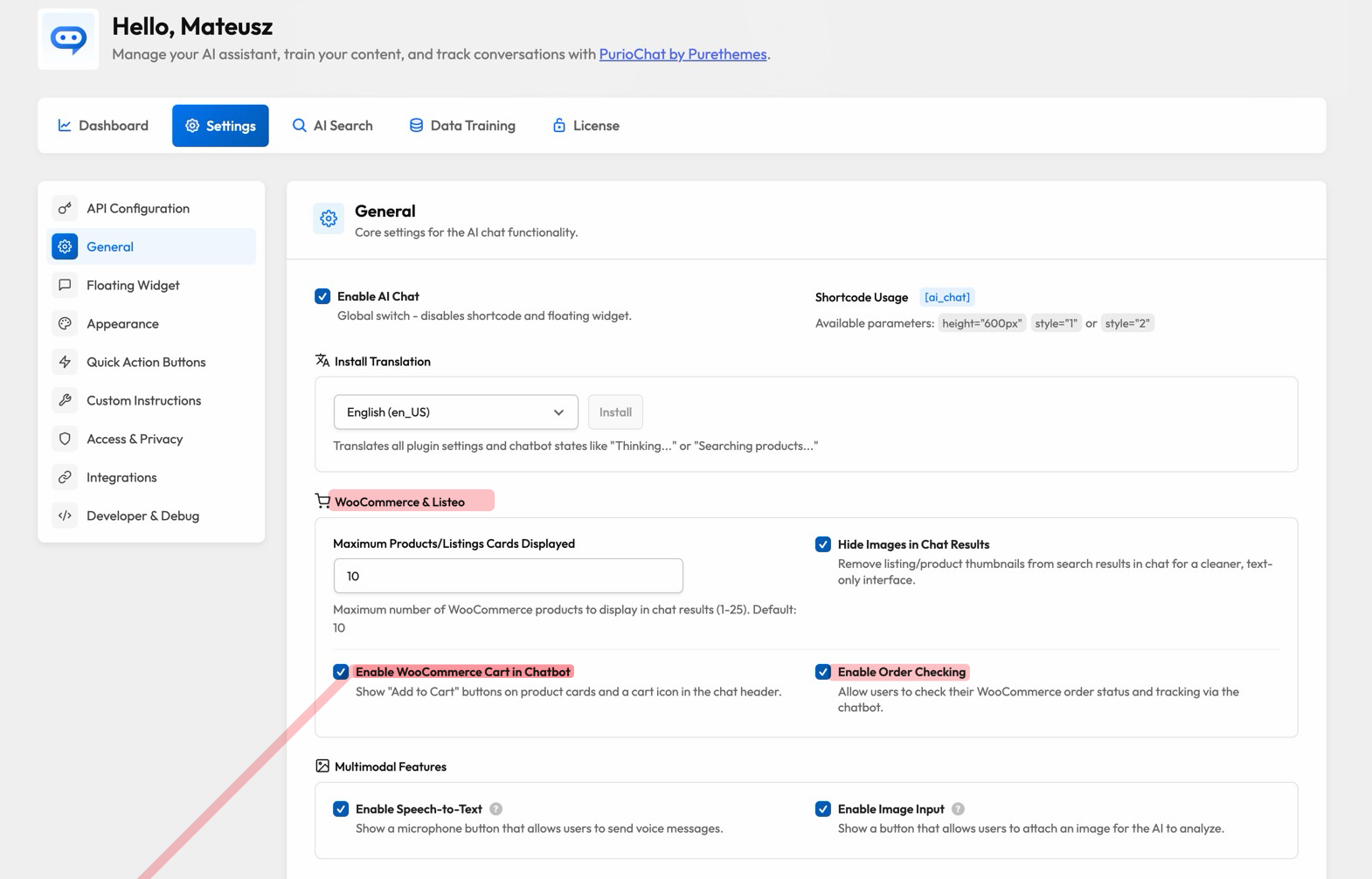
When WooCommerce is active, two extra toggles appear under PurioChat → Settings → General (in the WooCommerce & Listeo block):
| What it does | Default | |
|---|---|---|
| Enable WooCommerce Cart in Chatbot | Shows Add to Cart buttons on product cards, a cart icon in the chat header, the cart popup, and lets the AI add products for the visitor. | On for new installs. Sites upgrading from an older version (before 1.9.6) start with it off, so the cart never appears unexpectedly. |
| Enable Order Checking | Lets visitors check their order status and tracking through the chat. | On. |
The toggles are independent, so you can sell through the chat without order lookups, or vice versa. Turn either off and that ability disappears from the chatbot.
Product cards in chat
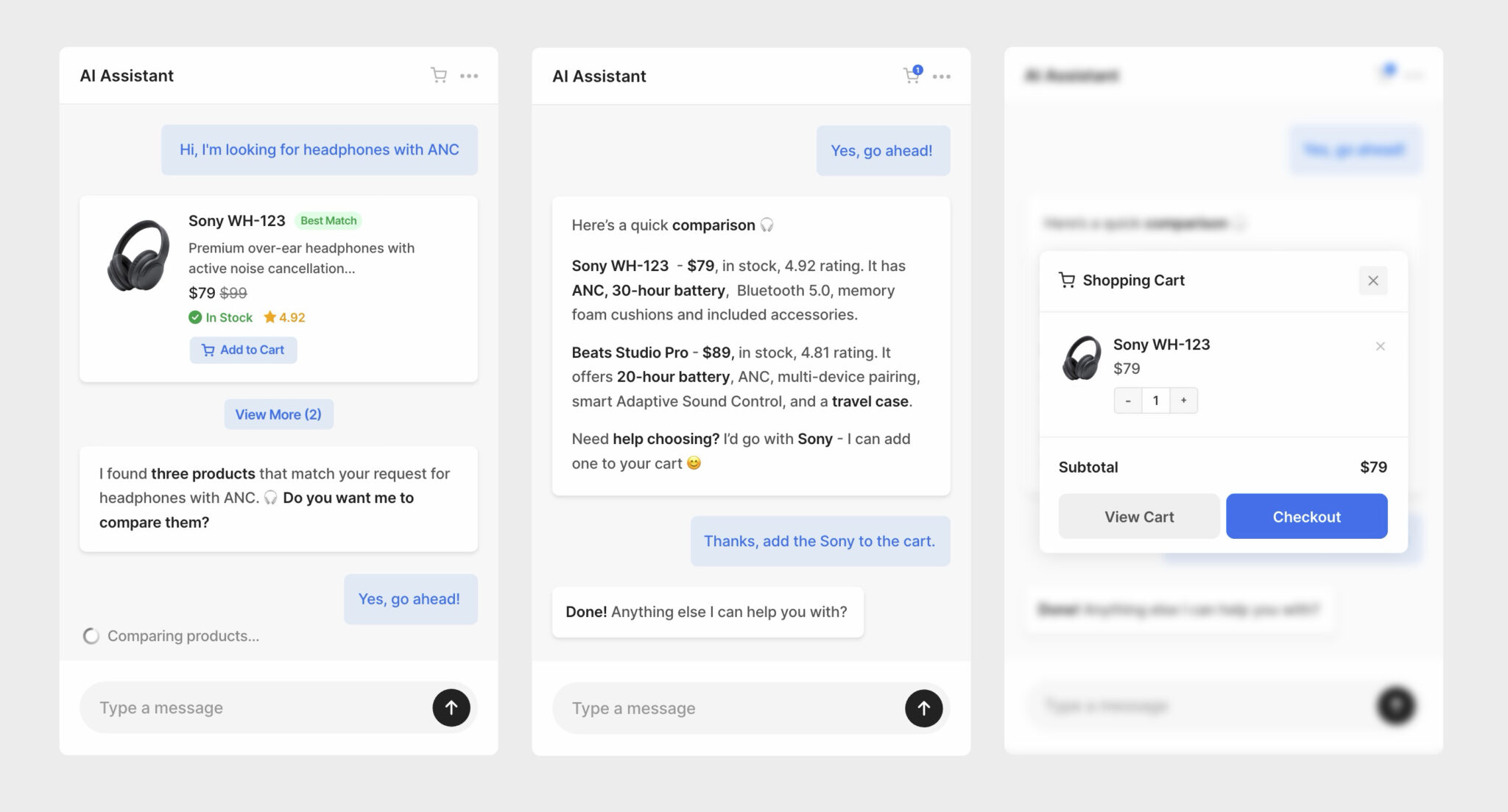
When the AI recommends products, it returns interactive cards instead of a plain text list. Each card shows:
- The product image (using the WooCommerce placeholder if there is no image, and respecting your Hide Images setting).
- The product name as a clickable link to the product page.
- The price, with the sale price highlighted when on sale.
- A stock badge showing whether the item is available.
- A short description and the star rating (when the product has reviews).
The AI sales tools
The chatbot has three WooCommerce tools it calls on its own when a visitor’s question needs them. You don’t configure these individually; they switch on with the toggles above.
Product Search
The AI combines semantic catalog search with WooCommerce filters, so a request like “show me waterproof boots under $100 that are in stock and on sale” works in one go. It can filter by:
- A natural-language query.
- Minimum and maximum price.
- In stock only and on sale only.
- Minimum star rating.
- Category, and a direct SKU lookup — if a shopper gives a SKU, the AI returns that exact product.
Out-of-stock products are always excluded, even without a stock filter, so the chatbot never recommends something a visitor can’t buy. The number of cards returned is capped by PurioChat → Settings → General → Maximum Products/Listings Cards (default 10).
Product Details
For a single product, the AI pulls structured details: the full description, all variations (up to 30) for variable products, attributes such as size and color, gallery context, related products, SKU, and stock information including backorder status. Pricing is tax-aware, so what the visitor sees matches your store’s tax display.
Order Status
Shoppers can ask “where is my order?” or “what’s the status of order #12345?” To protect customer data, the AI must collect both the order number and the matching billing email before it looks anything up — it asks the visitor for the email rather than guessing it.
This keeps lookups private:
- If the order number and email don’t match, the chatbot returns a single, identical “not found or access denied” message, so the lookup can’t be used to fish for valid orders.
- All customer personal data — name, addresses, email, phone, payment details and customer notes — is stripped out before anything reaches the AI. The model only sees the order number, status, dates, product names and quantities, totals, and any shipping/tracking details.
- Tracking number, carrier and tracking URL are included when available, read from a wide range of common shipment-tracking plugins.
- Order lookups have their own per-visitor limit (5 per minute and 100 per day), separate from the normal chat limits.
The WooCommerce cart in chat
With the cart enabled, shoppers can build an order without leaving the conversation.
Add to Cart and Select Options
Each product card gets an action button. Simple, in-stock products show an Add to Cart button that adds the item in the chat. Variable products (where the shopper must pick a size, color, and so on) show a Select Options button that sends them to the product page to choose first.
The cart icon, badge and popup
A cart icon appears in the chat header (in both the floating widget and the shortcode chat), with a badge showing the current item count. Clicking it opens a popup that lists each item with its thumbnail, plus/minus quantity controls and a remove button, a running subtotal, and View Cart and Checkout buttons that take the shopper to your normal WooCommerce pages. When empty, it shows “Your cart is empty.”
Add to cart by conversation
The AI can add products when a shopper asks conversationally — “add that to my cart” or “I’ll take two.” This works for simple, in-stock products; for variable products the AI directs the visitor to the product page to choose options. Quantities are clamped to a sensible range, and the cart badge updates instantly.
Tracking in Chat History
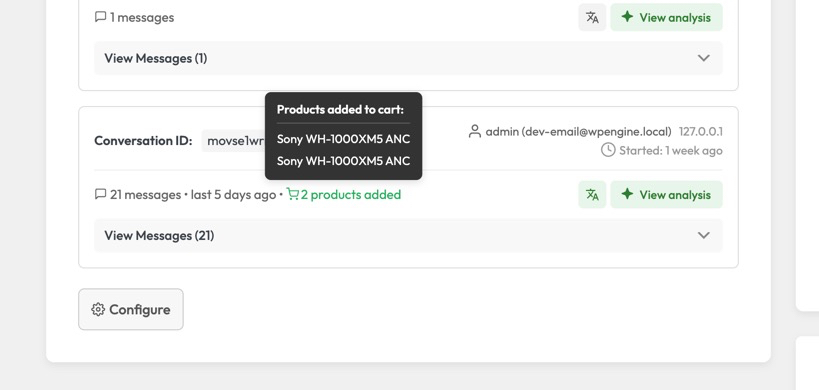
Cart activity is recorded, so in PurioChat → Dashboard → Chat History you can see which products were added in each chat — useful for seeing what the chatbot helps sell. (Chat History is a Pro feature and must be enabled to view conversations.)