
PurioChat’s shortcodes drop the chatbot or a search box into any page, post, or widget area. Here’s every shortcode, what each parameter does, and copy-paste examples.
The complete list of shortcodes
There are three shortcodes, plus one legacy alias for the chat box:
[ai_chat]— an inline chat interface in your page content.[ai_search_field]— a universal AI search box that works on any theme.
[ai_chat] — inline chat box
Use this when you want the chat inside a page rather than as the floating corner bubble. The chatbot’s scripts load only on pages with the shortcode, so the rest of your site stays fast.

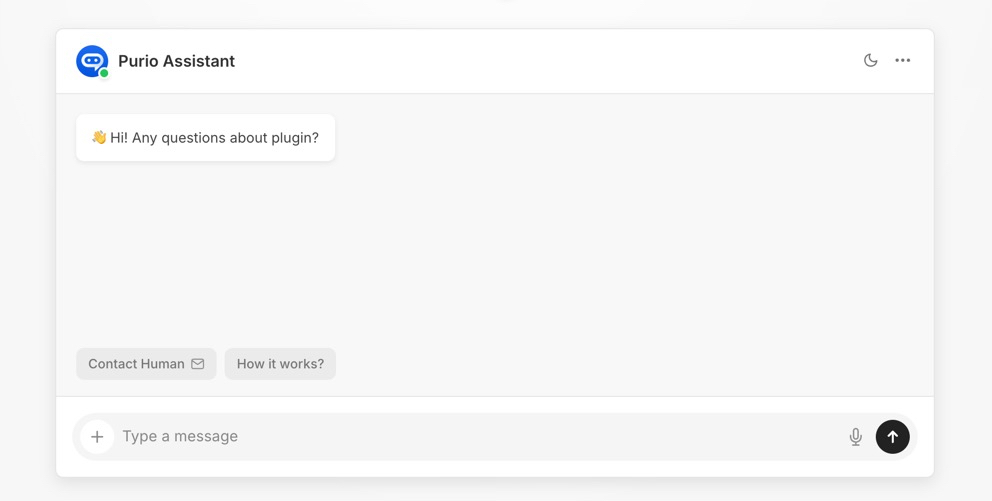
Examples:
[ai_chat]

[ai_chat height="500px" style="2"][ai_search_field] — universal search field
Use this on any standard WordPress site (no Listeo theme required). It searches your trained content and shows results in place — there’s no “quick picks” button, and pressing Enter doesn’t redirect anywhere.
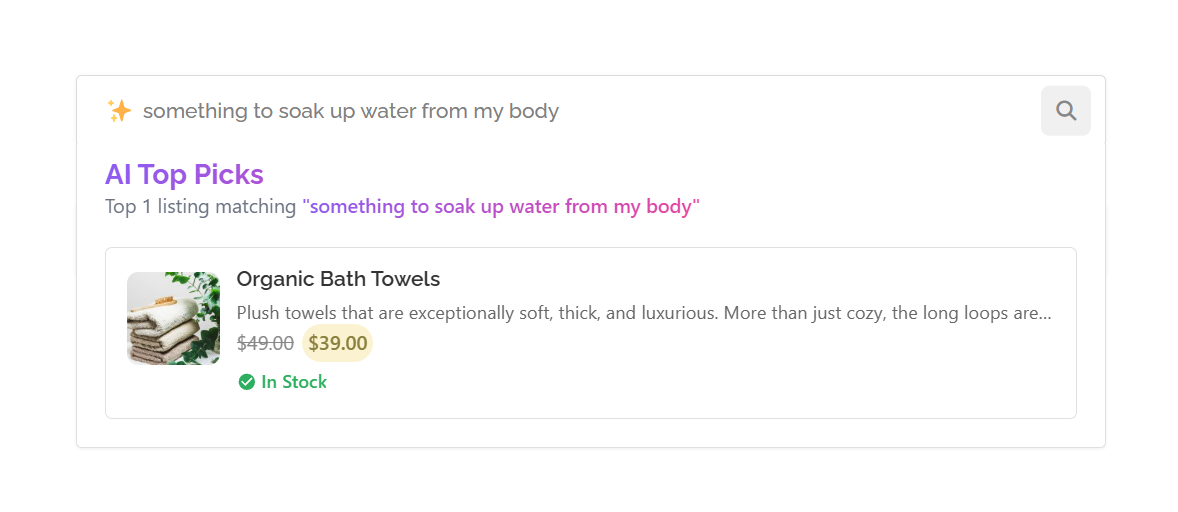
| Parameter | Default | Accepted values | What it does |
|---|---|---|---|
placeholder |
Search anything... |
text | The grey hint text inside the empty search box. |
post_types |
all enabled trained types | comma list, e.g. product,post,page |
Limits which trained content types are searched. Only types you’ve enabled and trained are used. |
limit |
10 (your global setting) |
whole number | Maximum number of results to return. |
Examples:
[ai_search_field]

[ai_search_field placeholder="Search the knowledge base..." limit="15"]

[ai_search_field post_types="post,page" placeholder="Find an article"]Where to paste shortcodes
Shortcodes work anywhere WordPress processes them: the page/post editor (a Shortcode block in the block editor, or typed into the Classic editor), text widgets, and most page builders. If one shows up as plain text on the front end, check the spelling and confirm you’re using one of the three tags above — remember, [ai_search] is not a real shortcode.

