
Live Chat lets PurioChat hand a conversation from AI to a real person without making the visitor start again. The AI can request help, visitors can use a dedicated button, and authorized team members can take over conversations from WordPress or an optional private Telegram bot.
Where to find it
Open PurioChat → Live Chat. The page contains the conversation inbox first and all Live Chat settings below it.
Turn Live Chat on
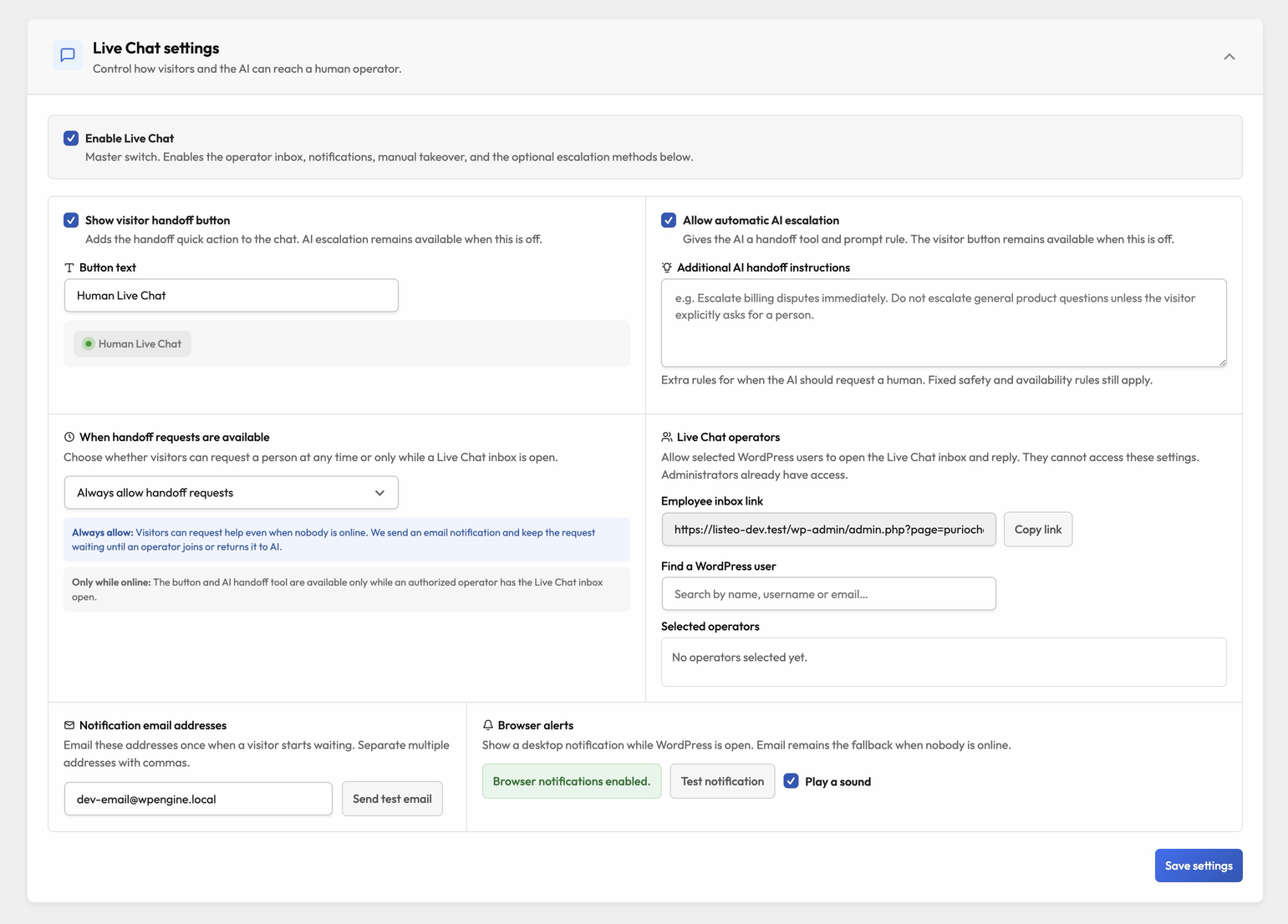
Enable Enable Live Chat, then save the settings. This master switch enables the inbox, notifications, manual takeover, and the optional handoff methods described below.
Turning the module off returns its active conversations to the AI. It does not disable PurioChat or change the rest of your chatbot configuration.
Choose how visitors reach your team
You can enable either method, or both:
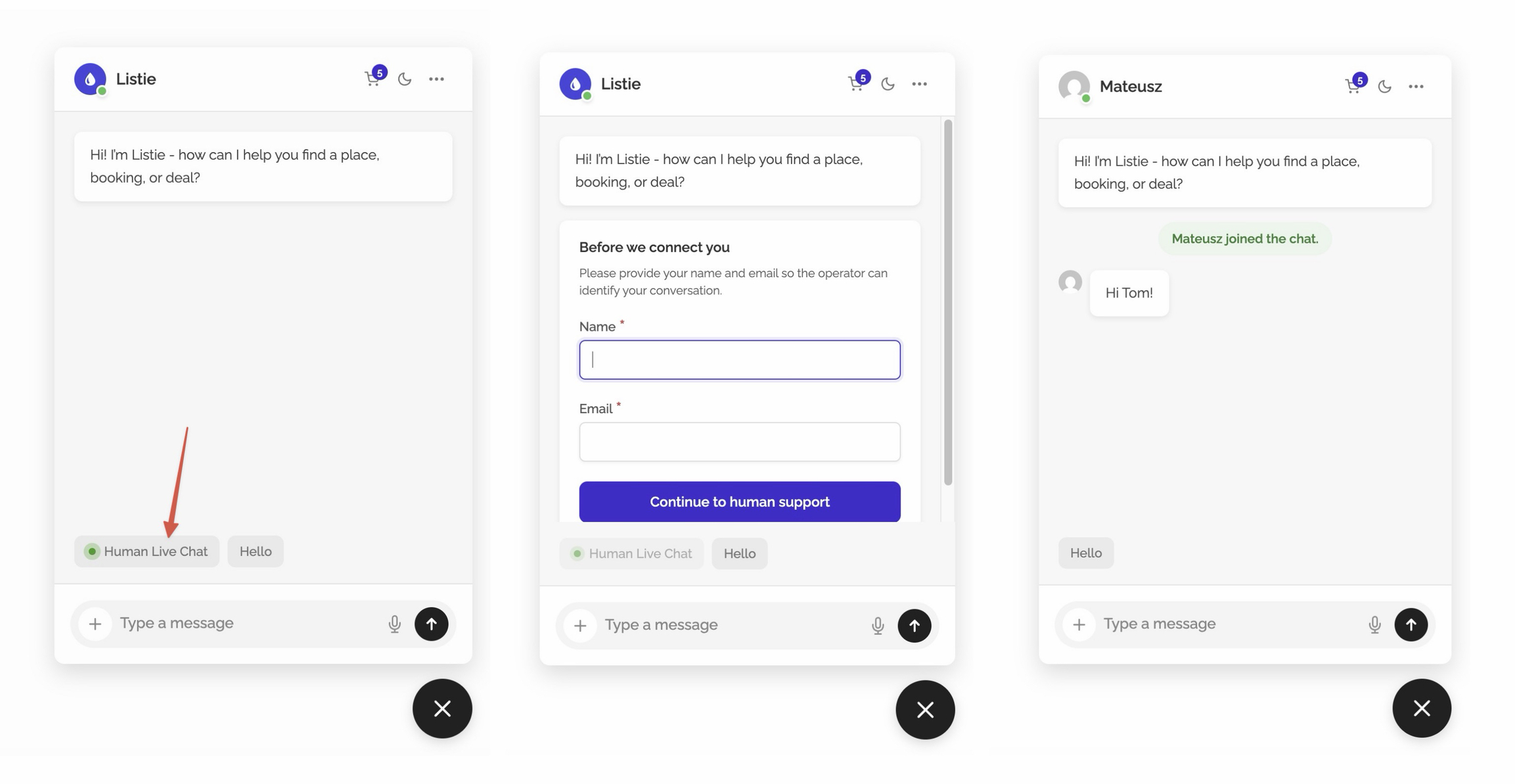
- Show visitor handoff button — adds a Human Live Chat quick action to the chat. Change its label in Button text; the preview below the field shows how it will look to visitors.
- Allow AI to request a handoff — gives the AI a handoff tool and an extra prompt rule. Use Additional AI handoff instructions for rules such as “Escalate billing disputes immediately.”
The two options are independent. For example, you can let the AI escalate difficult questions without showing a visitor button, or show the button while leaving AI escalation off.
Choose when handoff is available
The When handoff requests are available setting controls both the visitor button and the AI handoff tool.
| Mode | What happens |
|---|---|
| Always allow handoff requests | Visitors can request a person at any time, including when nobody has the inbox open. |
| Only while an operator is online | The visitor button and AI handoff tool are available only while an authorized operator has the Live Chat inbox open. |
| Always during business hours | Handoff is available during the weekly schedule you configure, even if nobody currently has the inbox open. The schedule uses your WordPress site timezone. |
If nobody claims a waiting request within one minute, PurioChat returns the conversation to the AI so the visitor is not left waiting.
Add Live Chat operators
Administrators can always use Live Chat. To give an employee inbox access without giving them access to the settings:
- Find Live Chat operators.
- Search for a WordPress user by name, username, or email.
- Select the user and save the settings.
- Copy the Employee inbox link and send it to them.
The employee signs in with their own WordPress account. Selected operators can open the inbox and reply, but cannot change Live Chat settings.
Set up notifications
Live Chat can alert your team by email, Telegram, and browser notifications. Browser alerts can also play a sound. The optional private Telegram bot notifies the connected administrator and lets them take, reply to, and end a Live Chat conversation directly from Telegram.
Live Chat availability and alerts →
Work from the Live Chat inbox
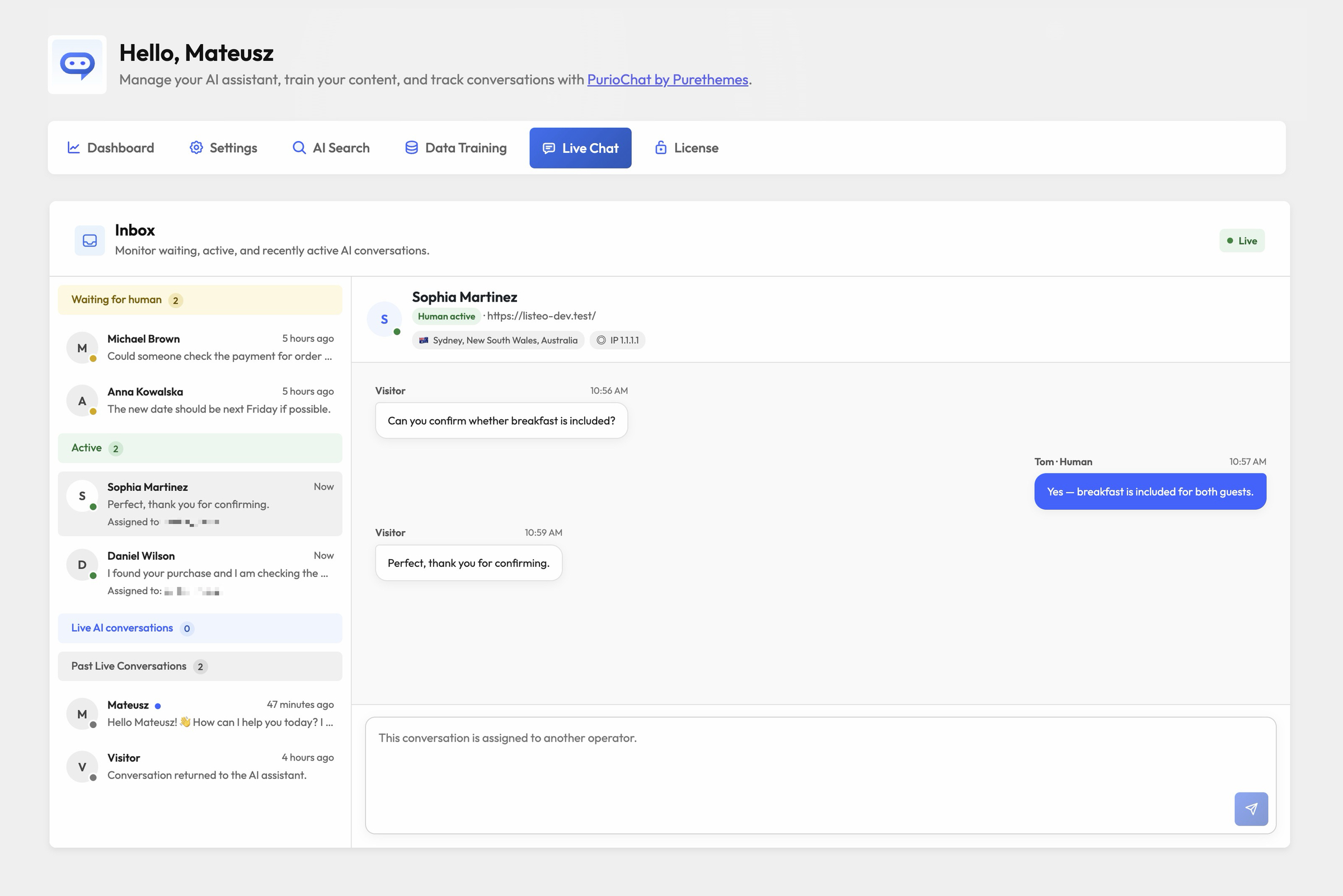
The inbox organizes conversations into four groups:
- Waiting for human — visitors who requested help and have not been claimed.
- Active — conversations currently assigned to a human operator.
- Live AI conversations — recently active AI chats available for monitoring and manual takeover.
- Past Live Conversations — completed handoffs, kept as read-only records.
Open a conversation to see its messages, visitor name and email, current page, IP address, and available location details such as country, region, or city.
To handle a waiting request, type and send your first reply. That reply automatically claims the conversation for you. Use Take over on a live AI conversation if the AI needs help before it asks.
The visitor sees a short “joined the chat” notice, and the chat header changes to the operator’s WordPress name and avatar. While the operator is replying, the AI is paused.
When finished:
- Reject sends an unclaimed waiting request back to the AI.
- Return to AI ends an active human handoff and lets the AI continue.
Conversation history and starting over
AI and human messages stay together in Chat History, so you can review the complete conversation instead of separate transcripts. Completed handoffs are also available under Past Live Conversations in the inbox.
If a visitor chooses Start New Conversation, PurioChat closes the current handoff, clears its live session, and starts a normal AI conversation. This also safely cancels an unfinished contact form or waiting request.
How live updates work
Live Chat is self-hosted inside WordPress. It uses lightweight periodic requests while the inbox and visitor chat are open—there is no separate PurioChat app, SaaS dashboard, or WebSocket server to configure.