
PurioChat can reach out before a visitor clicks the chat button. Proactive Actions let you show a message, open a mini chat, or start the full chat at the right moment.
You can trigger an action after a set time or when someone scrolls through part of a page. Each action can run everywhere, on a selected content type, or only on specific content.
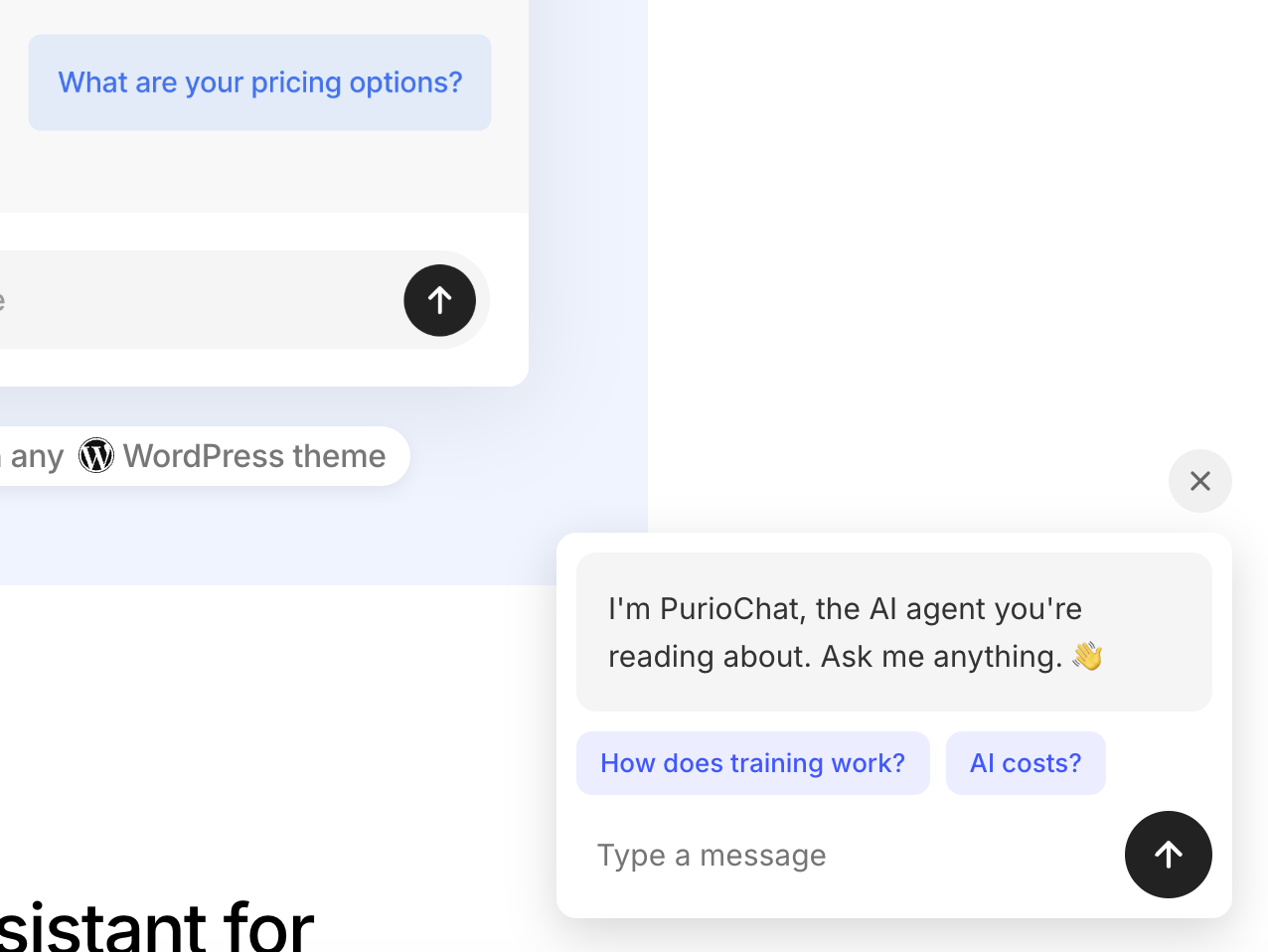
How to add a proactive action
1. Go to PurioChat → Chat Settings → Proactive Actions.
2. Enable Proactive Actions.
3. Click Add Action.
4. Choose a trigger, action, location, and message.
5. Save your settings.
The Free plugin includes one proactive action. PurioChat Pro lets you add unlimited actions.
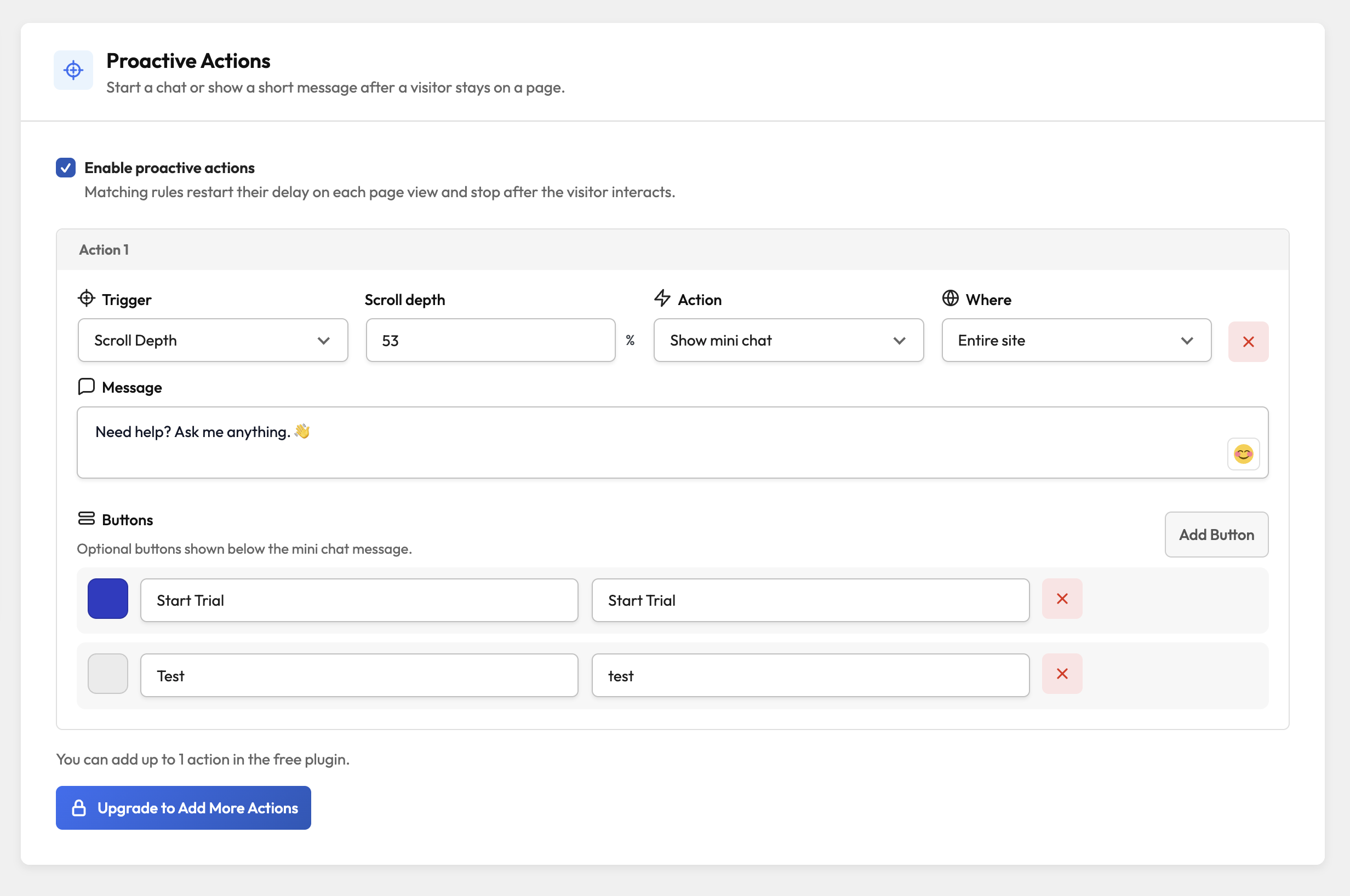
Choose when it appears
– Time: Show the action after the visitor stays on the page for a chosen number of seconds.
– Scroll Depth: Show the action after the visitor reaches a chosen percentage of the page.
Choose what happens
– Show mini chat: Display a small chat box with your message, an input field, and a send button.
– Show message bubble: Display a short message above the floating chat button.
– Start chat with message: Open the full chat with your message already shown.
You can also add emojis to make the message feel more natural and noticeable.
Choose where it appears
– Entire site: Run the action on every page.
– Content type: Run it on posts, pages, products, listings, or another selected post type.
– Specific content: Run it only on selected posts, pages, products, or listings.
Add buttons to a mini chat
Mini chats can show up to three optional buttons below the message.
Each button has:
– A label visitors can see.
– A message sent to the AI when clicked.
– An optional custom color.
This is useful for common questions such as “Check availability”, “Find a product”, or “Tell me more”.
After the visitor sends a message
Choose when matching proactive actions can appear again:
– Show actions again on the next page
– Hide actions for the rest of this visit
– Hide actions for 30 minutes
– Hide actions for 1 hour
– Hide actions for 24 hours
– Hide actions for 7 days
Opening or closing the chat without sending a message does not hide actions. “This visit” lasts until the browser tab is closed; closing Mini Chat affects only that action.
When multiple actions match
If multiple configured actions can trigger on the same page, show them all or show only one. Priority appears when you choose to show one.
– Show all matching actions: Allow every matching action to trigger.
– Show highest priority only: Allow only the matching action with the highest priority to trigger.
– Priority 1 is the highest.
Good to know
– When all matching actions are shown, message bubbles stack neatly above the chat button.
– Only the lowest message bubble in the stack displays an arrow.
– Closing Mini Chat brings back the regular floating chat button.
– Mini Chat works in light and dark mode.
– The send button uses your Floating Widget Button Color.
– No extra AI setup is required.