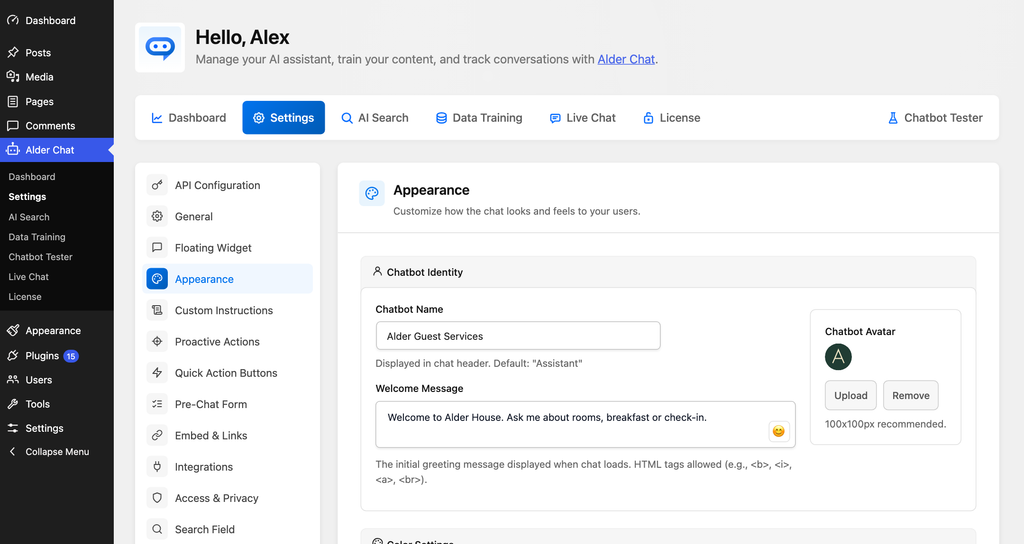
The chat widget and the WordPress dashboard can use different names. In the example below, guests chat with Alder Guest Services. The hotel team opens Alder Chat in WordPress.
Set the name visitors see
- In WordPress, open PurioChat → Settings → Appearance. If admin branding is already active, open the menu under your brand name.
- Under Chatbot Identity, enter the Chatbot Name, upload a square avatar and write the Welcome Message. Use the color settings below to match the site. These options are available in the free plugin.
- Save the settings and open a new chat on the site. Check the name in the header and the greeting in the conversation.
Remove the “Powered by PurioChat” badge
Activate your Pro license, open Settings → Appearance, turn on Enable Whitelabel and save. Open the chat as a visitor and check the footer. Badge removal is included with every Pro license.
When the admin white-label add-on applies your brand, PurioChat automatically hides both the badge and the Enable Whitelabel control.
Put your brand in the WordPress admin
- Open the PureThemes customer portal and select the Pro license used on the client site. Admin branding requires the separate white-label add-on for that license.
- In the license’s white-label settings, enter the product name you want clients to see. Add your agency’s website URL if you want the author and plugin links to point there. Save the branding.
- On the client site, activate the free plugin and Pro extension. Open PurioChat → License and activate that license. If the license is already active, click Validate License to fetch the saved branding.
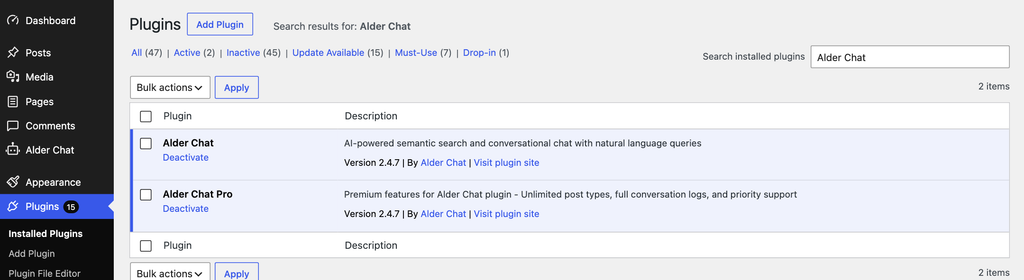
- Open Plugins → Installed Plugins and search for your product name. Check the names of the core and Pro plugins and the author link. Open the plugin settings from the renamed WordPress menu.
Plugin updates continue through the existing updater. Keep the original plugin folders and existing shortcodes, including [ai_chat].
If the admin still shows PurioChat
If the badge is gone but the Plugins screen still shows PurioChat, check which Pro license is active on that site. In the customer portal, confirm that the same license has the admin white-label add-on and a saved product name. Then run Validate License on the site and reload the Plugins screen.