
Install the free plugin
The free base plugin powers the AI semantic search and chatbot. You can download it on our landing page. Install it like any plugin:
- In your WordPress dashboard, go to Plugins → Add New.
- Upload the PurioChat
.zipfile (or search the plugin directory), then click Install Now. - When the install finishes, click Activate.
On first activation, if your site isn’t in English, PurioChat downloads the matching translation and sets the chatbot’s response language to your WordPress locale, so the assistant talks to visitors in the right language from the start.
Where the PurioChat menu appears
Once the plugin is active, a new PurioChat item appears in your WordPress admin sidebar (look for the small robot icon). It’s a single top-level menu with everything in one place.
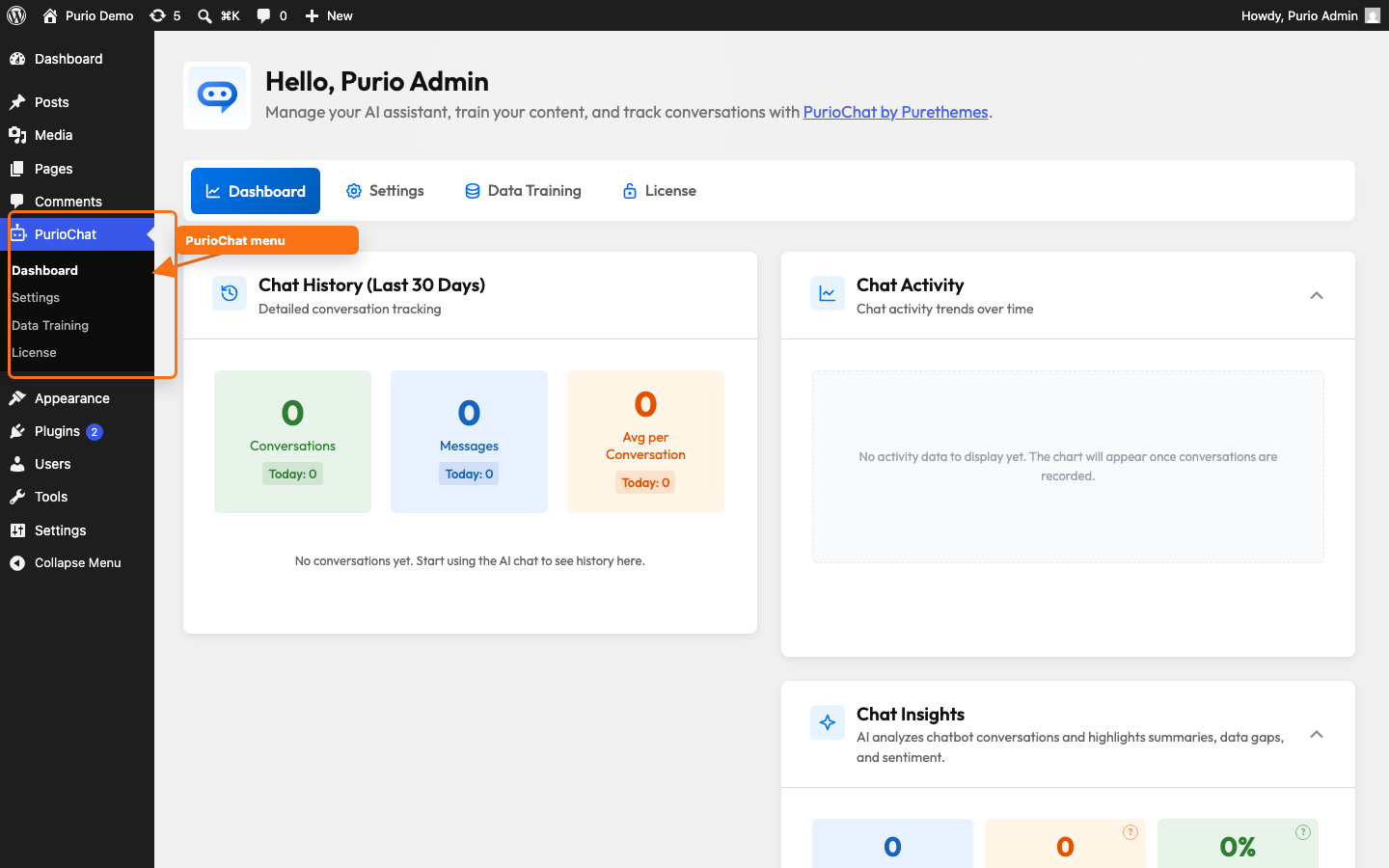
Clicking it opens the admin area on the Dashboard tab. From the tabs across the top you can reach:
- Dashboard — your home base for stats and chat activity.
- Settings — where you configure your AI provider, the chatbot’s appearance, the floating widget, and more (PurioChat → Settings).
- AI Search — search quality and suggestions (this tab only appears when the Listeo theme is active).
- Data Training — choose which content the AI learns from and run training.
- License — activate your Pro license (this tab appears once the Pro add-on is installed).
You’ll need administrator access (the manage_options capability) to see and use the PurioChat menu.
How Pro relates to the free plugin
PurioChat Pro is an add-on, not a standalone product. It adds the premium features — document training, conversation history and analytics, integrations, and voice input — on top of the free plugin. So the free base plugin must be installed and active for Pro to work.
If you activate the Pro add-on while the free plugin is missing or deactivated, WordPress refuses and shows a message like:
If you see that, go to Plugins, make sure the free PurioChat plugin shows as Active, then activate the Pro add-on. With both active, enter your key at PurioChat → License and click Activate to unlock the Pro features.
What’s next
With PurioChat installed and active, you’re ready to connect an AI provider and train the assistant on your content. See First-Time Setup for a step-by-step walkthrough.

