
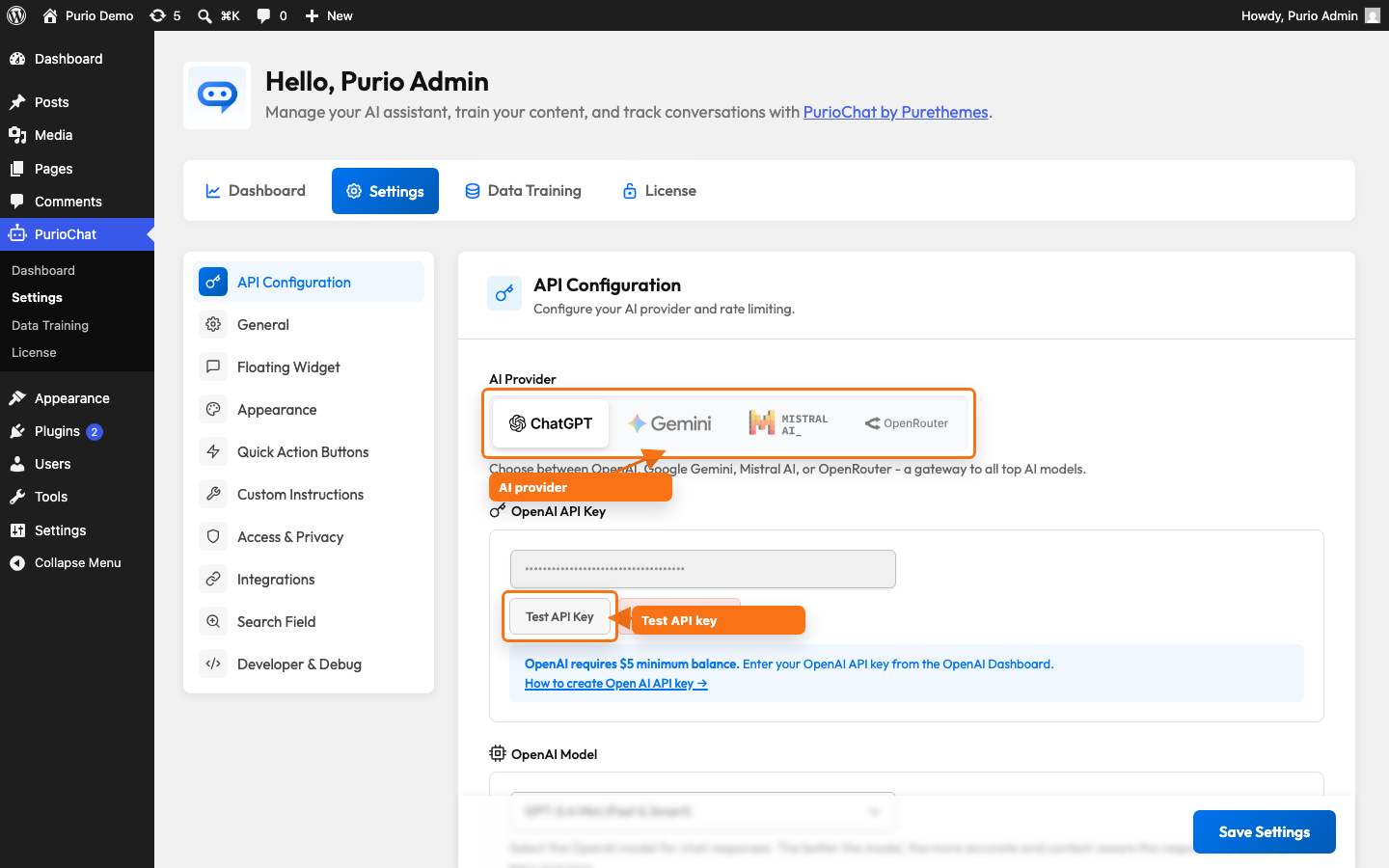
PurioChat doesn’t run its own AI — it connects to one you choose. That provider handles every chat reply and the semantic search that finds content on your site. It’s your first decision, so here are your four options.
The four providers
All four work on the free version of PurioChat. Pick one in PurioChat → Settings → API Configuration, then paste in an API key from that company. New installs default to OpenAI, but you can switch any time.
| Provider | Best for | Free tier | Notable detail |
|---|---|---|---|
| OpenAI | Top-quality, reliable answers | No — pay-as-you-go ($5 minimum balance) | The default; widely used and dependable |
| Google Gemini | Strong quality on a budget | Yes — but with very low rate limits | Flash models are free; Gemini 3.1 Pro requires billing |
| Mistral AI | EU data residency / GDPR peace of mind | Yes | Data is hosted in the European Union |
| OpenRouter | One key, dozens of models | No — pay-as-you-go ($5 minimum balance) | A single gateway to ~34 models from many vendors |
- OpenAI – OpenAI is the default and a safe all-rounder: high-quality replies and reliable uptime. There’s no free tier, so add a little credit to your account (a $5 minimum balance is typical). PurioChat’s default chat model,
gpt-5.4-mini, is fast, capable, and keeps costs modest. OpenAI keys start withsk-. - Google Gemini – Gemini offers strong quality and is the easiest way to try PurioChat for free — Google’s free tier covers its Flash models. The catch: that tier has very low rate limits, so a busy site hits them fast and visitors may see the chatbot pause. Enabling billing in Google removes that bottleneck. The higher-end Gemini 3.1 Pro model requires billing even on a paid account. Gemini keys start with
AIzaSy.
Tip: Gemini’s free tier suits testing and small sites. Once real visitors start using your chatbot, switch on billing in Google so rate limits don’t interrupt conversations. - Mistral AI – Mistral suits European businesses or anyone with strict data-handling requirements: its infrastructure is hosted in the European Union, which helps with GDPR compliance. It offers a free tier and solid models for everyday chat. One caveat: with Mistral, PurioChat keeps a shorter conversation memory window to stay within the model’s limits, so very long chats remember a little less context than with other providers.
- OpenRouter – OpenRouter is a gateway, not a single AI company. One key gets you roughly 34 models from OpenAI, Anthropic (Claude), Google, Mistral, DeepSeek, Meta, xAI (Grok), and more — ideal if you like to experiment or switch models without juggling several accounts. Like OpenAI, it’s pay-as-you-go with a $5 minimum balance, and keys start with
sk-or-v1-.
How to pick
- Want the simplest, most reliable setup? Start with OpenAI, the default.
- Want to test for free? Use Gemini — just mind the rate limits.
- Need EU data hosting / GDPR? Choose Mistral.
- Like flexibility and many models? Go with OpenRouter.
A quick word on cost
Every provider charges by usage (the amount of text the AI reads and writes), so your bill scales with how much your chatbot is used. PurioChat’s default models are fast and inexpensive, and most small-to-medium sites spend very little. For what drives cost and how to keep it low, see Understanding API Costs.
Next steps
Once you’ve decided, create an API key for that provider and paste it into PurioChat → Settings → API Configuration. There’s a step-by-step guide for each one in the related articles below.

