
When you change your AI provider in PurioChat, two things happen behind the scenes: it picks a default model for the new provider, and it clears your trained content so you can rebuild it. Here’s what to expect and what to do next.
Where to switch providers
Change providers from the AI Provider selector at PurioChat → Settings → API Configuration. Pick OpenAI, Google Gemini, Mistral AI, or OpenRouter, enter an API key for that provider, and save. All four providers are available on the free version.
What happens when you switch
1. A default model is auto-selected
If your current chat model doesn’t belong to the new provider, PurioChat swaps in a default so you’re never left with an invalid setting. The defaults are:
| New provider | Auto-selected chat model |
|---|---|
| OpenAI | gpt-5.4-mini (GPT-5.4 Mini) |
| Google Gemini | gemini-3-flash-preview (Gemini 3 Flash) |
| Mistral AI | mistral-large-latest (Mistral Large 3) |
| OpenRouter | openai/gpt-5.4-mini (GPT-5.4 Mini) |
You can change this anytime under PurioChat → Settings → API Configuration → Model.
2. Your embeddings are cleared
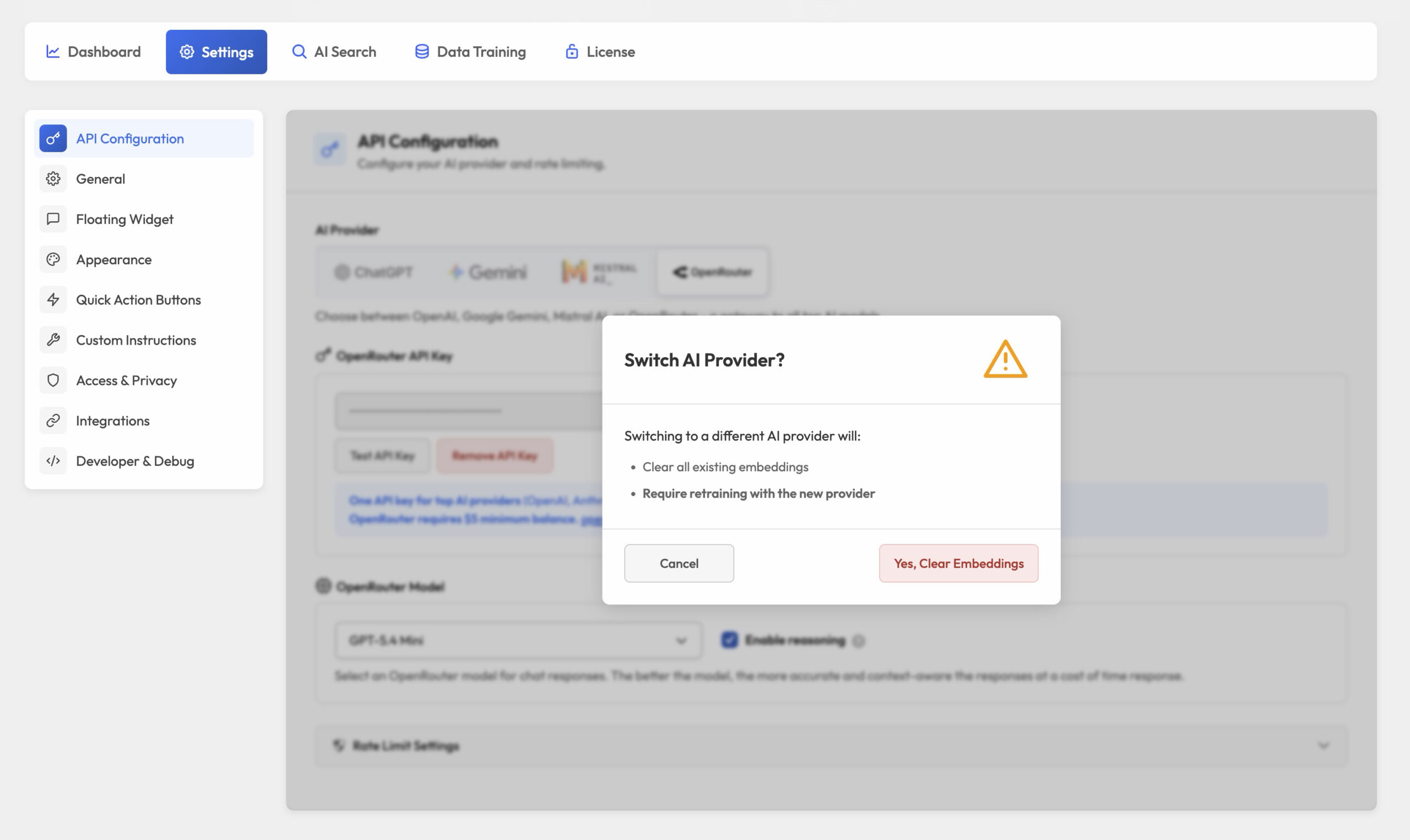
Confirming a switch clears all your existing embeddings (the searchable “memory” PurioChat built from your content). A confirmation modal warns you first — nothing is deleted until you confirm.
Why embeddings have to be cleared
Embeddings are numeric “fingerprints” of your content that PurioChat compares to find relevant results. Each provider produces them in its own format, with different lengths (called dimensions). With each provider’s default embedding model, the numbers come out like this:
| Provider | Default embedding model | Dimensions |
|---|---|---|
| OpenAI | text-embedding-3-small |
1536 |
| Google Gemini | gemini-embedding-001 |
1536 |
| Mistral AI | mistral-embed |
1024 |
| OpenRouter | openai/text-embedding-3-small |
1536 |
Vectors from one provider can’t be compared with another’s. Even when two providers use the same number of dimensions, the underlying models “think” differently, so the fingerprints aren’t interchangeable. Mixing old and new embeddings would make your search and chatbot results inaccurate. Clearing and rebuilding keeps every piece of content in one consistent format.
Re-train after switching
With your embeddings cleared, your chatbot and AI search have nothing to draw on until you rebuild them. Go to PurioChat → Data Training and click Start Training. PurioChat regenerates embeddings for all your enabled content using the new provider.
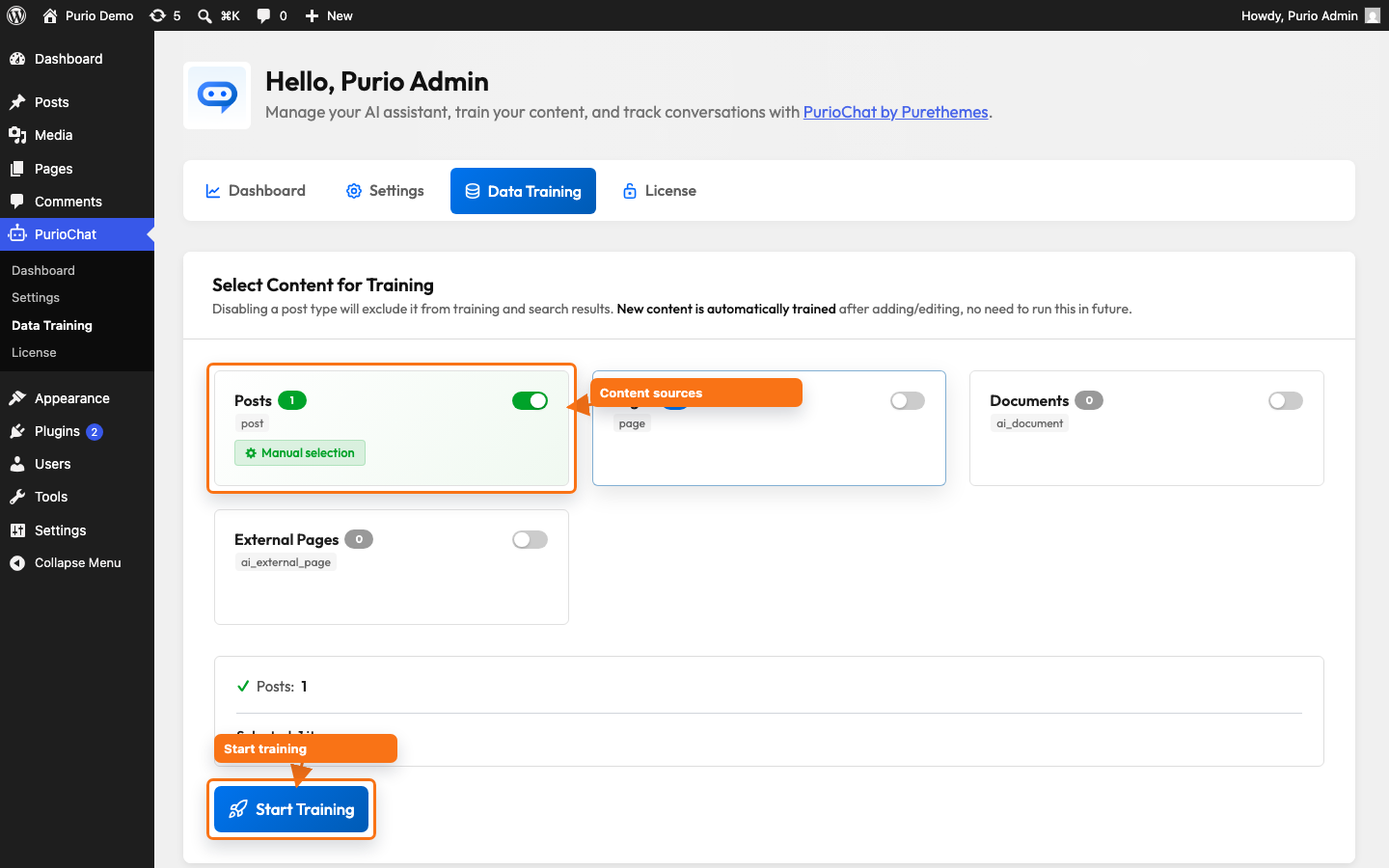
Training runs in batches and consumes API credits on the new provider, so make sure that provider’s API key is entered and valid first. You can stop training anytime, and a live progress log shows how it’s going.
Quick checklist
- Enter and test the API key for the provider you want to use.
- Switch the provider at PurioChat → Settings → API Configuration and confirm the warning.
- (Optional) Adjust the auto-selected chat model and embedding model to your liking.
- Go to PurioChat → Data Training and click Start Training to rebuild your content.

