
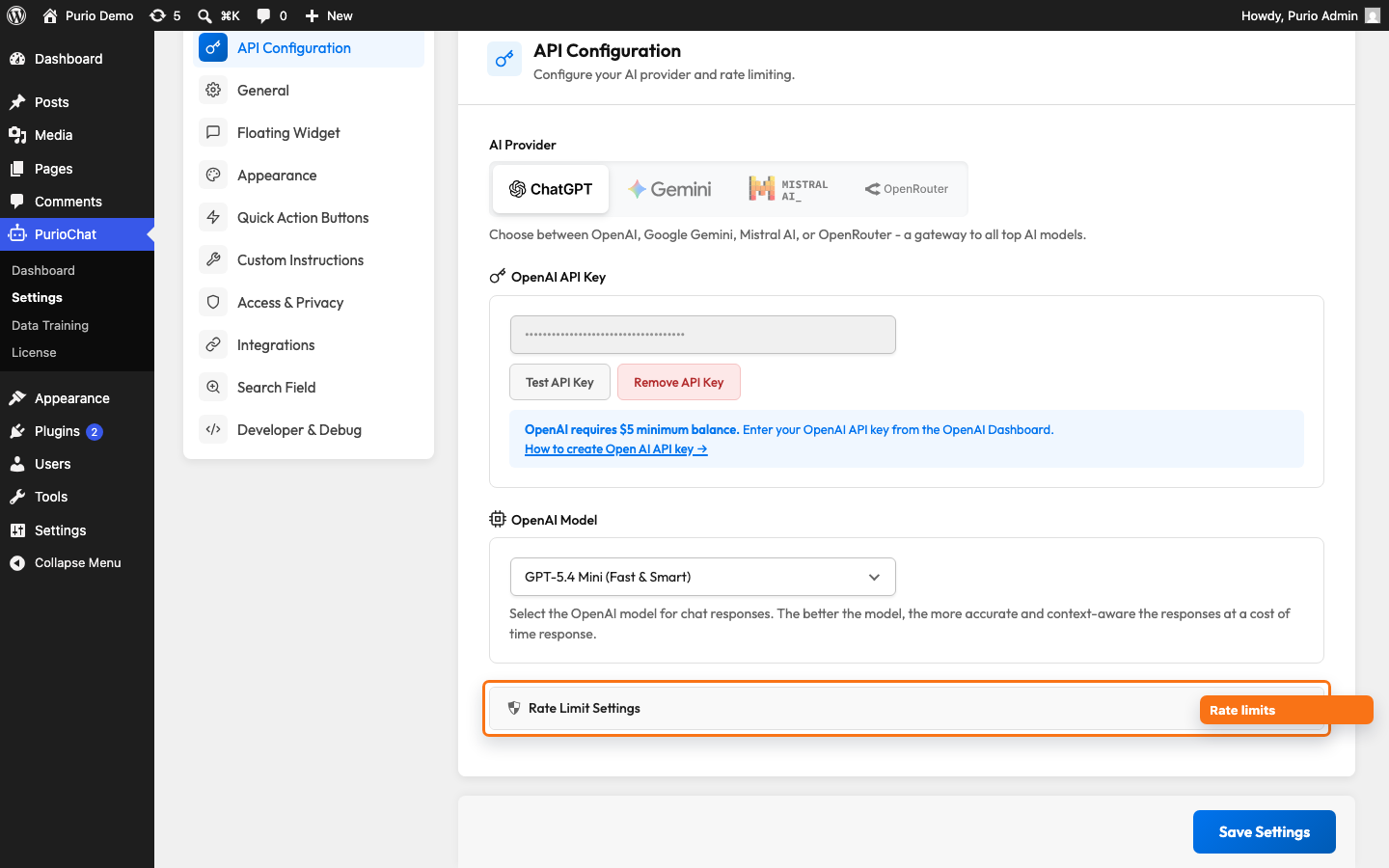
AI calls cost money, and a busy day (or an abusive visitor) can run up a surprising bill. PurioChat gives you two guardrails: a global hourly cap on API calls for your whole site, and per-visitor limits that stop any one person from flooding the chatbot. Both live in the Rate Limit Settings block.
Where to find these settings
Open PurioChat → Settings → API Configuration and expand the Rate Limit Settings section. You get one global limit, three per-IP limits, and a link to reset visitor counters.
Global API Rate Limit (per hour)
This is your master safety valve. It caps the total AI provider calls your site can make in any one-hour window, counting chatbot replies, search queries, and embeddings together. Once the cap is hit, further requests pause until the hour rolls over. That protects you when a bot or a viral moment quietly burns through your API credits.
- Effective default on new installs: 200 calls per hour (the field may show 1000 until you save a value)
- Allowed range: 100 to 10,000
- Counts: chat, search, and embedding calls combined
Set this to cover a normal hour for your site, plus a little headroom. Too low and real visitors get cut off; too high and the safety net stops protecting you.
User Rate Limit – Per IP Address
The per-IP limits stop a single visitor from abusing the chatbot. PurioChat tracks each visitor by IP and counts their messages across three windows. Exceed any one and they’re slowed down until that window resets.
| Window | Default |
|---|---|
Per minute (/min) |
10 messages |
Per 15 minutes (/15min) |
30 messages |
Per day (/day) |
100 messages |
The defaults suit most sites: a real user rarely needs more than ten messages a minute, and the daily allowance is generous enough that an engaged visitor never hits a wall. Raise these for a high-engagement support bot, or tighten them if you’re seeing abuse.
Clear all IP limits
If a genuine visitor (or your own testing) gets caught by a limit, you don’t have to wait for the window to expire. Click Clear all IP limits in the Rate Limit Settings block to reset every per-IP counter at once. Handy after a demo, a support session, or right after you raise the limits.

