
The Developer & Debug section is your troubleshooting toolbox. When something isn’t working as expected, this is where you turn on detailed logging, tweak the chatbot’s look with a little CSS, and confirm that PurioChat’s database tables are present and healthy. You’ll find it at PurioChat → Settings → Developer & Debug (the last item in the left sidebar). Everything here is in the free version.
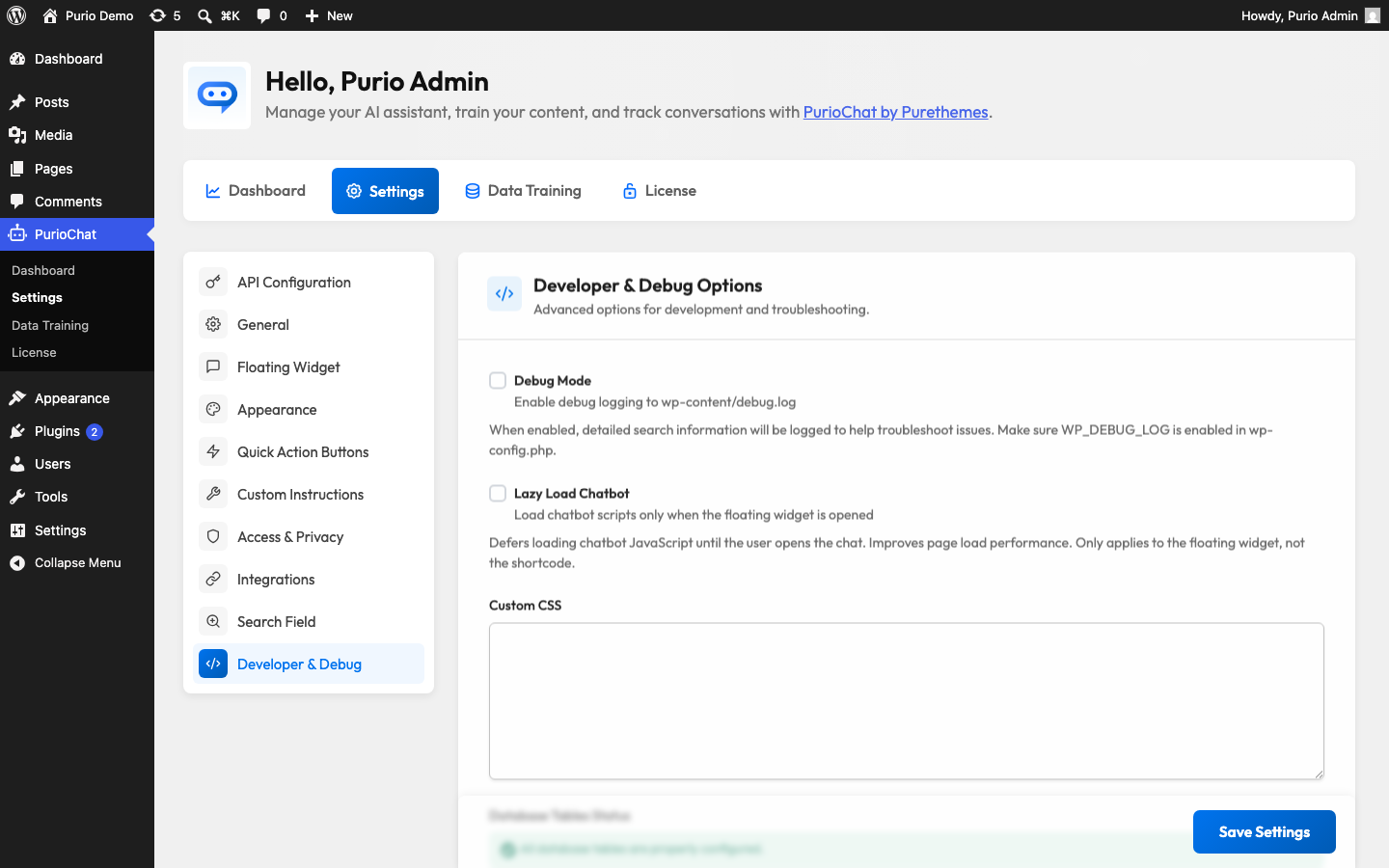
Debug Mode
When you (or our support team) need to know why something failed, turn on Debug Mode first. With it enabled, PurioChat records what it’s doing behind the scenes so you can pinpoint the problem instead of guessing.
The toggle is Debug Mode, off by default. When you turn it on, PurioChat writes diagnostic entries to your WordPress log file at wp-content/debug.log.
What gets logged:
- API requests sent to your AI provider and the responses that come back
- Rate-limit activity (when a request is throttled and why)
- Embedding generation progress during training
- Search queries and the results that were matched
- Detailed error messages
Telling WordPress to write the log
Debug Mode controls what PurioChat logs, but WordPress decides whether a log file is written at all. If no wp-content/debug.log file appears, enable WordPress debug logging in your wp-config.php file. Add (or update) these lines anywhere above the /* That's all, stop editing! */ comment:
// In wp-config.php
define('WP_DEBUG', true);
define('WP_DEBUG_LOG', true);
define('WP_DEBUG_DISPLAY', false);
What each line does: WP_DEBUG turns on debugging, WP_DEBUG_LOG sends messages to wp-content/debug.log, and WP_DEBUG_DISPLAY set to false keeps them hidden from visitors so nothing leaks onto your live pages.
Lazy Load Chatbot
If you use the floating widget and want pages to load faster, Lazy Load Chatbot (off by default) defers the chatbot’s scripts until a visitor opens the chat window. Nothing chat-related downloads up front, which lightens your initial page load. Leave it off if you’d rather have the chat ready to respond the instant it’s clicked.
Custom CSS
The Custom CSS textarea lets you add your own style rules to fine-tune the chat interface beyond the built-in color and appearance options. It’s good for small visual tweaks — spacing, fonts, or a specific element — without touching your theme files.
Paste your CSS into the box and save; the rules apply wherever the chat appears. If a tweak causes a layout issue, clear the box and save again to revert.
Database Tables Status
PurioChat stores its data in a few dedicated database tables. The Database Tables Status panel is a read-only health check that confirms each one exists and works — the quickest way to rule out an installation or upgrade problem when a feature isn’t saving or showing data.
It checks three tables (your site’s database prefix is added automatically, e.g. wp_):
| Table | What it stores | If it’s missing |
|---|---|---|
| Training index | The trained content used for AI search and chatbot answers | Search and chat answers may return nothing — try re-training under Data Training |
| Chat history | Saved conversations (when history tracking is on) | Conversations won’t be recorded |
| Contact messages | Messages captured by the chatbot’s contact feature | Submitted messages won’t be stored |
A healthy install shows all three as present. If a table is flagged as missing, deactivating and reactivating PurioChat usually recreates it, since the tables are set up during activation. If a table still won’t appear, that’s a strong clue to share with support — ideally with a fresh wp-content/debug.log captured with Debug Mode on.

