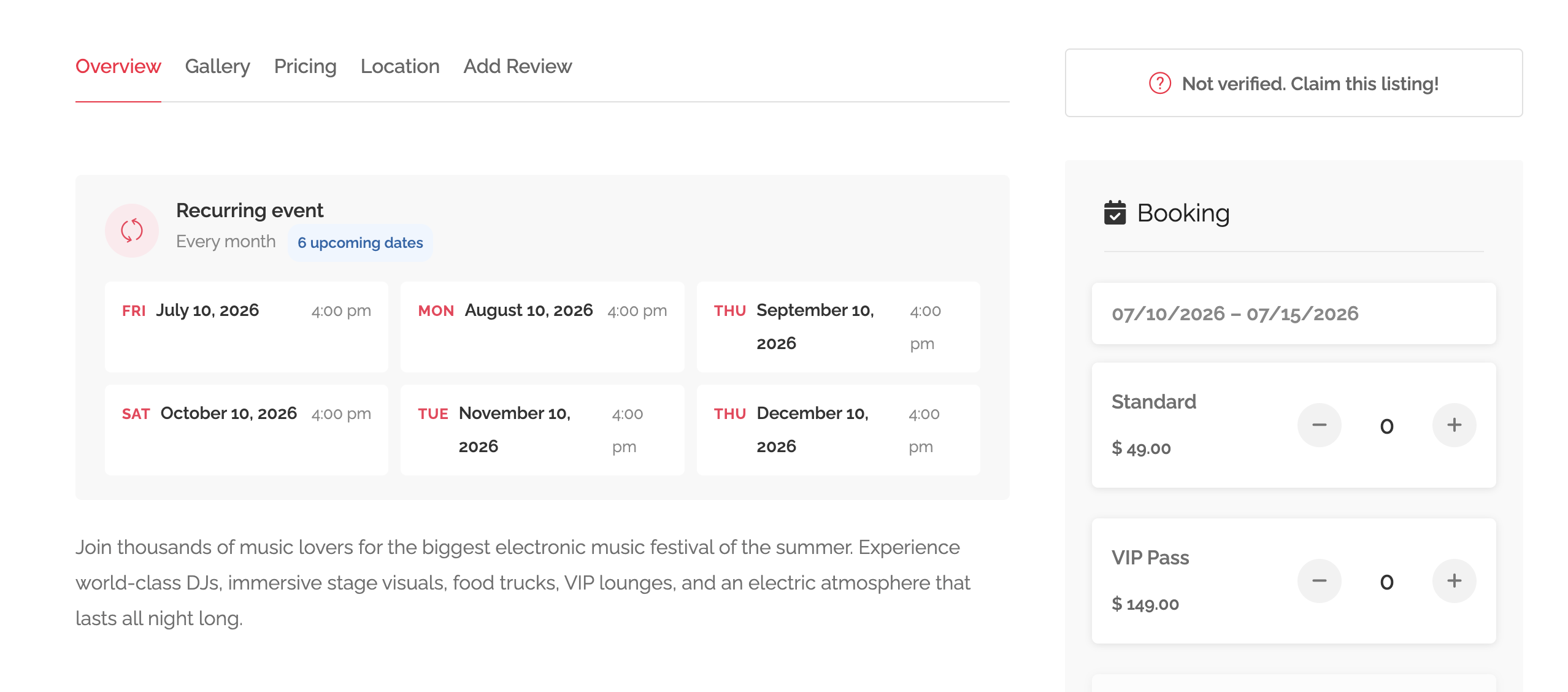
If you run the same event every week, you don’t need to create 52 listings. Listeo Booking Plus generates occurrences from a single rule and lets you override any individual date without touching the rule itself.
Defining a recurrence rule
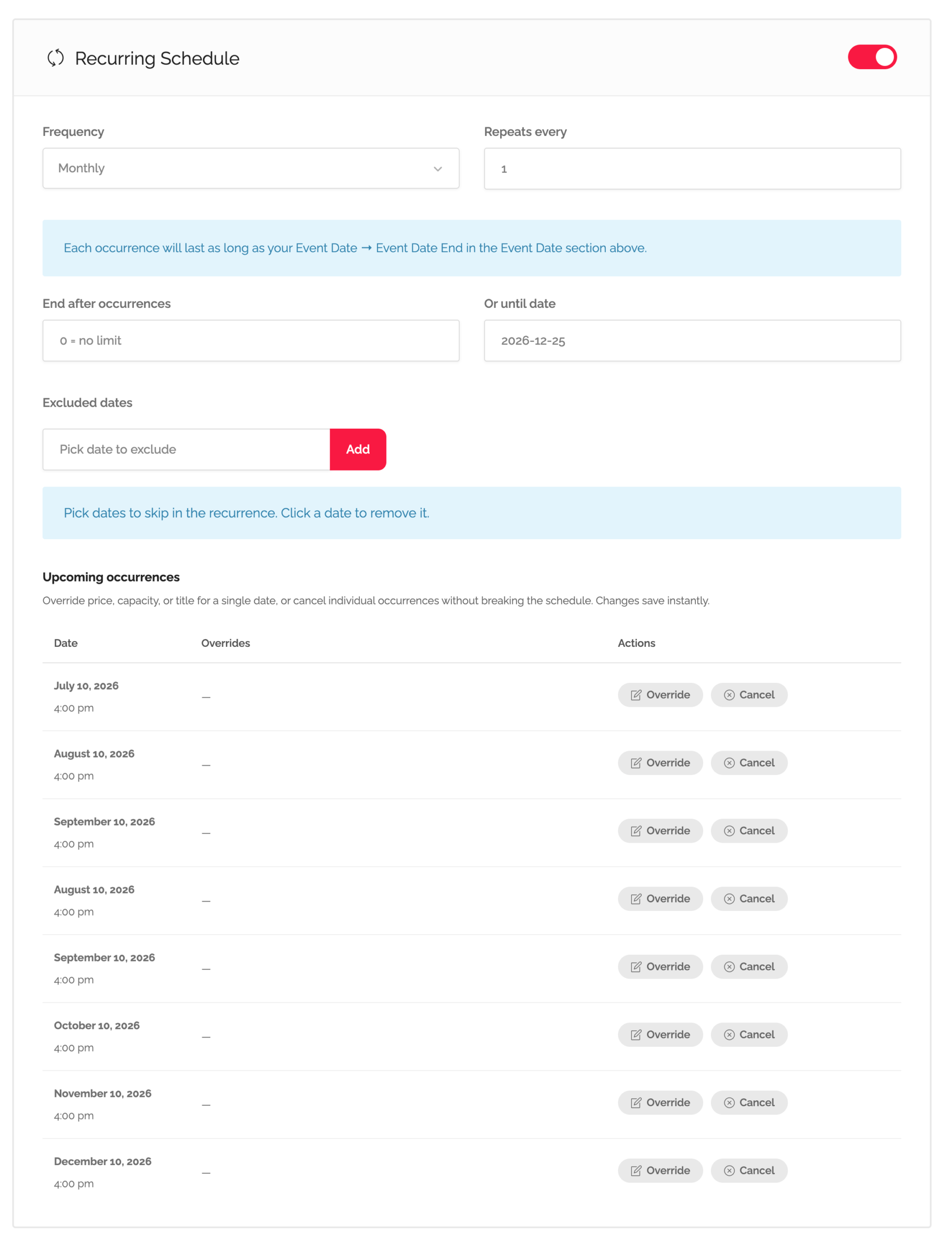
- Edit an Event listing.
- Scroll to the Recurrence meta box.
- Pick a pattern: Daily, Weekly, Monthly, or a Custom rule.
- For Weekly, pick the days of the week. For Monthly, pick the day-of-month or a Nth-weekday rule.
- Set the start date and (optionally) an end date.
- Save.
How occurrences are generated
A background cron job materialises future occurrences up to the Recurrence lookahead window – 12 months by default, configurable in Listeo → Settings → Booking. As time passes, the cron extends the window so there’s always ~12 months of bookable dates ahead.
You don’t need to “regenerate” anything manually — saving the listing triggers an immediate refresh of upcoming occurrences.
Per-occurrence overrides
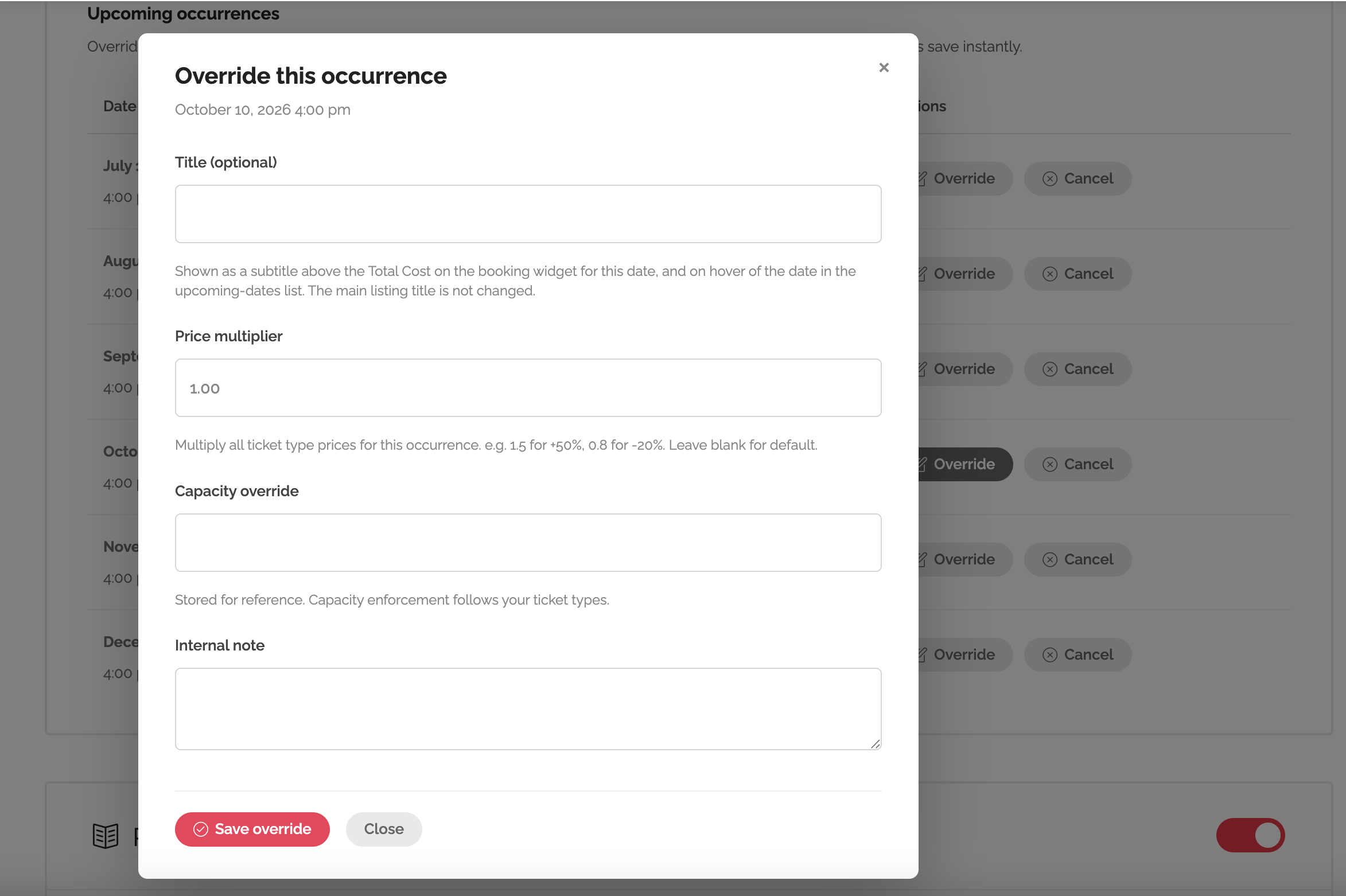
Sometimes one specific date needs to be different — a higher price for New Year’s Eve, a smaller capacity because half the venue is being renovated, or just cancelling a single class because the instructor’s on holiday.
- In the Occurrences panel on the listing edit screen, find the date you want to change.
- Click Override.
- Set the override price, override capacity, or Cancel this occurrence.
- Save.
The recurrence rule itself stays unchanged — the override applies only to that one date. Remove the override and the date falls back to the rule’s defaults.
What customers see
The single-event page shows a date picker with all upcoming occurrences. Cancelled occurrences disappear; occurrences with overridden prices show the override price; sold-out occurrences are greyed out.