Buying a package: the smooth checkout flow without WooCommerce
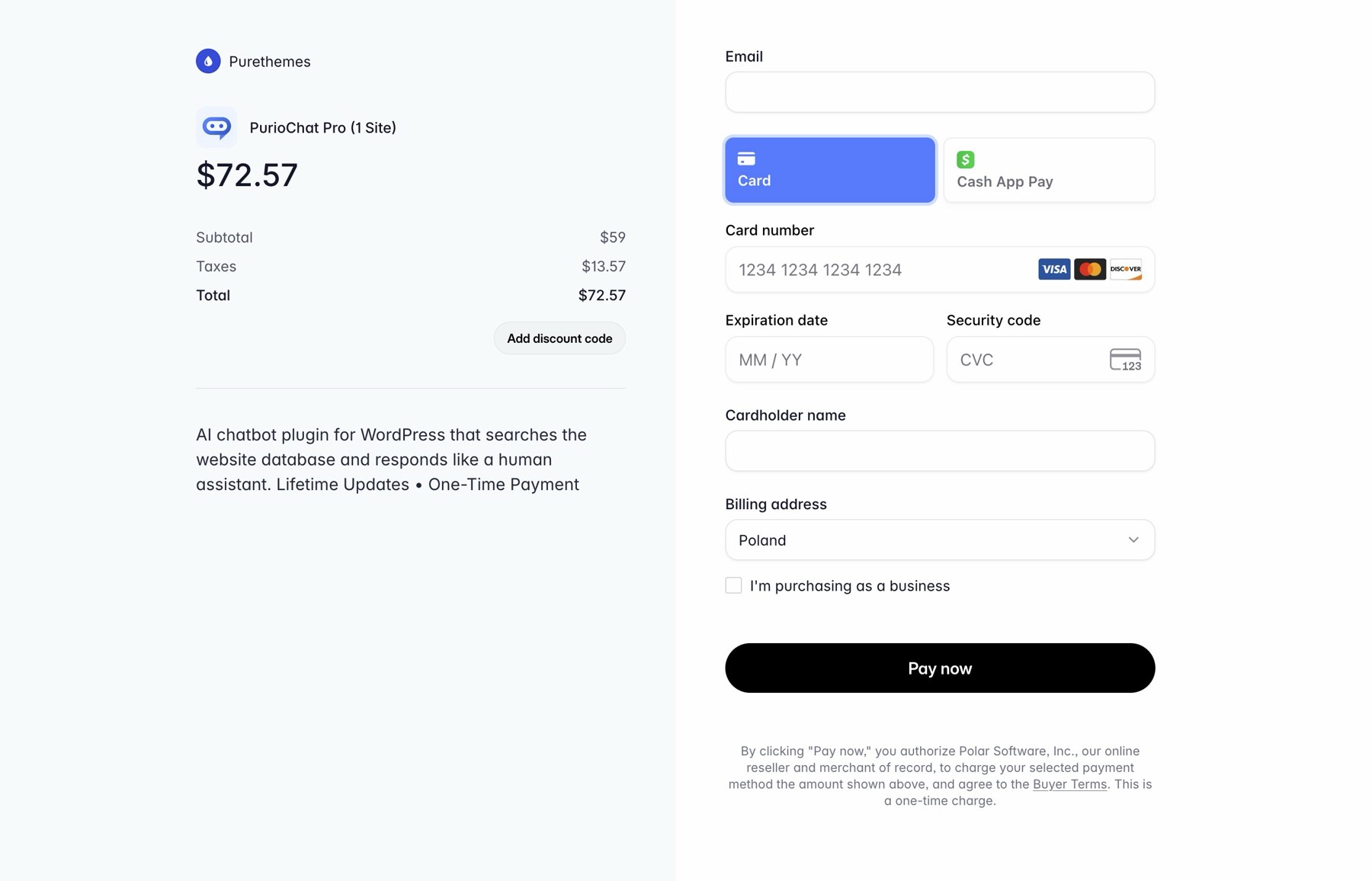
Your customer picks a recurring listing package just like any other package. From there the plugin takes over and hands them off to your payment provider for the actual payment. WooCommerce is entirely skipped.
- The customer selects a recurring listing package as normal.

Listeo Packages - The plugin intercepts the usual Listeo and WooCommerce package checkout and redirects them to the provider’s hosted checkout page. For example, that is
checkout.stripe.comfor Stripe,buy.polar.shfor Polar, your approved checkout domain for Paddle, orcheckout.dodopayments.comfor Dodo. - They enter their payment details on the provider’s secure page. You never handle card details yourself.
- After paying, they are returned to your site and they see active subscriptions under “My Subscriptions” page.

My Subscriptions

Supported payment providers offer a superb checkout experience compared to WooCommerce, resulting in higher conversion.



Managing and cancelling a subscription
Once a customer has an active subscription, they can manage it themselves. You do not have to do anything by hand.
The “My Subscriptions” page

The plugin provides a My Subscriptions page. It is created automatically and registered in the Listeo dashboard, so customers can find it. You can also place it anywhere on your site with this shortcode:[listeo_recurring_subscriptions]
On that page each subscription appears as a card showing:
- Its current status.
- The current period end, or the cancellation date.
- A Manage in [Provider] button.
The Manage button opens the provider’s billing portal, where the customer can update their card or cancel on their own.

When a subscription is set to cancel
A subscription that is set to cancel at the end of its period shows a Cancelling label and an Access until [date] note. The listing stays live until that date, so customers keep what they paid for through the end of the period.
The dashboard “Manage Subscription” link
In the main apge of Listeo dashboard, under Your Listing Packages, each active subscription also shows a Manage Subscription link. It is the same idea as the Manage button on the My Subscriptions page, just placed where customers already look at their packages.

Failed renewals and the grace period
If a renewal payment fails, the listing does not disappear immediately. The plugin keeps the listing live for a short grace period, giving the customer time to fix their payment method before they lose anything.
Payment grace period grace_days
How many days the plugin keeps a listing live after a failed renewal. The default is 3 days, and you can set it anywhere from 0 to 90. After the grace period ends with no successful payment, access is revoked. Setting it to 0 means access is removed immediately on failure.
Where customers land after checkout
You can choose where customers go once they finish (or cancel) at the provider. Both settings live on the plugin’s Settings tab and both are optional.
- Success URL – Where customers land after a successful purchase. Optional. If you leave it blank, the plugin sends them to the Listeo dashboard or the WooCommerce account page.
- Cancel URL – Where customers land if they cancel checkout before paying. Optional. If you leave it blank, they return to the listing submission flow.