A Resource is anything that can only be booked by one customer at a time that can belong to a listing. Examples:
- A hair stylist (a Service listing has multiple stylists; the customer picks one).
- A specific hotel room.
- An individual rental car or kayak inside a vehicle rental business.
When a listing has resources attached, Booking Plus reserves the resource – not just the listing. Two customers can book the same listing at the same time if they pick different resources, and conflicts are checked at the resource level.
When Manager Resources page is set, each Listings in My Listings page will have button “Add Resource”, that will open a submit form to create resources for listings.
In Listeo Booking Plus, “Resources” is the catch-all term for whatever bookable thing lives inside a listing — a room in a hotel, a stylist in a salon, a vehicle in a fleet, a court in a tennis club. Because that term doesn’t fit every business equally well, the plugin lets you rename it at three different levels: globally, per listing type, or per individual listing
When Listeo Booking Plus needs to print the label on a button, a heading, or in an email, it looks for the most specific override first and walks up to the default:
- Per-listing override (most specific) — set on the single listing.
- Per-listing-type label — set on the Listing Type in the Listeo editor.
- Plugin default — the literal words Resource / Resources.
If a listing has its own label, that wins. If it doesn’t, the listing’s type label wins. If neither is set, the generic default is used.
Level 1 — Plugin default
Out of the box, every label says Resource (singular) / Resources (plural). If your site is generic enough, you can leave it. Most sites won’t want to.
Level 2 — Per listing type (recommended starting point)
This is where 90% of sites should set the label. It applies to every listing of a given type — so all your Hotels say “Rooms,” all your Salons say “Professionals,” all your Tour businesses say “Guides.”
Where to set it:
- Go to Listeo Editor → Listing Types in wp-admin.
- Edit the listing type (e.g. Hotel, Service, Rental).
- Scroll to the Booking Resource Labels block.
- Fill in:
- Singular Label — e.g. Room, Professional, Instructor, Vehicle.
- Plural Label — e.g. Rooms, Professionals, Instructors, Vehicles.
- Save.
Level 3 — Per individual listing
Sometimes one specific listing inside a type needs a different word. A clinic listing type called “Practitioners” might still have one location that uses “Therapists.” A hotel called “Rooms” might have one boutique property where they’re called “Suites.”
There are two ways for that override to get set, depending on whether the listing is being managed in wp-admin or on the front-end.
A) The admin metabox (always available)
On the wp-admin listing edit screen, there’s a Resource Label Override section with two fields — singular and plural. Fill them, save, and they take precedence over the listing type’s label for this one listing only. Leave them blank to fall back to the listing-type label.
This works for every listing on every site without any extra setup.
[SCREENSHOT: Resource Label Override metabox on listing edit screen]
B) Front-end submit form (opt-in per listing type)
If you want the listing owner to be able to set the override themselves from the front-end (without giving them wp-admin access), you need to add the override fields to the submit form for that listing type using Listeo’s Submit Listing Editor.
- Go to Listeo → Submit Listing Editor
- Pick the listing type you want to enable the override on.
- Choose the section where you want the fields to appear (e.g. Basic information or a new section called Booking).
- Click Add Field and you’ll see two Booking Plus entries in the picker:
- Resource Label (singular) — Booking Plus
- Resource Label (plural) — Booking Plus
- Add both. Save the form.
From that point on, the listing’s owner sees the two fields in their submit / edit form and can fill them in. The values save to the listing as post meta and the booking UI picks them up immediately.
Creating a Resource from Admin side
Resources are a custom post type registered under your Listings menu in the WP admin.
- Go to Listings → Booking Resources → Add New.
- Give the resource a title (e.g. “Anna — Senior Stylist”, “Room 4”, “Kayak #12”).
- Add a description and a featured image — both appear on the front-end and in the booking popup.
- Save.
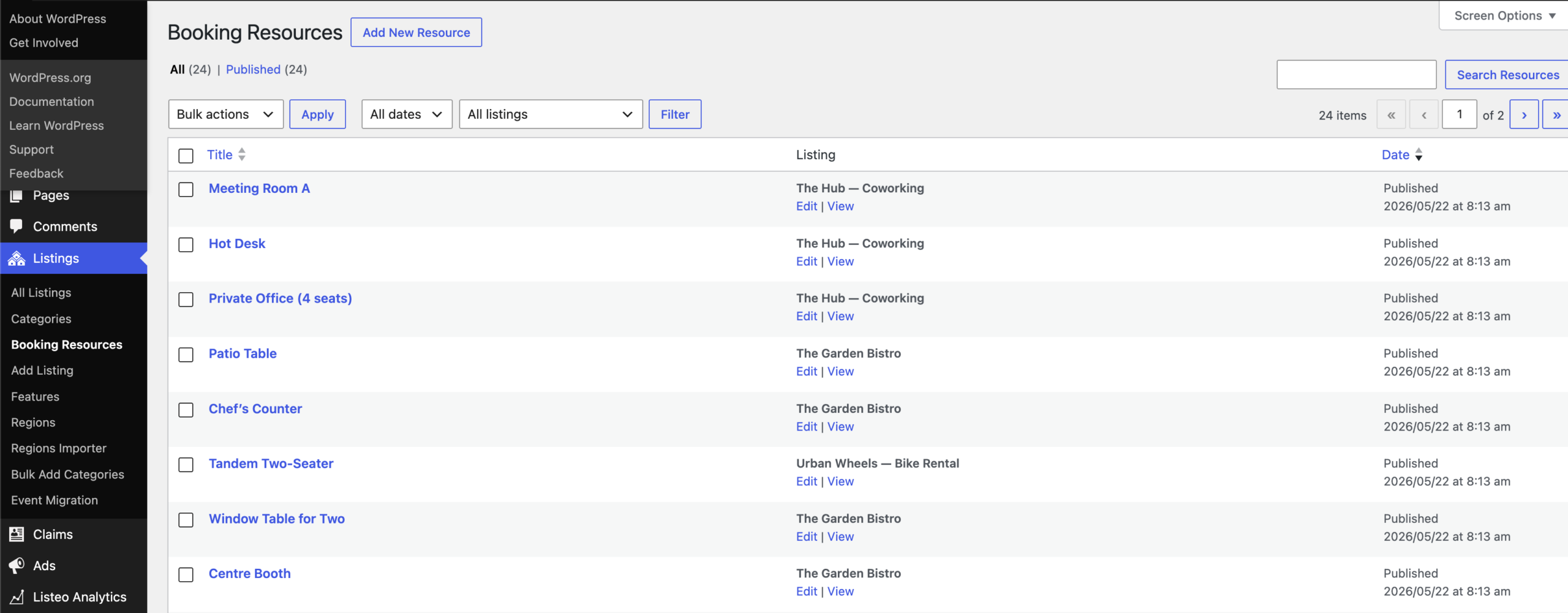
Assigning a Resource to a Listing
Edit a listing (Services, Rentals, Events all support it) and you’ll find a Resources section. Pick the resources that belong to this listing and save, or you can edit resource and select the listing to which it should be assigned
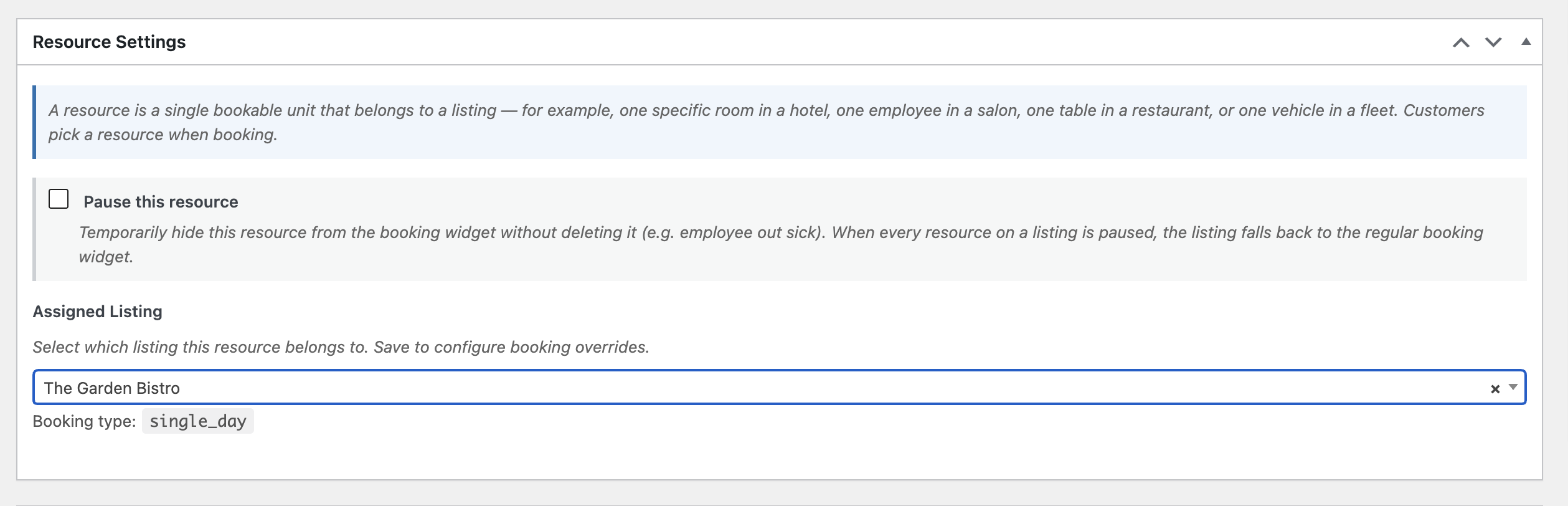
Display layout on the front-end
Resources appear on the single-listing page in either List (full-width stacked) or Grid (2-column cards) layout — switch in Listeo → Settings → Booking → Resources display layout.
When the listing has resources, listing-level booking settings act as defaults
Some configuration (availability calendar, certain pricing options) moves from the listing to the resource when resources are attached. The listing-level fields stay as defaults that new resources inherit, and the editor shows a notice telling you so — no need to re-enter everything for each resource. Basically if something is not set for resource, it inherits the setting from the listing.