Purethemes MCP lets you manage WordPress from ChatGPT or Claude. The assistant can use only the tools you enable, and every action still follows the connected user’s WordPress permissions.
What can Purethemes MCP do? Basically everything.
- Build Elementor pages and edit individual widget settings.
- Configure Listeo search forms and add or remove search filters.
- Add or remove fields in Listeo Editor submission forms.
- Create and configure listing types, booking modes, and taxonomies.
- Create, edit, publish, approve, and renew Listeo listings.
- Manage bookings, availability, time slots, payments, cancellations, and rescheduling.
- Create and modify WordPress pages, posts, menus, metadata, and media.
- Manage WooCommerce orders, coupons, order notes, and refunds.
- Audit listings and site configuration for missing content or setup issues.
- Control every capability with permissions, activity logs, and supported undo.
Example requests
- Listings & moderation
- “Approve the listings waiting for review, but reject any without photos.”
- “Renew every featured listing that expires this week for another 30 days.”
- “Unpublish the ‘Old Diner’ listing and set its rejection reason to ‘permanently closed’.”
- “Create a ‘Downtown Coworking’ listing in the Offices category with these details and put it live.”
- Bookings & availability
- “A guest just called — book the Beach Villa for next Fri–Sun for John ([email protected]).”
- “Move tomorrow’s 2 PM appointment at the Barber Shop to Thursday and email the client.”
- “Block the Mountain Cabin for all of August, and mark last week’s pending booking as paid.”
- “Show this month’s reservations and revenue by status.”
- Directory setup
- “Add a ‘Pet friendly’ feature to Restaurants and include it in the search form.”
- “Create a new ‘Event Space’ listing type with a per-day booking mode.”
- “Add an ‘Instagram’ custom field to the submit form for the Shops type.”
- Health checks
- “Which listings are missing a cover image, opening hours, or a map location?”
- “List everything expiring in the next 7 days.”

Before you connect
– Your site needs a public HTTPS address and pretty permalinks.
– The AI service must support custom remote MCP connections.
– A WordPress administrator must approve the connection.
Local, VPN-only, and firewalled sites cannot be reached by cloud-based AI services. Connector availability can also depend on the service plan or workspace.

Connect your assistant
1. Download Purethemes MCP from Customer Portal →
2. On your WordPress site, go to Plugins → Add New → Upload, select the zip with plugin.
2. After activation navigate to Listeo Core → MCP Server
3. Choose an access profile and save.
4. Copy the address shown for your assistant.
ChatGPT
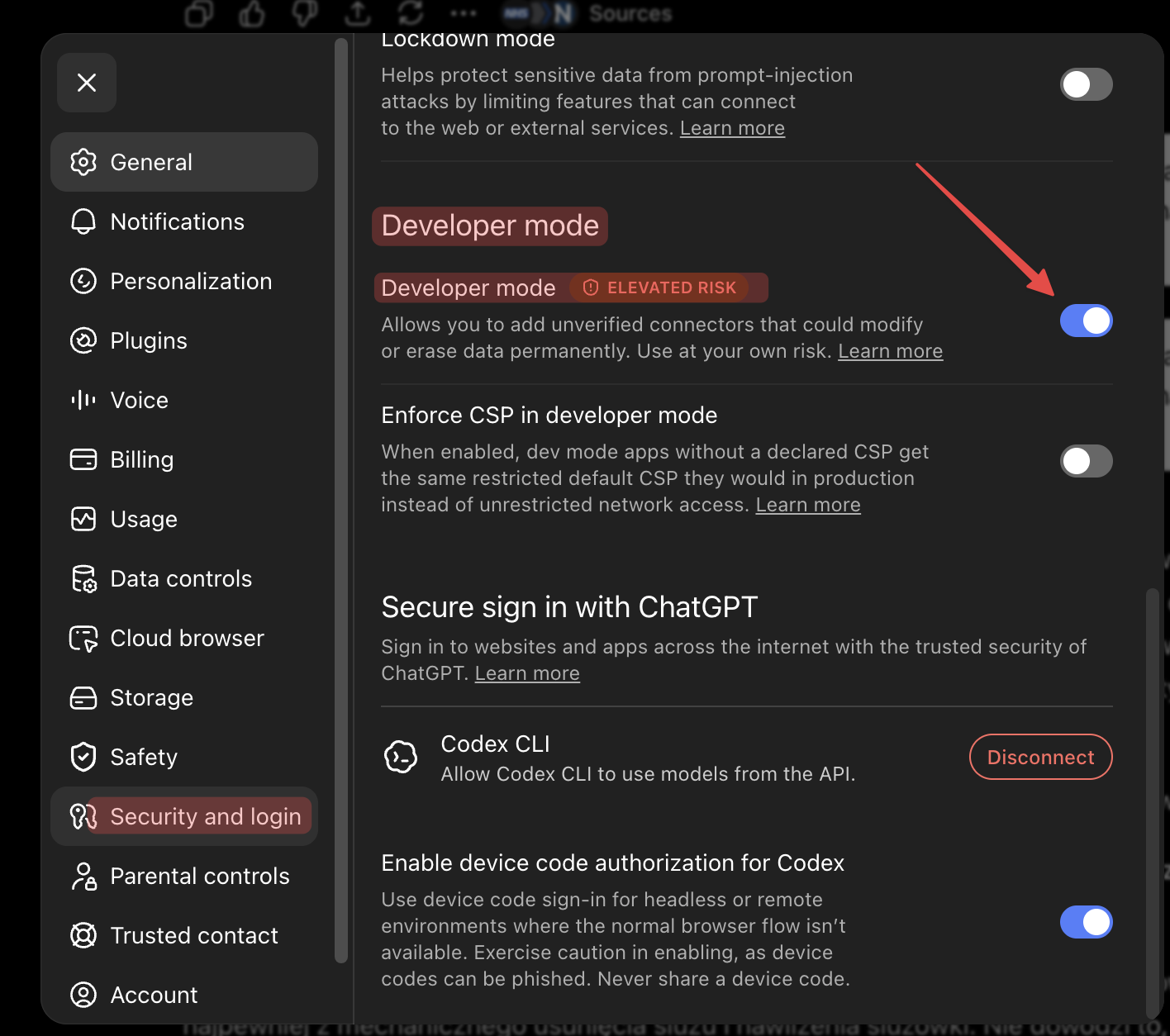
1. Go to Settings → Security and Login and enable Developer Mode.
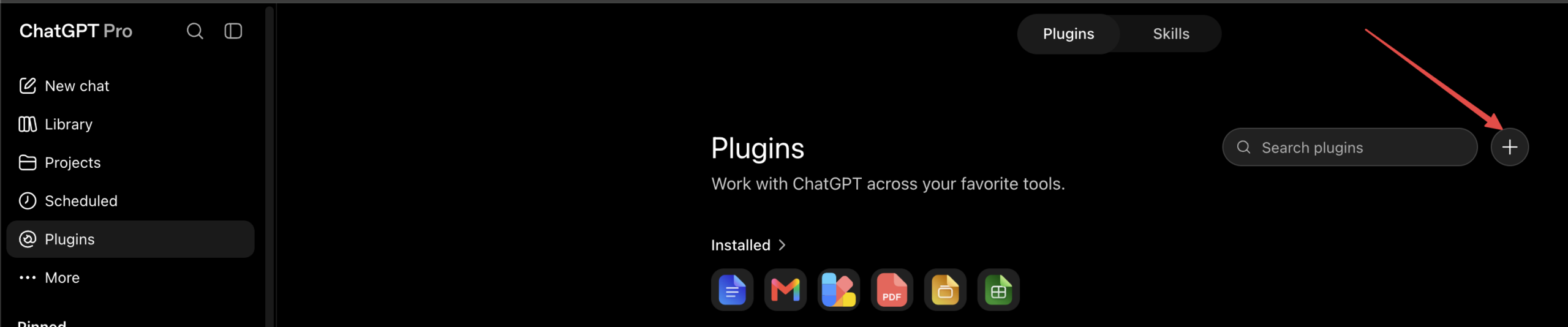
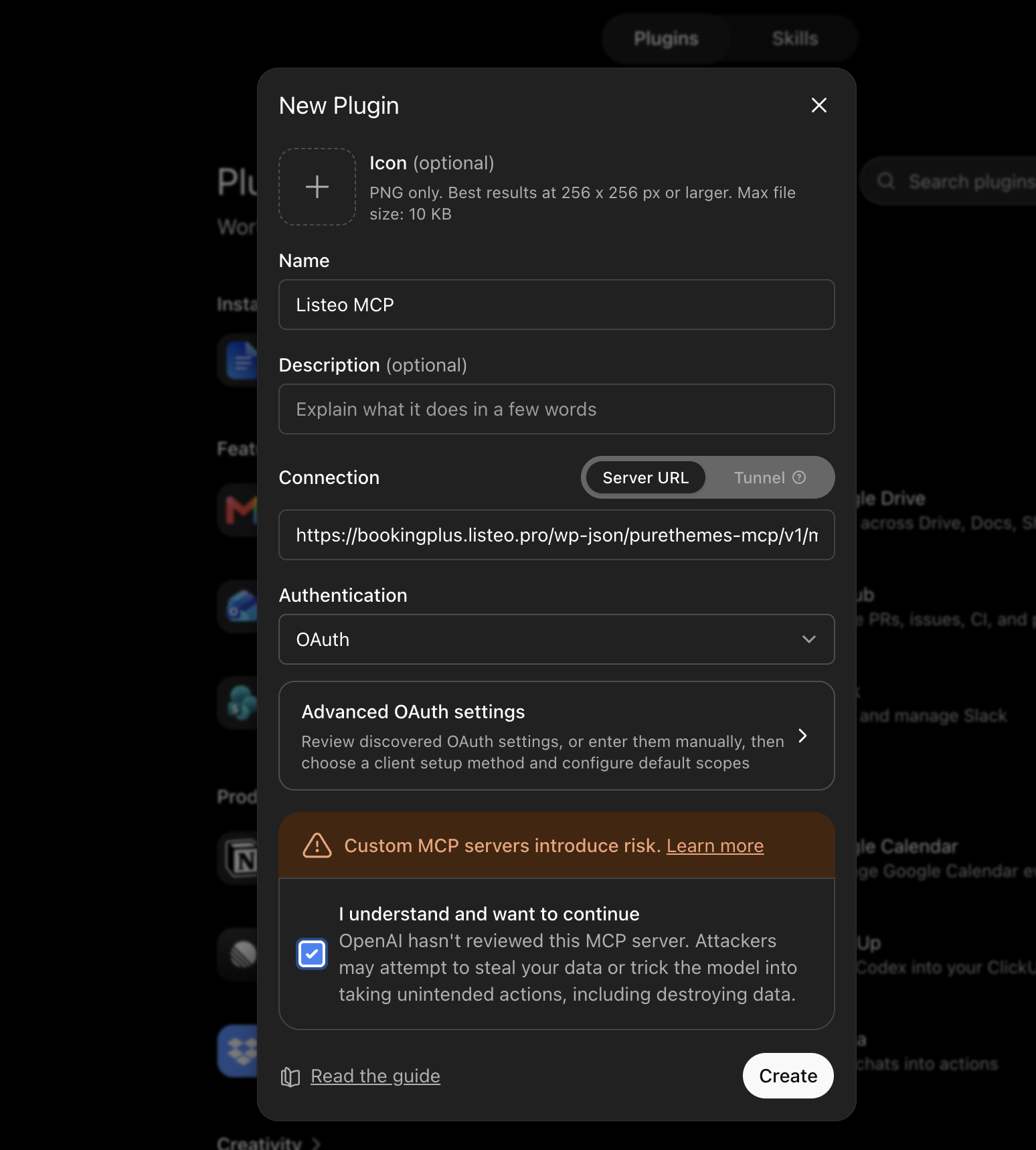
2. Go to Plugins → Add Plugin and paste the ChatGPT address.

Claude
1. Go to Settings → Connectors.
2. Click Add → Add Custom Connector and paste the Claude address.

ChatGPT and Claude use different MCP addresses. Copy the URL from the matching provider card. Then sign in to WordPress and approve access.
In both cases it will ask you to authenticate and allow the access to your site, you can define the access profile and what tools the MCP will be able to control

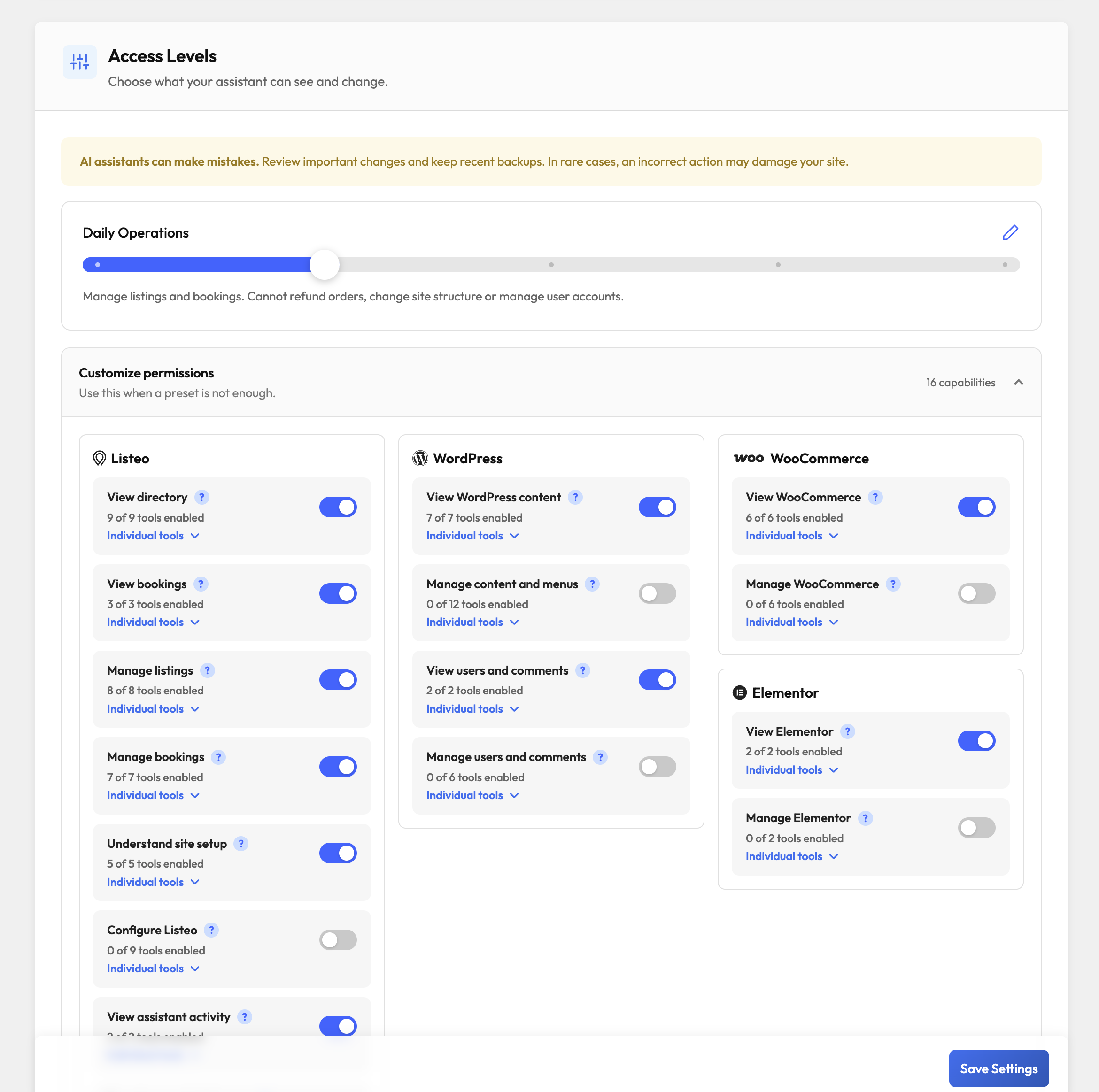
Choose an access profile
– Read only: Inspect listings, bookings, WordPress content, users and store data. Cannot change the site.
– Daily Operations: Manage listings and bookings. Cannot refund orders, change site structure or manage user accounts.
– Content & Setup: Daily operations plus WordPress content, menus, Elementor and Listeo configuration. No refunds or user management.
– Full access (YOLO mode): Everything is switched on: listings, bookings, WordPress content, users, WooCommerce refunds and permanent deletions. Capability checks and the activity log still apply.
– Custom permissions: Select permissions individually.
Recent activity
Open Activity Logs to view connection controls and the audit log.
– Activity loads only when the panel is opened, 20 events at a time.
– Metadata is kept for up to 90 days.
– Message bodies, argument values, and tool results are never logged.
– Revoke all connections disconnects every authorized AI app.
If the connection fails
1. Click Re-run beside the connection status and follow the displayed fix.
2. Check HTTPS and pretty permalinks.
3. Allow /.well-known/* and /wp-json/puriochat-mcp/* through your server, security plugin, and CDN.
4. If you use Cloudflare, make sure Claude-User is not blocked under Manage AI bot access.
5. Save the MCP settings and reconnect the assistant.
Note: Listeo MCP is a separated plugin that is specifically created for Listeo while MCP available in PurioChat Pro is for general use and lacks deep integration with Listeo theme.