Installation
- Go to https://purethemes.net/license/ and download listeo-booking-plus.zip
Enter your Listeo theme license there (for the free version) or your Listeo Booking Plus license (if you purchased the Pro version).
You’ll need purchase key: How to find my license key? - In WordPress admin, go to Plugins → Add New → Upload Plugin.
- Pick the zip, install, then click Activate.
If Listeo Core is missing or not active, you’ll see this notice – install/activate Listeo Core first, then come back:

Listeo Booking Plus – This plugin requires Listeo Core to be installed and activated. Please install Listeo Core first.
Enter your license key
The free tier (the redesigned booking popup) works right after activation. All premium features – Resources, Event Ticketing and Recurring Events – stay locked until a valid license key is activated.
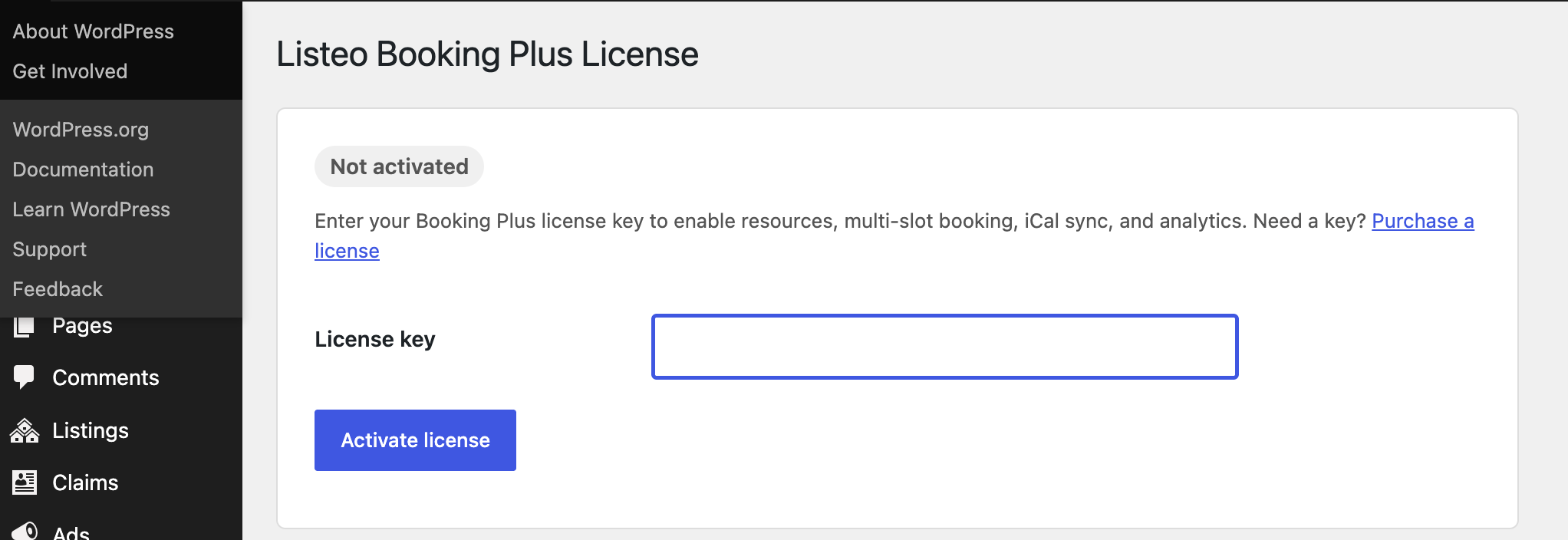
- Go to Settings → Booking Plus License.
- Paste your license key from your PureThemes account.
- Click Activate License.
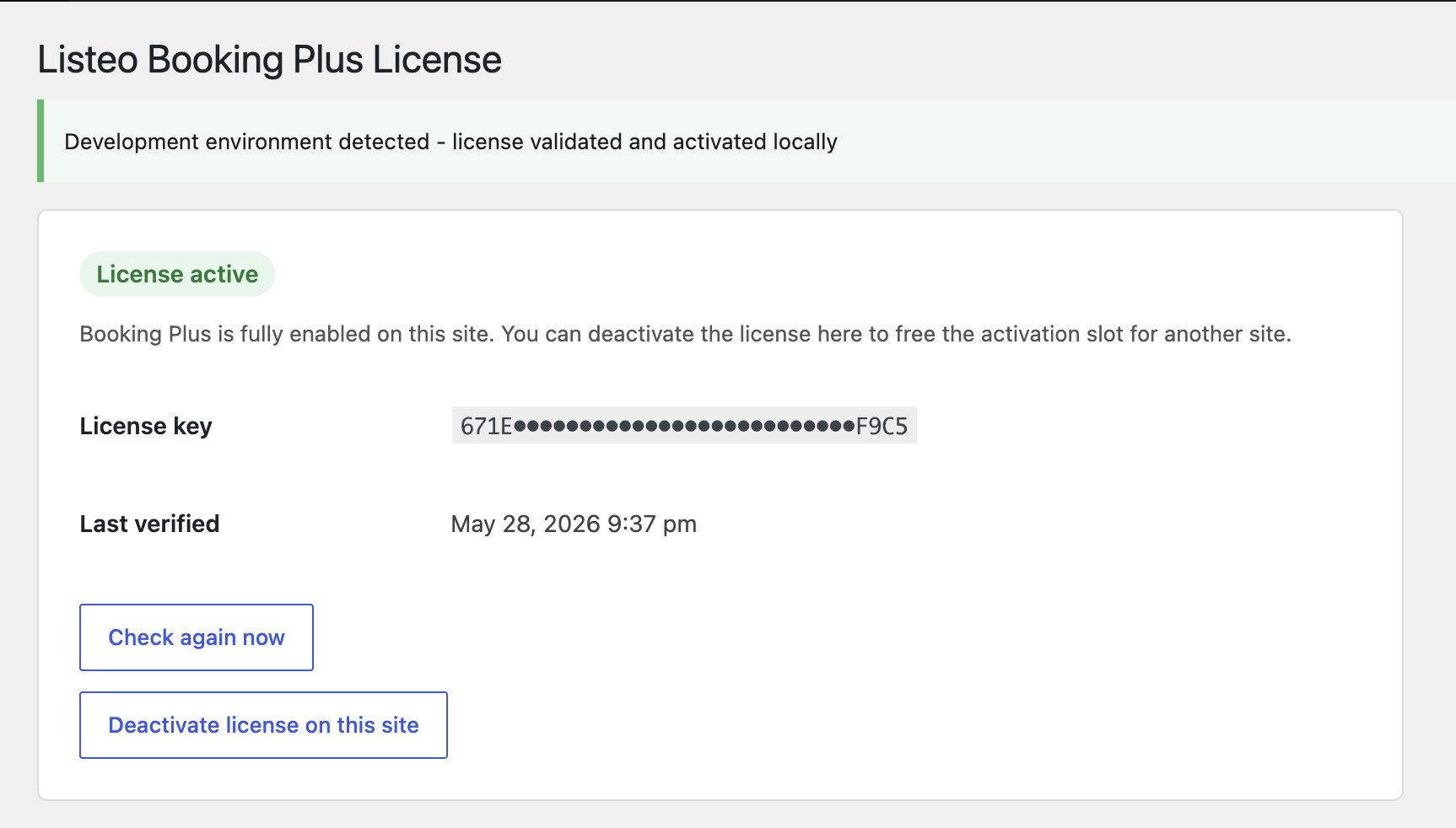
You’ll see a green confirmation and a “Last verified” timestamp on success.
Invalid or expired license
With an invalid or expired license you’ll see a persistent admin notice on every page that links to the License page, and Booking Plus’s premium features remain disabled until activation succeeds.
Your data is not deleted – resources, tickets and bookings stay in the database; they just stop being surfaced until the plugin can boot again.
Automatic updates
Once activated, the license also enables automatic updates through the standard WordPress Dashboard → Updates and Plugins screens – no manual zip downloads needed for future versions.
See also: Updating the Listeo Booking Plus →
FAQ
-
Is there a free version of Booking Plus?
-
Where do I find my license key?
-
I'm moving from staging to production - what about the license?
-
What happens to my data if the license expires?
-
Do I get automatic updates?