Listeo User Group on Facebook
Coming soon mode hides your site while you set it up. Visitors who are not logged in see a coming soon page on every address of your site. You, and anyone else who is logged in, see the whole site as usual.
Turn on coming soon mode
- Go to Listeo Editor → Appearance → Coming soon.
- Switch on Coming soon mode.
- Click Save.

You can also turn it on at the end of the Setup Wizard. On the last step, click Yes under “Enable coming soon mode?” and the wizard opens these settings for you. Click No to finish the wizard without it.

Design the page
All settings are in Listeo Editor → Appearance → Coming soon. The preview on the right shows your changes before you save them.
- Design: choose Dark, Light or Split.
- Title and Text: the heading and the short message under it.
- Launch date: shows a countdown to this date and time. The countdown disappears when the date has passed. Leave it empty if you don’t want a countdown.
- Image: the background of the Dark design, or the right half of the Split design. The Light design has no image.
Your site logo is shown above the title.
Dark

Light

Split

Collect emails
Use Email sign-up to show an email field with a Notify Me button. There are three options:
- Off: no email field.
- Save emails on this site: emails are saved on your WordPress site. Click Download emails (CSV) to get the list as a file. You can open it in Excel or import it into your newsletter tool.
- Send to Mailchimp: emails go to your Mailchimp audience. Paste your Mailchimp form URL into Mailchimp form URL.
Find your Mailchimp form URL
- In Mailchimp, create an embedded signup form. Mailchimp explains it here: Host your own signup forms.
- In the form code, copy the address inside
action="...". It starts withhttps://and containslist-manage.com/subscribe/post. - Paste it into Mailchimp form URL and click Save.
The address is marked at the top of the screenshot below. The second marked value is only needed for the older page template.

Turn off coming soon mode
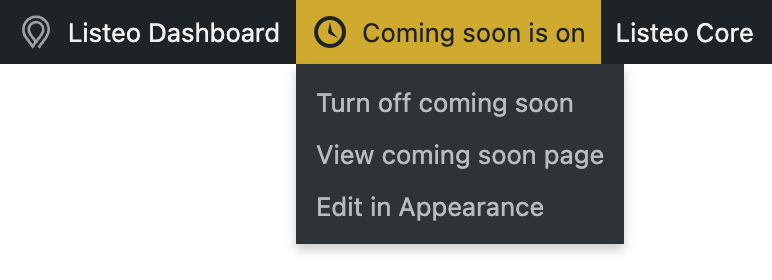
While coming soon mode is on, a yellow Coming soon is on button shows in the toolbar at the top of your screen, so you don’t forget to turn it off. Move your mouse over it to see these options:
- Turn off coming soon: your site is visible to everyone right away.
- View coming soon page: see the page the way visitors see it.
- Edit in Appearance: open the coming soon settings.
You can also switch off Coming soon mode in Appearance and click Save.
Older method: Coming Soon page template
Sites set up with an older version of Listeo may use a page with the Comming Soon template, set as the homepage in Settings → Reading. This still works and now uses the design from Listeo Editor → Appearance → Coming soon. Anything you fill in the page’s own Coming Soon Page Options (title, date, background image, Mailchimp form) is used instead of the Appearance settings.
This method only replaces your homepage, and all other pages of your site stay public. For new sites, use coming soon mode instead.