The Header Builder lets you arrange and style your Listeo header in a live preview. Open Listeo Editor > Header Builder in your WordPress dashboard.
Build your header
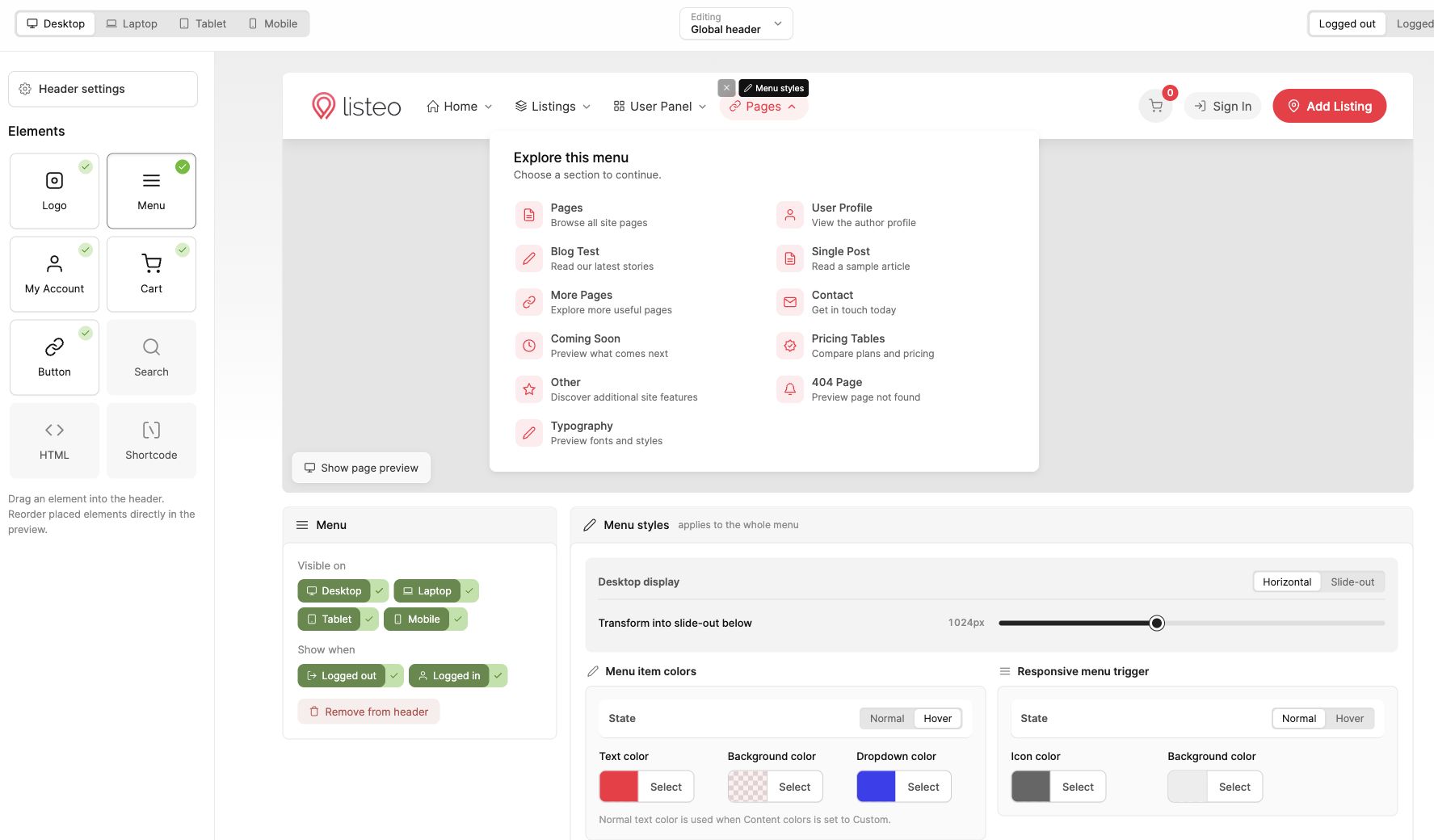
Drag elements from the left panel into the header, then reorder them in the preview. Click an element to edit its settings. Add your logo, menu, account links, cart, search or a button such as Add Listing.
Use Header settings to change the background, height and width, choose static or sticky positioning, and adjust content colors. Auto contrast helps keep text and icons readable against the background.
Menus and responsive layouts
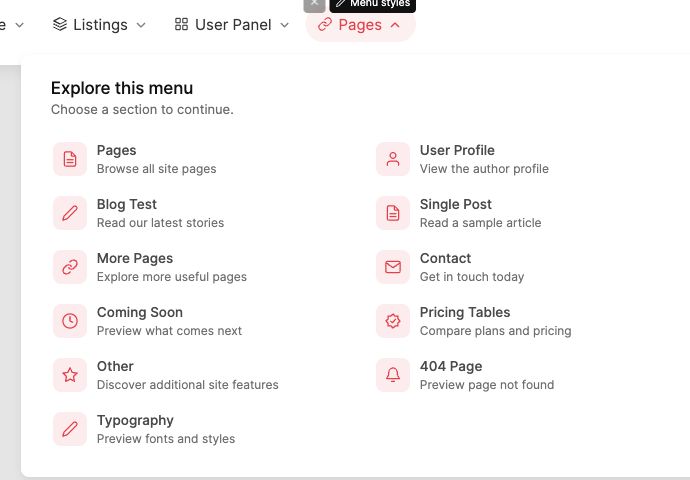
Select a WordPress menu in the menu settings. Changes made under Appearance > Menus sync automatically. Use dropdowns or mega menus, with columns, icons, short descriptions and an optional introduction.
Switch between Desktop, Laptop, Tablet and Mobile to check each layout. Element visibility can vary by screen size and whether a visitor is logged in. The Logged out and Logged in previews help you check both versions.
Different headers for different pages
Open the header selector at the top and choose Manage presets to create alternative headers. Assign them to individual pages under Page overrides, or use the Single listing and Dashboard template overrides.
When you are happy with the result, click Save settings.