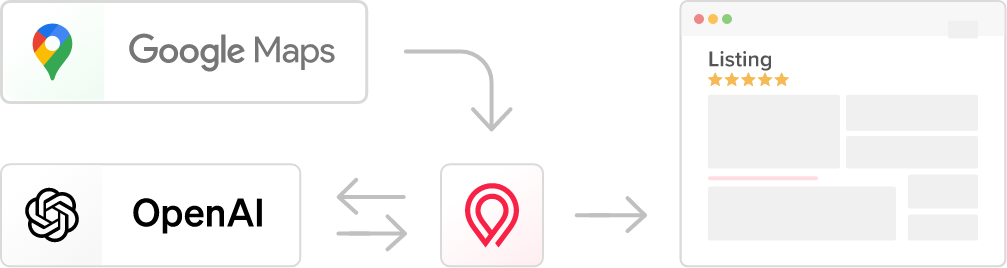
It uses the official Google Places API to fetch places and in OpenAI API to generate SEO‑friendly descriptions (in pro version).
Add your API key then type what you want to import – e.g. “coffee shop in New York” – and let the magic happen.
✅ FREE add-on using official Google API (NOT web scraping) imports:
1. Business Name
2. Full Address
3. Geolocation (Latitude & Longitude for Map Pin)
4. Phone Number
5. Website
6. Google Reviews
7. Daily Opening Hours
8. Photo (1)
9. Google Place ID
10. Google Business Types
1. Business Name
2. Full Address
3. Geolocation (Latitude & Longitude for Map Pin)
4. Phone Number
5. Website
6. Google Reviews
7. Daily Opening Hours
8. Photo (1)
9. Google Place ID
10. Google Business Types
Additional features in PRO version→
1. Bulk import up to 100 listings at once and up to 10 photos per listing
2. AI generated SEO friendly descriptions
3. Adjustable AI system prompt
4. Interactive map view
5. Scheduled imports
6. Option to regenerate SEO descriptions or gallery for selected listings
Installation & How to use?
- Go to https://purethemes.net/license/ and download Listeo Data Importer plugin
You’ll need purchase key: How to find my license key? - Upload listeo-data-importer.zip in WP Dashboard → Plugin → Add New and install & activate.
- Find Listeo Importer in your WordPress sidebar go directly to Settings page where you can tweak some settings. We will not describe each setting here because they are well explained on plugin’s page. 🙂

You’ll need two API keys – one for Google Places and one for OpenAI (optional). Follow the instructions below to set them up:
Creating Google Maps API Key → – key should be restricted to your domain and Places API (New) enabled (this is important because legacy Places API does not work correctly)
How to create Open AI API key? →
- Then go to “Import” page, specify business type/service you’d like to import and where.

Hit “Run Import” and let the magic happen. For an example, we imported 10 “gym&fitness” places with AI generated description and 1 photo per listing.
If you selected “Let me manually select places to be imported” you will need to confirm listings to be imported


- Once done you should see imported listings

and here’s sample listing after import with all necessary data including AI-generated SEO friendly description

- Missing Google Reviews after import? You need to enable them in theme settings. How to enable Google Reviews?


FAQ
-
How much does it cost to import listings?
-
How can I import more listings?
-
Why can't I import all listings in my city at once?
-
Why does finding 20 new listings may require more than 20 API calls?
-
Photo storage and compliance with Google’s Terms of Service
-
Why Google reviews are cached and not stored in database?