Ready-made translations
Listeo is pre-translated into 40+ languages and verified by native speakers, ready to use:
 বাংলা (বাংলাদেশ)
 Bosanski (Bosna i Hercegovina)
 Cymraeg (Cymru)
 Čeština (Česko)
 Dansk (Danmark)
 Deutsch (Deutschland)
 Deutsch (Österreich)
 Ελληνικά (Ελλάδα)
 Eesti (Eesti)
 Español (España)
 Español (México)
 فارسی (ایران)
 فارسی (افغانستان)
- Français (France)
- Français (Canada)
- עברית (ישראל)
- हिन्दी (भारत)
- Hrvatski (Hrvatska)
- Magyar (Magyarország)
- Bahasa Indonesia (Indonesia)
- Italiano (Italia)
- 日本語 (日本)
- ქართული (საქართველო)
- 한국어 (대한민국)
- Lëtzebuergesch (Lëtzebuerg)
- Lietuvių (Lietuva)
- Latviešu (Latvija)
- Nederlands (Nederland)
- Nederlands (België)
- Polski (Polska)
- Português (Portugal)
- Português (Brasil)
- Română (România)
- Shqip (Shqipëria)
- Srpski (Srbija)
- Slovenčina (Slovensko)
- Slovenščina (Slovenija)
- Svenska (Sverige)
- தமிழ் (இந்தியா)
- Türkçe (Türkiye)
- Українська (Україна)
- Tiếng Việt (Việt Nam)
- 简体中文 (中国)
- 繁體中文 (台灣)
- 繁體中文 (香港)
 فارسی (افغانستان)
 Français (France)
 Français (Canada)
 עברית (ישראל)
 हिन्दी (भारत)
 Hrvatski (Hrvatska)
 Magyar (Magyarország)
 Bahasa Indonesia (Indonesia)
 Italiano (Italia)
 日本語 (日本)
 ქართული (საქართველო)
 한국어 (대한민국)
 Lëtzebuergesch (Lëtzebuerg)
 Lietuvių (Lietuva)
 Latviešu (Latvija)
 Nederlands (Nederland)
 Nederlands (België)
 Polski (Polska)
 Português (Portugal)
 Português (Brasil)
 Română (România)
 Shqip (Shqipëria)
 Srpski (Srbija)
 Slovenčina (Slovensko)
 Slovenščina (Slovenija)
 Svenska (Sverige)
 Türkçe (Türkiye)
 Українська (Україна)
 Tiếng Việt (Việt Nam)
 简体中文 (中国)
 繁體中文 (台灣)
 繁體中文 (香港)
Each translation is generated using the OpenAI. The translations are very accurate and natural. You’ll likely need to adjust only a few words or phrases – if any. 🙂
How to install ready to use translation?
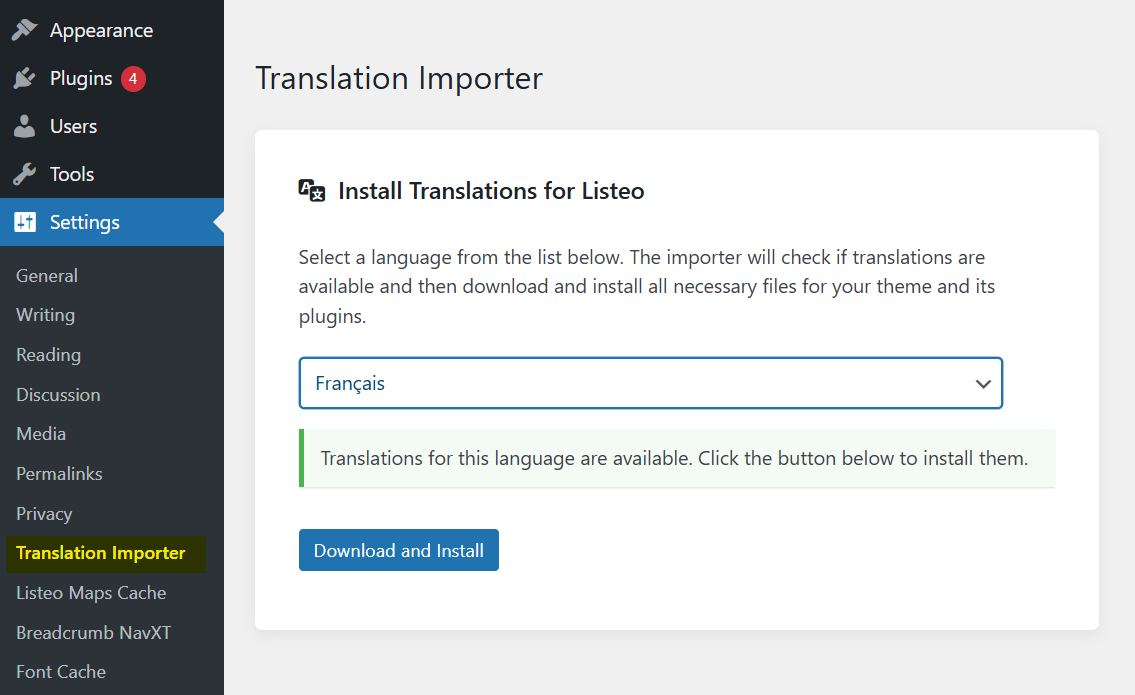
- Navigate to Dashboard → Settings → Translation Importer
- Select your language and click “Download and Install” and that’s it, done!

- Important! Add translated URL titles in Settings → Permalinks for Listings base – otherwise listing pages might lead to 404 error page.

- How to edit translation? →
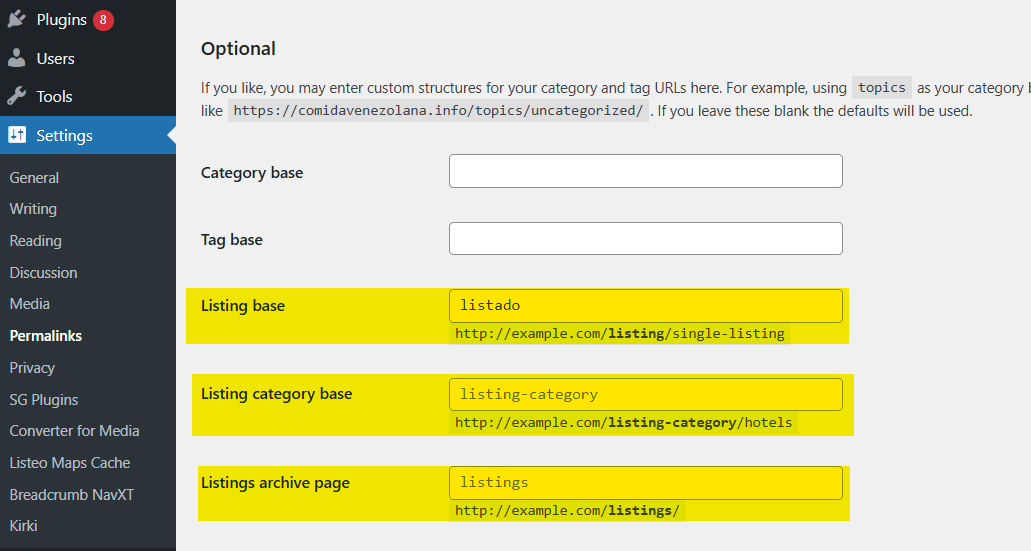
Don’t forget to translate
Dashboard page titles via WordPress page editor:
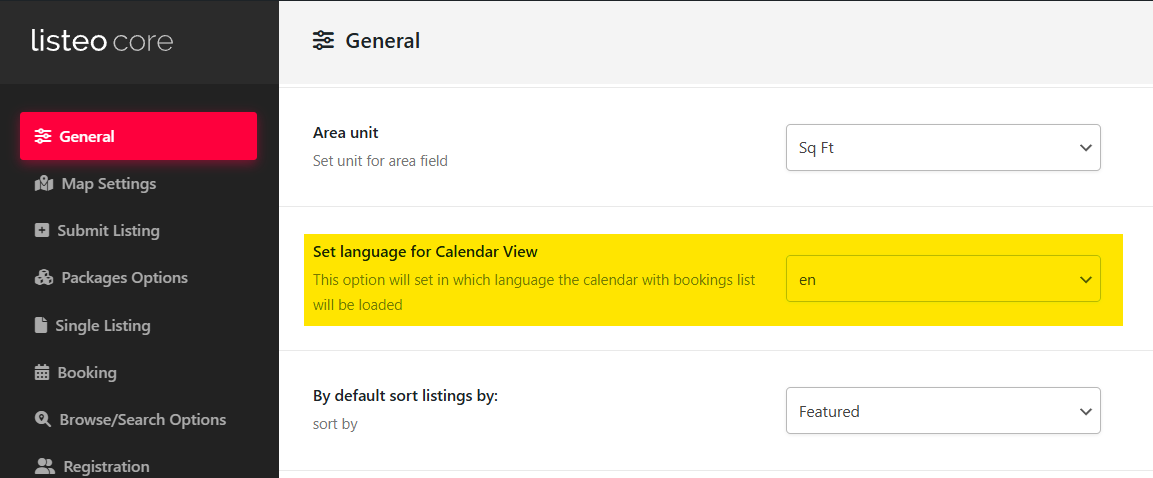
Set calendar language in Listeo Core → General
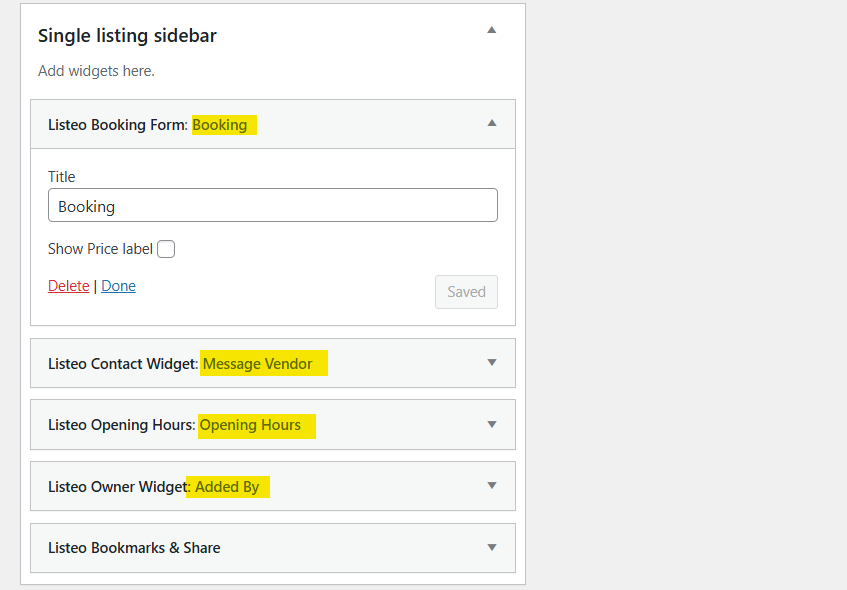
and widget titles in Appearance → Widgets
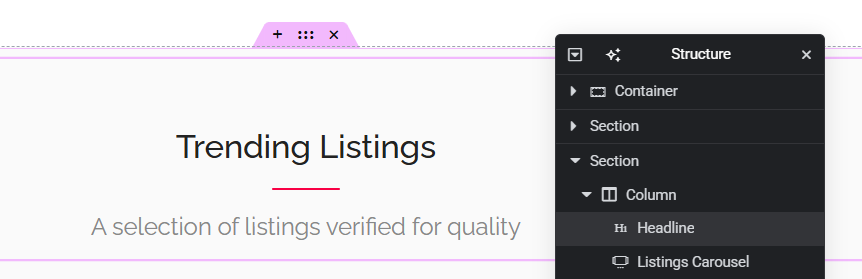
Texts on homepages have to be translated in Elementor (click Edit with Elementor on WordPress toolbar).
Multi-Language Support
If you’d like to enable language switcher on your website we recommend TranslatePress. Free version offers 1 additional language, Pro version – unlimited.
For TranslatePress users we create Chrome browser extension (this is not WordPress plugin!) that helps to translate your website quickly and effective with help of GPT: https//purethemes.net/trp-ai-translator.zip



How to edit translation?
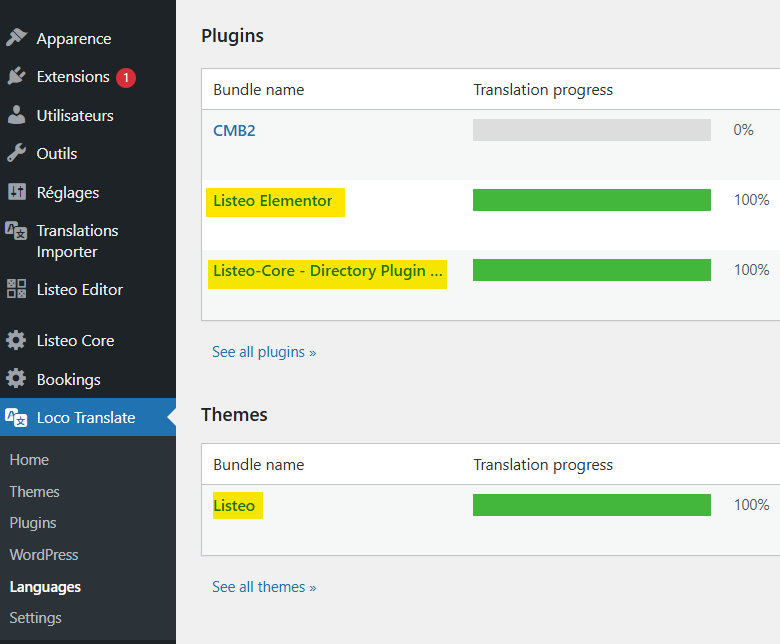
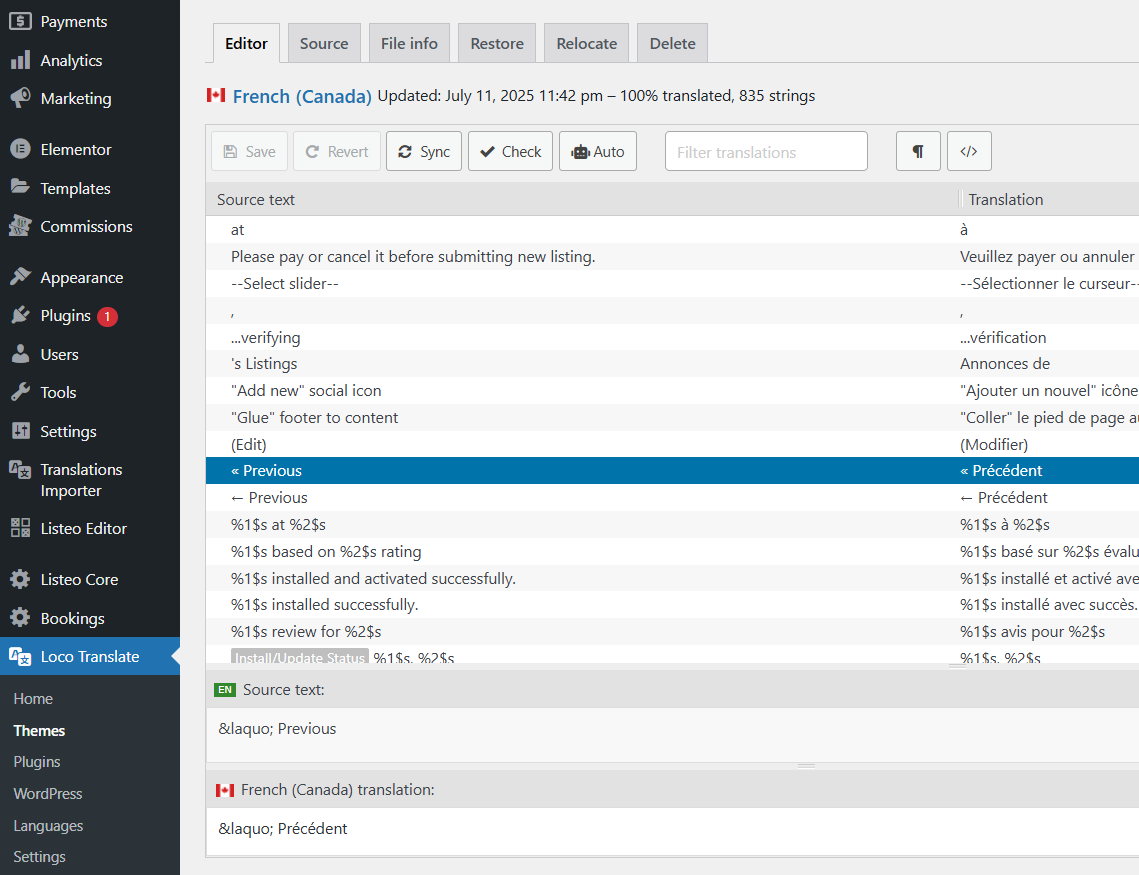
- To do that, install Loco Translate, then go to Loco Translate → Languages and select either the Listeo theme or the Listeo Core + Listeo Elementor plugins (translations are split between them).

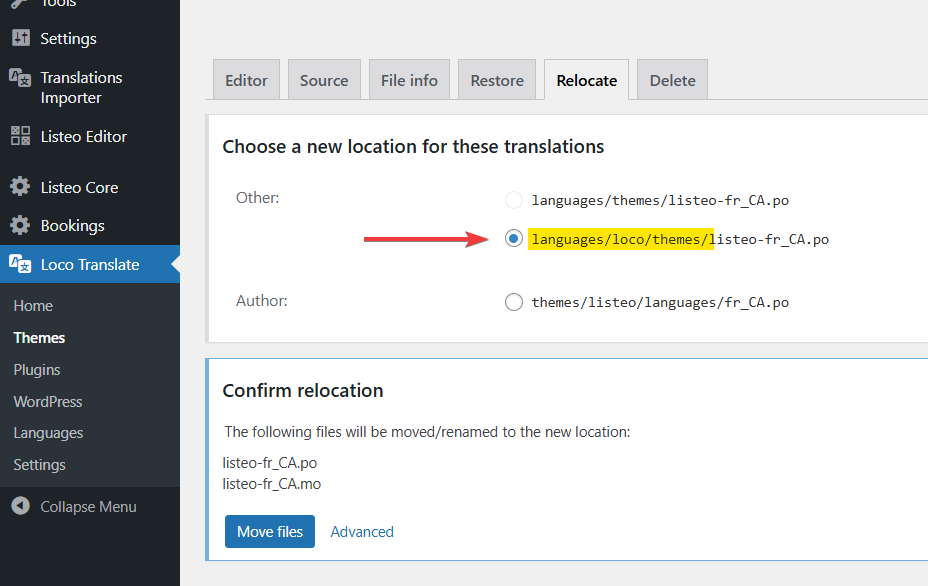
- Before editing strings in the Listeo theme, you need to relocate the translation files. To do this, go to the “Relocate” tab in Loco and select languages/loco/themes/ as the directory where the translation file will be stored and click Move files
Why? Because the files need to be saved in a safe location where WordPress won’t delete them during updates.